How to change a task status in CRM
Mark an existing task as done and check its saved status.
- Module
- CRM / Tasks
- Reading time
- 3 min
- Difficulty
- Easy
You could do this with your eyes closed :)
- Published
- September 7, 2026
- Author
- Rafał Zeidler
- Format
- Written guide and video
Written procedure
What you will do
Change an existing task from To do to Done. Its name, due date and assignee remain on the task profile.
Requirements
Before you start
| Item | Requirement |
|---|---|
| Access | Owner of the selected company with CRM access and a plan that includes tasks and sales opportunities. |
| Required data | An existing task with To do status. Example: Prepare an offer for Atlas Demo, due September 15, 2026. |
| Starting point | After signing in, select the correct company and open CRM > Tasks. |
| Time | 2 min |
| Effect | The task will be marked as done. You can set it back to To do. |
Process recording
0:19Mark an existing task as done and check its saved status.
Find the task
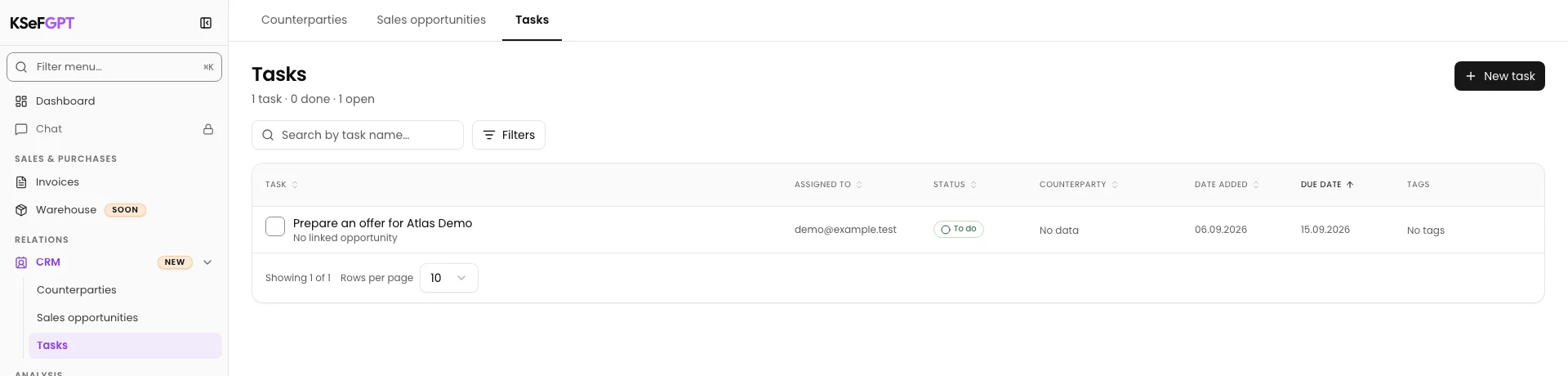
Open CRM > Tasks. Find Prepare an offer for Atlas Demo and check its name and due date.
Open the task profile
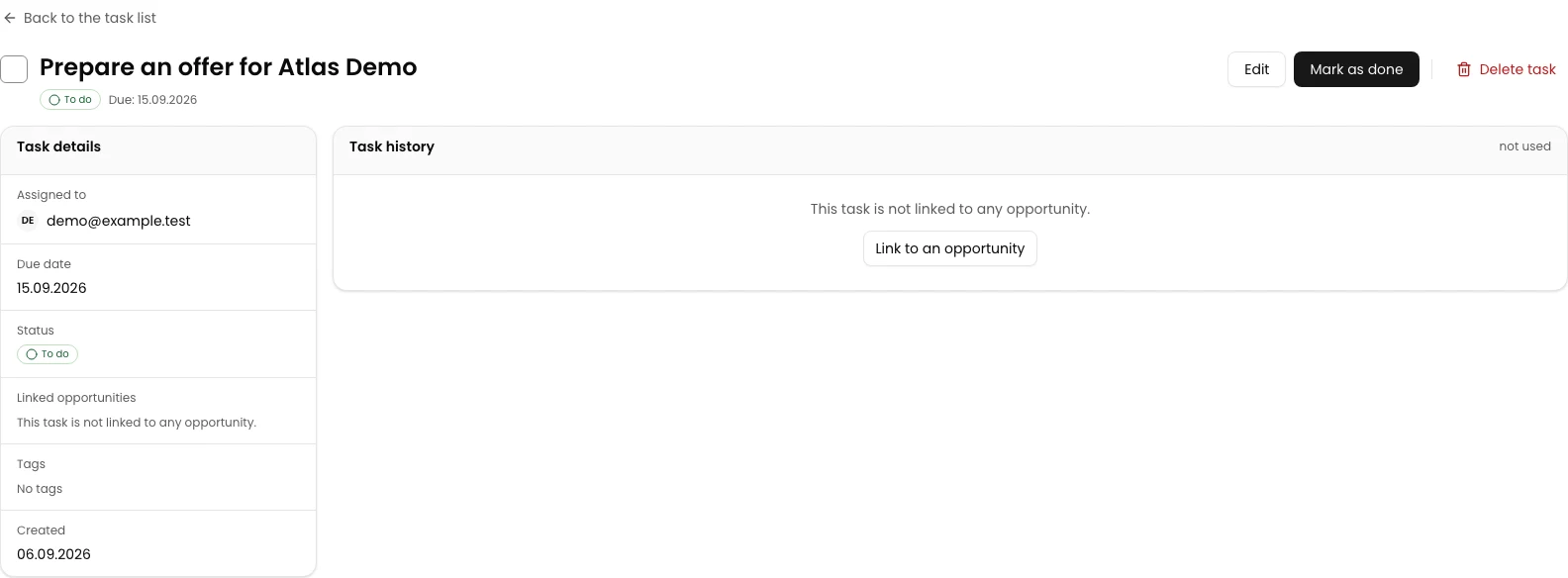
Select the task name. Check To do, the September 15, 2026 due date and Assigned to.
The Mark as done button is at the top right.
Mark the task as done
Select Mark as done. The change saves immediately without another form.
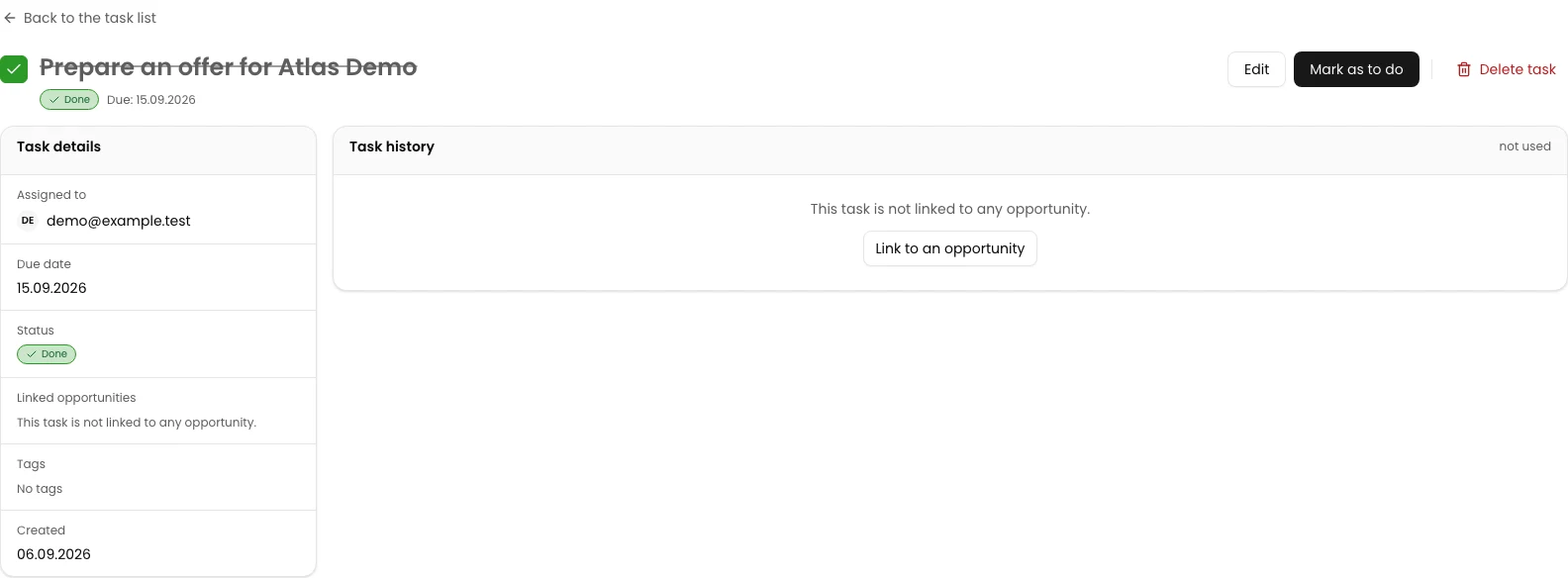
Reload the profile. It shows Done, a checked box and a crossed-out title. The button now reads Mark as to do.
Final state
Check the result
After reloading, the profile shows Done. The due date and assignee are unchanged. This updates the CRM status; clicking the button does not perform the work described in the task.
Diagnostics
If something does not work
| Symptom | Cause | What to do |
|---|---|---|
| You see Mark as to do instead of Mark as done. | The task is already done. | Check the Done status. To reopen the task, select Mark as to do and verify the status after reloading. |
Next steps
Continue with the related instruction: How to add a task with a due date in CRM.
Browse the remaining CRM instructions.
The task is done
After reloading, the profile shows Done. The due date and assignee are unchanged. This updates the CRM status; clicking the button does not perform the work described in the task.
Open CRM