How to check income and expenses for a selected month
Select a company, authentication method and month, then compare gross totals and inspect the invoices behind the summary.
- Module
- Analytics
- Reading time
- 5 min
- Difficulty
- Easy
You could do this with your eyes closed :)
- Published
- August 23, 2026
- Author
- Rafał Zeidler
- Format
- Written guide and video
Written procedure
What you will do
You will open the monthly Summary in Analytics, choose the KSeF authentication method and select a period. You will compare total gross income and expenses on the chart.
You will then inspect the documents included in both totals. Summary does not calculate profit or VAT. Those values are available in the separate KPiR report.
Requirements
Before you start
Summary uses KSeF documents by default. Keep Show imported off when you want to analyze data fetched directly from KSeF.
| Item | Description |
|---|---|
| Access | The company owner or an organization member with analytics:read. |
| Plan | A KSeFGPT plan that includes Analytics. |
| Company | The selected company has an active KSeF token or certificate. |
| Starting point | After signing in, select the correct company and open Analytics. |
| Time required | About 2 minutes. |
| Data scope | Gross totals and invoices issued in the selected month. |
Process recording
0:22The recording shows authentication and month selection, reading the chart, and checking the income and expense lists.
Open Summary
Select Analytics in the side menu and keep Summary active. The KPiR tab is used for a separate tax report.
Check the company name in the bottom left. The chart and lists will apply to this company.
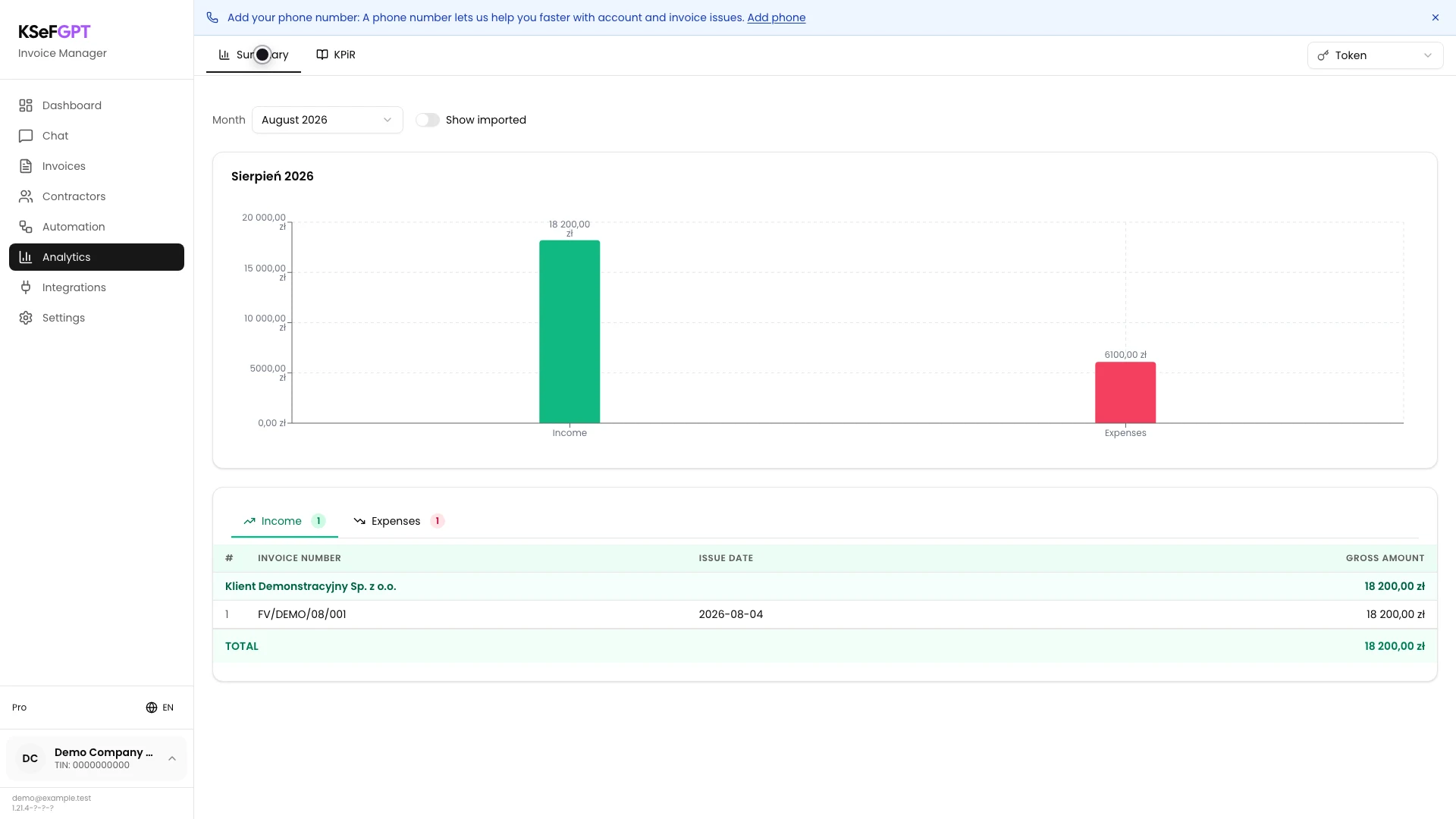
Choose an authentication method
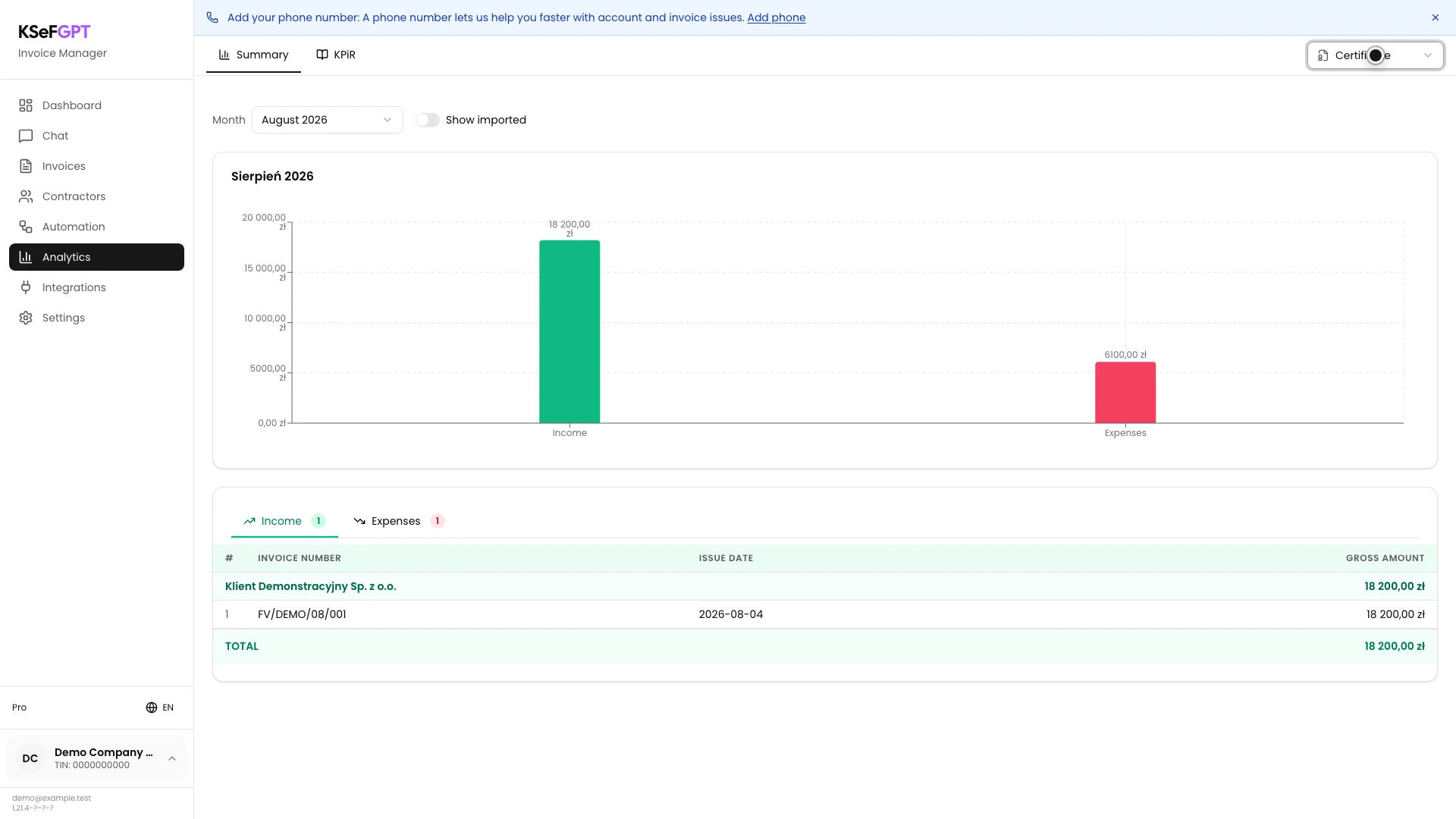
In the top right, select Token or Certificate. The list contains only methods configured for the active company.
KSeFGPT fetches the summary again after the method changes. Certificate is selected in the example.
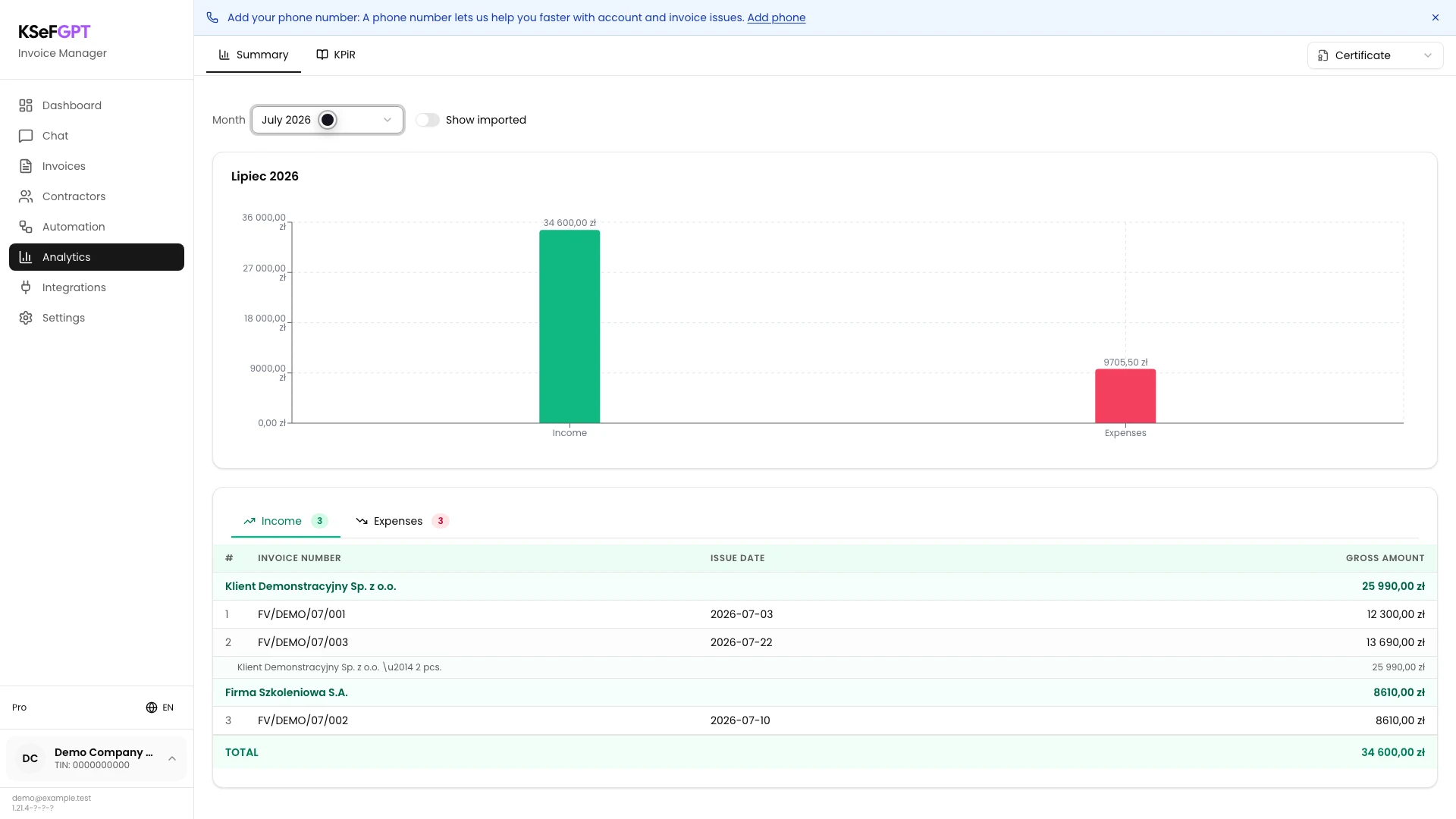
Select the month
Open Month and choose the period you want to inspect. The example uses July 2026.
Keep Show imported off to use KSeF data. The chart and both document lists refresh automatically after the month changes.
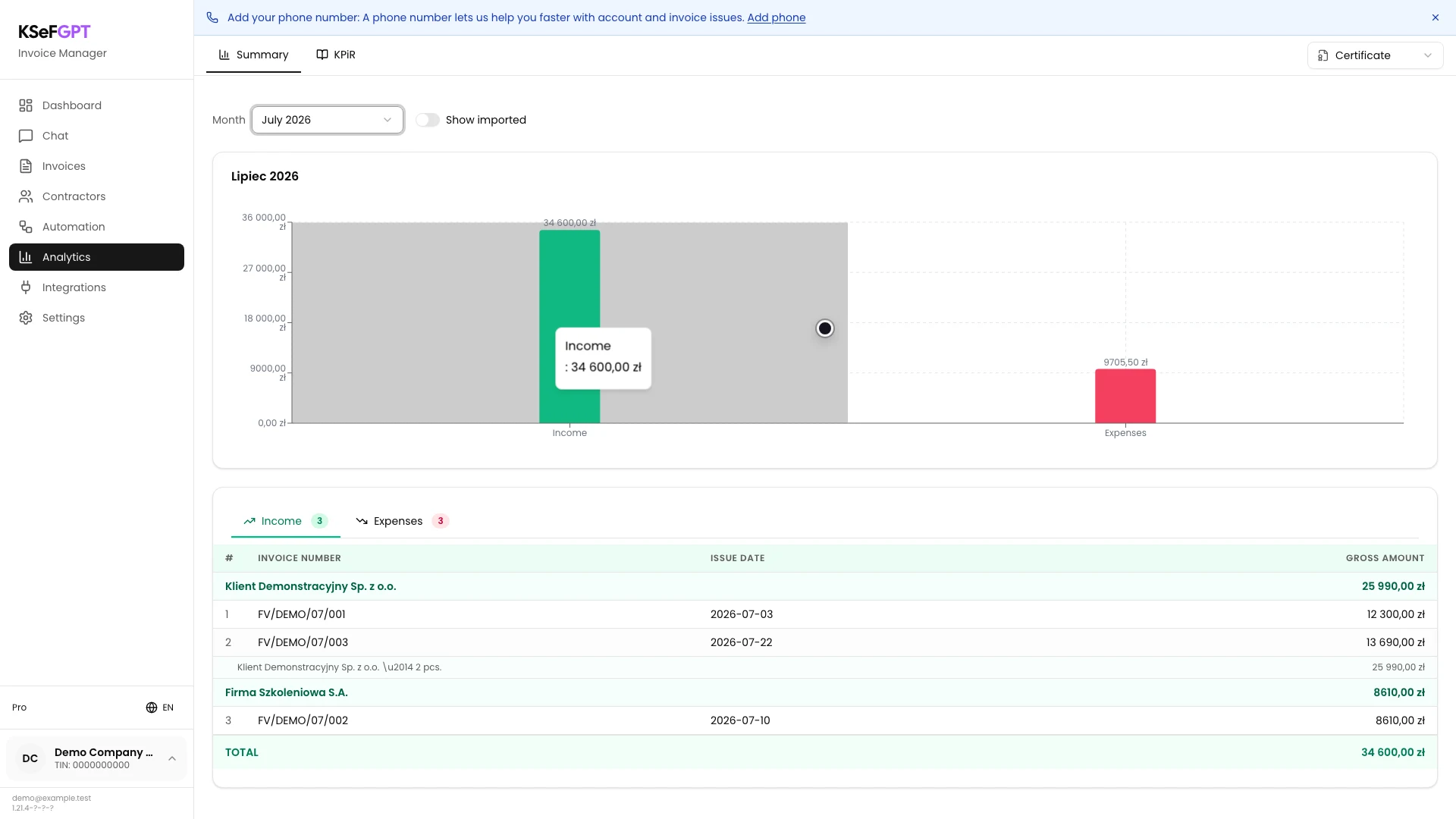
Compare income and expenses
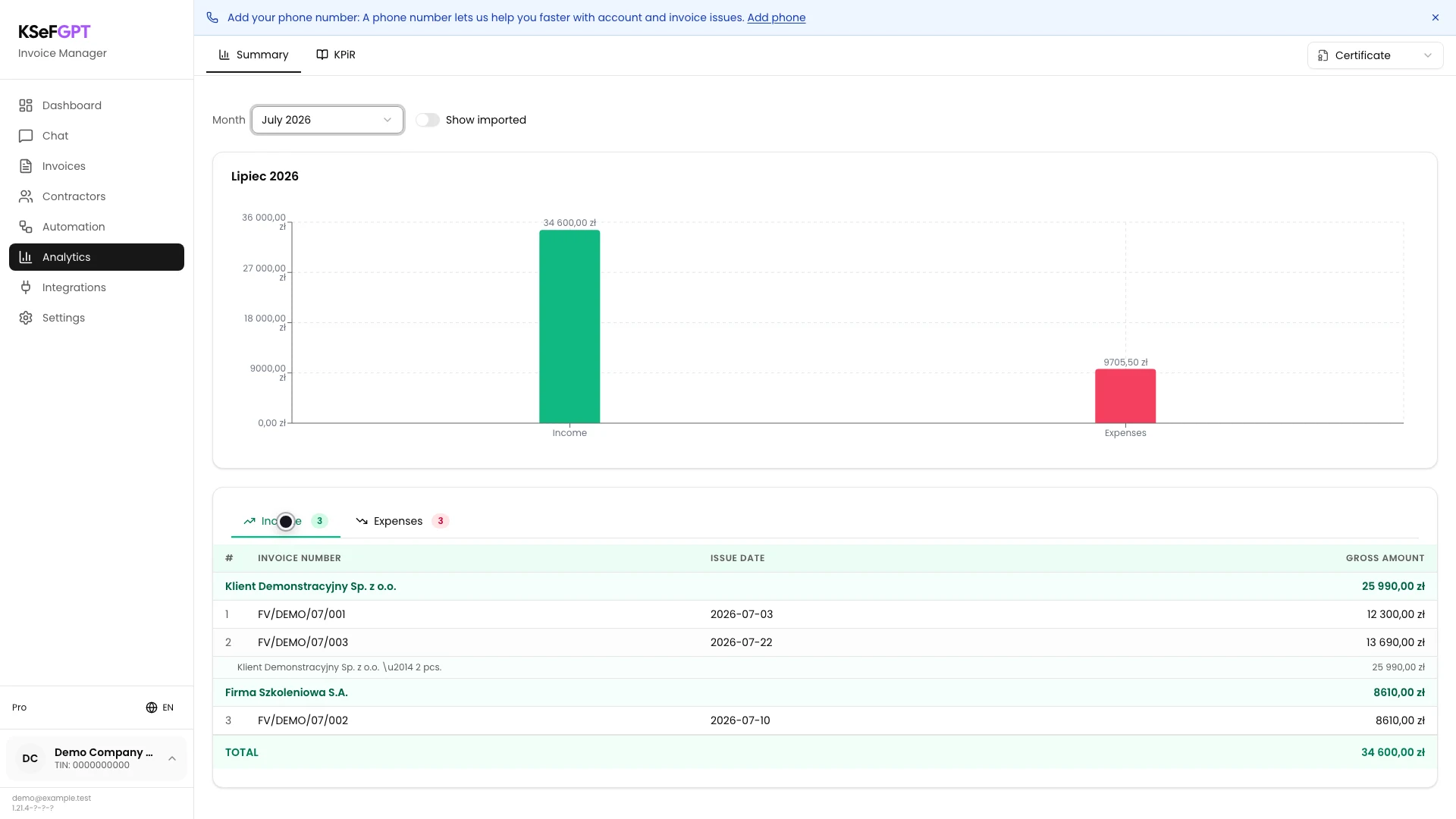
Read the green Income bar and the red Expenses bar. The label above each bar shows the total gross value of documents for the selected month.
Do not treat the difference between the bars as taxable profit. Summary uses gross amounts, while profit and VAT are calculated in the KPiR report.
Check income invoices
Open Income below the chart. The badge beside the tab name shows the number of documents.
Invoices are grouped by counterparty. Compare the invoice number, issue date and gross amount, then check TOTAL at the bottom of the table.
Check expense invoices
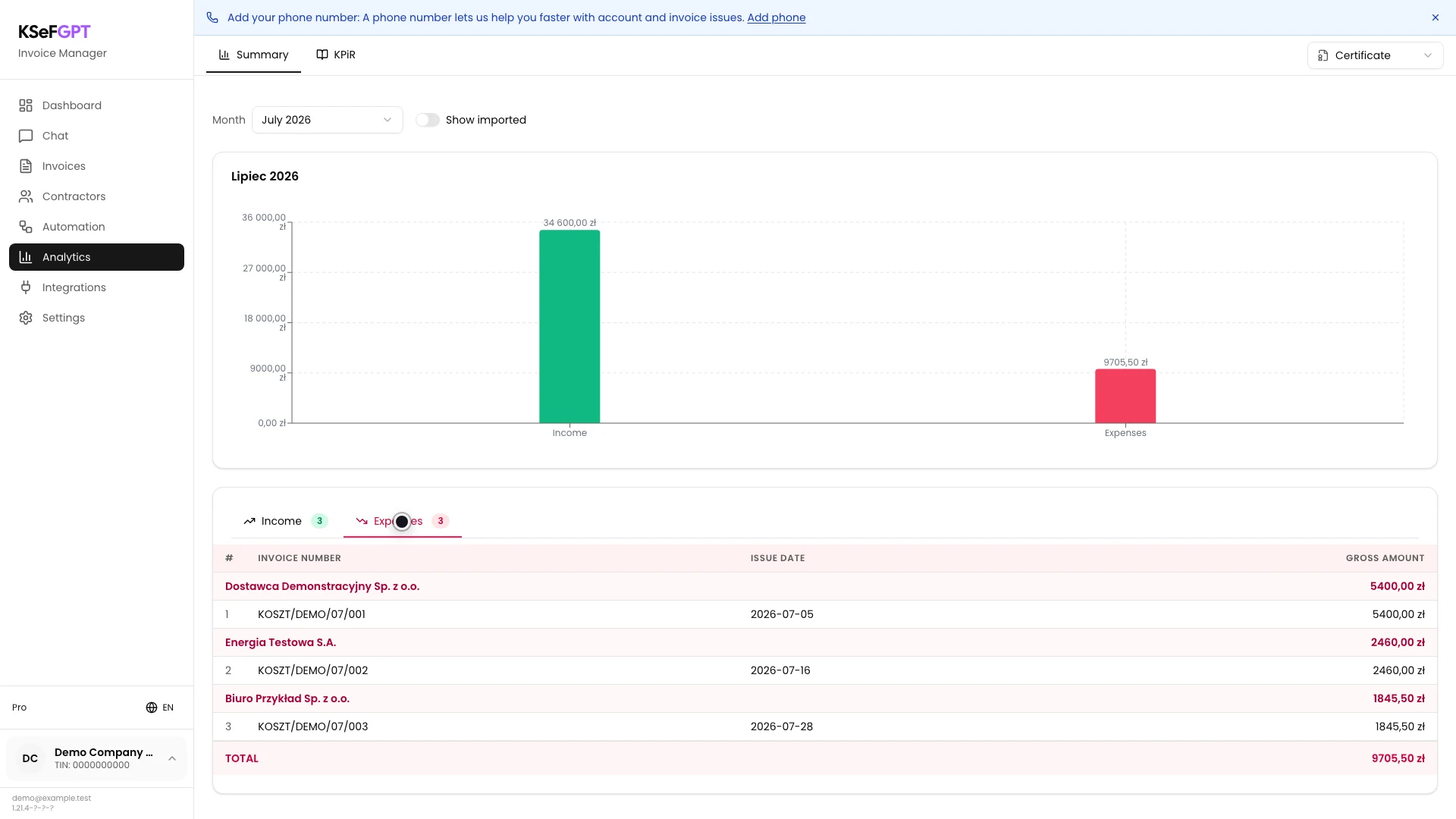
Select Expenses. The table shows purchase invoices grouped by seller and their gross amounts.
Confirm that the document count and TOTAL match the red part of the summary. In the example, three documents total PLN 9,705.50.
Final state
Check the result
The selected month appears above the chart, and the Income and Expenses amounts match TOTAL in their respective tables.
If you need profit, net amounts or a VAT breakdown, open KPiR. Do not calculate them by simply subtracting the Summary totals.
Diagnostics
If something does not work
Compare the symptom with the table below.
| Symptom | Likely cause | What to do |
|---|---|---|
| Analytics is unavailable | The company plan does not include Analytics or analytics:read is missing. | Check the plan or ask the organization owner for analytics access. |
| You are asked to select a company | No company is selected in the current session. | Use the company selector in the bottom left and open Summary again. |
| The application requires a KSeF connection | The company has no active token or certificate. | Add KSeF credentials in Settings and return to Analytics. |
| No data to analyze appears | The period has no documents or the request failed. | Check the month and authentication method, then refresh the page. |
| The required month is not listed | The selector covers elapsed months of the current year and the last quarter of the previous year. | Choose an available period or use KPiR for a broader report. |
| Totals differ from the KPiR report | Summary shows gross values from the selected source, while KPiR uses tax classifications. | Check the data source, month and document classifications in KPiR. |
What next
Turn on Show imported only when you want to analyze invoices submitted to KSeFGPT outside the direct KSeF fetch.
Open KPiR to prepare a report containing profit, net values, VAT and income tax advances.
Check your company's monthly summary
Sign in, choose a month, and compare income and expenses using invoices from KSeF.
Sign in to KSeFGPT