How to prepare and download a KPiR report
Order the current-month report, review document classifications, and download the finished XLSX file.
- Module
- Analytics
- Reading time
- 6 min
- Difficulty
- Intermediate
Follow the instructions carefully and you will succeed
- Published
- August 24, 2026
- Author
- Rafał Zeidler
- Format
- Written guide and video
Written procedure
What you will do
You will prepare a KPiR report for the current month and year-to-date data. You will review the income, costs, profit, VAT, and income tax advance summaries.
You will open expense line classifications, change a KPiR column if needed, and download kpir_2026_8.xlsx. The year and month in the file name depend on when the report is prepared.
Requirements
Before you start
KSeFGPT creates the report for the current calendar month. This view does not let you select an earlier month or a custom date range.
| Item | Description |
|---|---|
| Access | The company owner or an organization member with analytics:read. |
| Plan | A KSeFGPT plan that includes Analytics. |
| Company | The selected company has an active KSeF token or certificate. |
| Starting point | After signing in, select the correct company and open Analytics. |
| Time required | About 3 minutes plus report generation time. |
| Effect of a change | Saving a classification correction immediately updates the current report values. |
Process recording
0:27The recording shows ordering a KPiR report, reviewing and changing an expense classification, and downloading the XLSX file.
Open KPiR and choose an authentication method
Select Analytics in the side menu, then open KPiR. In the top right, choose Token or Certificate.
The list contains only methods configured for the active company. If no report has been prepared this month, you will see No KPiR report.
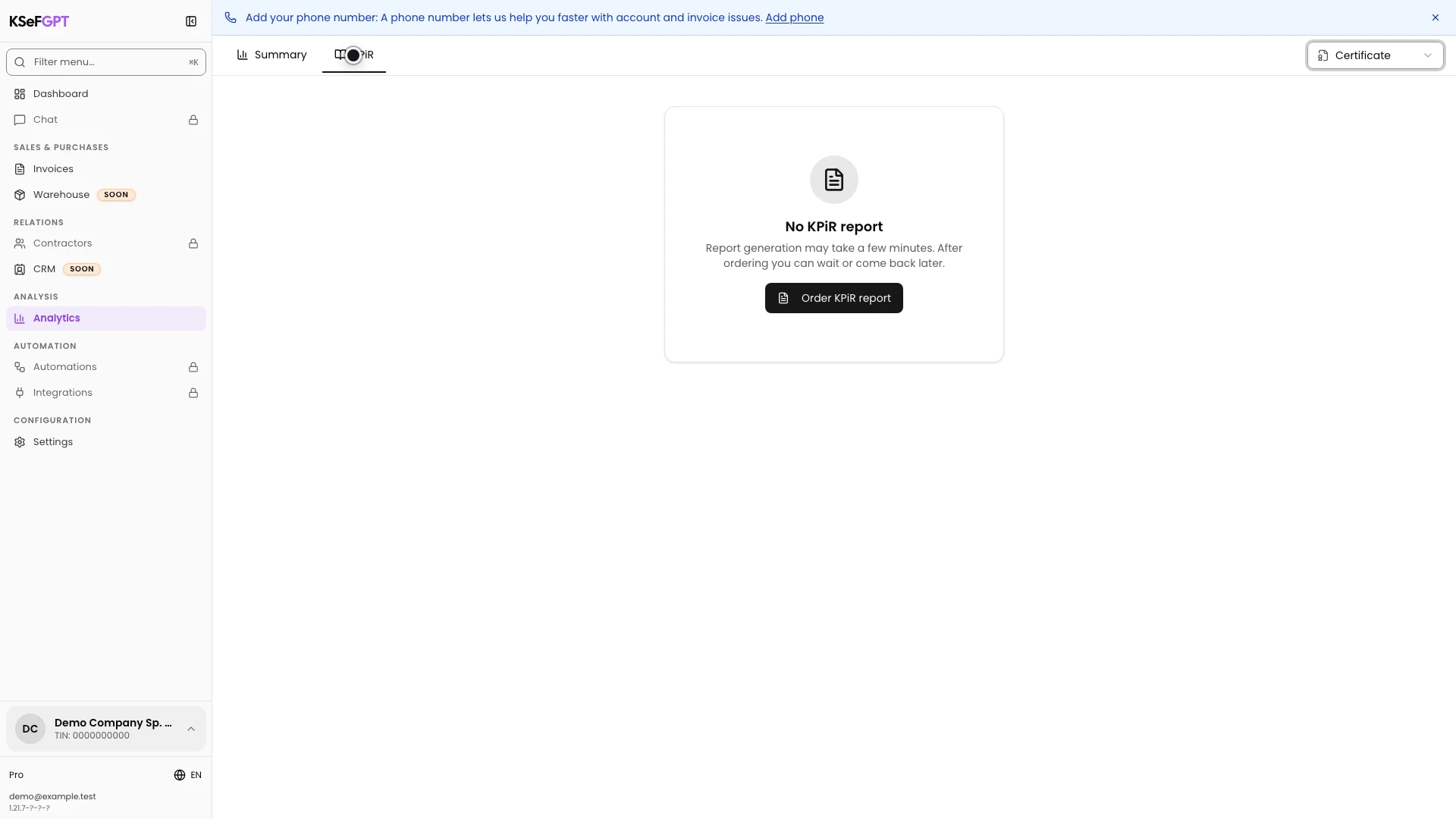
Order the report
Select Order KPiR report. KSeFGPT starts fetching and classifying documents for the current month and year to date.
Generating report appears on the screen. The process may take a few minutes. You can stay on the page or return later.
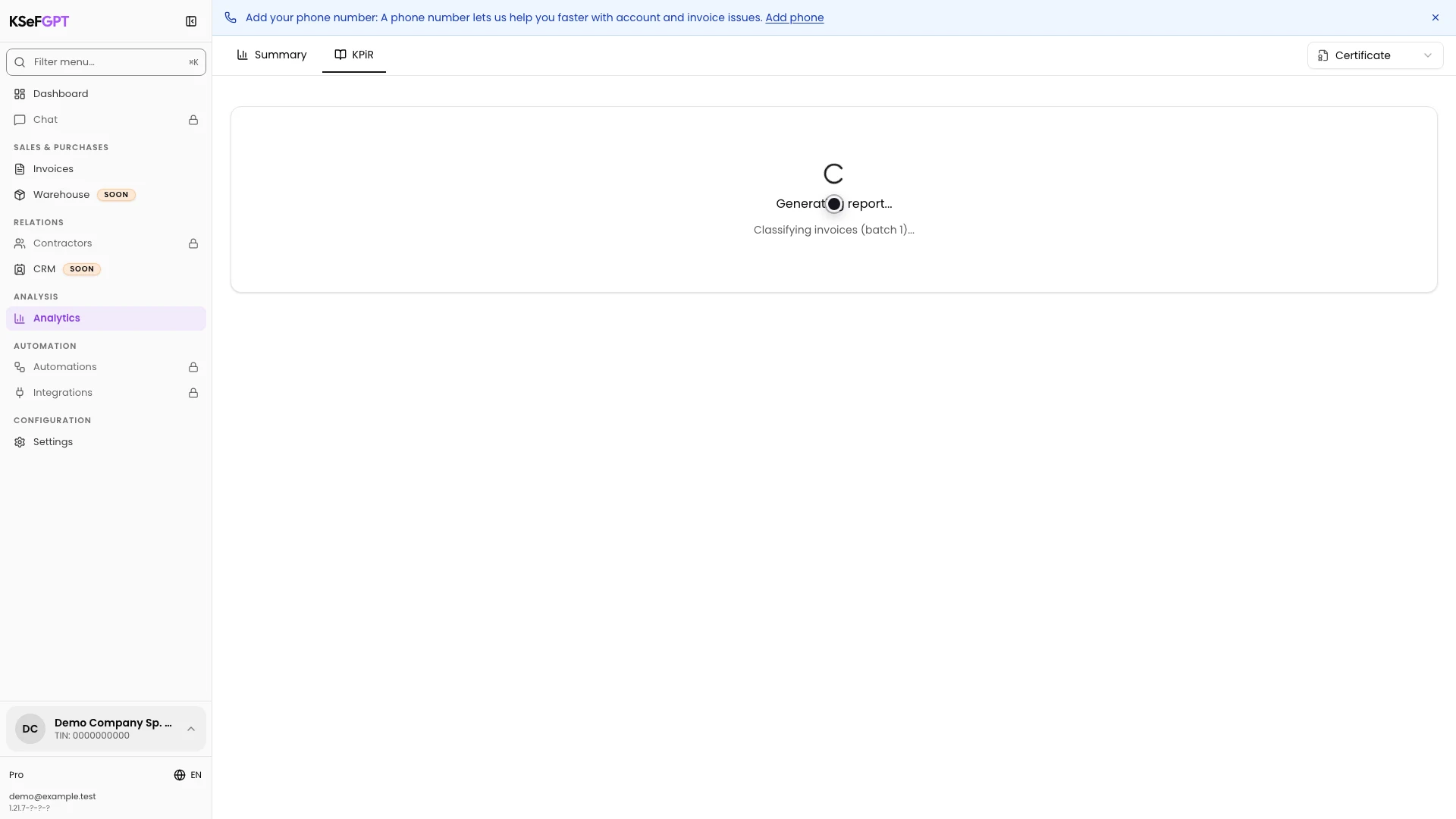
Review the report summary
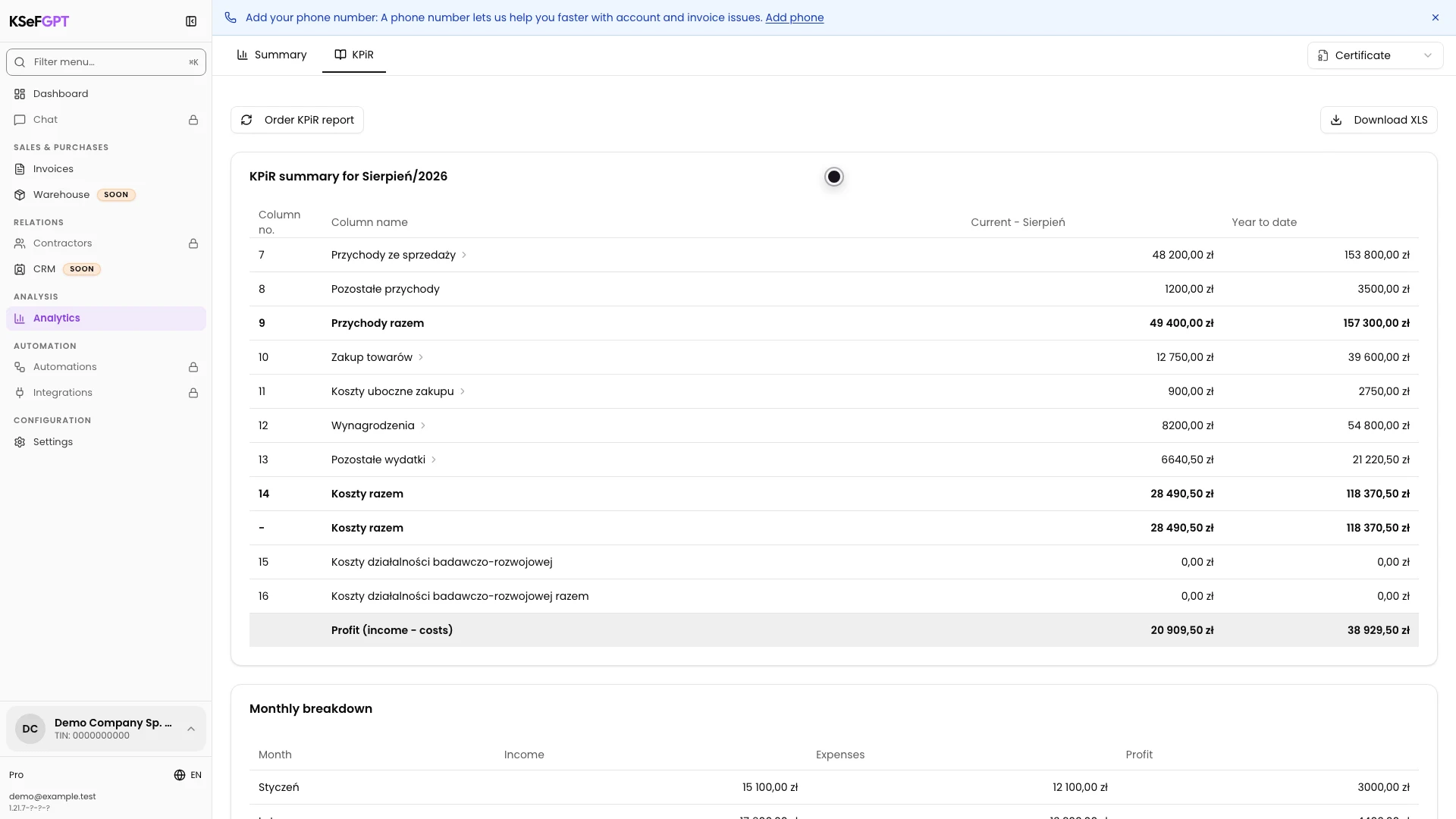
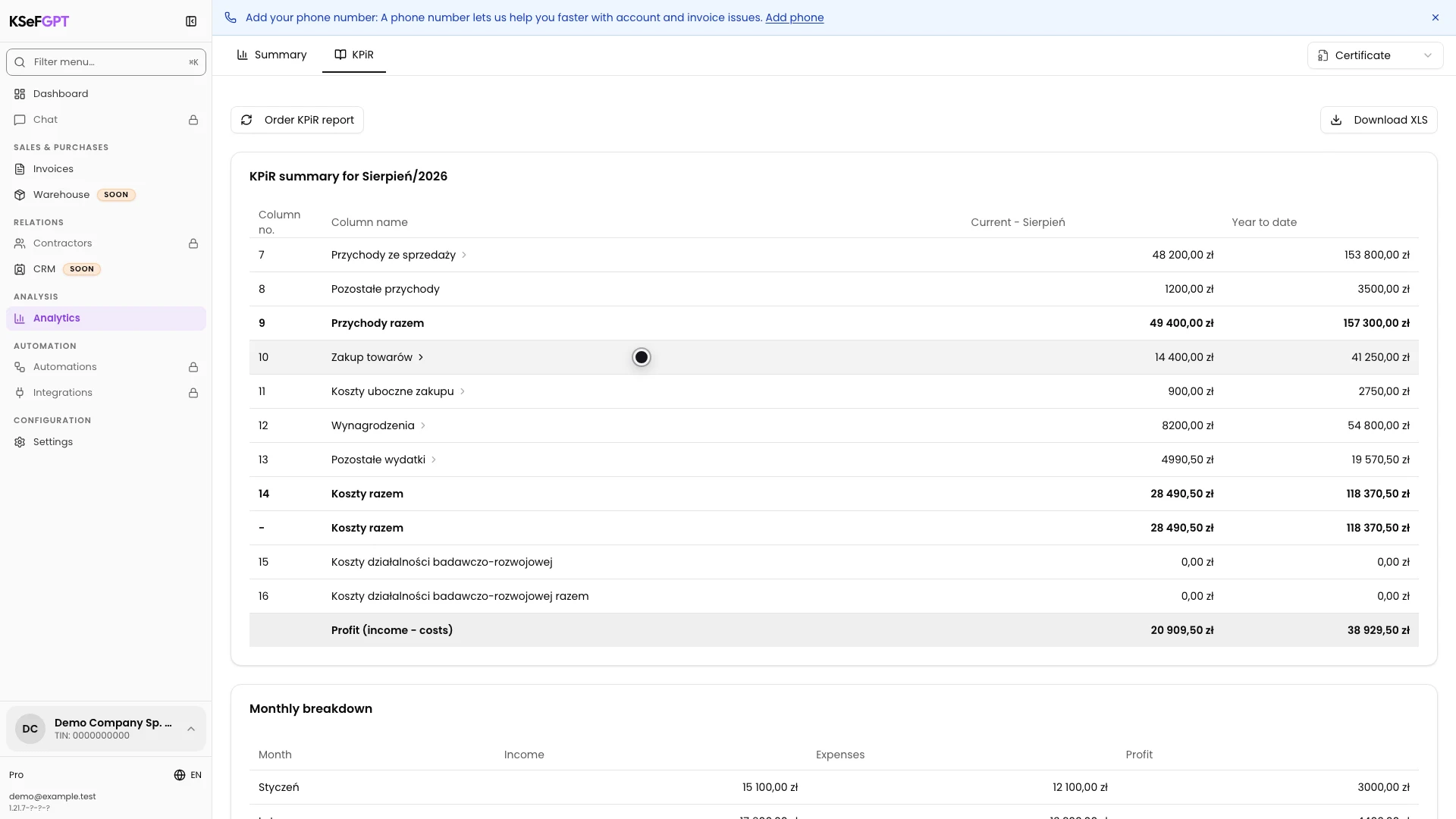
When generation is complete, review KPiR summary. Current shows values for the current month, while Year to date shows cumulative values.
The Profit row shows the difference between total income and costs. The monthly breakdown, VAT summary, and income tax advances appear below.
Month names and KPiR row labels currently come from the API in Polish, so they can remain Polish in the EN, DE, and UK interfaces.
Review line-item classifications
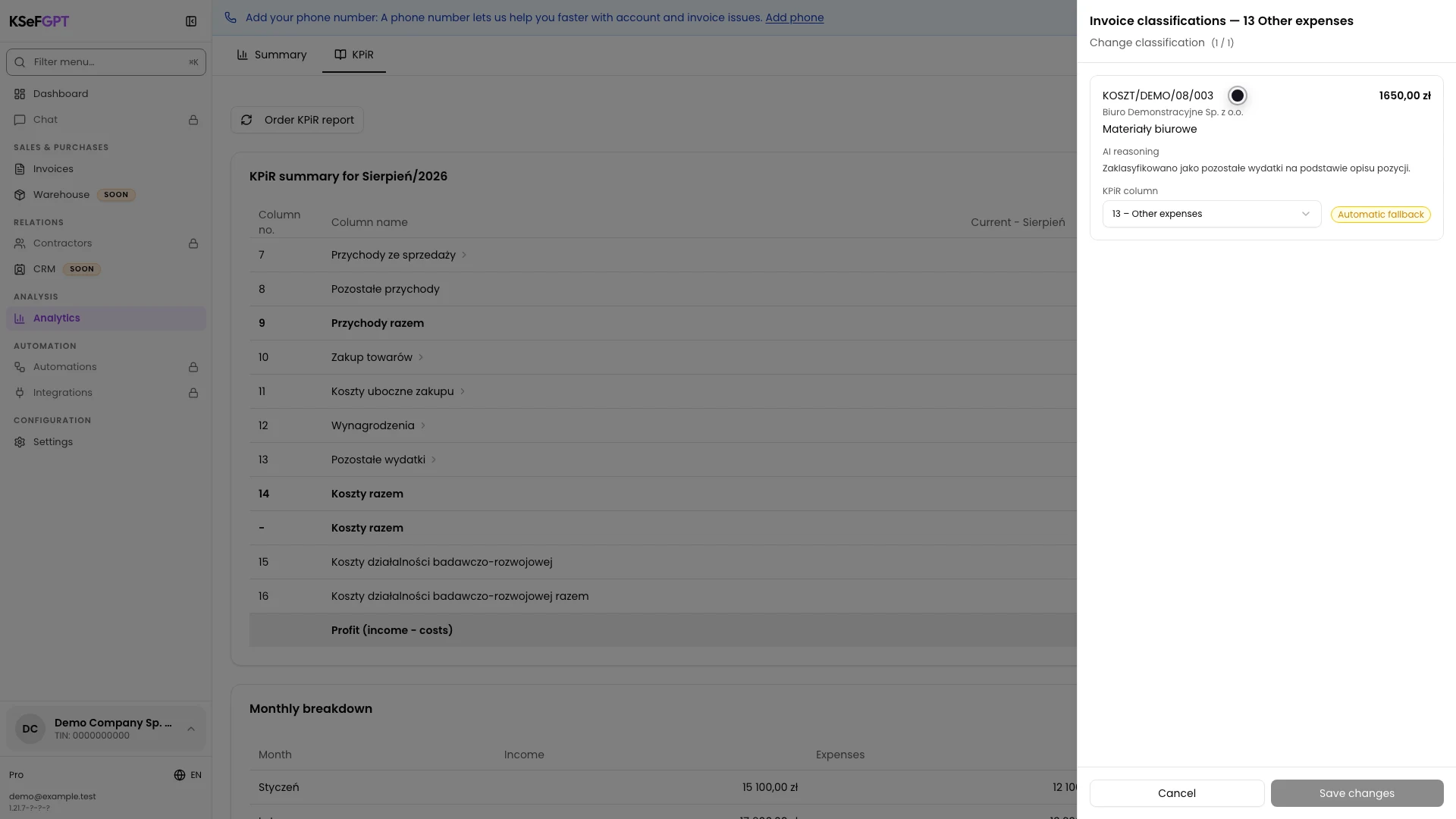
Select column 7, 10, 11, 12, or 13 to open the items assigned to it. The example uses 13 Pozostałe wydatki.
For each item, you can see the invoice number, seller, name, net amount, AI reasoning, and current KPiR column. Automatic fallback identifies a fallback result that needs particular attention.
Correct the classification if needed
If an item is in the wrong column, open KPiR column and select the correct option. For an expense, you can choose column 10, 11, 12, or 13.
Select Save changes. The panel closes and the amount moves between report columns. Total costs and profit do not change when you move a cost between two expense columns.
Download the XLSX file
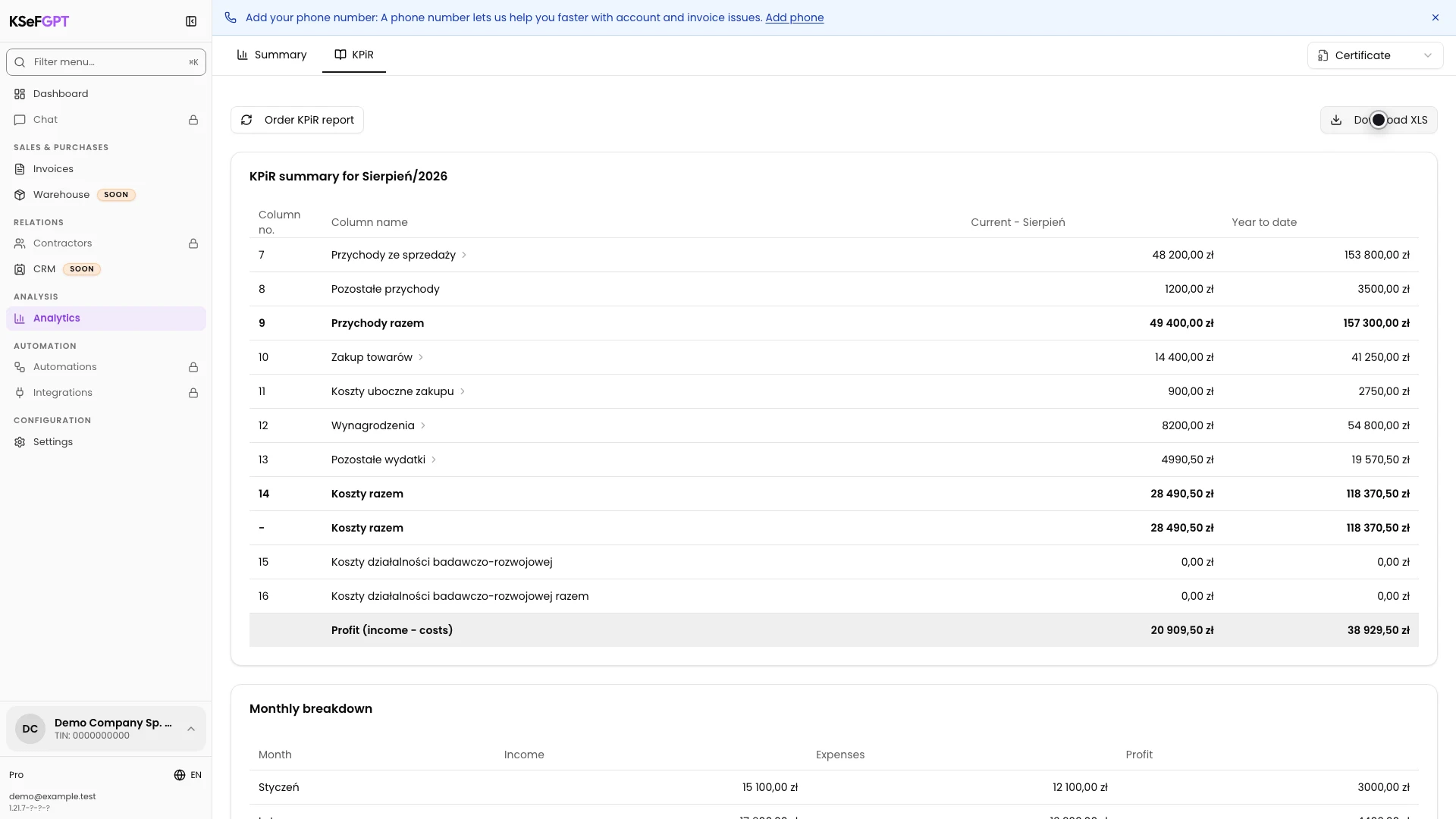
After reviewing the report, select Download XLS in the top right. The browser saves a workbook containing the current report version.
The file is named kpir_YYYY_M.xlsx. For August 2026, it is kpir_2026_8.xlsx.
Final state
Check the result
KPiR shows the current-month report, year-to-date values, and corrected column assignments. Your browser download folder contains kpir_2026_8.xlsx or a file with the corresponding current year and month.
You can also confirm a classification change by opening the original row again. The item no longer appears in its previous column.
Diagnostics
If something does not work
Compare the symptom with the table below.
| Symptom | Likely cause | What to do |
|---|---|---|
| Analytics is unavailable | The company plan does not include Analytics or analytics:read is missing. | Check the plan or ask the organization owner for analytics access. |
| You are asked to select a company | No company is selected in the current session. | Use the company selector in the bottom left and open KPiR again. |
| The application requires a KSeF connection | The company has no active token or certificate. | Add KSeF credentials in Settings and return to Analytics. |
| The report is still generating | Document fetching and classification have not finished. | Wait. The view checks the status about every 15 seconds, and you can also return later. |
| Generation failed | The KPiR job could not fetch or process the data. | Read the message and select Order KPiR report again. |
| Save changes is disabled | No item's column has been changed. | Choose a different KPiR column or close the panel without saving. |
| No file was downloaded | The report is no longer available or the download failed. | Refresh KPiR, confirm that the report is ready, and select Download XLS again. |
What next
Keep the downloaded workbook with your accounting records and pass it to the person responsible for settlements.
If you only need a quick comparison of gross totals and invoices for a selected month, follow the instruction for checking income and expenses in Summary.
Prepare a KPiR report in KSeFGPT
Sign in, review document classifications, and download the finished workbook.
Sign in to KSeFGPT