How to create an automation from a ready-made template
Choose the ready-made invoice fetch workflow, set its schedule and document scope, then save your first automation.
- Module
- Automation
- Reading time
- 6 min
- Difficulty
- Intermediate
Follow the instructions carefully and you will succeed
- Published
- August 23, 2026
- Author
- Rafał Zeidler
- Format
- Written guide and video
Written procedure
What you will do
You will create a workflow from the Pobieranie faktur template. You will set a daily schedule, limit fetching to incoming invoices and save the configuration.
The new workflow will remain Inactive, so you can review it before the first test and before enabling automatic runs.
Requirements
Before you start
This example creates a safe, inactive automation. A separate guide covers activation and execution history.
| Item | Description |
|---|---|
| Access | The company owner or an organization member with automation:manage. |
| Plan | A KSeFGPT plan that includes Automation. |
| KSeF connection | The selected company has an active KSeF token or certificate. |
| Starting point | After signing in, select the correct company and open Automation. |
| Time required | About 4 minutes. |
| Result | A saved Inactive workflow with a daily schedule and incoming invoice fetch. |
Process recording
0:55The recording shows template selection, schedule and invoice type configuration, and saving an inactive workflow.
Start creating the workflow
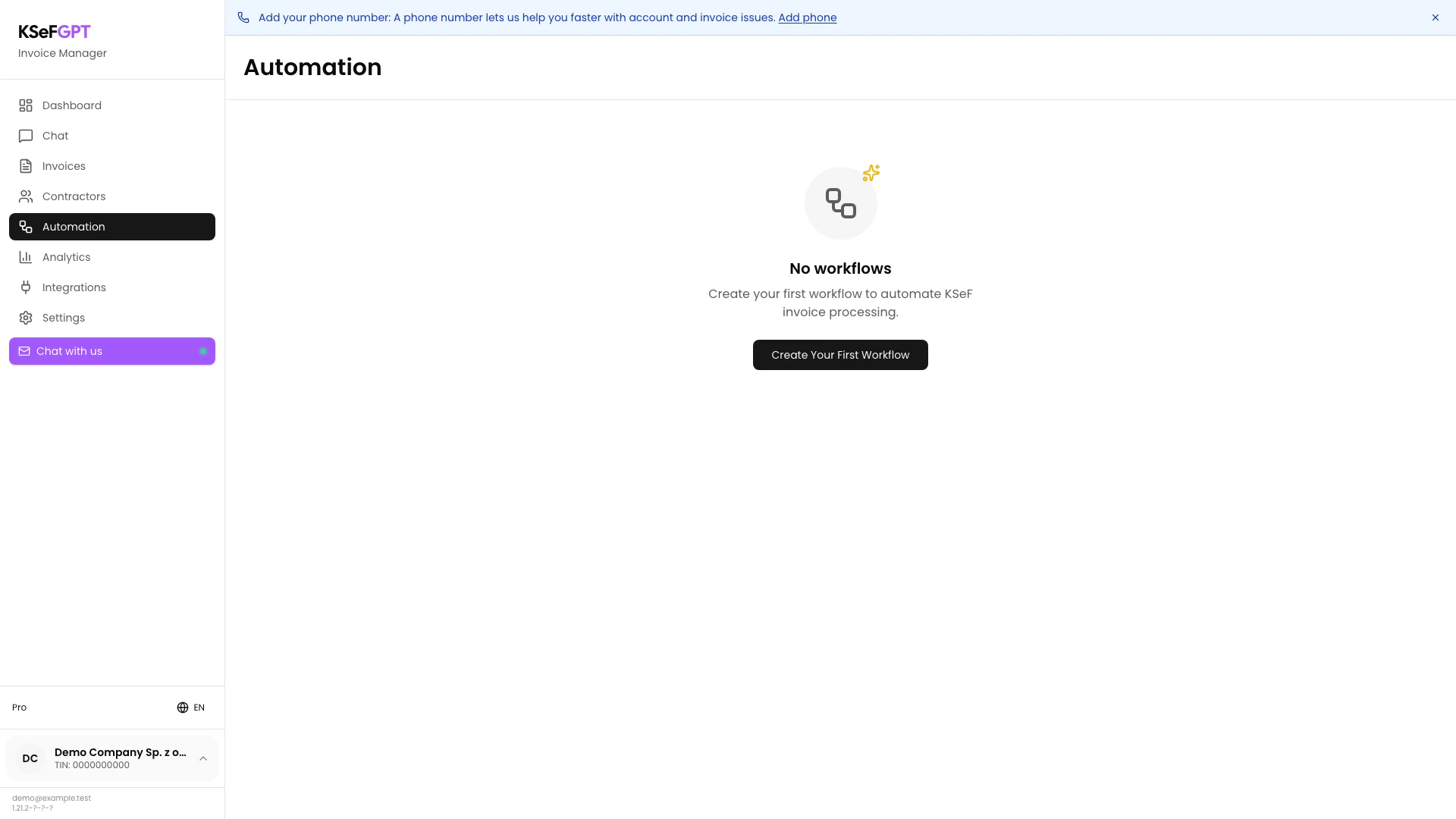
Open Automation. If the company has no workflow yet, select Create Your First Workflow.
If workflows already exist, use New Workflow in the top right. The New workflow screen opens.
Name the automation
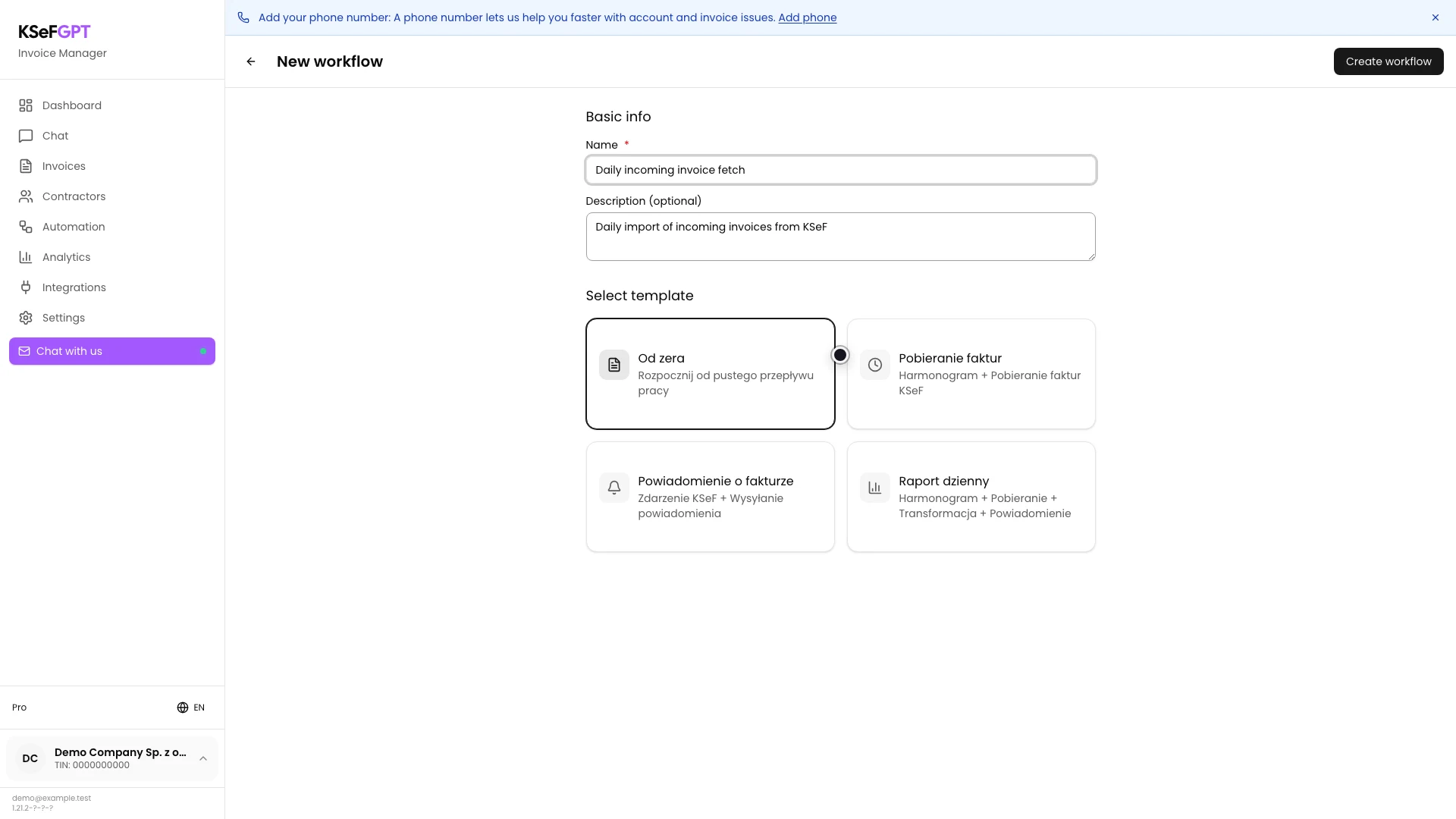
In Name, enter a phrase that describes the frequency and scope, such as Daily incoming invoice fetch.
Use the optional Description to explain the purpose. The example uses Daily import of incoming invoices from KSeF.
Select the Pobieranie faktur template
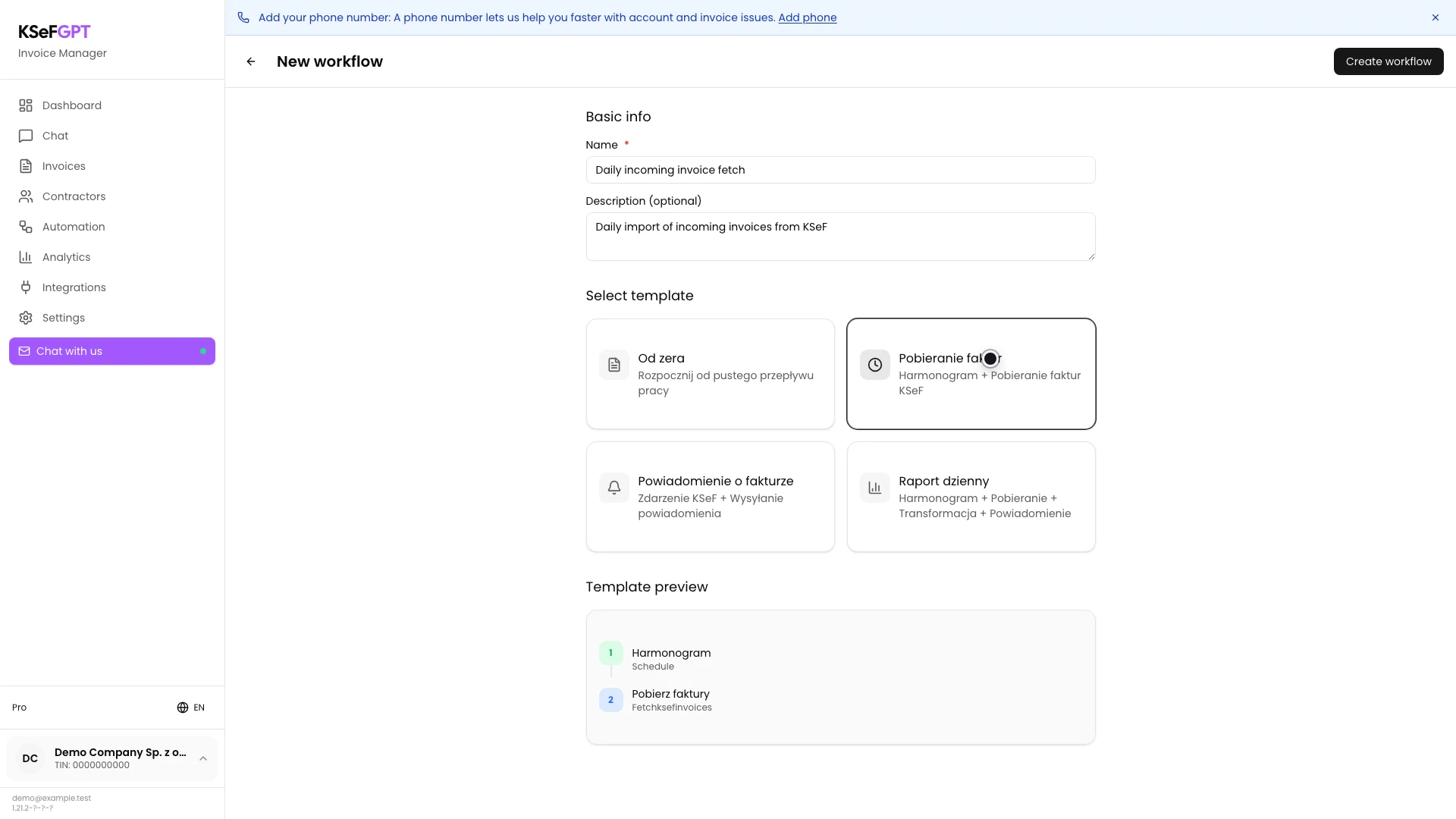
Under Select template, choose Pobieranie faktur. The template names returned by KSeFGPT are currently shown in Polish even when the surrounding interface is in English.
In Template preview, check the Harmonogram and Pobierz faktury blocks. The first controls timing and the second controls which KSeF documents are fetched.
Create the workflow with two blocks
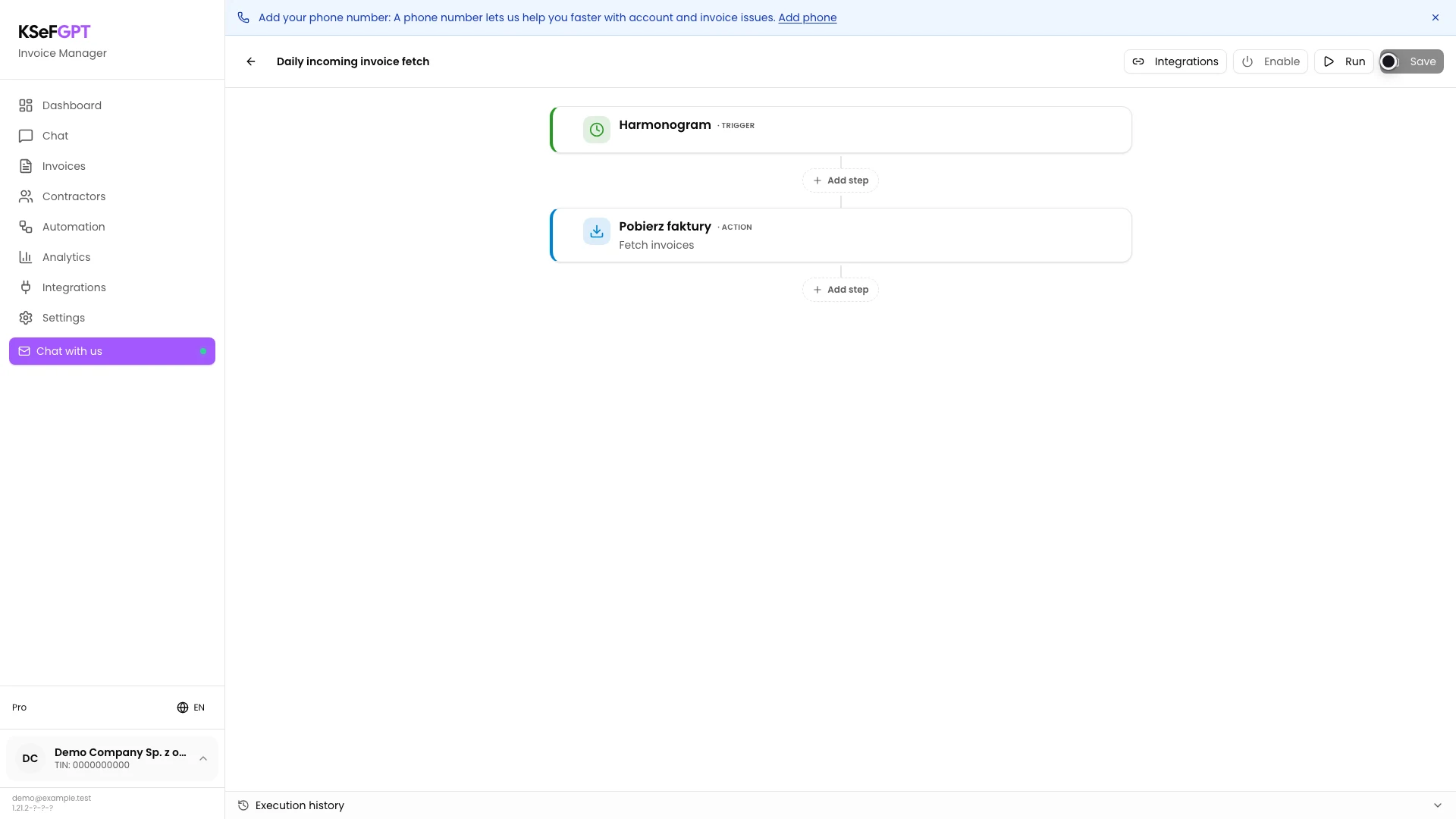
Select Create workflow in the top right. KSeFGPT saves a new inactive automation and opens its editor.
Harmonogram and Pobierz faktury should appear in this order. Creation does not activate the workflow or start fetching documents.
Set a daily schedule
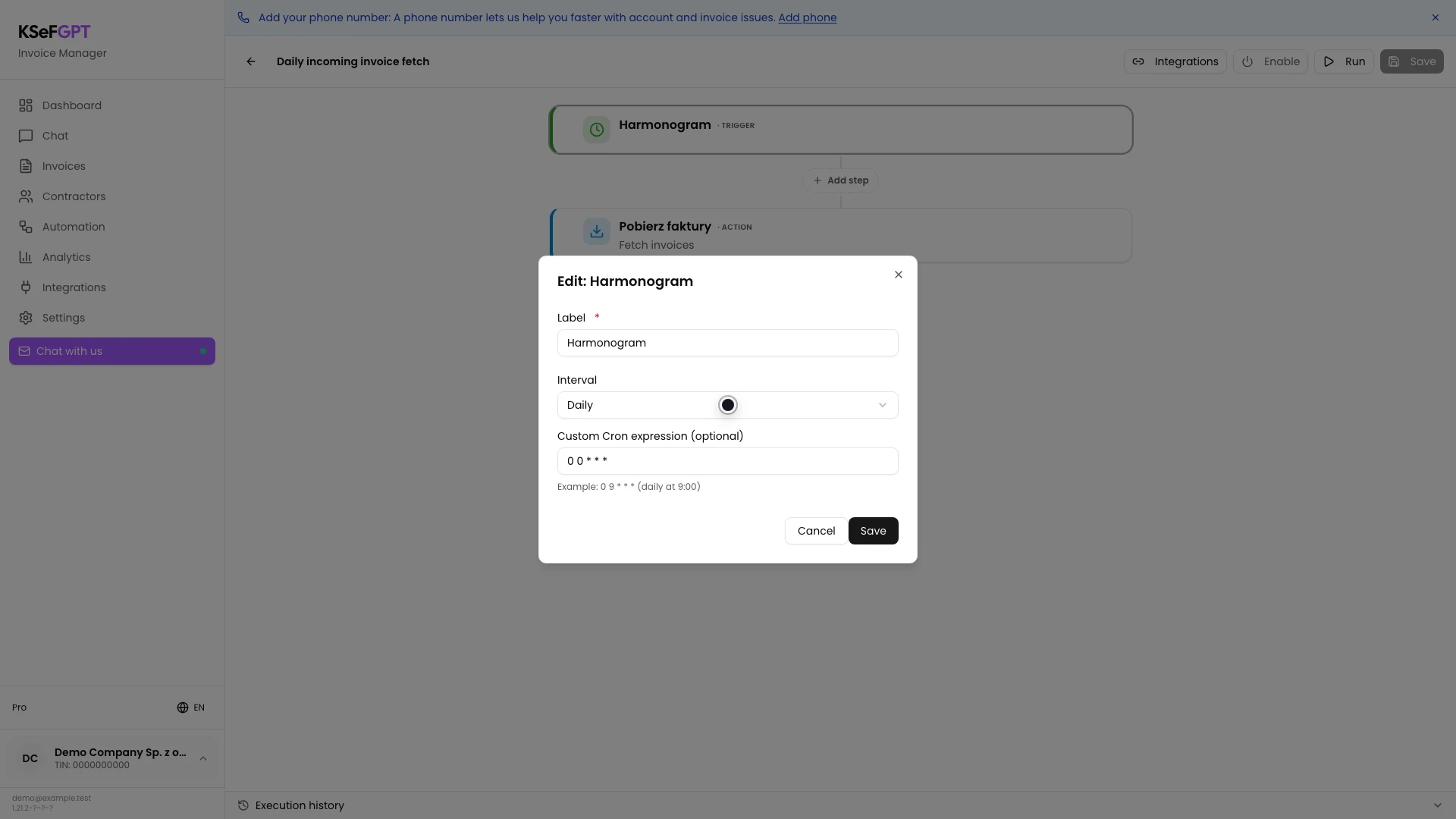
Hover over Harmonogram, select Edit and choose Daily under Interval. KSeFGPT fills the Cron expression with `0 0 * * *`.
Leave the Cron expression unchanged if a daily run is sufficient. Select Save in the block window.
Choose incoming invoices
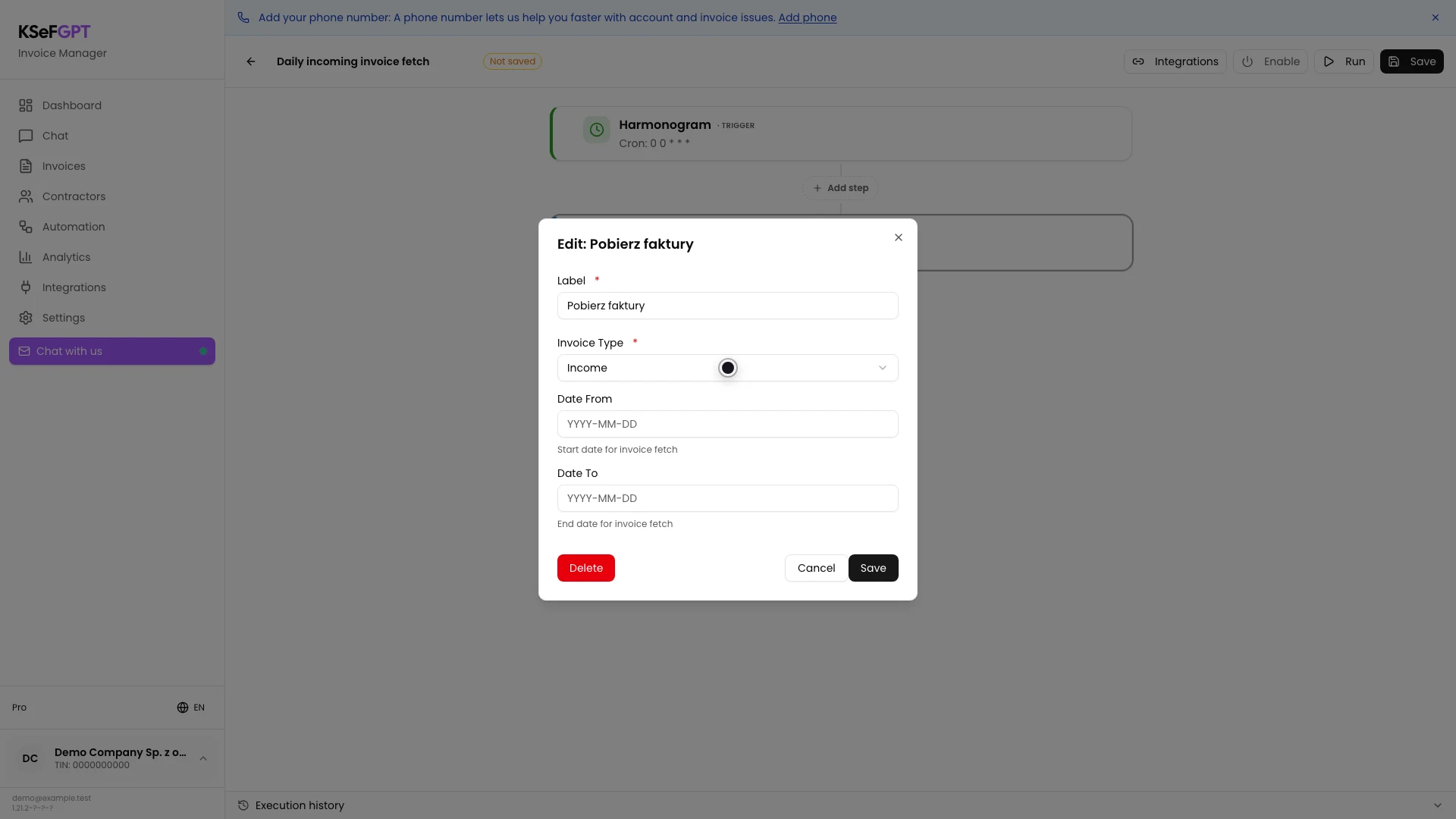
Hover over Pobierz faktury, select Edit and choose Income under Invoice Type.
Leave Date From and Date To empty when the workflow should not be restricted to a fixed period. Select Save in the block window.
Save the workflow and return to the list
Select Save in the top right of the editor. Wait for Workflow saved successfully, then use the back arrow.
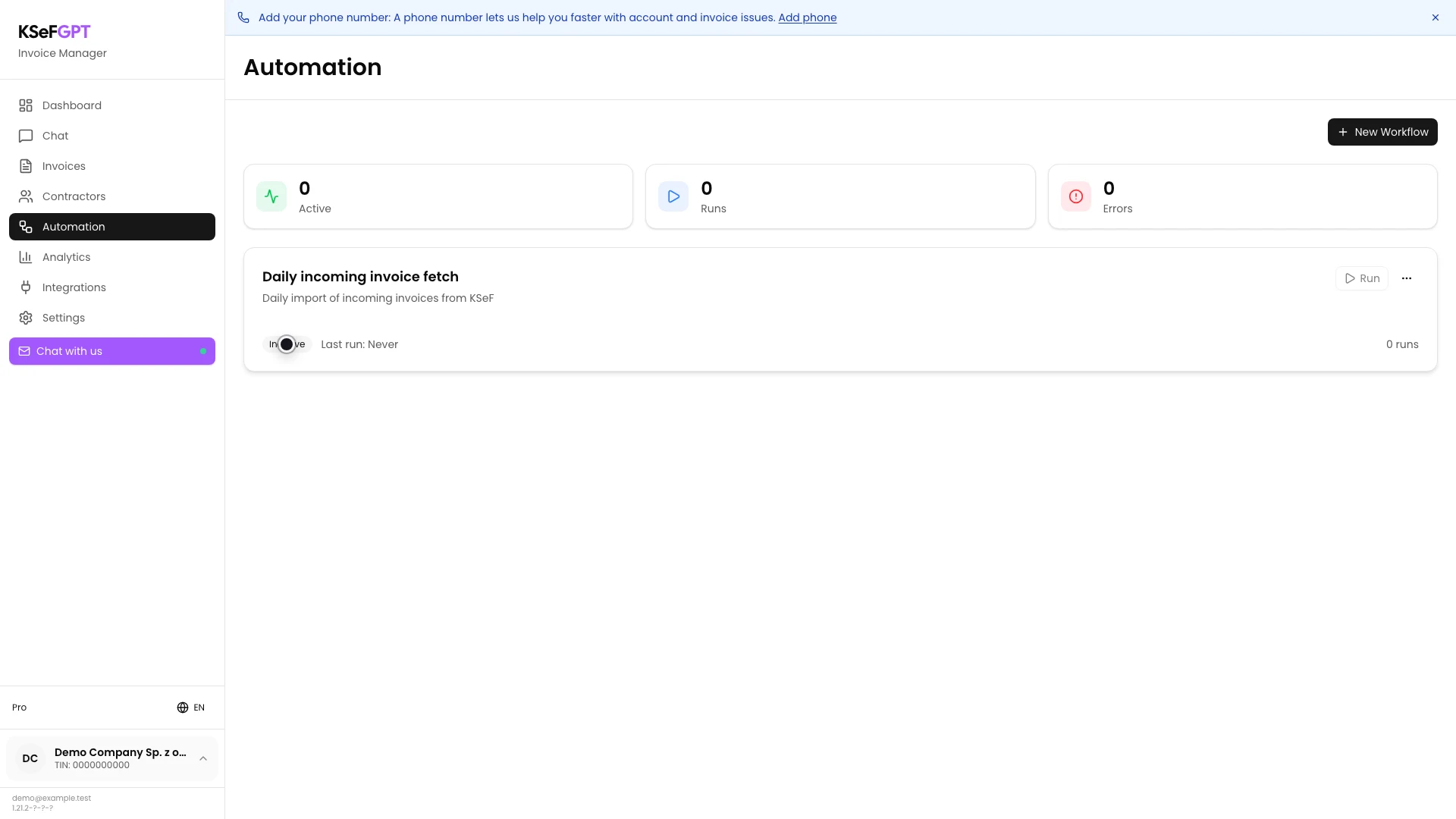
The list shows the card with your name and description. Inactive and the disabled Run button confirm that the automation has not started.
Final state
Check the result
The card should show your name, description, Inactive, zero runs and Last run: Never.
Open Edit from the card menu to check the blocks again. Harmonogram should be Daily and Pobierz faktury should be Income.
Diagnostics
If something does not work
Compare the symptom with the table below.
| Symptom | Likely cause | What to do |
|---|---|---|
| Create workflow is disabled | Name is empty or the KSeF connection check is still running. | Enter a name and wait for the credential check to finish. |
| Add KSeF credentials first appears | The selected company has no active token or certificate. | Add a KSeF credential in Settings and return to the creator. |
| Workflow could not be created | The creation request was not saved. | Keep the form open, check the connection and select Create workflow again. |
| Save is disabled in the editor | No block changed or a required value is missing. | Change a block setting. If an error count appears, open the marked block and complete the required field. |
| Workflow could not be saved | The configuration update failed. | Keep the editor open, check the connection and select Save again. |
What next
Continue with How to run an automation and check execution history to activate the workflow safely, perform a test and inspect its logs.
Before activation, confirm that the daily schedule and incoming invoice scope match your company's process.
Create your first automation workflow
Sign in, choose the invoice fetch template and save a safe inactive configuration.
Sign in to KSeFGPT