How to add a Slack integration in KSeFGPT
Enter an incoming webhook URL and an optional channel, send a test message and save the active connection for the selected company.
- Module
- Integrations
- Reading time
- 4 min
- Difficulty
- Easy
You could do this with your eyes closed :)
- Published
- August 22, 2026
- Author
- Rafał Zeidler
- Format
- Written guide and video
Written procedure
What you will do
You will add a Slack connection to the selected company in KSeFGPT. Before saving, you will send one test message. At the end, the integration card will show the Active status.
An incoming webhook URL can publish messages in its connected Slack workspace. Treat it as a secret and do not include it in screenshots, documents or support requests.
Requirements
Before you start
Prepare a working incoming webhook created in Slack. The connection test sends a real message, so use a channel intended for testing.
| Item | Description |
|---|---|
| Access | The company owner or an organization member with integrations:manage. |
| Plan | A KSeFGPT plan with the Automation and Integrations module enabled. |
| Slack data | An HTTPS address in the https://hooks.slack.com/services/... format and an optional channel name such as #ksef-test. |
| Starting point | After signing in, open Automation and then Integrations. |
| Time required | About 3 minutes. |
| Test effect | Selecting Test connection immediately sends one message to Slack. |
Process recording
0:28The recording shows Slack selection, webhook configuration, a test message and saving the active integration.
Open integrations
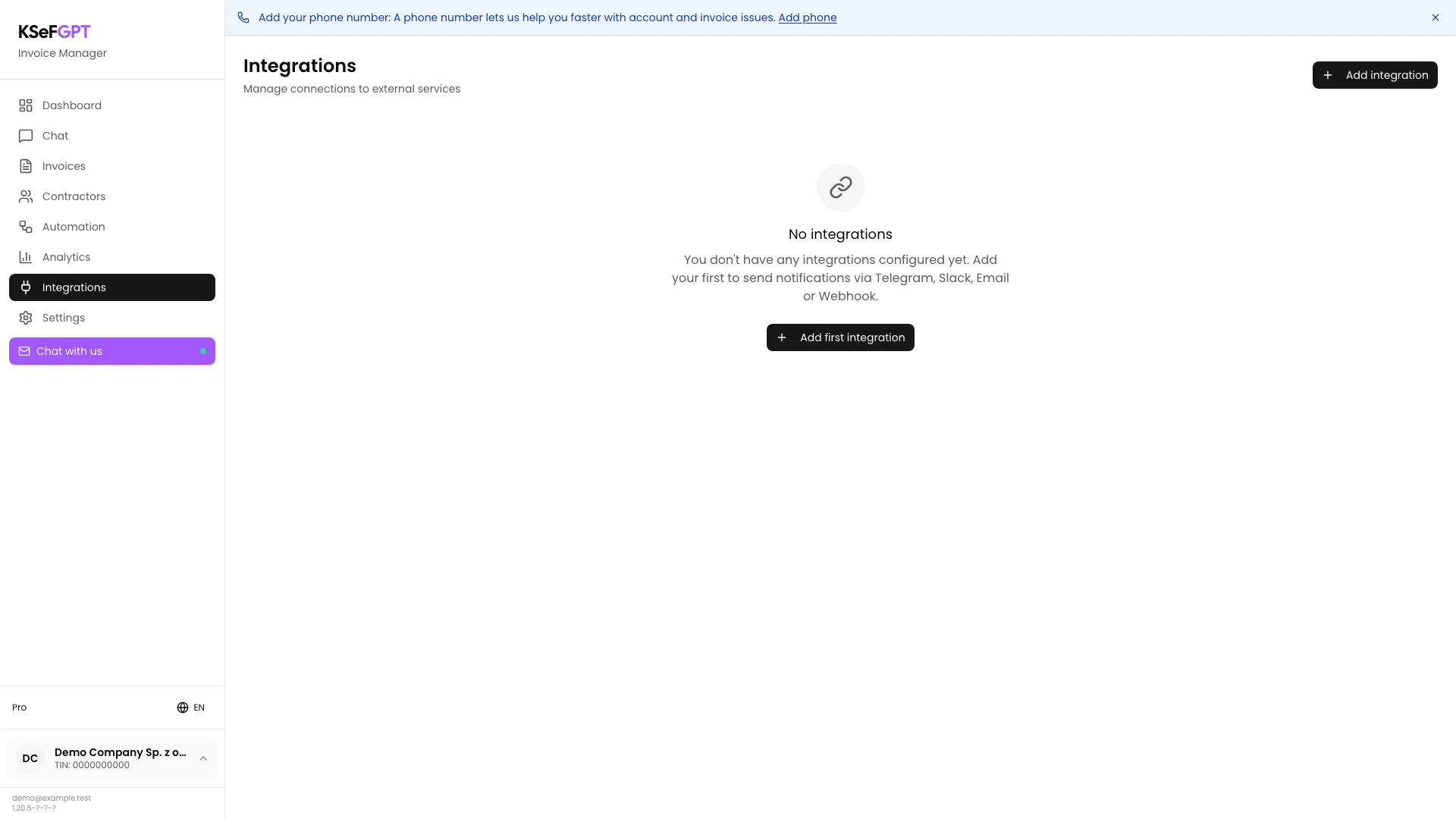
In the side navigation, select Automation and then Integrations. Select Add first integration, or Add integration if the list already contains other connections.
A dialog with the available integration types should open.
Select Slack
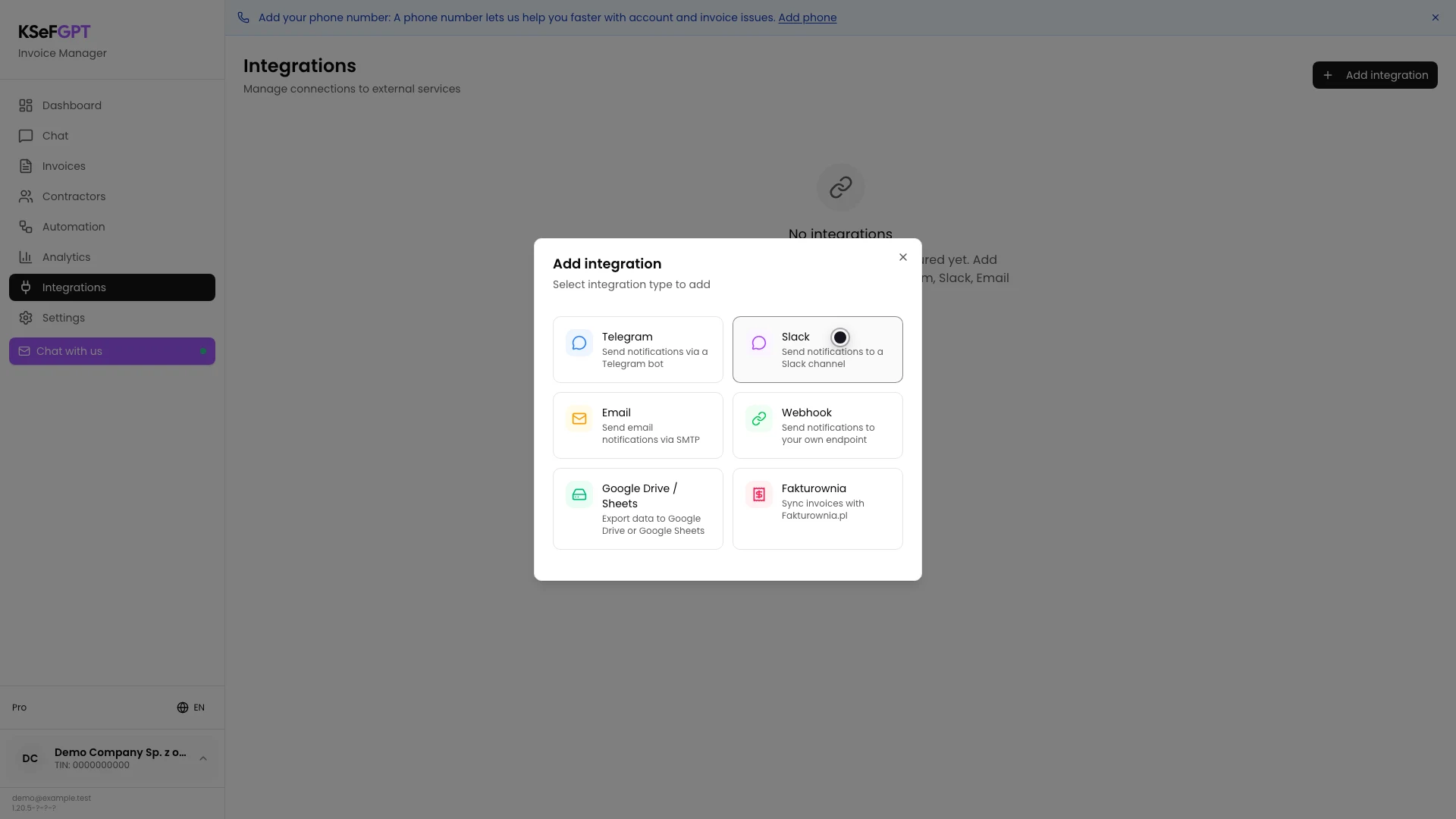
In the Add integration dialog, select Slack. Its card describes a connection that sends notifications to a Slack channel.
The Configure Slack form will appear.
Enter the webhook details
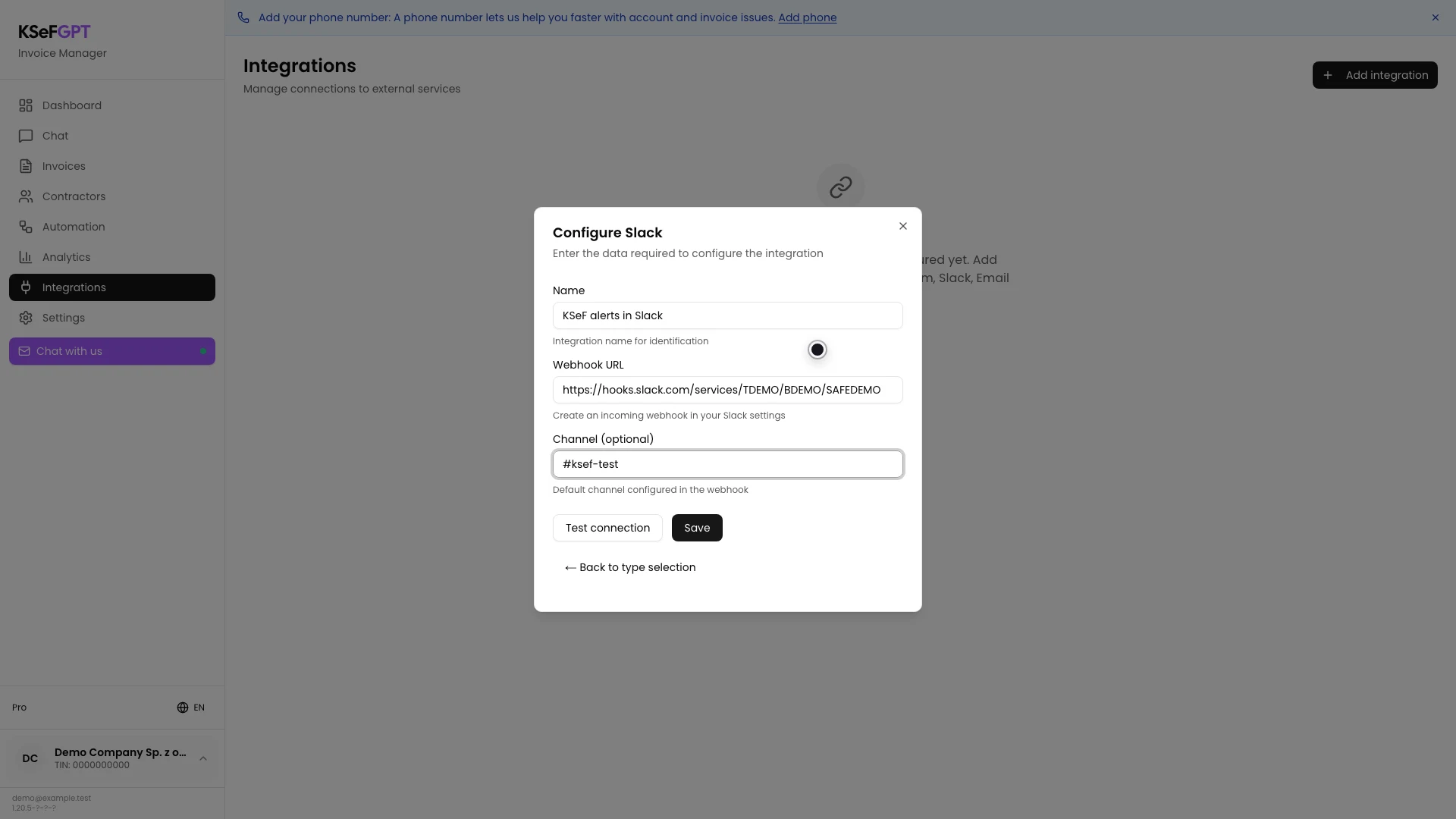
Enter a recognizable integration name in Name and paste the full Slack address into Webhook URL. The address must use hooks.slack.com and a path beginning with /services/.
You can leave Channel (optional) empty to use the channel configured for the webhook, or enter a name such as `#ksef-test`.
Test the connection
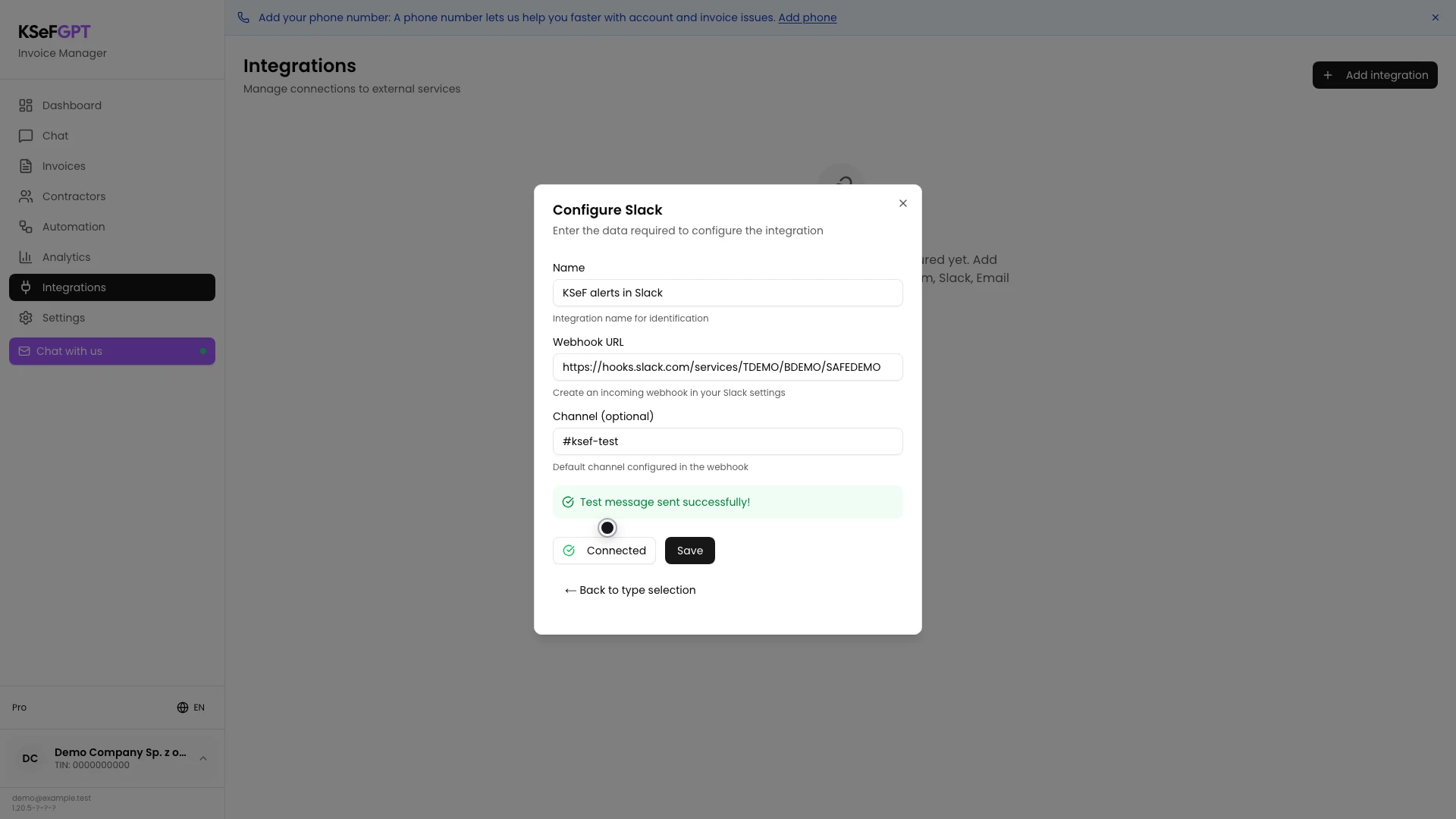
Select Test connection. KSeFGPT sends a test message to the entered webhook.
Wait for the green Test message sent successfully! confirmation and check that the message appeared in the correct Slack channel.
Save the integration
Select Save. The dialog closes after saving and the integrations list refreshes automatically.
The new card should show the entered name, the Slack type and the Active status. You can test, edit or delete the connection from this card.
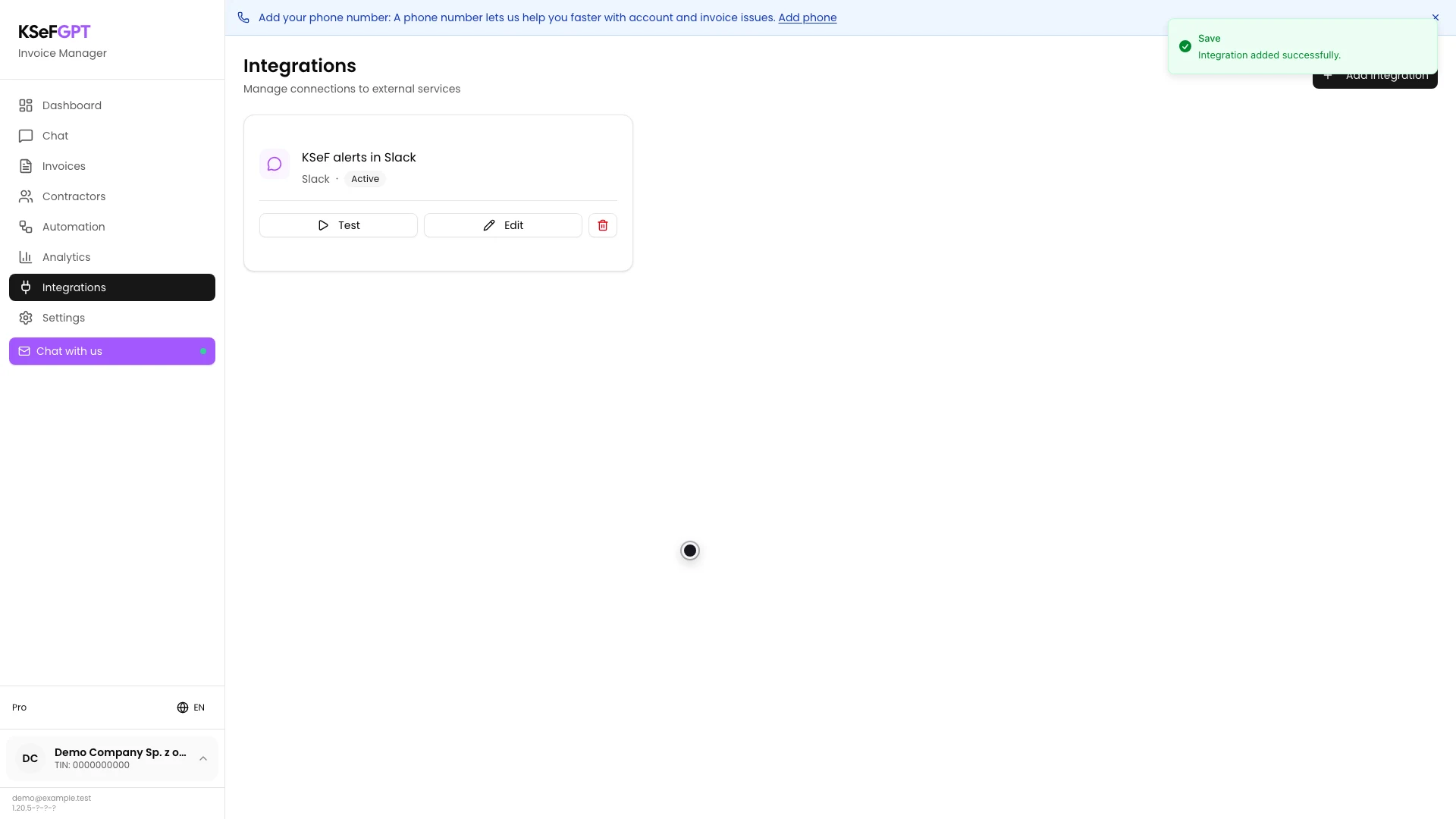
Final state
Check the result
The integration is ready when the test message is visible in the selected Slack channel and its KSeFGPT card shows Active.
KSeFGPT encrypts the saved webhook URL. If the URL is exposed, revoke it in Slack and save a new address in the integration editor.
Diagnostics
If something does not work
Compare the symptom with the table below.
| Symptom | Likely cause | What to do |
|---|---|---|
| Test connection is disabled | Webhook URL is empty. | Paste the full Slack incoming webhook address. |
| Save is disabled | The integration name or webhook URL is missing. | Complete both required fields. Channel can remain empty. |
| Invalid webhook URL format | The address does not point to hooks.slack.com/services/. | Copy the complete incoming webhook URL from Slack settings again. |
| HTTP error during the test | Slack rejected the webhook, for example because it was removed or revoked. | Create or enable the webhook in Slack and repeat the test with the new address. |
| Slack webhook connection error | The browser could not connect to Slack. | Check the network and browser restrictions, then retry the test. |
| You cannot save the integration | The integrations:manage scope is missing or the save request failed. | Ask the organization owner for the required permission and try again. |
What next
Add a Slack notification block in the automation editor and select the saved integration.
After changing the webhook, use Test on the integration card before running a production workflow.
Add a Slack integration
Sign in, test the webhook and save the connection for the selected company.
Sign in to KSeFGPT