How to run an automation and check execution history
Activate a saved workflow, perform a safe manual run and inspect the status, duration and logs of every block.
- Module
- Automation
- Reading time
- 5 min
- Difficulty
- Intermediate
Follow the instructions carefully and you will succeed
- Published
- August 22, 2026
- Author
- Rafał Zeidler
- Format
- Written guide and video
Written procedure
What you will do
You will activate a saved workflow, run it manually and open Run history. You will check the final status, duration and log of each block.
This guide uses a manual trigger. Activating a workflow with a schedule or KSeF event can immediately enable automatic runs.
Requirements
Before you start
For the first test, choose a workflow that starts with a manual trigger and does not send messages or data to external systems.
| Item | Description |
|---|---|
| Access | The company owner or an organization member with automation:manage. |
| KSeF connection | An active token or certificate when the workflow uses KSeF. |
| Workflow | A saved automation with a manual trigger and safe test actions. |
| Starting point | After signing in, open Automation. |
| Time required | About 3 minutes including history review. |
| Activation effect | Schedules and event triggers can start without selecting Run. |
Process recording
0:36The recording shows activation, a manual run and inspection of successful and failed logs.
Find the saved workflow
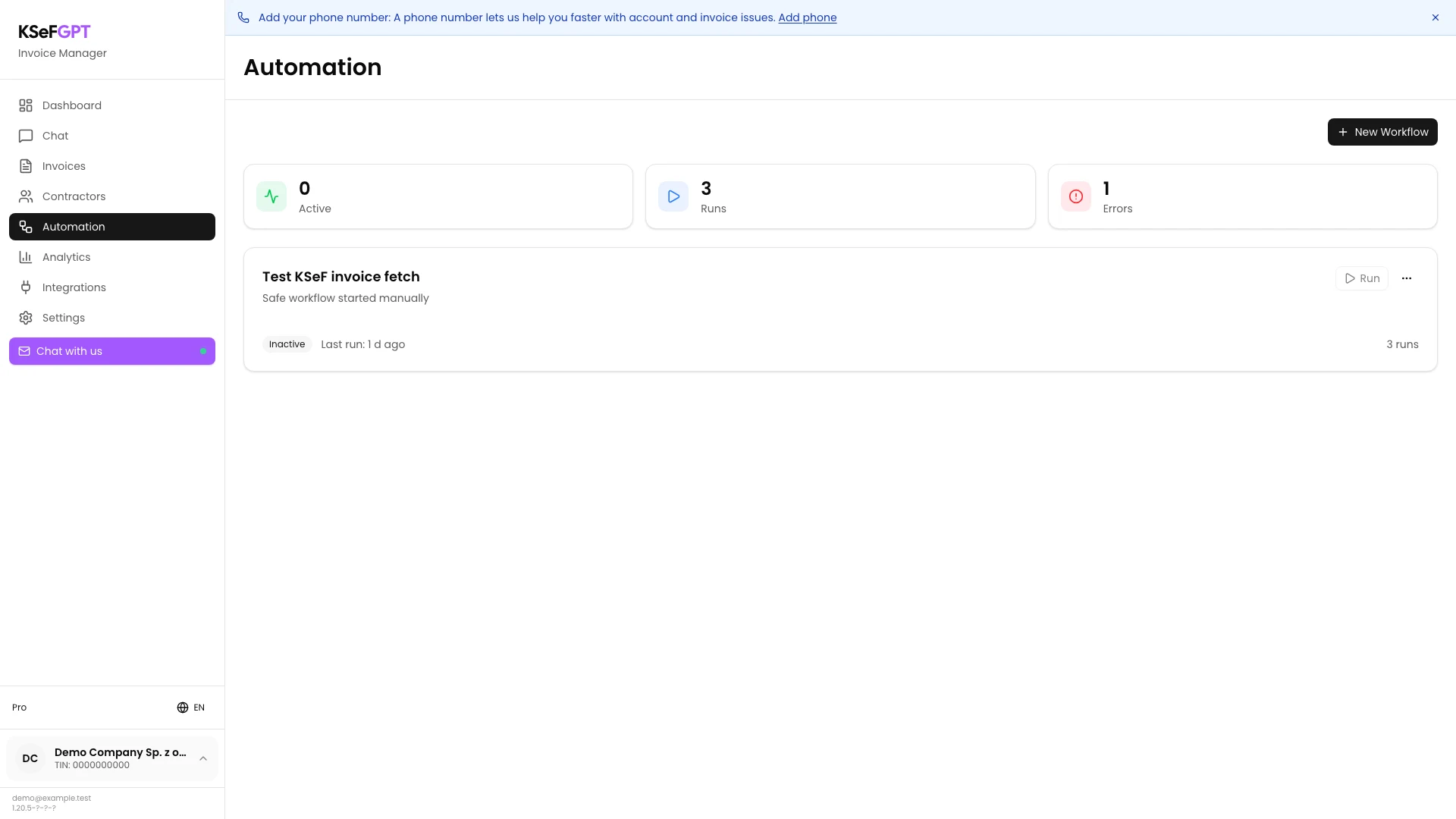
Open Automation and identify the card by its name and description. Check the previous run count and last result.
An Inactive workflow has a disabled Run button and must be activated first.
Activate the workflow
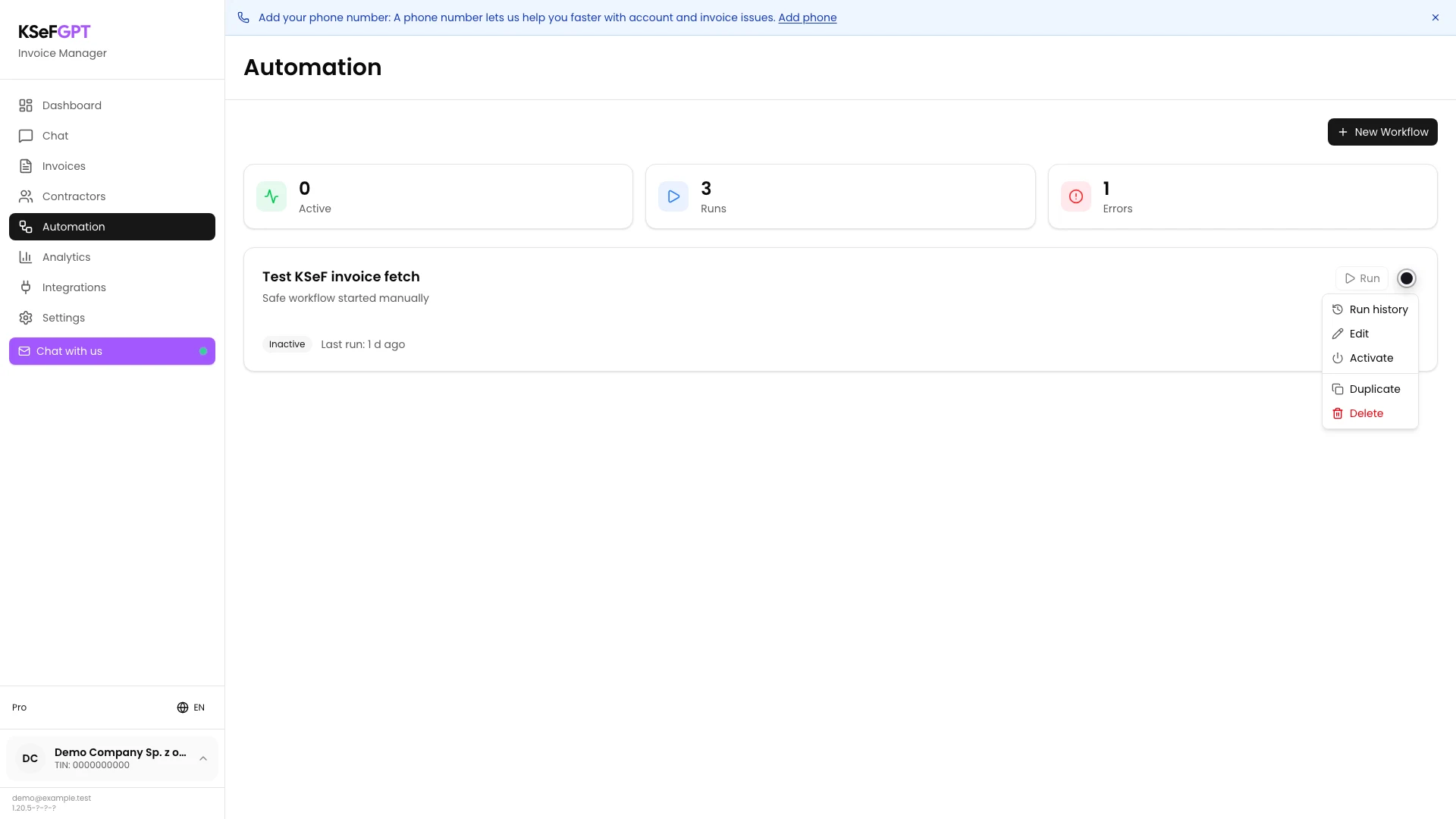
Open the three-dot menu and select Activate. First confirm that the workflow has no schedule or event trigger you do not want to enable.
The card changes to Active and Run becomes available.
Run the workflow manually
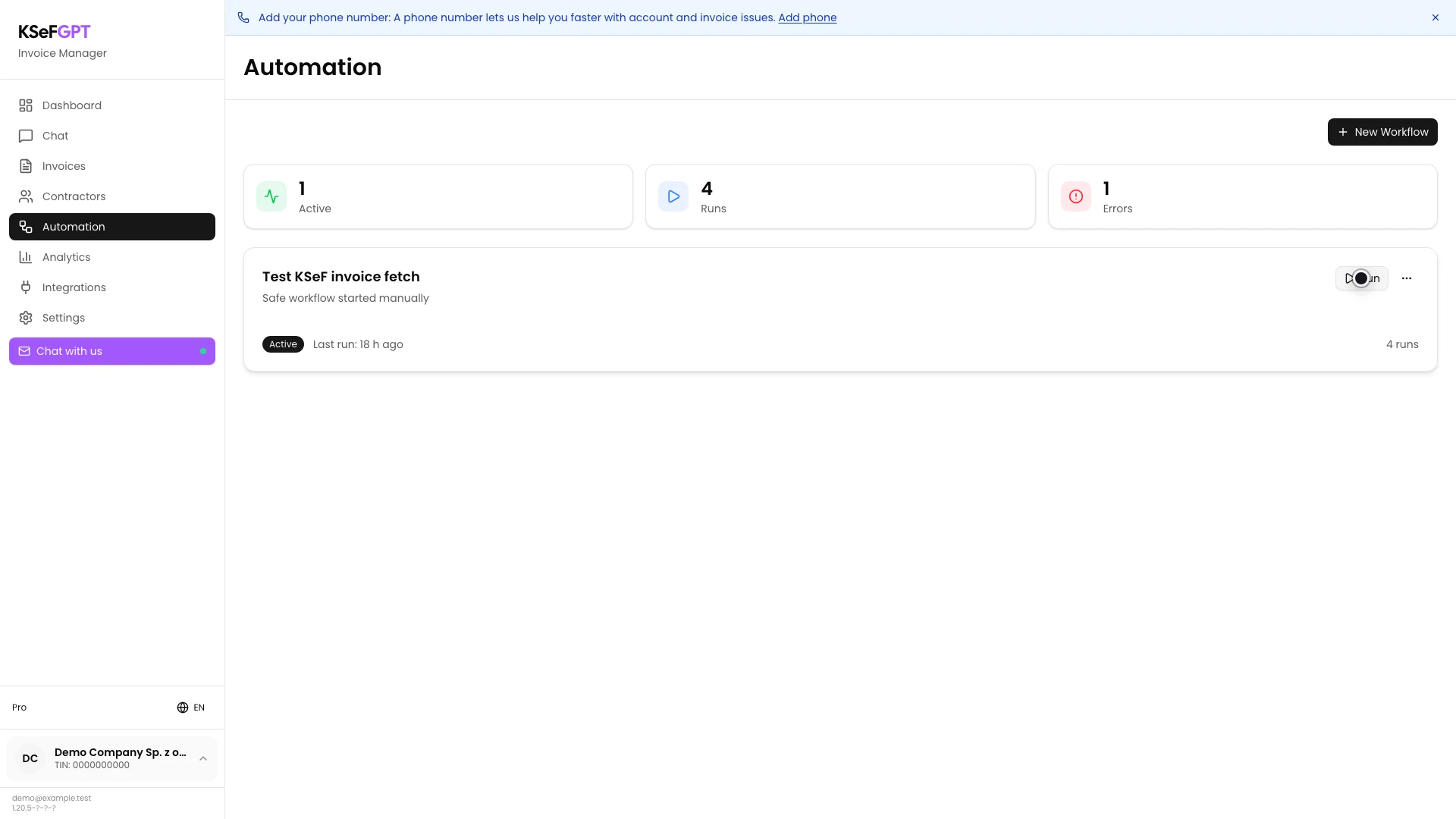
Select Run on the active card. KSeFGPT creates an execution and queues it for processing.
The start notice confirms queuing, not success. The run count increases and the authoritative result appears in history.
Open run history
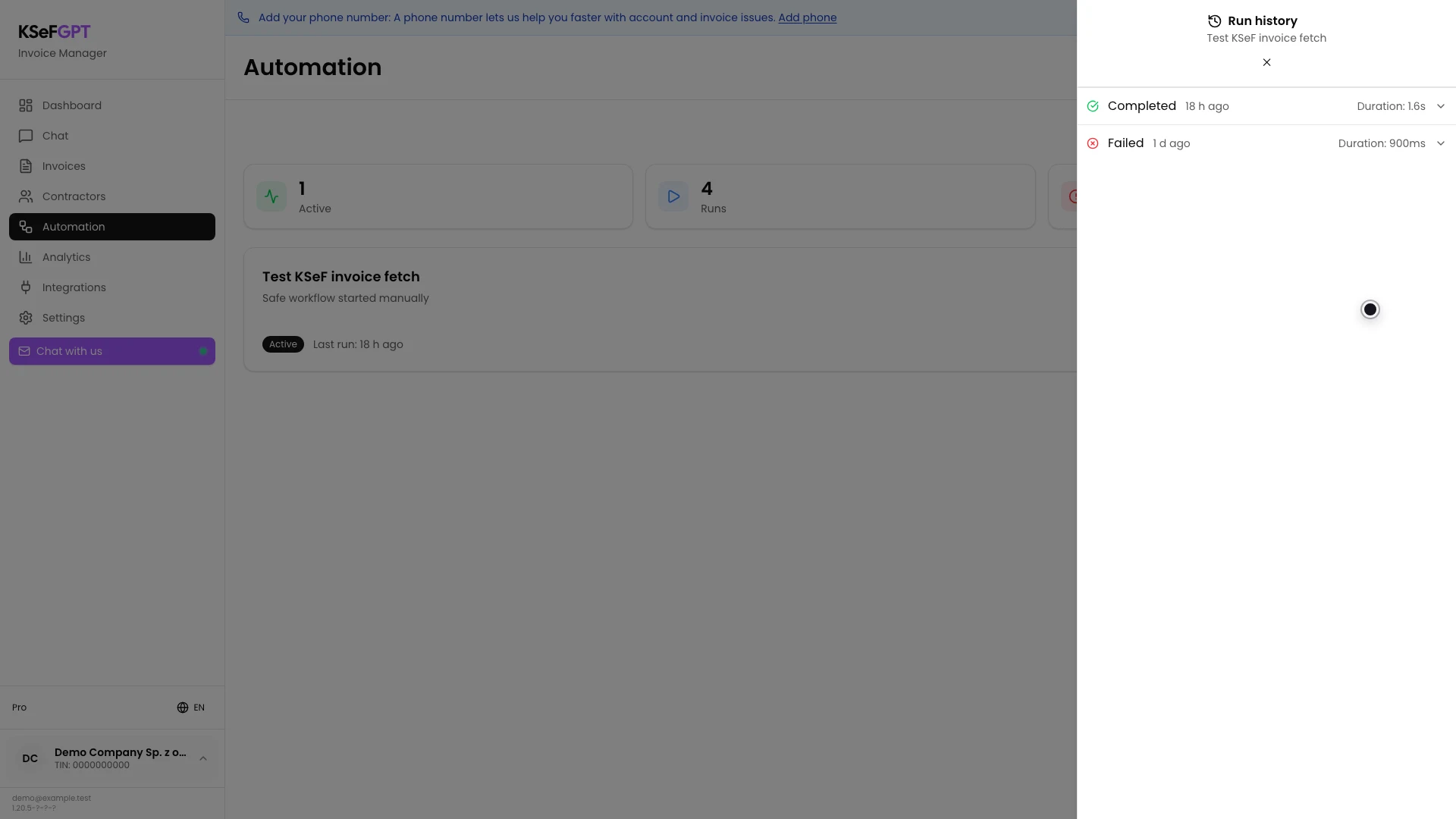
Open the three-dot menu again and select Run history. The newest execution appears first.
Statuses are Pending, Running, Completed or Failed. Start time and total duration appear beside each row.
Check successful logs
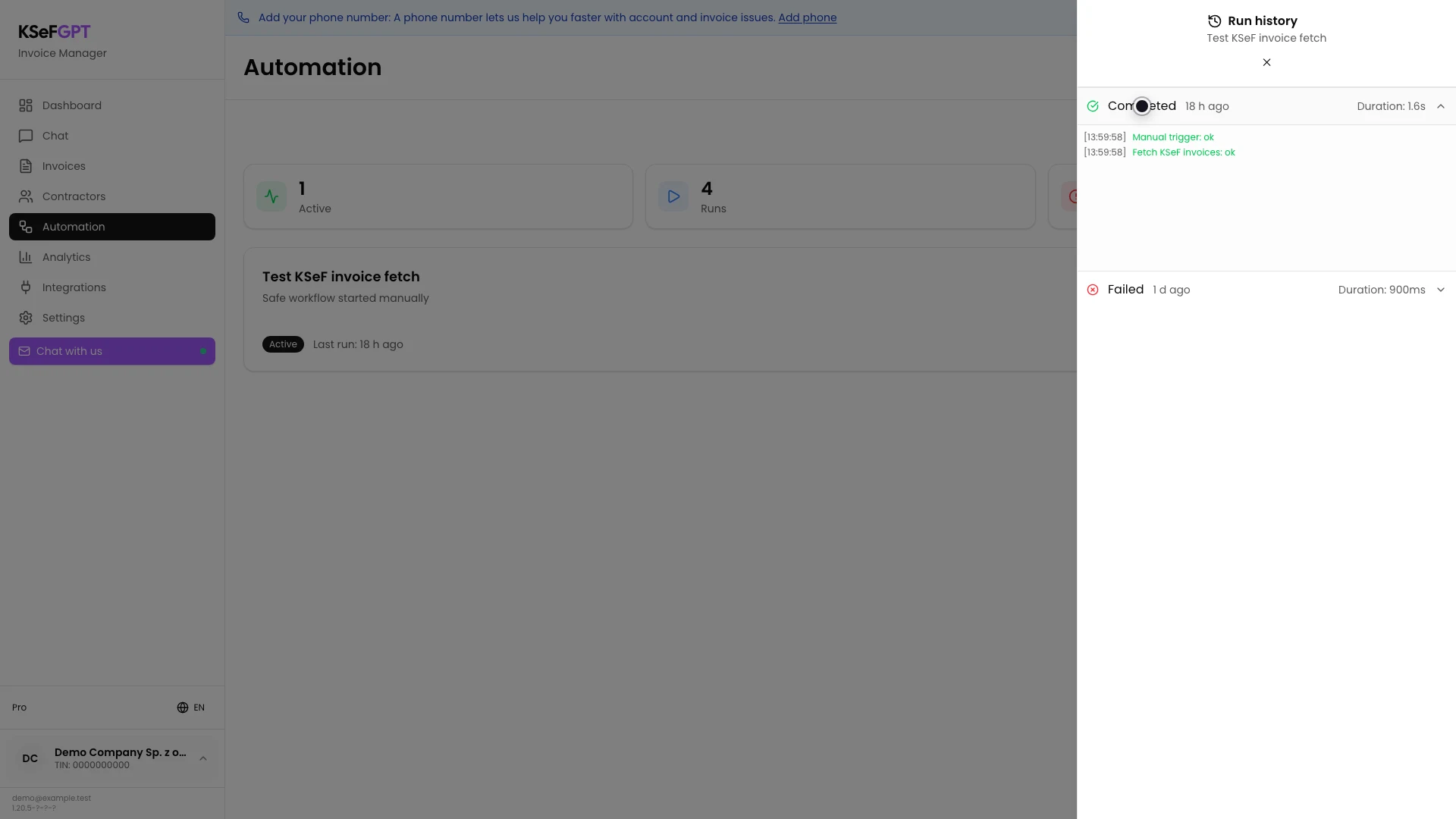
Select the Completed row. KSeFGPT loads the logs and lists blocks in execution order.
An `ok` status beside the manual trigger and fetch action means both blocks succeeded. Compare their timestamps too.
Read an execution error
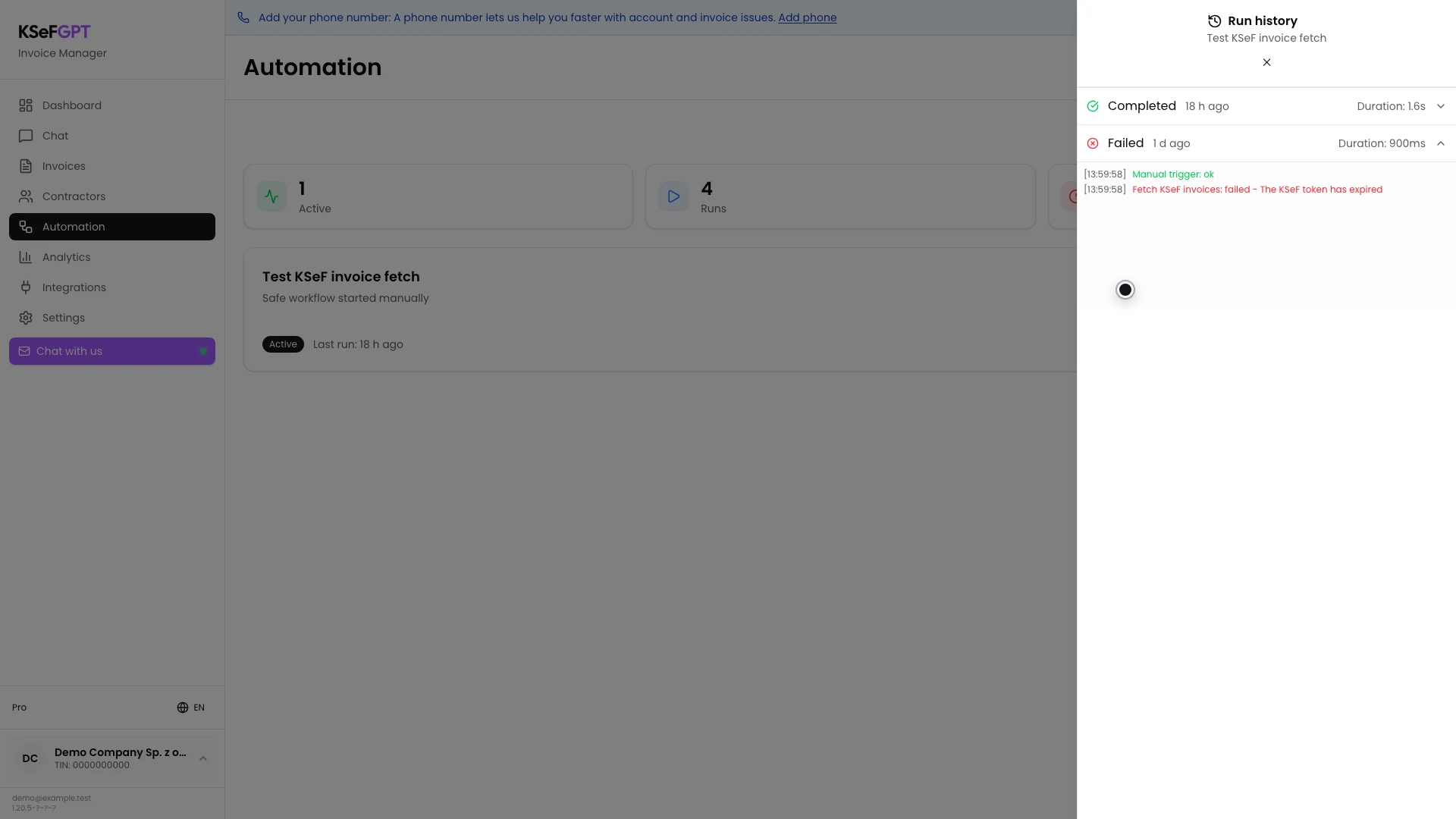
Expand the Failed row. The unsuccessful block has `failed` and shows an error after the hyphen.
In the example, the manual trigger is `ok` and invoice fetch is `failed` because the KSeF token expired. This identifies the stage to fix.
Final state
Check the result
Use the newest Run history status as the result. Completed means the full workflow finished, while Failed requires log inspection.
If activation was only for a one-time test, select Deactivate to prevent later scheduled or event runs.
Diagnostics
If something does not work
Compare the symptom with the table below.
| Symptom | Likely cause | What to do |
|---|---|---|
| Run is disabled | The workflow is Inactive. | Open its menu and select Activate. |
| You cannot activate or run | automation:manage is missing. | Ask the organization owner for the required permission. |
| KSeF connection is required | The company has no active token or certificate. | Configure KSeF in Settings and return to the workflow. |
| A start notice appears but there is no success | The execution is queued or still running. | Open Run history and check the newest status. |
| The execution is Failed | A block failed, for example because the KSeF token expired. | Expand the row, find `failed`, fix the cause and run again. |
| No new execution appears | The queue or automation worker is unavailable. | Refresh after a moment and report the issue if the entry still does not appear. |
What next
After a successful test, leave the workflow active only when its schedules or events should run automatically.
If a log points to block configuration, select Edit, correct it and perform another manual test.
Check your automation
Sign in, perform a safe test and inspect the result of every block.
Sign in to KSeFGPT