How to send many invoices to KSeF from Excel
A practical guide: how to prepare an XLSX sheet, map columns to FA(3) fields, check errors and send valid invoices to KSeF in KSeFGPT.

Article Summary
Invoices are not sent to KSeF as Excel files. An XLSX, XLS or CSV sheet can, however, be a practical data source from which a tool such as KSeFGPT creates invoices compatible with the FA(3) structure, validates them and lets the user send only correct documents to KSeF.
The key is to prepare the sheet so that each column has one meaning: invoice number, issue date, seller NIP, buyer NIP, currency, amounts, VAT rate and line items. The fewer mixed formats in Excel, the fewer validation errors before submission.
KSeFGPT supports bulk data import from XLSX, XLS and CSV files. After import, the user checks column mapping, reviews invoice drafts, fixes incorrect rows and sends only documents that are ready. This is safer than manually retyping many invoices into a form.
Can invoices be sent to KSeF from Excel?
Yes, with one important clarification: KSeF does not accept an Excel file as an invoice. KSeF works with structured invoices, which means data compliant with the FA(3) logical structure. Excel is a working format that must be transformed into valid invoice data before submission.
In practice, a company prepares a spreadsheet with invoices, the import tool reads the columns, maps them to invoice fields, checks the data and only then sends the documents through a KSeF integration. That is why we speak about sending from Excel, although technically this means importing data from Excel and sending invoices created from that data.
The Polish Ministry of Finance describes KSeF work through the Taxpayer Application or tools integrated with the KSeF API. Official technical materials and manuals are available on the KSeF 2.0 downloads page.
This distinction also matters for taxpayer responsibility. If the spreadsheet contains an incorrect NIP, a wrong date or an amount with a comma treated as text, the problem does not disappear after import. It should be detected before sending, ideally in the validation report.
| Format | Role in the process | Does it go directly to KSeF? |
|---|---|---|
| Excel/XLSX | Invoice data source, convenient for sales or accounting teams | No |
| CSV | Alternative spreadsheet format for bulk import | No |
| XML FA(3) | Invoice structure required by KSeF | Yes |
| Visualization or source document, not a structured invoice | No |
Who bulk submission from Excel is for
Bulk submission from Excel makes sense wherever invoices are created in batches, but the company does not yet have a full ERP integration with KSeF. A typical example is a sales team that prepares a monthly sheet with subscriptions, recurring fees or settlements for many customers.
Another common scenario is an accounting office. Clients provide data in different formats: exports from sales software, simple XLSX files or manually completed spreadsheets. The office needs one process that checks data, finds errors and sends valid invoices without retyping each line item.
Excel is enough when the source data is structured, the invoice volume is moderate and imports happen cyclically with a similar column layout. For very high volumes, many source systems and automated status handling, an API integration or ERP module will be better.
| Situation | Does Excel make sense? | Better direction |
|---|---|---|
| Dozens or hundreds of invoices in a similar layout | Yes | XLSX import in KSeFGPT |
| Subscription or recurring invoices | Yes | Sheet template and saved mapping |
| Accounting office with client files | Yes, if formats are controlled | Separate sheet or batch for each client |
| Thousands of invoices daily from many systems | Partly | ERP, API or source-data automation |
How to prepare an XLSX file for import
The safest spreadsheet is one where the first row contains column names and each following row describes one invoice line item. If an invoice has several items, invoice header data is repeated across rows, while only item fields change.
The minimum data set includes invoice number, issue date, sale date, seller data, buyer data, currency, item description, quantity, unit, net unit price, VAT rate and amounts. For transfer payments, it is worth adding payment due date, bank account and payment method.
Write dates in YYYY-MM-DD format, for example 2026-05-20. Store NIP as text with 10 digits, without spaces, hyphens or the PL prefix. Keep amounts as numbers with two decimal places. Use a three-letter currency code, for example PLN or EUR.
| Excel column | What to enter | FA(3) mapping | Typical error |
|---|---|---|---|
| invoice_number | Invoice number, e.g. FV/05/2026/014 | Fa > P_2 | Trailing space or duplicate |
| issue_date | Issue date, e.g. 2026-05-20 | Fa > P_1 | 20.05.2026 format or mixed text date |
| sale_date | Sale date, if needed | Fa > P_6 | Different dates for items of the same invoice |
| seller_name | Full seller name | Podmiot1 > DaneIdentyfikacyjne > Nazwa | Abbreviation that does not match company data |
| seller_nip | Seller NIP, 10 digits | Podmiot1 > DaneIdentyfikacyjne > NIP | NIP stored as a number with a lost leading zero |
| buyer_name | Full buyer name | Podmiot2 > DaneIdentyfikacyjne > Nazwa | Empty name for a B2B invoice |
| buyer_nip | Buyer NIP, 10 digits | Podmiot2 > DaneIdentyfikacyjne > NIP | PL prefix or hyphens |
| currency | Currency code, e.g. PLN | Fa > KodWaluty | Full currency name instead of code |
| item_name | Product or service name | FaWiersz > P_7 | Too generic or empty item |
| quantity | Quantity | FaWiersz > P_8B | Text instead of a number |
| unit | Unit, e.g. pcs or service | FaWiersz > P_8A | Inconsistent unit values |
| unit_net_price | Net unit price | FaWiersz > P_9A | Amount and currency in one cell |
| net_amount | Net value of item or invoice | FaWiersz > P_11 | Total differs from quantity times price |
| vat_rate | VAT rate | FaWiersz > P_12 | Mixing 23%, 23 and VAT23 |
| gross_amount | Gross amount of invoice or item | Fa > P_15 | Rounding difference vs net and VAT |
| payment_due_date | Payment due date | Fa > Platnosc > TerminPlatnosci | Due date earlier than issue date |
| seller_bank_account | Seller bank account number | Fa > Platnosc > RachunekBankowy | Spaces or too long account number |
| correction_reason | Correction reason, if applicable | Fa > Korekta | Correction without identifying the corrected document |
Multiple line items on one invoice in Excel
Most spreadsheet errors appear with multi-line invoices. If one invoice has three services, the clearest layout is three rows with the same invoice number, seller and buyer, but different item name, quantity, price and VAT rate.
In this model, the import tool should be able to build one invoice draft from several rows. The condition is simple: header data must be identical. If one row has a trailing space in the invoice number, another does not, and the third has a differently formatted sale date, check the result in the draft preview before sending.
Before import, sort the sheet by invoice number and buyer NIP. This quickly shows whether items of the same invoice stay together and whether header data is inconsistent. For larger files, a helper key also works well: seller NIP + invoice number + issue date.
| Sheet model | When to use it | Risk |
|---|---|---|
| One row = one invoice | Simple one-item invoices | Harder to add multiple items |
| One row = one item | Multi-line invoices | Header data must stay identical |
| Separate sheets per client | Accounting offices | More files, but cleaner data separation |
XLSX import to KSeFGPT step by step
1. Choose the company for which you send invoices. Seller data, permissions and later statuses must be tied to the correct entity.
2. Upload an XLSX, XLS or CSV file with invoice data. If the file comes from Excel, check date, NIP and amount formats before import.
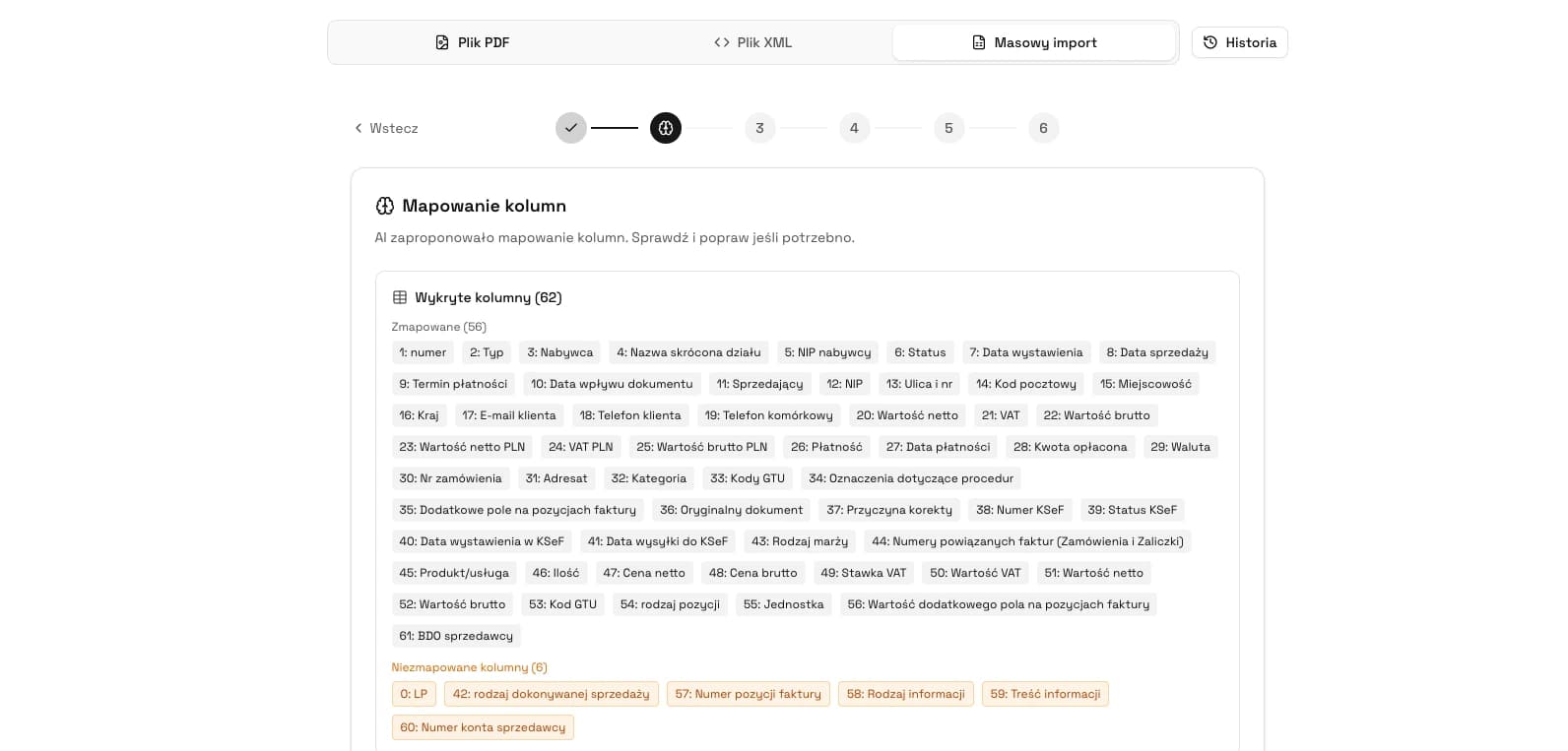
3. Review detected columns. Clear names speed up work: `buyer_nip` maps naturally to buyer NIP, `issue_date` to issue date and `gross_amount` to gross amount.
4. Verify column mapping to invoice fields. With non-standard column names, do not assume that everything was recognized perfectly. Check NIP, dates, currency, VAT rates and amounts in particular.
5. Review invoice drafts. At this stage, nothing is sent to KSeF yet. You check how many documents were recognized, which are valid, which have missing data and which should be skipped.
6. Run validation and send only selected valid invoices. After submission, monitor statuses, KSeF numbers and UPO receipts for documents accepted by the system.
This is the most important operational stage. Bulk submission is not about sending everything as fast as possible. It is about catching issues in a large spreadsheet before KSeF contact: missing NIP, wrong date, inconsistent amounts or empty line items.
Have a spreadsheet with invoices for KSeF?
Upload XLSX, check column mapping, fix incorrect rows and send only ready invoices.
Open KSeFGPTValidation before submission
Validation before submission protects against the most expensive scenario: a batch of documents where the same error repeats dozens of times. If the entire date column uses 20.05.2026 instead of 2026-05-20, it is better to see that during import than after trying to submit invoices.
In KSeFGPT, the validation stage separates invoices that are ready from those that need correction. The user can then send selected valid documents and leave incorrect ones for later. This matters especially in accounting offices, where one client file should not block work on other documents.
It is also worth checking duplicates inside the sheet. If the same invoice number appears twice with the same seller and date, it does not always mean two invoices. Sometimes these are two items of one invoice, and sometimes an accidentally copied row. The difference is critical before submission.
| Excel error | What may happen | How to fix it |
|---|---|---|
| Date as 20.05.2026 | Date format error | Change to YYYY-MM-DD |
| NIP stored as a number | Excel may remove a leading zero | Set the column as text |
| Amount with PLN suffix | Amount may be treated as text | Separate amount and currency into columns |
| Empty rows | The system may detect empty drafts | Remove empty rows before import |
| Different header data for one invoice | Items may not be grouped | Unify number, date and NIP across item rows |
| Duplicate invoice number | Risk of duplicate submission or incorrect draft | Check whether these are one invoice's items or a copied document |
What happens after submission to KSeF
After submission, statuses matter most. An invoice may be accepted, rejected or waiting for processing. For an accepted document, the key outputs are the KSeF number and UPO, the official receipt. Only this set closes the process operationally.
In bulk work, you should expect a scenario where some documents pass and some need correction. A good tool should not force you to redo the entire batch, but show which documents require action.
Do not resend an invoice that has already been accepted and has a KSeF number. If the document needs a change after acceptance, the proper path is a corrective invoice. Read more in Corrective invoice in KSeF.
Excel, XML and PDF
In KSeF discussions, it is easy to mix up three formats. Excel is a convenient working tool: it lets you collect invoice data in a table, copy an export from sales software or prepare a batch for accounting. The spreadsheet itself is not a structured invoice.
XML FA(3) is the format required by KSeF. It contains invoice data in a logical structure, not as a table or visual document. That is why Excel import must end with creating valid invoice data and sending it through a KSeF-integrated tool.
PDF is different again: a visualization, scan or document received from a counterparty. If you want to clarify the difference between PDF and XML, read Can a PDF be sent to KSeF. Technical basics are explained in XML and FA(3) format in KSeF.
Most common errors when sending from Excel
The first mistake is treating Excel like a form without rules. A spreadsheet lets you enter almost anything, but KSeF requires specific data types. Column names and cell formats are therefore as important as values.
The second mistake is mixing different documents in one file without a clear grouping key. If invoices from several companies, currencies and document types go into one sheet, import becomes harder. Smaller batches with a shared schema are safer.
The third mistake is skipping review after import. Even a well-prepared file should be checked in the draft preview. KSeFGPT can speed up mapping and validation, but the user should still confirm that invoice data matches the document they want to send.
| Problem | Example | Good practice |
|---|---|---|
| Mixed date formats | 2026-05-20, 20.05.2026 and 20/05/26 in one column | Unify dates before import |
| NIP with separators | 521-387-02-74 | Keep 10 digits without extra characters |
| Amounts as text | 1 234.50 PLN | Separate amount and currency |
| Missing invoice item | Only gross amount, without service description | Add description, quantity, unit and VAT rate |
| Many companies in one sheet | Different sellers in one file | Import per company or clearly mark seller |
When Excel is no longer enough
Excel is a great transition stage, but it should not always be the final center of the process. If invoices are created daily in sales software, an online store or ERP, manually exporting spreadsheets becomes extra work.
Repetition is the signal for automation. If every week you repeat the same steps: export, clean columns, import, correct errors, submit and download statuses, it is worth moving part of the work into integration. Excel then becomes a fallback or control format, not the main operating tool.
For many companies, the sensible path is: first organized XLSX import in KSeFGPT, then saved mapping and a team process, and only later integration with the source system. This way, the company does not need to design full automation before understanding where errors actually arise.
FAQ
Does KSeF accept Excel files?
No. KSeF accepts structured invoices compliant with FA(3). Excel can be a data source for a tool that prepares invoices for submission.
How should an XLSX sheet be prepared for KSeF invoice submission?
Prepare columns for invoice number, issue date, sale date, seller NIP, buyer NIP, currency, item description, quantity, unit, net price, VAT rate and net, VAT and gross amounts. Dates should use YYYY-MM-DD, and NIP should be text with 10 digits.
Can one sheet contain many invoices?
Yes, provided each invoice has an unambiguous number, date, seller, buyer and items. For multi-line invoices, the best model is one row = one item.
How should several items on one invoice be marked?
Repeat invoice header data across several rows and change only item data: name, quantity, price, VAT rate and amounts. Check the invoice draft preview before sending.
Can corrections be sent from Excel?
Yes, if the sheet contains the data required for a correction, including the corrected document and correction reason. In practice, it is worth preparing a separate correction template.
What if one invoice in the batch has an error?
The safest approach is to send only correct documents and fix the incorrect draft later. Bulk work should not mean forcing incorrect data through.
Does KSeFGPT create XML from Excel?
KSeFGPT imports sheet data, maps it to invoice fields, validates drafts and prepares them for KSeF submission. The user should review the preview before approval.
Can only selected invoices from the sheet be sent?
Yes. A safe bulk process sends only documents that are valid and accepted by the user.
Does KSeFGPT support bulk PDF-to-XML conversion?
This article concerns bulk invoice submission from Excel data. KSeFGPT supports XLSX, XLS and CSV import for the invoice submission process. This feature should not be described as bulk PDF-to-XML conversion.
Recommendation
If sending invoices from Excel matters to your team, it is worth organizing the broader KSeF process as well:
Bulk invoice submission to KSeF - a broader guide to batches, validation and statuses.
Sending invoices to KSeF - the basic guide to submission, UPO, authentication and process stages.
XML and FA(3) format in KSeF - technical basics of the structure into which Excel data must ultimately go.
KSeFGPT - invoice import, export and AI analytics application - how KSeFGPT helps with invoices, import and data analysis.
Send invoices to KSeF from a spreadsheet
Upload an XLSX, XLS or CSV file, check column mapping, fix errors and send accepted invoices to KSeF.
Open KSeFGPTZweryfikowano merytorycznie: Bogdan Mazurek
Tax advisor · 20 May 2026
The article distinguishes the working Excel format from the structured FA(3) invoice and explains that data from the sheet requires mapping, validation and user approval before KSeF submission.
Related articles
UPO in KSeF - What the Official Receipt Means
Learn what UPO means in KSeF, what it contains, when it can be downloaded, how it differs from the KSeF number and why the Polish official term is Urzędowe Poświadczenie Odbioru.
Free Invoice Submission to KSeF - 5 Practical Paths
Free invoice submission to KSeF in 2026: Taxpayer Application KSeF 2.0, e-mikrofirma, KSeF mobile app, KSeFGPT public free tools and a hybrid workflow.
Corrective Invoice in KSeF - How to Issue and Submit a Correction
Correction to zero, manual line-item editing, correction from XML and correction from the KSeF invoice list. See how to prepare a corrective invoice in KSeFGPT.
Free PDF to XML KSeF Converter - FA(3) Online in 2026
Free PDF to XML KSeF converter - just an email address. Step by step: how to turn a PDF invoice into FA(3) and submit it to KSeF in 2026.