UPO in KSeF - What the Official Receipt Means
Learn what UPO means in KSeF, what it contains, when it can be downloaded, how it differs from the KSeF number and why the Polish official term is Urzędowe Poświadczenie Odbioru.
Article Summary
UPO in KSeF is the official acknowledgement that an invoice has been accepted by the Polish Ministry of Finance system. The official Polish name is Urzędowe Poświadczenie Odbioru, although people often use the informal phrase Urzędowe Potwierdzenie Odbioru. In both cases, they usually mean the same acknowledgement document issued after KSeF accepts the invoice.
UPO includes, among other things, the invoice KSeF number, the taxpayer's own invoice number, the submission date, the acceptance date and data that links the acknowledgement to a specific submission. Clicking send does not close the process. Operationally, the process is closed by acceptance, the KSeF number and the ability to download UPO.
The safest company procedure is simple: prepare the FA(3) XML, submit the document, check the status, download UPO and keep it with the invoice archive. Missing UPO should trigger a status check, not an automatic re-submission of the same file.
What UPO Means in KSeF
UPO is the official acknowledgement of receipt for an electronic document in KSeF. Its role is evidential: it shows that a structured invoice has been accepted by the system after processing and validation.
In practice, UPO answers a question that the XML file alone cannot answer: was the document actually accepted by KSeF? The XML may be correctly prepared, but until the system accepts it, there is no KSeF number and no acceptance acknowledgement.
That is why accounting teams should distinguish three states: prepared, submitted and accepted. Only the third state, confirmed by a KSeF number and UPO, means that the invoice has gone through KSeF.
| Term | Meaning |
|---|---|
| XML FA(3) | The structured invoice file prepared for submission to KSeF. |
| Submission | Sending the file to KSeF through an application, accounting system or API. |
| Acceptance | Successful processing by KSeF and assignment of a KSeF number. |
| UPO | The official acknowledgement that the document has been accepted by KSeF. |
What UPO Contains
The Ministry of Finance description of UPO elements shows that the acknowledgement is not a generic success message. It is a document with specific data identifying the invoice, the submission and the system acceptance.
For accounting, the key field is the KSeF number of the e-invoice. It identifies the document in KSeF. Next to it appears the invoice number assigned by the taxpayer, the value from field P_2, which lets you connect the acknowledgement with your company's invoice numbering.
UPO may also include a reference number for the submitted document set. In an interactive submission this is the session reference number; in a batch submission it is the package reference number. This matters at higher volumes because it lets you reconstruct which operation sent the invoice to KSeF.
| UPO Element | Why It Matters |
|---|---|
| Reference number of the submitted set | Links the acknowledgement to a session or document package. |
| KSeF number of the e-invoice | Uniquely identifies the invoice in KSeF. |
| Invoice number from field P_2 | Links UPO with the taxpayer's invoice numbering. |
| Submission date | Shows when the document was sent to the system. |
| Acceptance date | Shows when KSeF accepted the document and assigned the KSeF number. |
| Hash value | Helps confirm document integrity in the technical process. |
KSeF Number and UPO
The KSeF number and UPO are connected, but they are not the same thing. The KSeF number identifies the invoice after system acceptance. UPO is the acknowledgement that contains that number and documents the moment of acceptance.
It is also important that the identifier of a document submitted to KSeF is not the invoice KSeF number. In practice you may see a session number, a package number, your own invoice number and a KSeF number. Each one has a different function.
The KSeF number is not part of the XML file prepared before submission. It appears only after KSeF accepts the document and is returned in the acknowledgement. Do not manually enter it into the invoice before submission.
| Number | When It Appears | Purpose |
|---|---|---|
| Internal invoice number | When the taxpayer issues the invoice | Connects the document with the company's own numbering. |
| Session or package reference number | During submission to KSeF | Tracks the technical submission operation. |
| KSeF number | After KSeF accepts the invoice | Uniquely identifies the invoice in KSeF. |
| UPO | After document acceptance | Confirms acceptance and contains invoice identification data. |
When UPO Becomes Available
UPO becomes available after KSeF processes and accepts the document. It is not wise to build a procedure around a fixed number of minutes, because timing depends on the submission method, system load, session type and whether the document passes validation without errors.
The simple rule is this: until there is an acceptance status, a KSeF number and UPO, the process is not finished. The document may still be processing, may be waiting for session handling or may have been rejected.
For individual invoices, the user usually checks the document status and downloads the acknowledgement after acceptance. For larger packages, you also need to monitor the session or package status, because the acknowledgement can relate to a set of documents.
How to Download UPO
You download UPO in the tool that handles the invoice submission. This may be the KSeF 2.0 Taxpayer Application, accounting software with KSeF integration, your own API integration or KSeFGPT after the document has been submitted.
The KSeF 2.0 Taxpayer Application lets users check submission status and download UPO for one or many invoices. It is a useful path for companies working manually or needing an official reference point.
In commercial systems, the most important thing is that UPO returns to the same place where the team manages invoices. Downloading acknowledgements from a separate panel quickly creates archive gaps, especially when there are dozens or hundreds of documents per month.
| Path | When It Makes Sense |
|---|---|
| KSeF 2.0 Taxpayer Application | Single invoices, manual work and an official reference point. |
| Accounting system or ERP | Regular company operations, accounting records and archive integration. |
| Own API integration | High volumes, IT-side automation and document packages. |
| KSeFGPT | Submission, status monitoring, UPO download and archiving in one process. |
Individual and Collective UPO
For a single submission, it is easiest to think of UPO as the acknowledgement for one invoice. The user submits the document, the system accepts it, assigns a KSeF number and makes the acknowledgement available.
For larger packages, there is an additional operational layer: session, package, statuses of individual documents and a collective acknowledgement. It is especially important that the system can link the package reference number with specific invoices and their KSeF numbers.
For accounting, it is not enough to know that a package was handled. You need to know which invoices were accepted, which received KSeF numbers, which have UPO and which need correction and re-submission.
| Work Mode | What to Watch |
|---|---|
| One invoice | Check the acceptance status, KSeF number and UPO for that invoice. |
| Several invoices sent one by one | Do not assume all documents have the same result. |
| Document package | Track the package reference number and invoice statuses inside the package. |
| Accounting office | Keep separate UPO archives for each client and tax ID. |
What Missing UPO Means
Missing UPO does not have one universal cause. It may mean the document is still processing, the session was not closed, the system has not downloaded the acknowledgement yet or the invoice was rejected. The first reaction should be to check the status, not to submit the same document again.
The riskiest scenario is assuming that because the file was sent, the invoice was accepted. In KSeF, transmission and acceptance are different states. If there is no KSeF number and no UPO, accounting should treat the case as open.
If the document was rejected, correct the data or XML and submit the proper document again. If the document was accepted but UPO is not visible in your application, check whether the system downloaded the acknowledgement correctly and whether you are looking at the right taxpayer context.
| Possible Cause | What to Check |
|---|---|
| Document is processing | Submission status and system messages. |
| Validation rejection | XML structure errors, required data and amount consistency. |
| Session problem | Whether the session or package was handled correctly. |
| Acknowledgement download issue | Whether the application has access to UPO and the right taxpayer context. |
| Search mistake | Invoice number, tax ID, date and reference number. |
What to Check Before Closing the Submission
In daily work, it is worth having a fixed control set. This prevents an invoice from getting stuck halfway between the accounting system and KSeF, and saves the team from reconstructing weeks later whether the document was actually accepted.
First, check the KSeF number. Second, download UPO or make sure the system did it automatically. Third, compare the invoice number from field P_2 with the internal document number in your system. Fourth, record the acceptance date.
At higher volumes, add package control: session or package reference number, list of accepted documents and list of rejected documents. This reduces the risk that one invoice from a package disappears between submission status and accounting.
| Control | Why It Matters |
|---|---|
| KSeF number | Confirms invoice identification in KSeF. |
| UPO | Officially acknowledges document acceptance. |
| Acceptance date | Helps determine when the system accepted the invoice. |
| Invoice number from field P_2 | Links UPO to company numbering. |
| Session or package status | Helps detect rejected or unprocessed documents. |
| Archive export | Supports control, audit and accounting work. |
How to Archive UPO
The Ministry of Finance technical FAQ states that there is no obligation to download and archive KSeF UPO. That does not make the acknowledgement useless. In practice, a good operating set includes invoice XML, KSeF number, UPO, internal invoice number, acceptance date, submission status and possible error messages.
Do not treat a screenshot as a substitute for UPO. A screenshot may help in an operational conversation, but it does not replace the proper acknowledgement downloaded from the system. Similarly, an email about submission is not the same as the official acknowledgement of receipt.
Companies and accounting offices should define one naming and storage rule: invoice number, KSeF number, client tax ID and month. The earlier the team standardizes this, the less manual searching there will be after period close.
How KSeFGPT Helps Close the UPO Process
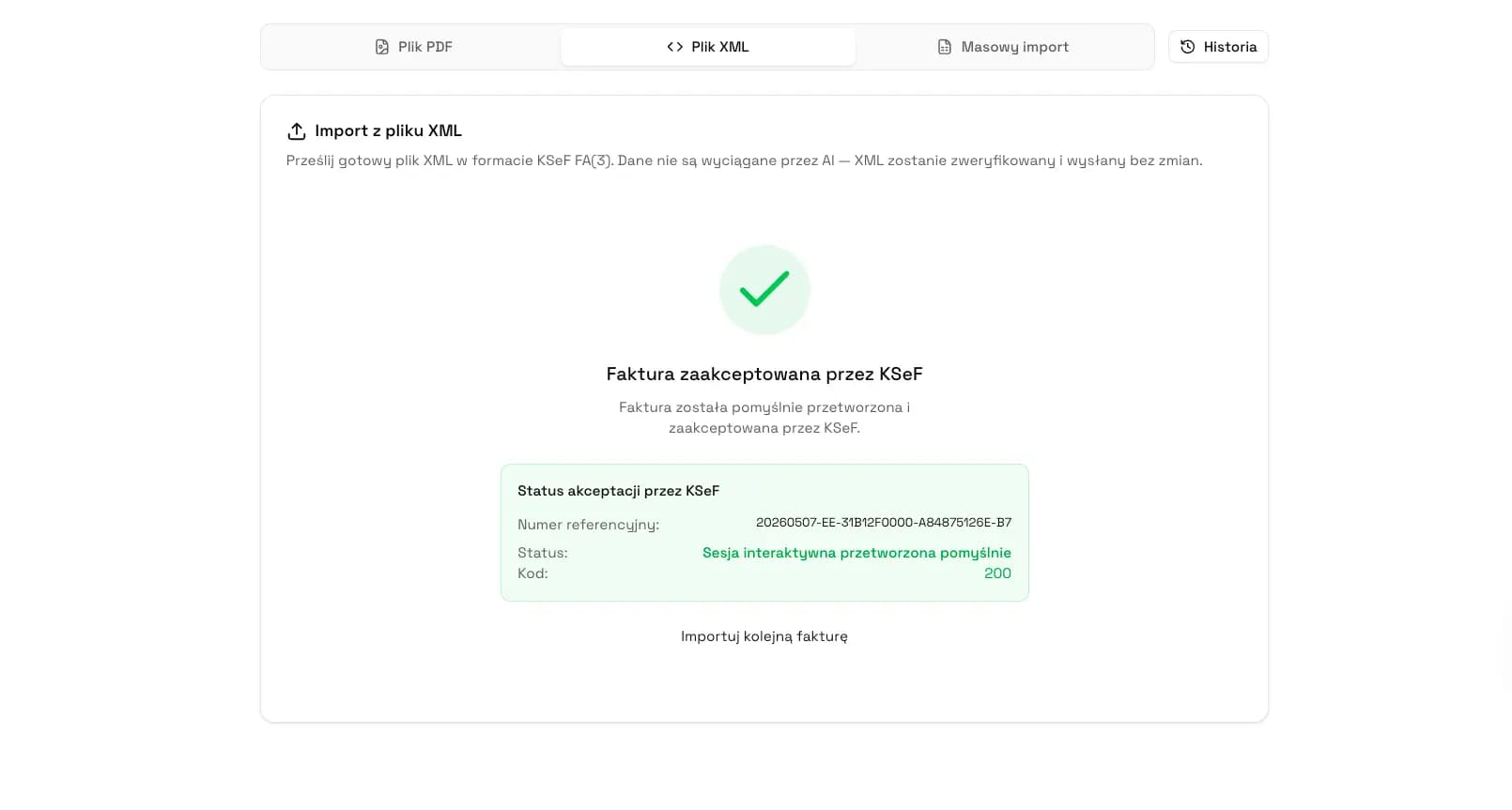
KSeFGPT connects submission, status monitoring, UPO download and archiving in one place. The user does not have to separately check whether the invoice was accepted and then manually move acknowledgements into another folder.
The practical process is simple: prepare or import the invoice, check the data, submit XML FA(3) to KSeF, watch the status, download UPO after acceptance and return to the invoice with the full information set. You can read more in KSeFGPT - invoice import, export and AI analytics app.
On KSeFGPT.pl, you download UPO in the Invoices module. After opening a specific invoice, the acknowledgement is available next to the other document files, such as PDF and XML. This is useful when you want to inspect the full set for one invoice: document data, XML, PDF preview, KSeF number and UPO.
The second path works directly from the list. On the incoming or outgoing invoice list, open the three-dot menu (...) next to the selected invoice and choose the UPO download action. This is faster when you are organizing several documents from the list or checking acknowledgements after a larger submission.
This is especially important in team work. If one person submits the document, another books it and a third handles client communication, the acceptance status and UPO need to be visible in the same process, not in a user's private folder.
Close invoice submission together with UPO
In KSeFGPT you can submit an invoice to KSeF, monitor status, download UPO and keep the KSeF number with the document.
Go to KSeFGPTCommon UPO Mistakes
The first mistake is confusing submitted with accepted. Submission means the file entered the technical process. Acceptance means KSeF assigned a KSeF number and UPO can be downloaded.
The second mistake is confusing the session reference number with the KSeF number. The session number helps track the submission operation, but it does not identify the invoice like the KSeF number. Both numbers may be needed to reconstruct the process.
The third mistake is having no procedure for documents without UPO. If an invoice has no acknowledgement, it should go to a clarification list. Automatic re-submission without checking the status can create confusion and make the correct document harder to identify.
| Mistake | Better Practice |
|---|---|
| Treating submission as acceptance | Wait for the KSeF number and UPO. |
| Archiving only the PDF | Keep XML, UPO and the KSeF number. |
| Confusing numbers | Separate the invoice number, session number and KSeF number. |
| No reaction to missing UPO | Check status, session, validation errors and taxpayer context. |
| Keeping UPO outside the system | Store acknowledgements next to the invoices they refer to. |
Expert Perspective
UPO is a small document, but it changes how teams think about invoices. In the traditional flow, many companies ended the process when they generated a PDF or sent an email to the counterparty. In KSeF, you need to look at the full cycle: XML, submission, acceptance, KSeF number and UPO.
The biggest risk is not the definition of UPO itself, but the lack of a procedure. If the team does not know who downloads acknowledgements, where they are stored and how to handle missing UPO, the issue will appear only at month close, during a counterparty dispute or during an audit.
A good application should therefore not only submit the document, but also watch whether the process is complete. The user should see which invoices have UPO, which are still waiting and which require correction. That is what separates KSeF handling from a simple XML export.
Frequently Asked Questions
What is UPO in KSeF?
UPO in KSeF is the official acknowledgement that the system accepted a document. In practice it confirms the KSeF number, acceptance date and link between the invoice and the submission or session.
Are UPO and the KSeF number the same thing?
No. The KSeF number identifies the invoice after acceptance, while UPO is the acknowledgement document that includes that number.
When can I download UPO?
UPO becomes available after KSeF processes and accepts the document. Do not treat the mere upload of a file as the end of the process.
What does missing UPO after submission mean?
It may mean the document is still processing, was rejected, the session was not handled correctly or the application has not downloaded the acknowledgement yet. First check the submission status and system messages.
Do I have to store UPO?
According to the Ministry of Finance technical FAQ, there is no obligation to download and archive KSeF UPO. Operationally, it is still worth keeping UPO with the invoice, KSeF number, internal invoice number and submission status.
Can UPO cover many invoices at once?
Yes. With invoice packages, a collective acknowledgement can be linked to the package or session reference number. Individual invoices still need to be matched with their KSeF numbers and acceptance statuses.
Recommendation
If you are just designing your KSeF process, start with one rule: no submission is finished until the invoice has a KSeF number and UPO. This single rule organizes the work of sales, accounting and archive owners.
Then check whether your tool shows post-submission statuses, downloads acknowledgements and lets you find UPO by invoice number, tax ID or KSeF number. If it requires manual file transfers between panels, the risk of mistakes grows with every additional document.
Read next: Submitting invoices to KSeF - complete 2026 guide, How much time you have to submit to KSeF, Corrective invoice in KSeF and KSeFGPT - invoice import, export and AI analytics app.
Submit invoices to KSeF and keep UPO in one place
KSeFGPT helps you prepare FA(3) XML, submit the invoice, check status, download UPO and keep the KSeF number with the document.
Go to the appZweryfikowano merytorycznie: Bogdan Mazurek
Tax Advisor · May 19, 2026
Content reviewed for the distinction between UPO, the KSeF number, submission reference numbers and the practical meaning of invoice acceptance status in KSeF.
Related articles
How to send many invoices to KSeF from Excel
A practical guide: how to prepare an XLSX sheet, map columns to FA(3) fields, check errors and send valid invoices to KSeF in KSeFGPT.
Free Invoice Submission to KSeF - 5 Practical Paths
Free invoice submission to KSeF in 2026: Taxpayer Application KSeF 2.0, e-mikrofirma, KSeF mobile app, KSeFGPT public free tools and a hybrid workflow.
Corrective Invoice in KSeF - How to Issue and Submit a Correction
Correction to zero, manual line-item editing, correction from XML and correction from the KSeF invoice list. See how to prepare a corrective invoice in KSeFGPT.
Free PDF to XML KSeF Converter - FA(3) Online in 2026
Free PDF to XML KSeF converter - just an email address. Step by step: how to turn a PDF invoice into FA(3) and submit it to KSeF in 2026.