How to create an invoice in AI Chat and submit it to KSeF
Describe an invoice in plain language, review and correct the editable document, then submit it to KSeF. You need an active company conversation and permission to submit invoices.
- Module
- Chat
- Reading time
- 7 min
- Difficulty
- Intermediate
Follow the instructions carefully and you will succeed
- Published
- August 25, 2026
- Author
- Rafał Zeidler
- Format
- Written guide and video
Written procedure
What you will do
You will describe a standard VAT invoice in an active conversation. AI Chat will prepare the document and open it in a separate editable tab next to the conversation.
You will review the parties, dates, line items, and amounts, correct an example field, and submit the invoice. You will finish after Invoice accepted by KSeF and a reference number appear.
Requirements
Before you start
Prepare all details before sending the request. Once KSeF accepts an invoice, you cannot freely change its contents. An error may require a separate correction invoice.
| Item | Description |
|---|---|
| Access | The company owner or an organization member with chat:use and invoices:send. |
| Plan | A KSeFGPT plan that includes Chat. |
| Company and KSeF | An active conversation for the correct company, created with a KSeF token or certificate. |
| Invoice data | Your invoice number, issue and sale dates, buyer details, line items with quantity, unit, net price and VAT rate, plus payment terms. |
| Starting point | After signing in, open Chat and select an active conversation for the correct company. |
| Time required | About 3 minutes plus AI response and KSeF processing time. |
Process recording
0:28The recording shows describing an invoice in AI Chat, reviewing and changing the preview, and a controlled submission ending with acceptance.
Describe the invoice in plain language
In Chat, select an active conversation for the company that will be the seller. If it does not exist yet, create it first and wait for Successfully logged in to KSeF.
Enter one unambiguous request. Include the invoice number and type, dates, buyer details, every line item with quantity, unit, net price and VAT rate, plus the payment date and method.
Example: Prepare VAT invoice FV/CHAT/08/2026 with issue and sale date 25 August 2026 for Demo Buyer Sp. z o.o., TIN 1111111111, Example Street 2, 00-002 Warsaw. One line item: Demonstration service, quantity 1, unit pcs, net price PLN 1,000, VAT 23%. Payment due 1 September 2026 by bank transfer.
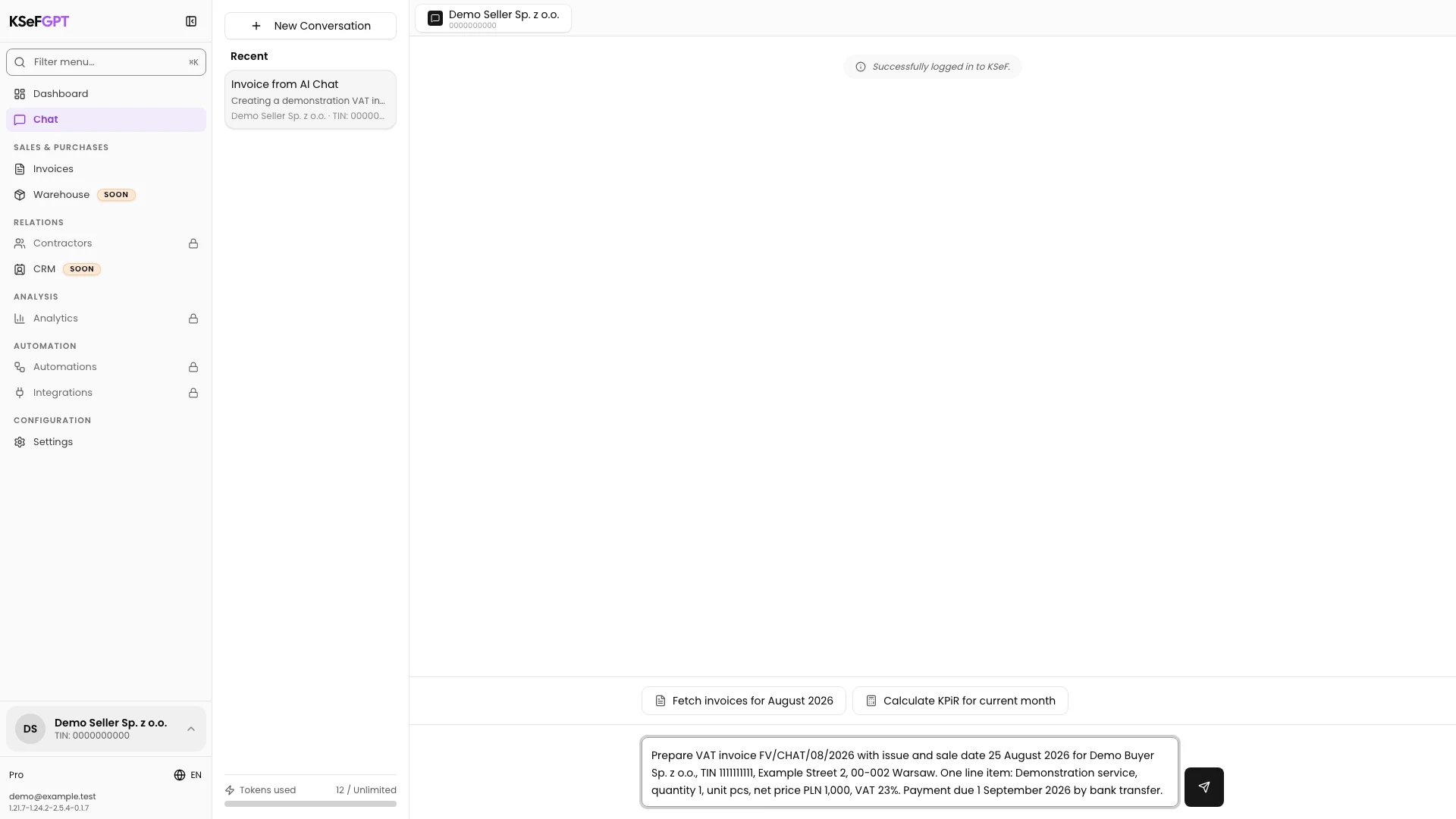
Send the request and open the preview
Select the send button on the right of the input. The assistant replies and automatically opens a tab labelled with the invoice number when the document is ready.
The Edit, PDF, and XML views remain at the top of the preview. Edit is active by default. The first tab labelled with the company name returns to the conversation.
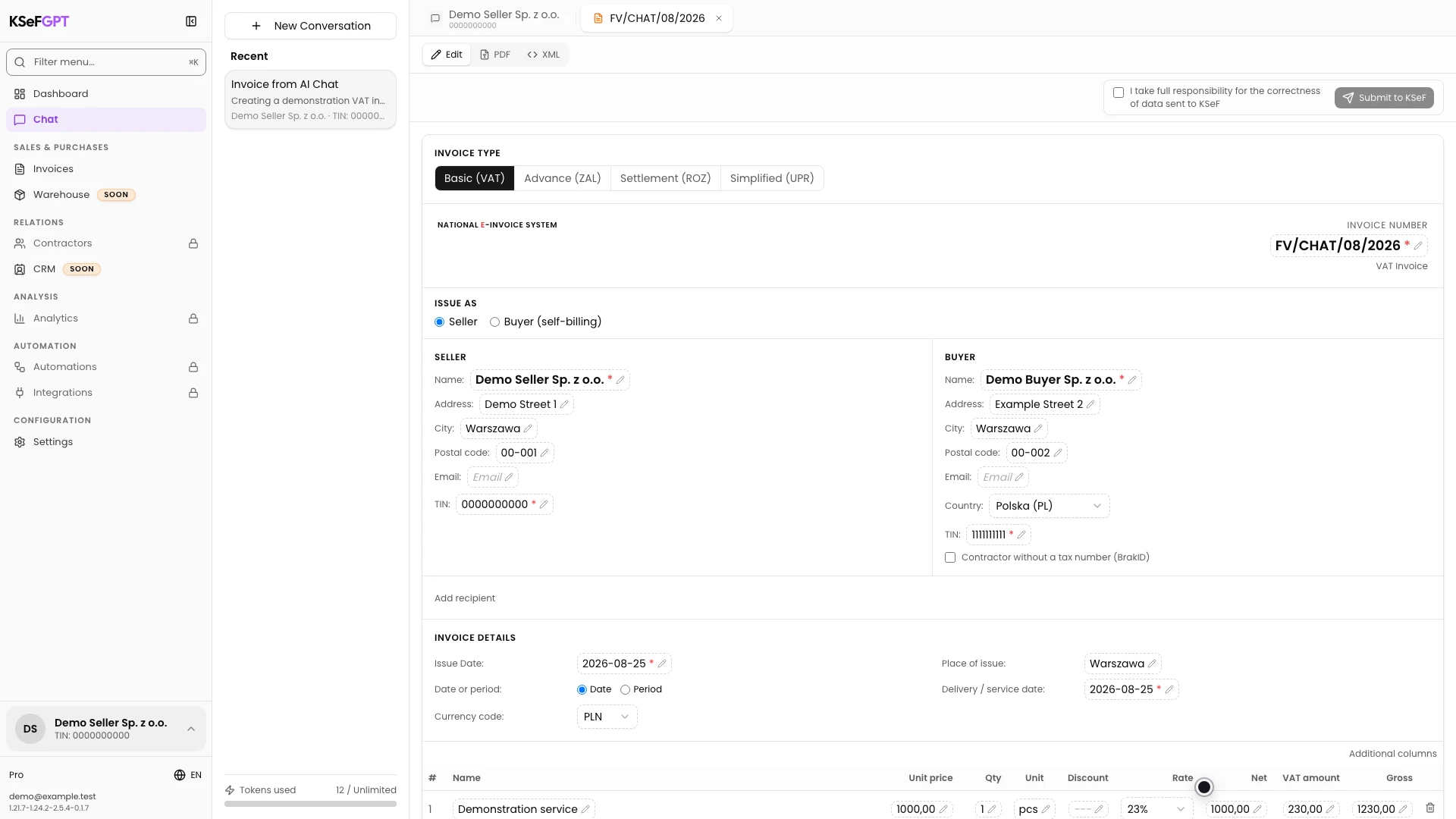
Review the data and amounts
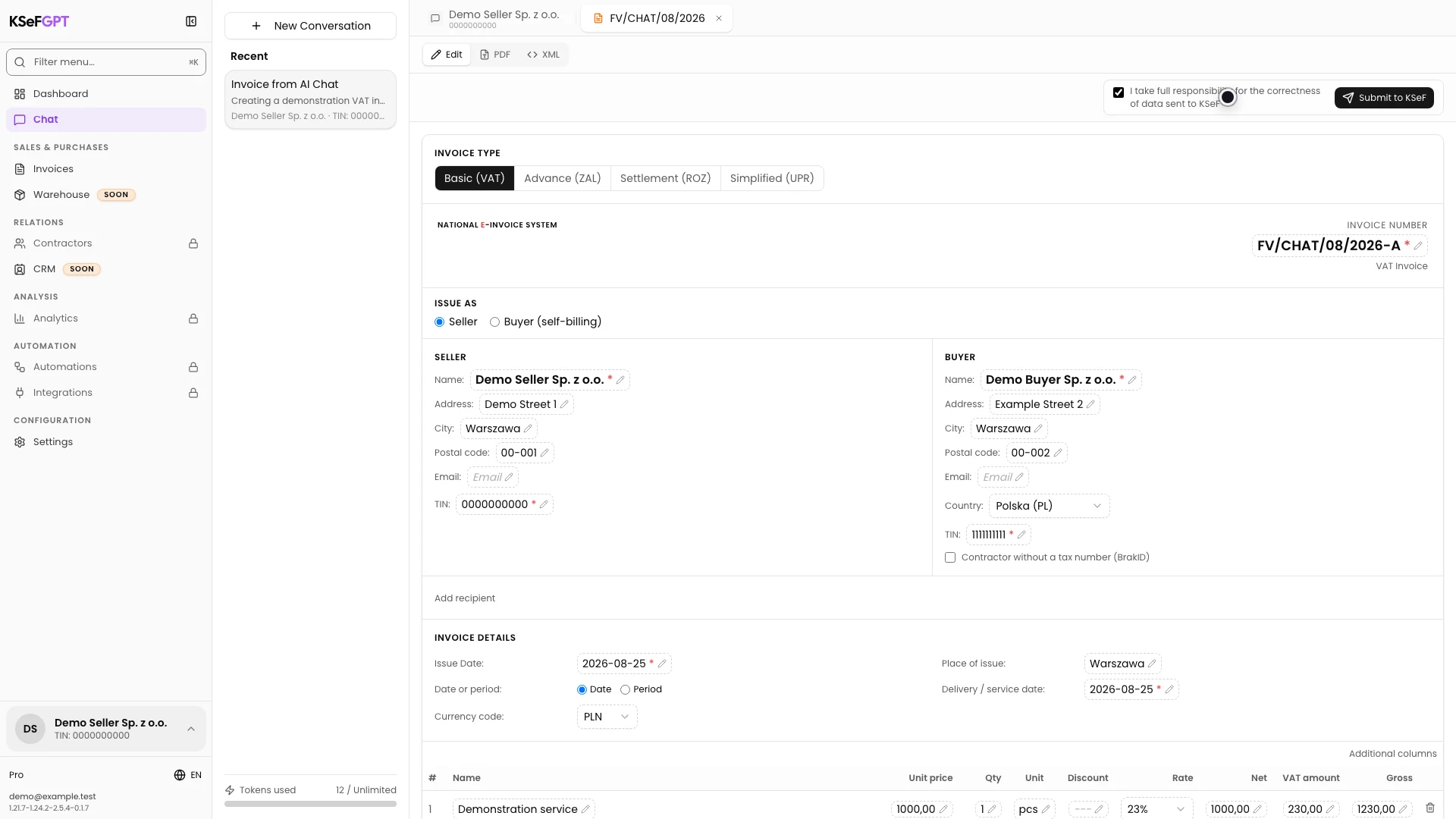
Compare the preview with your request. Check the invoice number, seller, buyer, TINs, addresses, issue date, sale date, currency, and payment terms.
Scroll to the line items. For each item, check the name, net unit price, quantity, unit, discount, and VAT rate. Then compare the net, VAT, and gross amounts in the tax rate summary.
You can also open PDF or XML, but submit only after reviewing the data in Edit. AI Chat helps prepare the invoice but does not assume responsibility for its correctness.
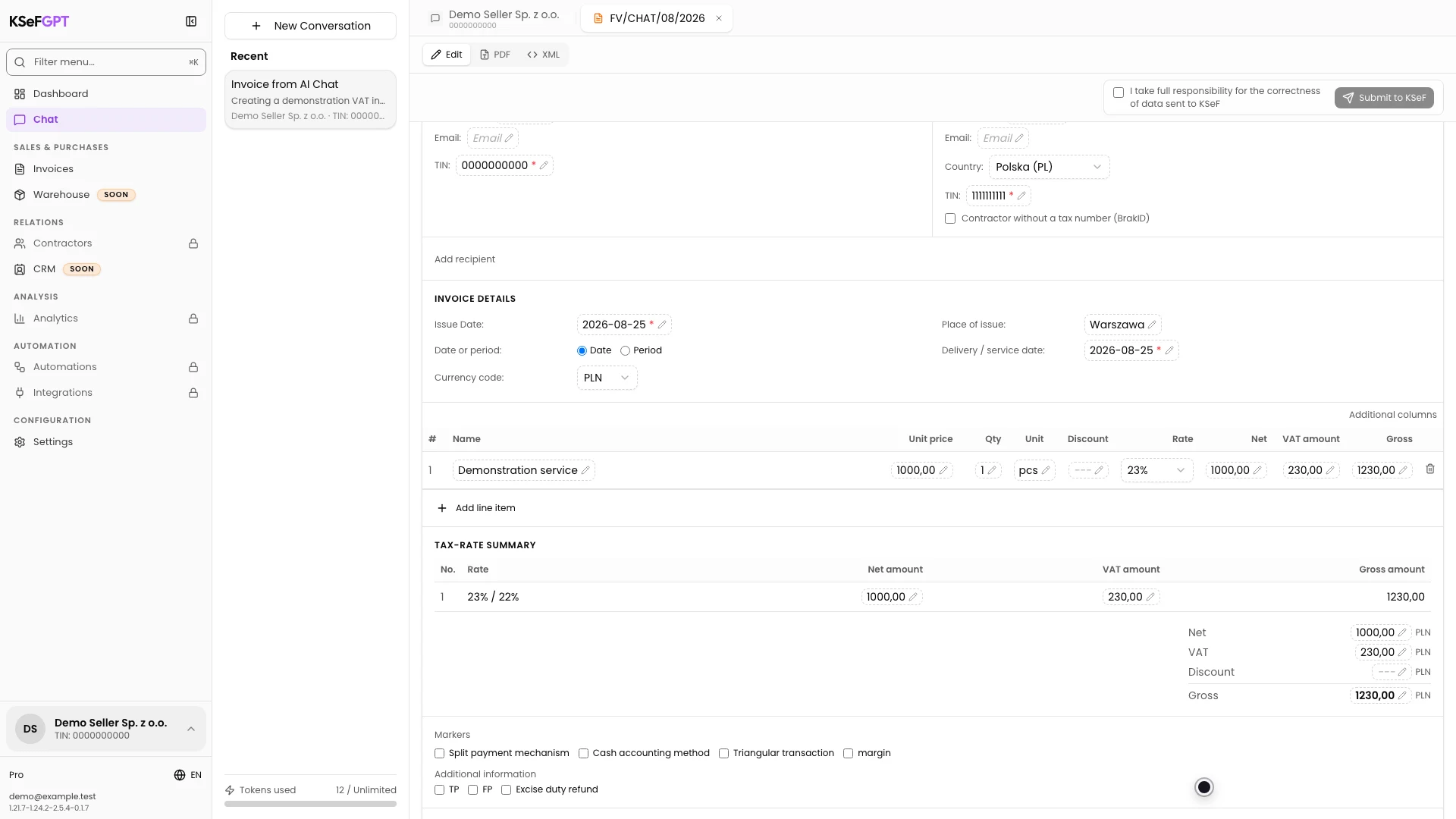
Correct data in the preview
Select a value marked with a pencil icon, enter the correction, and confirm with Enter or by selecting outside the field. The example changes the invoice number to FV/CHAT/08/2026-A.
KSeFGPT regenerates and validates the XML after a change. Wait for the indicator next to XML to disappear, then review every corrected value again.
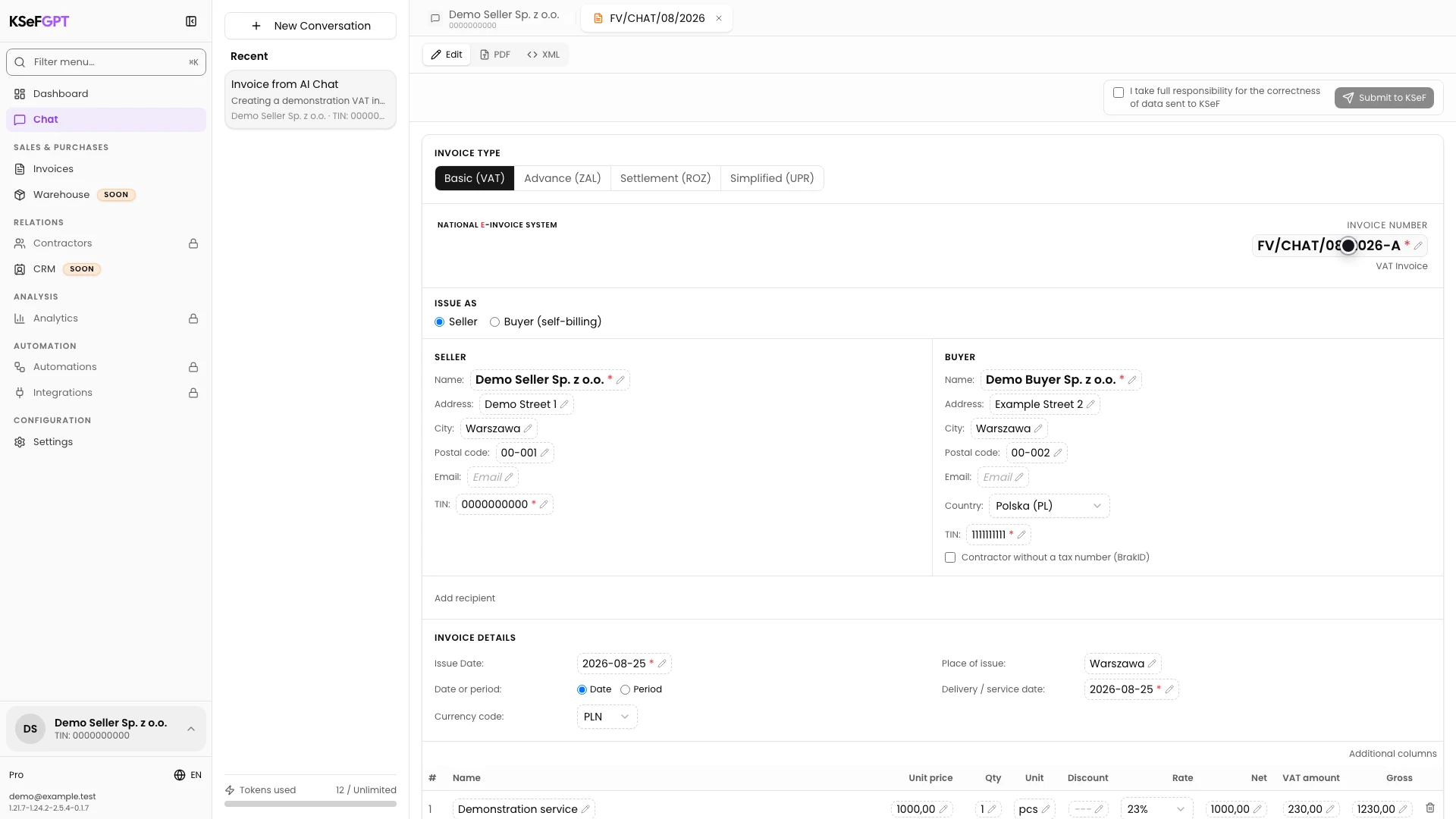
Confirm the data and submit the invoice
Select I take full responsibility for the correctness of data sent to KSeF. Submit to KSeF becomes available when the document has all required details and XML validation has no errors.
Select Submit to KSeF. The application uses the company and authentication method chosen when this conversation was created. Keep the view open until the processing result appears.
Check the acceptance status
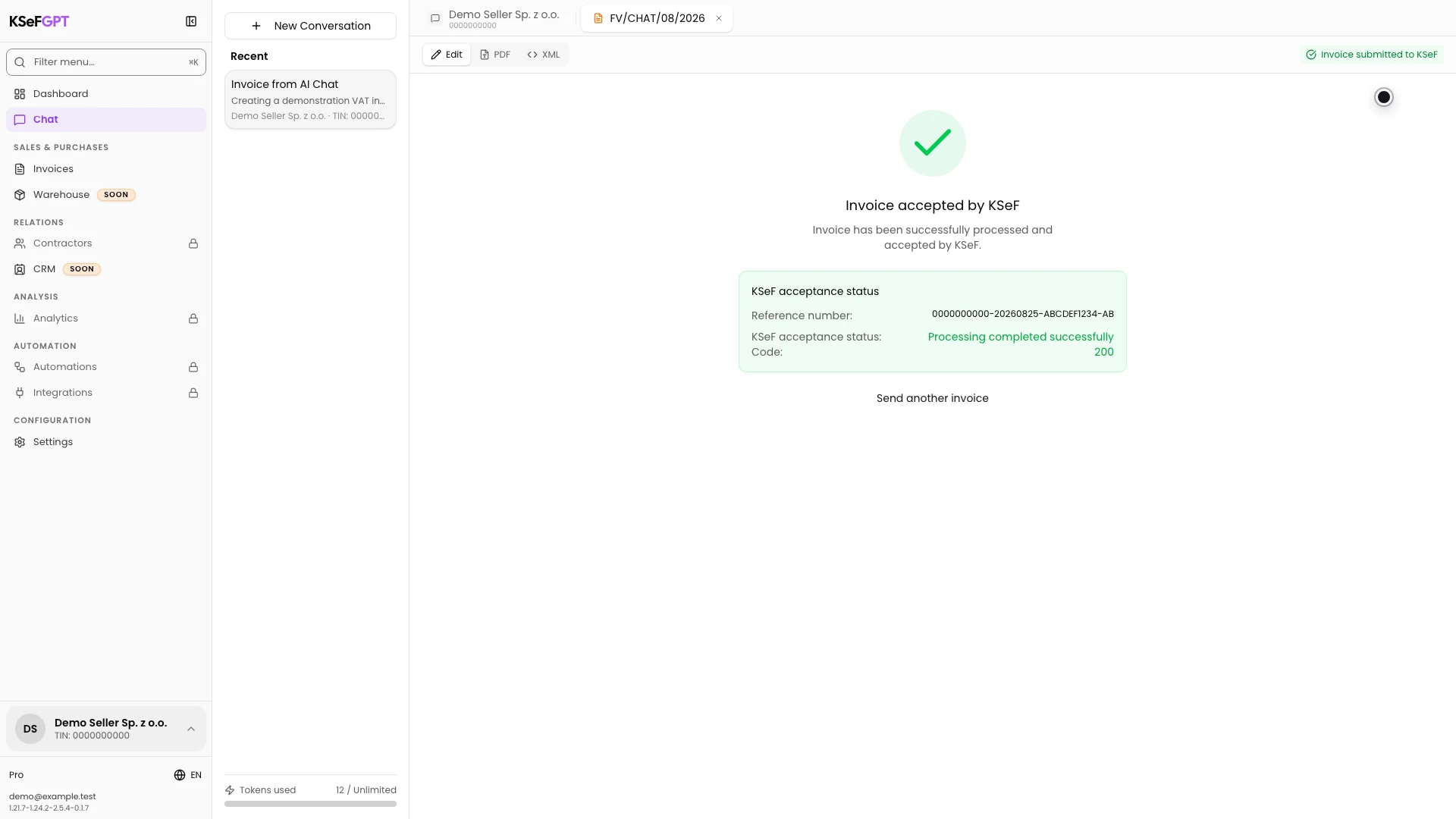
The initial Invoice sent to KSeF message means processing has started. Wait for the final Invoice accepted by KSeF status.
Check the reference number, status description, and code 200. If Invoice rejected by KSeF appears, read the error code and description, correct the document, and submit it as a new attempt.
Final state
Check the result
The operation is complete when the screen shows Invoice accepted by KSeF, a reference number, and code 200. Invoice sent to KSeF alone does not confirm acceptance.
After acceptance, open Invoices and find the document under Outcome. You can review its details and download the available invoice files there.
Diagnostics
If something does not work
Compare the symptom with the table below.
| Symptom | Likely cause | What to do |
|---|---|---|
| You cannot open Chat | The plan does not include Chat or an organization member lacks chat:use. | Check the plan. In an organization, ask the owner for chat:use. |
| The message input is disabled | The conversation has not connected to KSeF or its session has expired. | Wait for the connection confirmation. After KSeF session ended, create a new conversation. |
| The assistant asks for more details | The request lacks information needed to create a complete invoice. | Provide the missing value in the same conversation. Do not approve data you have not checked. |
| Submit to KSeF is disabled | Responsibility is not confirmed, a required field is missing, or XML validation found an error. | Read the bar above the preview, complete the listed fields, remove XML errors, and select the confirmation. |
| Submission reports that access is missing | An organization member lacks invoices:send. | Ask the organization owner for permission to submit invoices for this company. |
| KSeF rejects the invoice | KSeF did not accept the document data or XML. | Read the error code and description. Correct the indicated data and make a new submission attempt. |
What next
If you do not have an active conversation, follow How to start a chat with the KSeFGPT AI Assistant.
After acceptance, follow How to download an invoice as PDF and XML plus UPO in KSeFGPT.
Create an invoice in AI Chat
Sign in, describe the invoice in plain language, and review the document before submission.
Sign in to KSeFGPT