How to download an invoice as PDF, XML and UPO in KSeFGPT
Open an accepted outgoing invoice and download its source XML, a PDF visualisation in the selected language and the official UPO. UPO is available for a document submitted from KSeFGPT.
- Module
- Invoices
- Reading time
- 4 min
- Difficulty
- Easy
You could do this with your eyes closed :)
- Published
- August 20, 2026
- Author
- Rafał Zeidler
- Format
- Written guide and video
Written procedure
What you will do
You will find an accepted outgoing invoice and save three files from its detail page: the source FA(3) XML, a PDF visualisation in the selected language and the UPO confirming that KSeF accepted the document.
XML is the invoice source data, PDF is a readable visualisation and UPO is the official receipt. The files serve different purposes and should be stored according to your company's document workflow.
Requirements
Before you start
UPO can be downloaded here only for an invoice submitted through KSeFGPT. For a document fetched from KSeF, the app may provide XML and PDF but does not have the submission session required to obtain UPO.
| Item | Description |
|---|---|
| Access | The company owner or an organization member with invoice access. A member needs at least invoices:read. |
| Company and authorization | Select the company and KSeF method for which the invoice appears in Outcome. |
| Invoice | The document should have a KSeF number and final acceptance status. UPO requires an invoice submitted from KSeFGPT. |
| Starting point | After signing in, open Invoices → Outcome. |
| Time required | About 2 minutes. |
Process recording
0:28The recording shows an outgoing invoice, XML download, PDF language selection and UPO download.
Open outgoing invoices
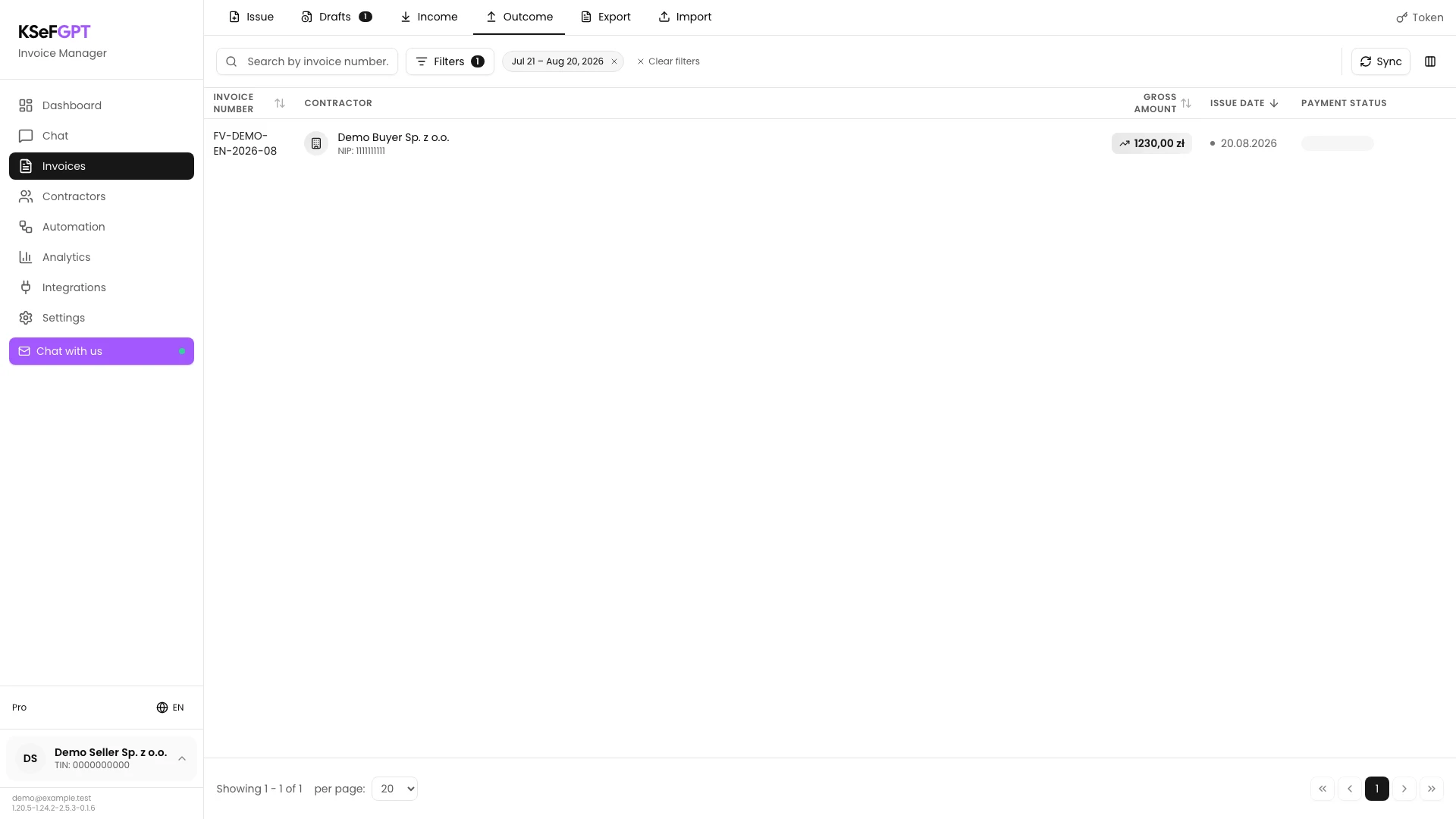
Select the correct company and authorization method, then open Invoices → Outcome. Use the invoice number, date range or filters if you need to find the document.
Check the invoice number, contractor, amount and issue date in the list. Select the correct row to open the invoice details.
Check the details and available files
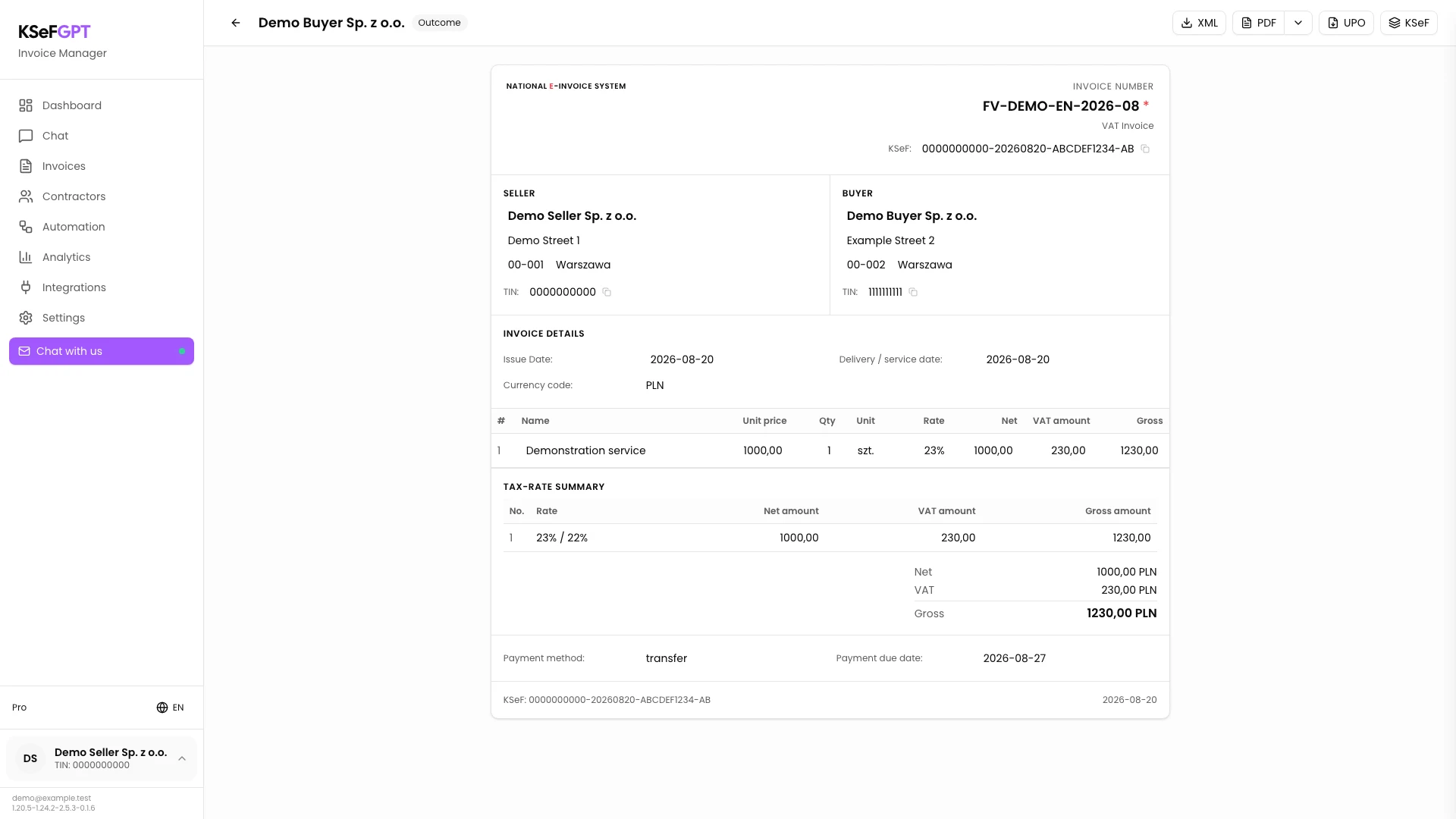
On the invoice page, compare the number, seller, buyer, dates, lines and amounts. The top right contains XML, PDF, UPO and KSeF actions.
If you opened another document, use the back arrow to return to the list. Do not download files until the invoice number and KSeF number match the document you need.
Download the source XML
Select XML. KSeFGPT fetches the source document and saves a file named with the KSeF number.
Wait for XML file downloaded successfully. Do not manually modify the file if it is to remain the original invoice data record.
Select the language and download PDF
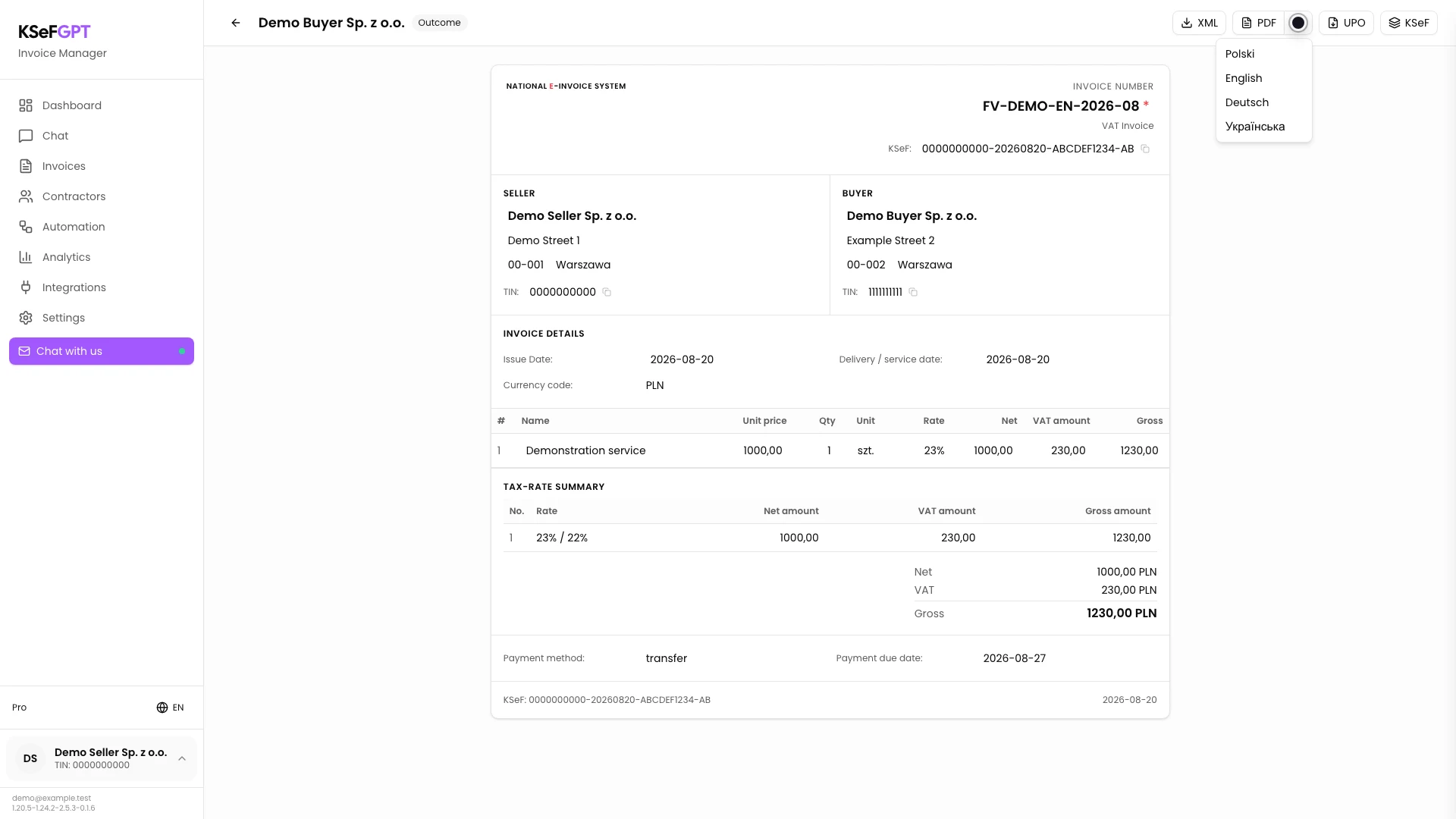
Select the arrow next to PDF labelled PDF language. Choose Polski, English, Deutsch or Українська.
KSeFGPT fetches the XML, creates a visualisation in the selected language and saves the PDF. PDF file downloaded successfully appears when it is ready.
Download UPO
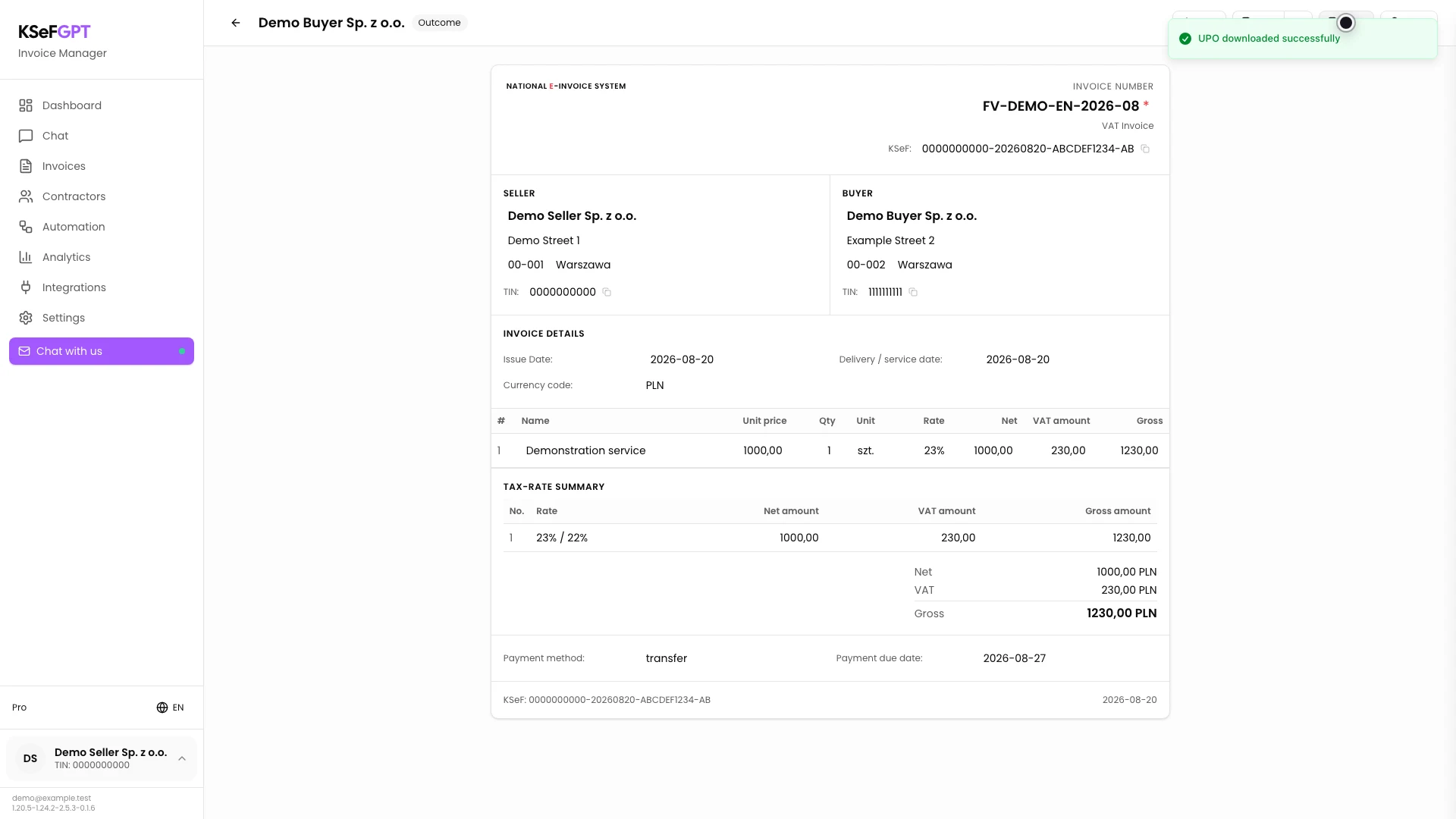
Select UPO. KSeFGPT uses the KSeF number and submission session reference, fetches the official receipt and saves it as a PDF.
Wait for UPO downloaded successfully. If the invoice was not submitted from KSeFGPT or the UPO is not ready, the app displays the relevant message instead of a file.
Final state
Check the result
Your downloads folder should contain the invoice XML, the selected PDF visualisation and the UPO PDF. Open each file and check the invoice number and KSeF number.
To obtain another PDF language, open the language menu again and select another version. XML and UPO remain the same source documents regardless of the visualisation language.
Diagnostics
If something does not work
Compare the symptom with the table below.
| Symptom | Likely cause | What to do |
|---|---|---|
| The invoice is not in the list | A different company, authorization method, date range or filter is selected. | Check the company and KSeF method, clear the filters and search for the invoice number again. |
| XML download failed | The document has no available KSeF number or the KSeF download failed. | Check the KSeF number and the selected company's connection, then try again. |
| PDF generation failed | The XML could not be fetched or the visualisation converter returned an error. | Test XML download first. Then select the PDF language again and read the message details. |
| UPO is not yet available | KSeF has not finished preparing the UPO. | Wait and reopen the document after the final acceptance status appears. |
| UPO is unavailable for this invoice | The document was fetched from KSeF rather than submitted through KSeFGPT. | Download UPO in the system or app that actually submitted the document. |
What next
Store XML, PDF and UPO in a controlled document repository according to company policy. Do not treat the PDF visualisation as a replacement for the source XML.
If you still need to create the document, return to How to issue and submit a standard VAT invoice in KSeFGPT.
Download the files for an accepted invoice
Sign in, open an outgoing invoice and save its XML, PDF and available UPO.
Sign in to KSeFGPT