How to create an organization in KSeFGPT
Select a company you own, create its organization, and add the first group with a limited set of permissions. You will finish by checking the team environment under Groups.
- Module
- Organizations
- Reading time
- 5 min
- Difficulty
- Easy
You could do this with your eyes closed :)
- Published
- August 26, 2026
- Author
- Rafał Zeidler
- Format
- Written guide and video
Written procedure
What you will do
You will create an organization for a company owned by your account. KSeFGPT automatically adds the system group named Zarząd with full access, and you will create an additional Accounting group with only the required permissions.
You will finish the wizard without inviting a user. Invitations are a separate process that you can start later from the Users card.
Requirements
Before you start
An organization shares one company's data with team members. Each company and each tax identification number can have only one organization.
| Item | Requirement |
|---|---|
| Access | The company owner. A member of another organization cannot create an organization for a company they do not own. |
| Plan | A KSeFGPT plan with the Organizations feature enabled. |
| Company | A company listed under Your companies that does not yet have an organization. |
| Group | A team group name and the required permission list, for example invoices:read and analytics:read. |
| Starting point | After signing in, select the correct company and open Organization. |
| Time required | About 3 minutes. |
| Important effect | Selecting Next in the first step immediately creates the organization and the system group named Zarząd. The organization exists before you complete the rest of the wizard. |
Process recording
0:24The recording shows how to select a company, create an organization and an Accounting group, and verify both groups in the completed organization.
Select the company
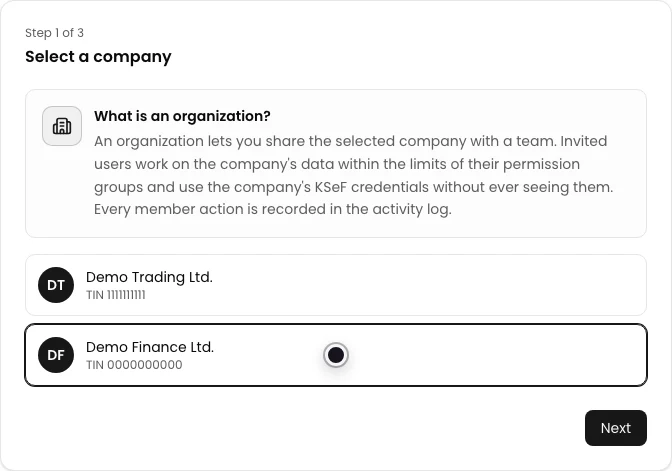
Select Organization in the side navigation. Under Select a company, choose the company for which you want to create the team environment.
The wizard lists only companies owned by your account. The selected card has a highlighted border and the Next button becomes active.
Create the organization
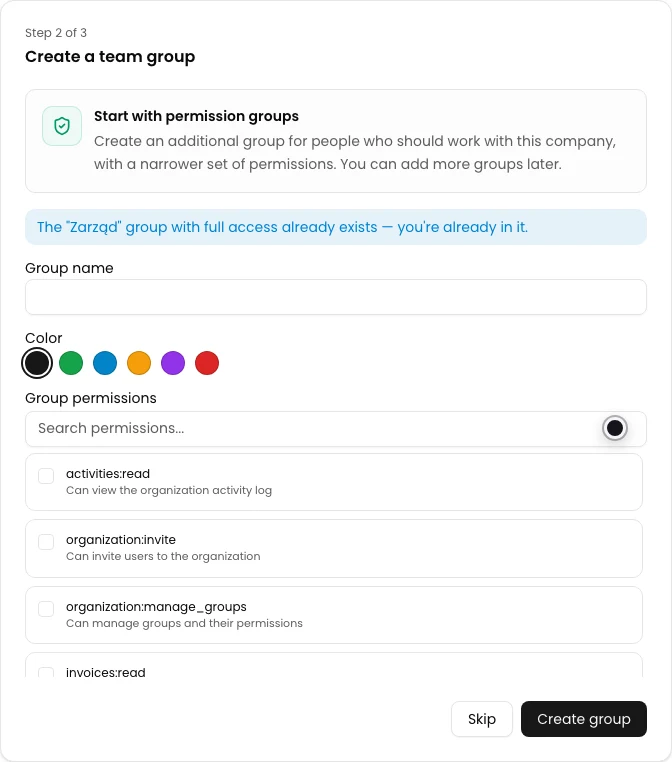
Select Next. KSeFGPT creates an organization named after the selected company and automatically adds you to the system group named Zarząd with full access.
After the save succeeds, Organization created appears and the Create a team group step opens. A notice confirms that the Zarząd group already exists.
Create a team group
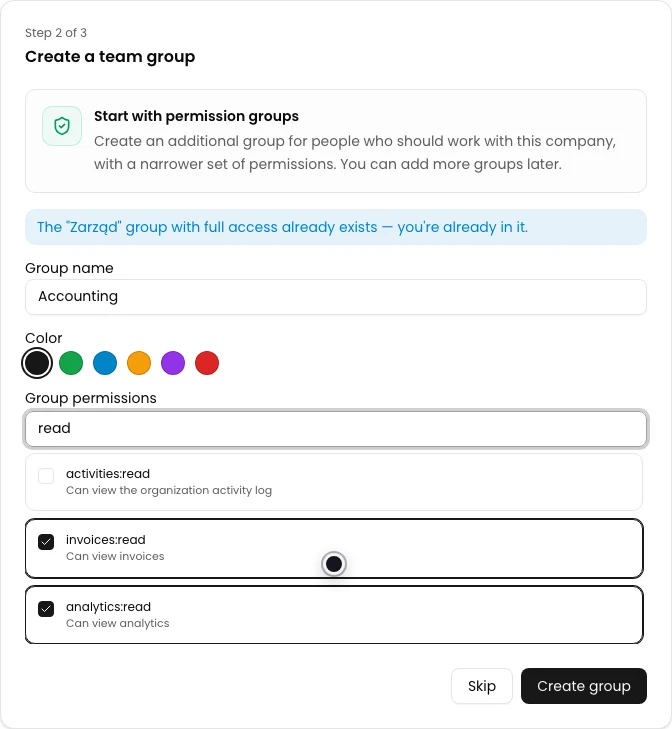
In Group name, enter a name that describes the team role, such as Accounting. Choose a color and then select only the permissions that members of this group need.
The recording selects invoices:read for viewing invoices and analytics:read for viewing analytics. Search permissions... finds a scope by its identifier or description.
Select Create group. Once saved, Group created appears and the final wizard step opens.
Finish the wizard
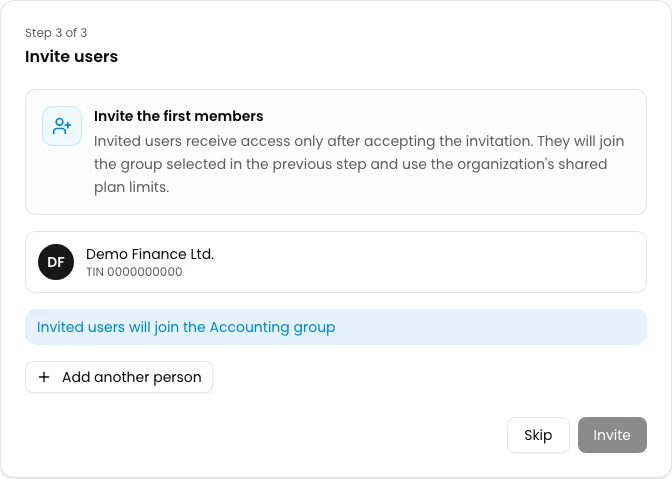
Under Invite users, check the company name and the notice stating that new users will join the group you created. Select Skip to finish without sending invitations.
To invite a member now, select Add another person, enter their email address, and select Invite. A separate guide covers the complete invitation process, so this example finishes without adding a user.
Verify the completed organization
After closing the wizard, select Groups in the Organization navigation. The list should contain the system group named Zarząd and the Accounting group you created.
Under Accounting, verify the selected permission identifiers. You can later use Edit to change the group name, color, or permissions.

Final state
Verify the result
The organization header shows the selected company name and tax identification number. The Groups counter is 2, and the Groups tab lists Zarząd and Accounting with the invoices:read and analytics:read permissions.
The organization is ready for user invitations. Creating a group alone does not give anyone else access.
Diagnostics
If something does not work
Compare the visible state or message with the table below.
| Symptom | Likely cause | What to do |
|---|---|---|
| You see You don't have any company yet | There is no company on the account for which an organization can be created. | Add a company under Settings first, then return to Organization. |
| You see a feature unavailable notice instead of the wizard | Your plan does not include Organizations. | Check the available features under Subscription. |
| You see An organization for this tax ID already exists | The selected company or the same tax identification number is already linked to an organization. | Select another company you own. If the organization should belong to you, contact the administrator or support. |
| Operation failed appears after selecting Next | The organization could not be created or the organization service is temporarily unavailable. | Do not select the button repeatedly. Refresh the view, check whether the organization was already created, and then retry. |
| Enter a group name appears below the field | Group name is empty. | Enter a group name and select Create group again. |
| The organization was created but the group could not be added | The organization was created in the first step, but saving the additional group failed. | Refresh Organization, open Groups, and add the group with New group. |
What to do next
Add the first member with How to add a user to an organization in KSeFGPT.
To change team access, use How to set group permissions and assign the group to a user in KSeFGPT.
Create a team environment
Sign in, select a company, and create an organization with its first permission group.
Sign in to KSeFGPT