How to remove a user or revoke an organization invitation?
Check the company and email address, then remove a member or revoke a pending invitation.
- Module
- Organizations
- Reading time
- 3 min
- Difficulty
- Easy
You could do this with your eyes closed :)
- Published
- September 11, 2026
- Author
- Rafał Zeidler
- Format
- Written guide and video
Written procedure
What you will do
Remove a specific member from an organization or revoke an invitation that has not been accepted. Both options use the bin next to the correct email address in Users.
Follow step 2 for an active member or step 3 for a pending invitation. The example demonstrates both actions using different demo addresses.
Requirements
Before you start
Removal affects membership of this organization, not the entire KSeFGPT account. It does not revoke permissions granted directly in the Ministry of Finance system.
| Item | Requirement |
|---|---|
| Access | Owner of the selected company with an existing organization and active access to the module. A member performing these actions needs organization:invite permission. The procedure was verified for the owner. |
| Required data | The person’s email address and whether they have joined or still have the Invited badge. |
| Starting point | After signing in, select the correct company and open Organization → Settings. |
| Time | About 2 minutes. A KSeF connection is not required to manage membership. |
| Effect | The bin performs the action immediately, without another confirmation. Check the address before clicking. Removing a member revokes access provided by that membership; revoking an invitation cancels the pending invitation. |
Process recording
0:27Check the company and email address, then remove a member or revoke a pending invitation.
Open the user list
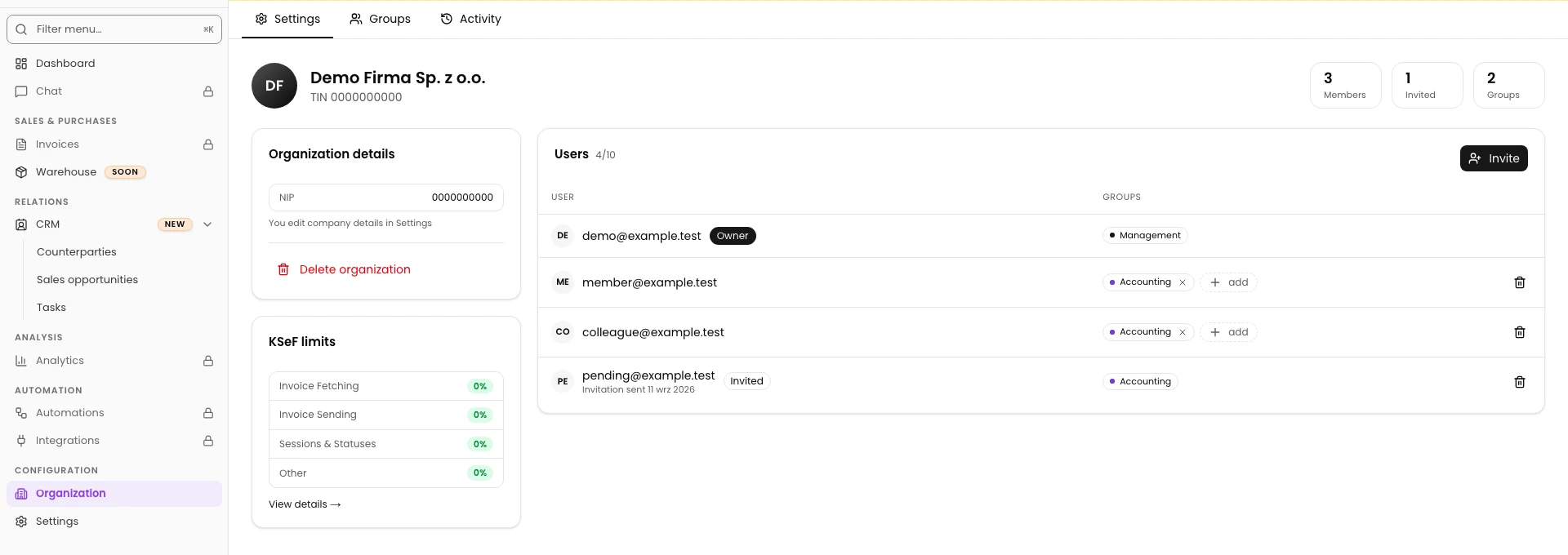
Choose Organization in the menu, then Settings. Check the company name and NIP (Polish tax ID) in the header against the company whose access you want to manage.
Find Users. Owner identifies the owner; Invited identifies someone who has not accepted their invitation. The example starts with four addresses.
Remove an active member
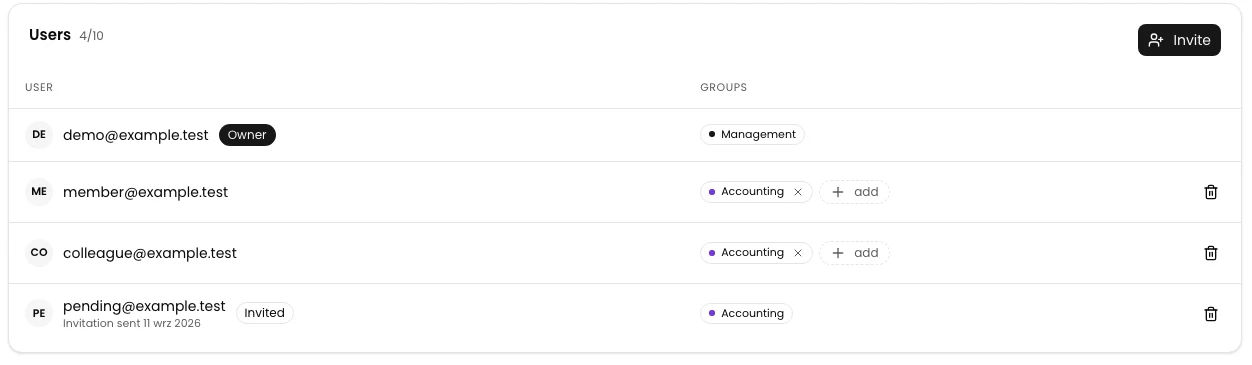
Find the person whose membership you want to remove. The example uses member@example.test without an Invited badge. Do not select the owner’s row or your own address.
Check the address again and click the bin labelled Remove from organization on the right of that row. There is no separate confirmation dialog. The row disappears when the operation succeeds.
Revoke a pending invitation
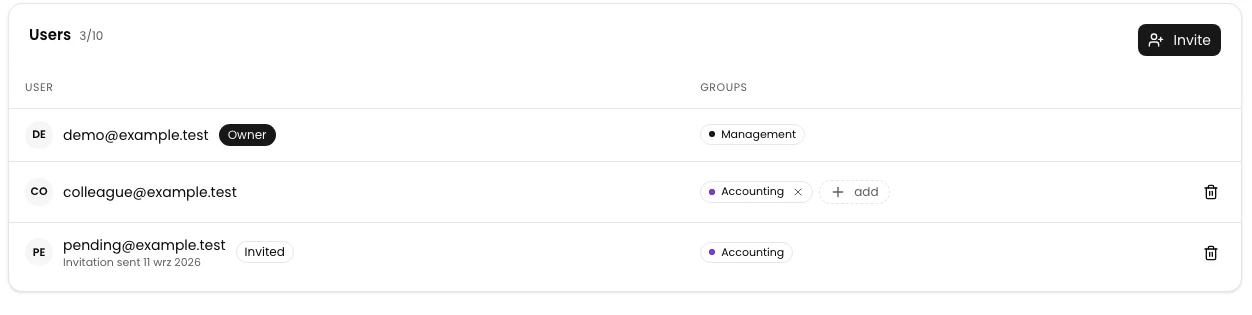
To revoke an invitation, find the correct address with the Invited badge. The example uses pending@example.test.
Click Remove from organization in that row. For an invited person, the same control revokes the invitation. The row should disappear. If the person is already an active member without the Invited badge, use step 2.
Check the remaining users
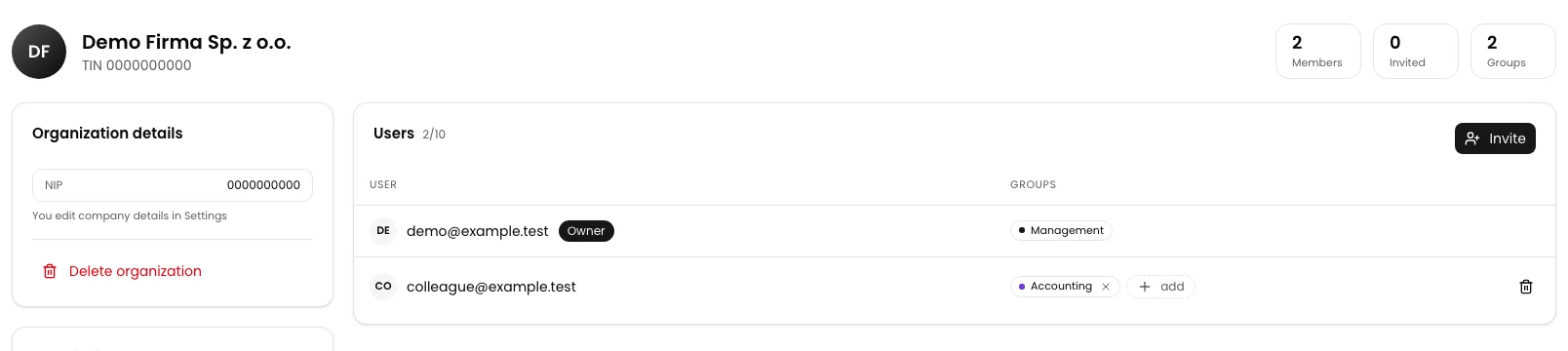
Compare the list after the change. After both example actions, demo@example.test remains as Owner alongside colleague@example.test. The user counter changes from 4/10 to 2/10, and the invited count is 0.
If you performed only one option, only the selected address disappears. Counts and limits depend on your organization and plan.

Final state
Check the result
Reload the Organization page and check Users again. The removed member or revoked invitation should remain absent. Make sure the owner and other members are still listed.
To grant this person access again, send a new invitation with the appropriate groups. Changing other users’ groups does not restore the removed membership.
Diagnostics
If something does not work
| Symptom | Cause | What to do |
|---|---|---|
| There is no bin next to the owner or your own address. | This control is hidden for the organization owner and your own row. | Select the appropriate other member. This guide does not cover removing the owner or leaving an organization yourself. |
| As a member, you cannot see bins next to other people. | The action requires organization:invite permission. | Ask the owner to perform the action or grant the appropriate permission. |
What next
Manage access to your organization
Check the correct company and open its user list.
Open Organization