How to set AI permissions for KSeF data and operations
Select a company and decide which read and write tools AI can use. Start with Read only, then enable only the features required by your workflow.
- Module
- Settings
- Reading time
- 5 min
- Difficulty
- Easy
You could do this with your eyes closed :)
- Published
- August 26, 2026
- Author
- Rafał Zeidler
- Format
- Written guide and video
Written procedure
What you will do
You will configure a separate AI tool scope for a selected company. In this example, you will first apply Read only, then disable access to invoice contents and allow only invoice XML generation.
The generate_and_submit_invoice tool will remain disabled. AI will be able to prepare a document for review, but this change will not allow it to submit the document to KSeF by itself.
Requirements
Before you start
The permissions on this page apply to tools used by AI in the context of one company. They do not replace organization member permissions or KSeF credentials.
| Item | Requirement |
|---|---|
| Access | A company owner account with the company visible under Your companies. |
| Company | The company for which you want to limit or extend AI access. |
| Decision | A list of tasks AI should perform. Separate read operations from operations that modify data or submit documents. |
| Starting point | After signing in, open Settings. |
| Time required | About 2 minutes. |
| Important effect | Each switch change is saved immediately for the selected company. |
Process recording
0:21The recording shows how to select a company, apply Read only, and enable one required write tool.
Open AI Access
Select Settings in the main navigation, then select the AI Access tab.
You will see AI Permissions for KSeF Tools and a separate card for every company added to the account.

Select the company and apply Read only
Check the company name and TIN on its card. Select the card header if the tool list is collapsed, then select Read only.
This mode enables available read tools and disables configurable write tools. Tools required for technical session handling and preview may stay enabled, and their switches are locked.
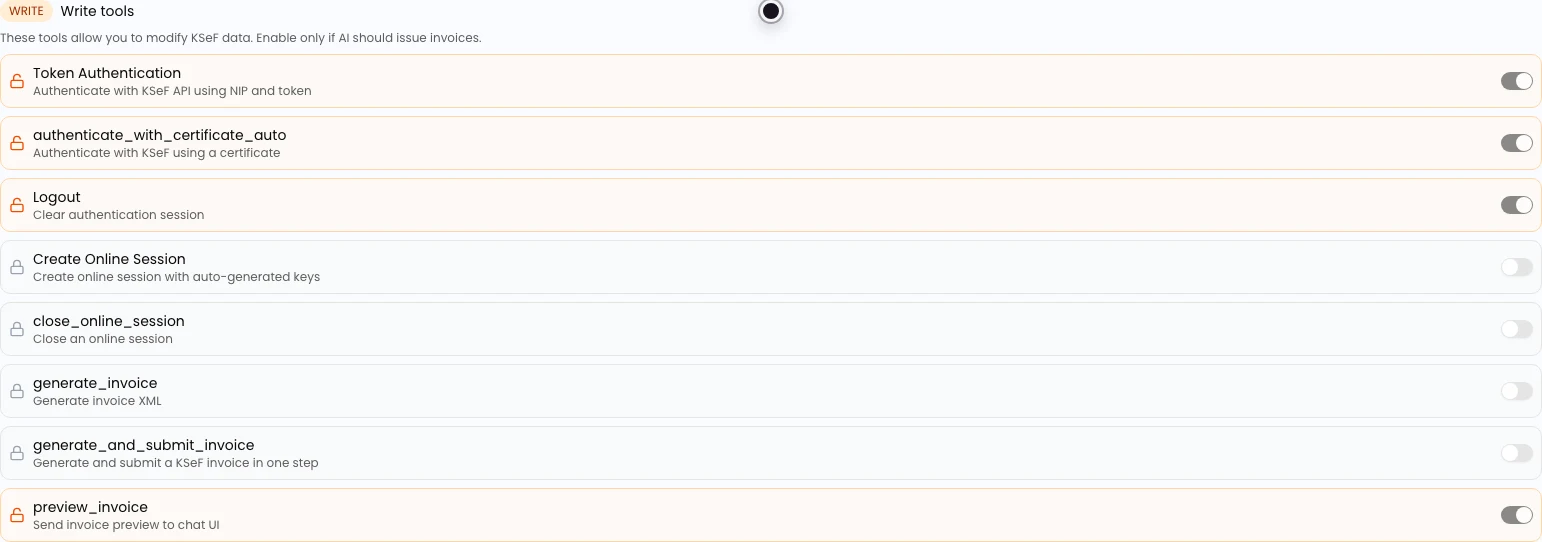
Limit read tools
Under Read tools, disable features that AI does not need. In this example, turn off Get Invoice so AI cannot retrieve invoice contents by KSeF number.
A green background and an enabled switch indicate active access. A gray background and a disabled switch indicate that the tool is unavailable.

Enable the required write tool
Go to Write tools and enable generate_invoice. Leave generate_and_submit_invoice disabled when AI should prepare XML for review but must not submit documents by itself.
Do not use Full access when you need only one write operation. That button enables all tools at once.
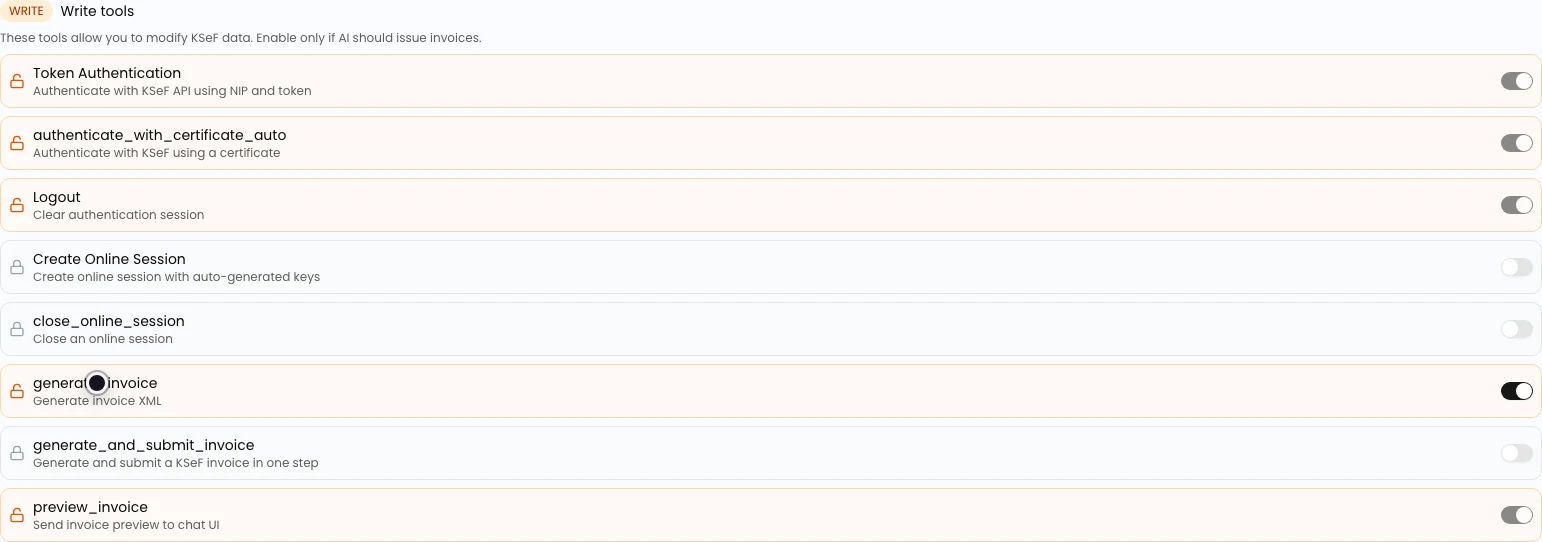
Final state
Check the result
Return to the company card header. The R and W counters show how many read and write tools are active compared with the total in each group.
In the configuration shown here, the card displays 9/10 R and 5/8 W. Get Invoice is disabled, generate_invoice is enabled, and generate_and_submit_invoice remains disabled.

Diagnostics
If something does not work
Compare the screen behavior with the confirmed cases below.
| Symptom | Likely cause | What to do |
|---|---|---|
| No company card is visible | No company has been added to the account yet. | Add a company under Company Data first. |
| A switch is locked | The tool is marked as always enabled and is required for technical AI operation. | Leave it unchanged. Limit the remaining switches that are available. |
| A switch returns to its previous state | The permission update request was not accepted. | Check the connection, refresh the page, and try again. Contact support if the problem continues. |
| AI cannot perform the expected task | The required tool is disabled or the company has no active KSeF connection. | Enable only the required tool and separately verify the company credential under KSeF Connection. |
What next
If the company does not have a token or certificate yet, continue with How to configure a KSeF connection in KSeFGPT.
After changing the scope, start a new AI Chat and use a safe example to verify that the assistant has exactly the capabilities you intended.
Set AI access for your company
Sign in, open AI Access, and leave only the required KSeF tools enabled.
Sign in to KSeFGPT