How to add a company to KSeFGPT
Add a company under Settings, fetch its details from GUS using its NIP, and check the new entry under Your companies. The company name and NIP are enough to create it.
- Module
- Settings
- Reading time
- 5 min
- Difficulty
- Easy
You could do this with your eyes closed :)
- Published
- August 12, 2026
- Updated
- August 20, 2026
- Author
- Rafał Zeidler
- Format
- Written guide and video
Written procedure
What you will do
You will add a company to your KSeFGPT account. You can fetch its name and address from GUS after entering its NIP or enter the details yourself.
Once saved, the company appears under Your companies. You can select it in the application, update its details, or continue to configure its KSeF connection.
Requirements
Before you start
This instruction uses the permanent path available after signing in. When you first open KSeFGPT, you may see an onboarding wizard with a Company step. It uses the same required details but does not include the bank account or company email fields.
| Item | Requirement |
|---|---|
| Access | The account owner or a user who does not work solely as an organization member. An organization member needs the companies:create permission to see the add-company form. |
| Required details | The company's full name and its 10-digit Polish NIP. |
| Optional details | Street, postal code, city, company email, bank account number, SWIFT code, and bank name. |
| Starting point | After signing in, open Settings and then the Company Data tab. |
| Time required | About 2 minutes. |
| Important effect | Adding a company does not connect it to KSeF automatically. Add a token or certificate separately under KSeF Connection. |
Process recording
0:18The recording shows how to fetch demonstration details from GUS, complete the form, and verify the new company in the list.
Open Company Data
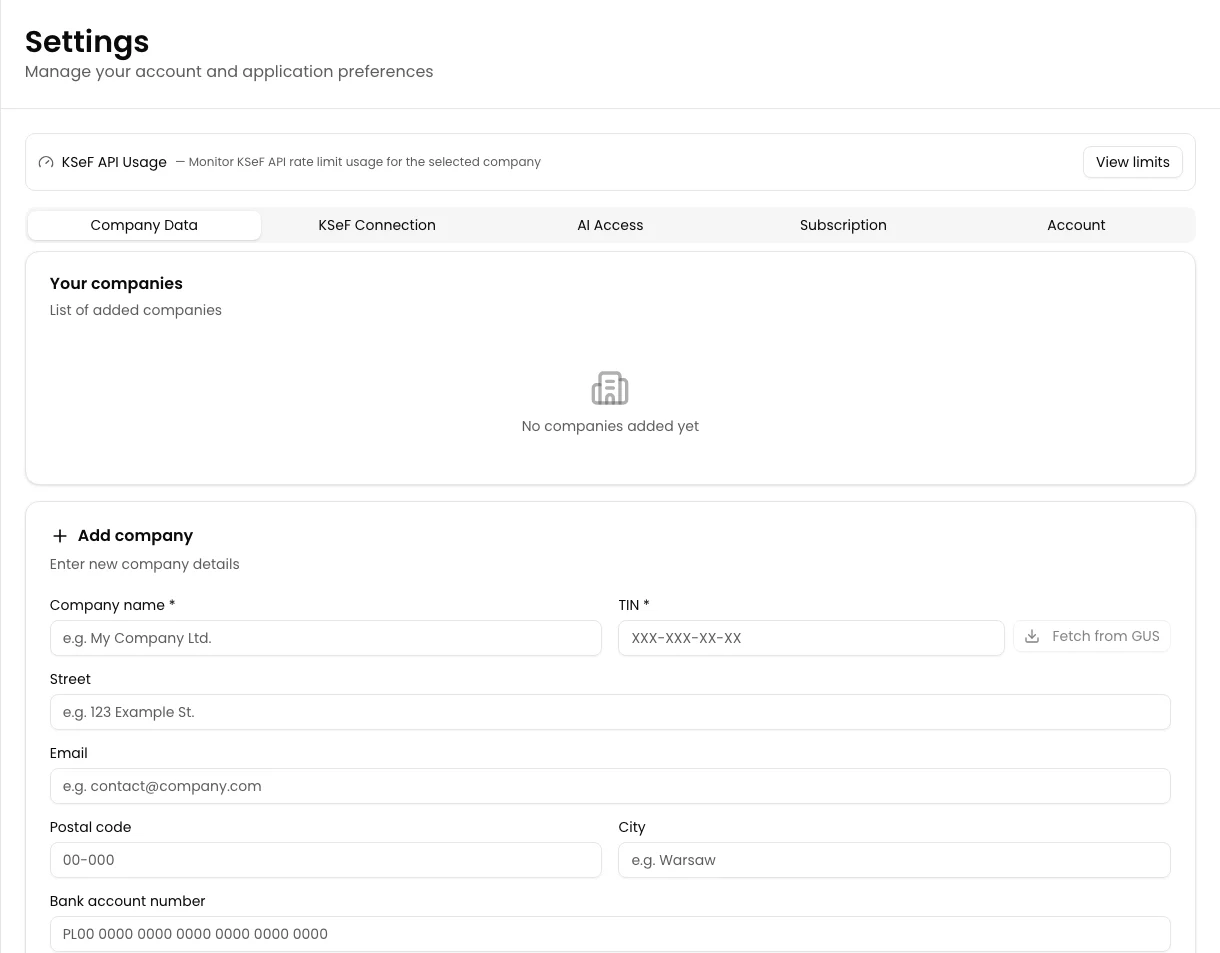
In the main KSeFGPT navigation, select Settings and then select Company Data. Settings may open a different tab by default, so make sure Company Data is active.
Your companies appears at the top. Below it, you will find the Add company form with the description Enter new company details.
Enter the NIP and fetch details from GUS
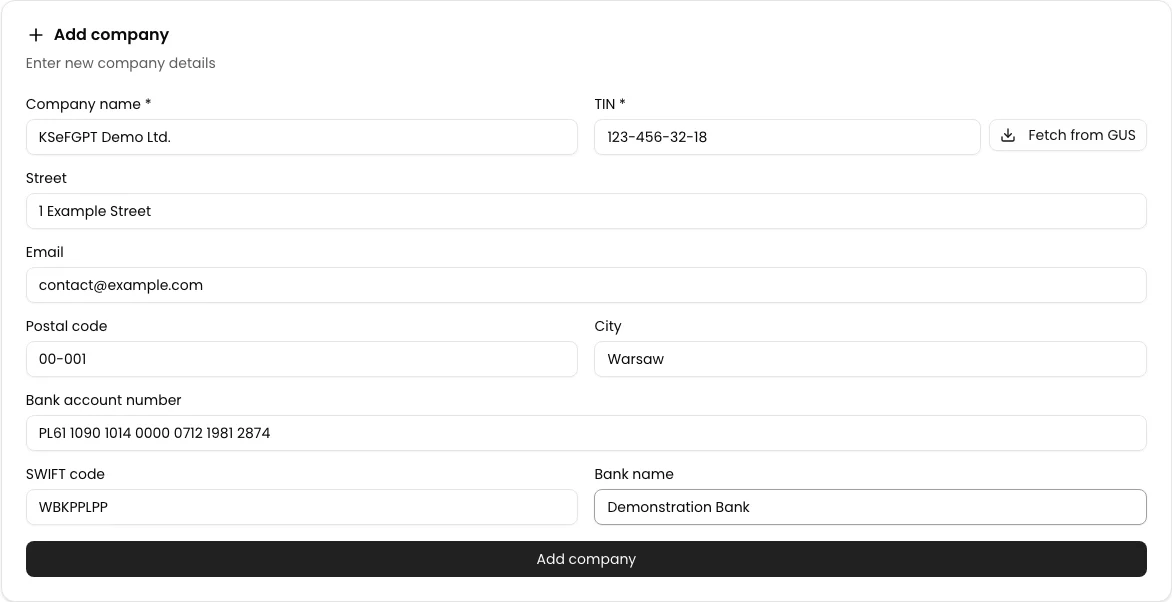
In TIN *, enter the company's 10-digit Polish tax identification number. KSeFGPT automatically displays it with hyphens, for example 123-456-32-18.
Once the NIP contains 10 digits, Fetch from GUS becomes active. Select it to fill Company name *, Street, Postal code, and City with the details returned by GUS.
After a successful lookup, Data fetched from GUS appears. If you do not want to use GUS, enter the company name and other details manually.
Check and complete the company details
Compare the name, NIP, and address with the company's current details. Company name * and TIN * are required; without both values, Add company remains disabled.
If needed, complete the optional fields: Street, Email, Postal code, City, Bank account number, SWIFT code, and Bank name. GUS does not return the email address or bank details.
The SWIFT code is automatically converted to uppercase. Before saving, check the NIP and bank account especially carefully, because they will be used in documents and operations performed for this company.
Select Add company
Select Add company at the bottom of the form. While the company is being saved, the label changes to Adding... and the button is temporarily disabled.
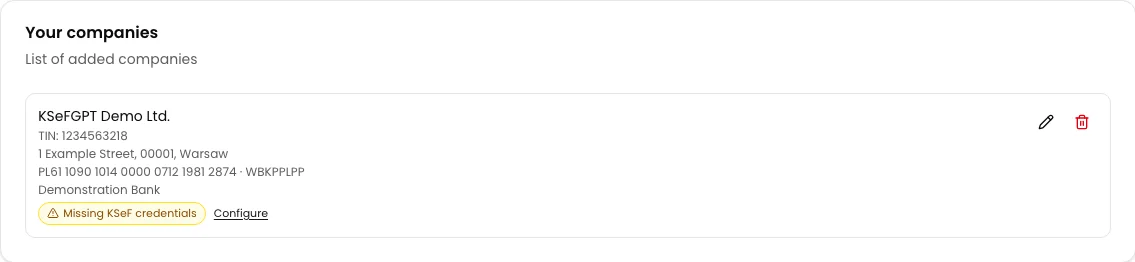
After a successful save, the form fields are cleared and a new entry appears under Your companies. The row shows the name, NIP, and any address or bank details you entered.
The new company displays Missing KSeF credentials and a Configure link. This is expected-connecting the company to KSeF is a separate step.
Final state
Check the result
Under Your companies, find the new entry and compare its name and NIP with the values entered in the form. If you provided an address or bank details, they should appear below the NIP.
The company is also available in the account switcher. After selecting it, you can work with its data, but operations requiring KSeF remain unavailable until you add a token or certificate.
Diagnostics
If something does not work
Compare the displayed state or message with the table below.
| Symptom | Likely cause | What to do |
|---|---|---|
| The Add company form is not visible | You work solely as an organization member and do not have the companies:create permission. | Ask the organization owner to assign you to a group with companies:create, or sign in with the company owner's account. |
| Fetch from GUS is disabled | The NIP does not yet contain 10 digits, or a lookup is already in progress. | Check the number of NIP digits and wait for the current lookup to finish. |
| NIP number not found in GUS appears | GUS did not return details for the entered NIP. | Check the NIP. If it is correct, enter the name and address manually. |
| GUS service temporarily unavailable appears | KSeFGPT did not receive a response from the GUS service. | Enter the details manually or retry the lookup later. |
| Add company is disabled | Company name * or TIN * is empty, or the company is currently being saved. | Complete both required fields. If a save is in progress, wait until the button shows Add company again. |
| Plan limit reached. Upgrade your plan. appears | The company allowance for your current plan has been used. | Check your plan under Subscription and increase the limit before trying again. |
What next
To send and receive invoices for the new company, continue with How to configure a KSeF connection in KSeFGPT.
If the company details change, return to Settings → Company Data and select the pencil icon next to the correct entry. Editing company details is a separate operation from adding a company.
Add a company to KSeFGPT
Sign in, open Company Data, and complete the form using the company's NIP.
Sign in to KSeFGPT