Missing UPO in KSeF: how to download the official receipt?
Cannot see UPO after submitting an invoice to KSeF? Check status, KSeF number, session, rejection errors and UPO download paths in the app, API or KSeFGPT.

Article Summary
A missing UPO after sending an invoice to KSeF is not a diagnosis on its own. First check the invoice or session status, KSeF number, reference number, NIP context and the tool that sent the document.
UPO can be downloaded only for an invoice successfully accepted by KSeF or for a closed and processed session, if session UPO was generated. Status 100 or 150 means that you should keep monitoring the same submission, not immediately create another one.
If the invoice was rejected, it will not receive a KSeF number or UPO. Read the error code, fix the source problem and only then submit the corrected FA(3) XML again.
What does missing UPO after invoice submission mean?
The worst reaction to missing UPO is to resend the invoice automatically without checking the status. You may create a duplicate or make it harder to identify the original operation.
A missing UPO may result from processing, a document error, a wrong session, an expired download link or limitations of the tool where you are looking for the receipt. The procedure always starts with the status of the same invoice or session.
| Possible cause | What to check | Next step |
|---|---|---|
| Invoice still being processed | Invoice status 100 or 150 | Wait and query the same invoice status again. |
| Session not completed | Interactive or batch session status | Close or check the session according to the tool process. |
| Invoice rejected | Error code, description, details and extensions | Fix the cause and do not look for UPO for a rejected document. |
| Wrong identifier | Session reference number, invoice reference number and KSeF number | Match UPO with the correct session and document. |
| Invoice sent by another tool | Submission history in ERP, the Taxpayer Application or API integration | Download UPO in the tool that handled the submission. |
| Download link expired | `upoDownloadUrl` expiry date | Generate a fresh link by querying the status again. |
| Wrong taxpayer context | NIP, permissions and selected entity | Switch context and verify access to the session. |
Statuses to check before downloading UPO
Submission status tells you more than a message that a file was sent to the system. In the KSeF API, status 100 means that the invoice was accepted for further processing, status 150 means processing is in progress and status 200 means success.
Only a successful invoice lets you move to the KSeF number and UPO. Error statuses require diagnosis. In that case, looking for UPO makes no sense until you know whether the document was accepted at all.
| Code | Meaning | Should you look for UPO? |
|---|---|---|
| 100 | Invoice accepted for further processing | No. Keep monitoring the same invoice. |
| 150 | Processing in progress | No. Wait for the final result. |
| 200 | Success | Yes. Store the KSeF number and download UPO. |
| 410 | Invalid permission scope | No. Check context and access. |
| 430 | Invoice file verification error | No. Check XML and error details. |
| 435 | File decryption error | No. Check technical data preparation. |
| 440 | Duplicate invoice | First find the original session and original KSeF number. |
| 450 | Invoice document semantics verification error | No. Fix the indicated data inconsistency. |
| 500 or 550 | Error or processing cancellation | Do not retry before identifying the previous operation state. |
How to download UPO in the KSeF 2.0 Taxpayer Application
For a manual path, start with the correct taxpayer context. Sign in to the KSeF 2.0 Taxpayer Application, choose the right entity or NIP and find the invoice by its own number, KSeF number, date or submission data.
Then check the document status. If the invoice is accepted and has a KSeF number, download UPO from the action available next to the invoice or session. If the status shows an error, diagnose the rejection instead of downloading a receipt that was not created.
This article does not treat button labels as fixed, because the Taxpayer Application interface can change. Before publishing a strict click-by-click procedure, compare it with the current Ministry of Finance manual or current application screen.
How to download UPO through the KSeF API
In an API integration, first retrieve the session list or a specific session status, then invoices in the session or a single invoice status. Only after you know that the document was accepted should you call the UPO endpoint.
CIRF documentation describes two paths for a single invoice UPO: by invoice reference number and by KSeF number. For session UPO, the documentation provides a separate endpoint using the UPO reference number.
In practice, the integration should store the session reference number, invoice reference number, KSeF number, status, acceptance date and the link or downloaded UPO XML. Without these data, finding the receipt later is much harder.
| Goal | Endpoint | When to use it |
|---|---|---|
| Invoice UPO by invoice reference | `GET /sessions/{referenceNumber}/invoices/{invoiceReferenceNumber}/upo` | When you have the session number and invoice reference from that session. |
| Invoice UPO by KSeF number | `GET /sessions/{referenceNumber}/invoices/ksef/{ksefNumber}/upo` | When you have the session number and KSeF number of the accepted invoice. |
| Session UPO | `GET /sessions/{referenceNumber}/upo/{upoReferenceNumber}` | When the closed session status returned UPO page references. |
Invoice UPO and session UPO
In everyday work, it is easy to confuse invoice UPO with session UPO. Invoice UPO concerns a single document. Session UPO is a collective receipt that appears after a session has been closed and processed.
For small volumes, you usually need the receipt for one concrete invoice. For batch submission, you also need control over the whole package: how many documents were accepted, how many were rejected and which KSeF numbers must be linked with UPO.
| Element | What it covers | What to watch |
|---|---|---|
| Invoice UPO | One successfully accepted invoice | It must match the invoice's own number and KSeF number. |
| Session UPO | Collective receipt for a session | It does not replace checking each invoice status in a package. |
| Session reference number | Technical submission operation | It is not the invoice KSeF number. |
| KSeF number | Accepted invoice in the system | It is not manually entered into XML before submission. |
Why the KSeF number alone may not be enough to find UPO
The KSeF number identifies an invoice accepted by the system and is returned in UPO, but session-based download endpoints also need the session context. A KSeF number alone, without knowing where and how the invoice was sent, may not be enough to reconstruct the receipt efficiently.
Another common problem is mixing identifiers. The invoice's own number comes from the seller's system, the session reference number describes the technical operation, and the KSeF number is created only after the invoice has been accepted. Each serves a different purpose.
If you only have the invoice number from field P_2, start by finding the document in the tool that sent it. Then read the KSeF number, session number and UPO path.
What to do when the invoice has a KSeF number but UPO will not download
A KSeF number is a strong sign that the invoice was accepted, but a UPO download problem may still occur because of the link, permissions, context or application. Do not create a new invoice and do not resend the same document.
First refresh the invoice status. If the response contains a UPO link, check its expiry date. OpenAPI describes `upoDownloadUrl` as a link generated when querying status, downloaded with HTTP GET and expiring after a defined time.
If the link expired, generate it again through the status. If you work through an application, check whether you are in the right NIP context and whether that application supports UPO for this invoice. In KSeFGPT, UPO is available for invoices sent through this application.
| Symptom | Possible cause | What to do |
|---|---|---|
| KSeF number exists but the UPO action is disabled | Application has not refreshed status or does not support this invoice | Refresh status and check the submission source. |
| UPO link returns an error | Link expired | Generate a new link by querying status again. |
| No access to the document | Wrong NIP context or permissions | Switch entity and verify user access. |
| UPO is in another system | Invoice was sent by ERP or another integration | Search in the original submission system or the Taxpayer Application. |
What to do when the invoice has no KSeF number and no UPO
If there is no KSeF number and no UPO, the case is still open. The document may still be processing or it may have been rejected. Do not automatically send another version until you know the final status.
Check whether the status is still 100 or 150. If the status shows an error, retrieve the details, including code, description, details and possible extensions. For code 440, check the original session and original KSeF number because the problem may be a duplicate.
The full error procedure is described in Invoice rejected by KSeF. This article only answers why UPO is missing and how to determine whether the receipt should already exist.
How KSeFGPT helps when UPO is missing
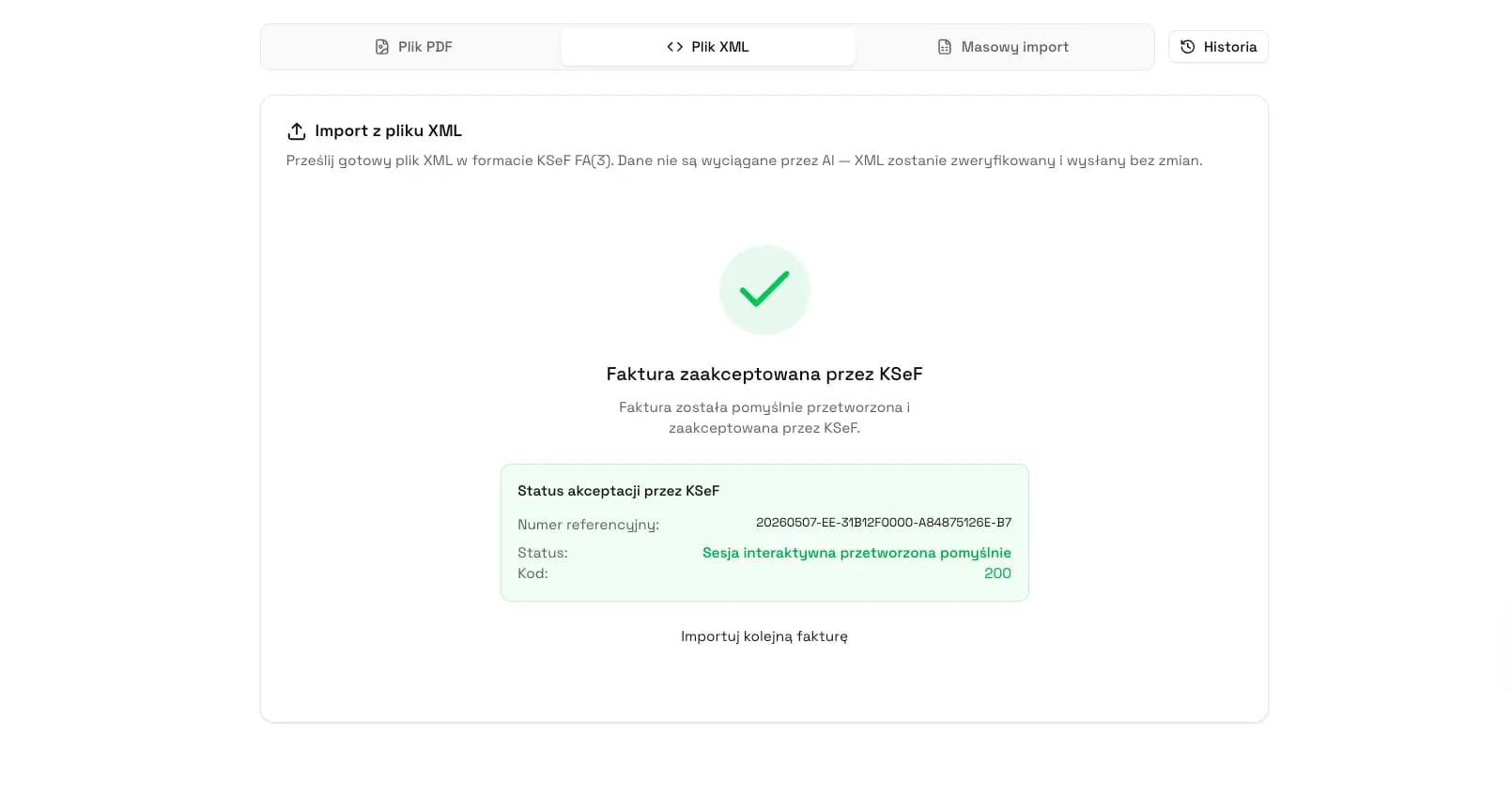
KSeFGPT organizes the post-submission process: the user sees the document status, reference number, processing result and next actions on the invoice. This matters because missing UPO should not lead to guessing whether the document was accepted.
If the invoice was sent through KSeFGPT, the application can show its status and make UPO available in the same process. If the document was sent by another system, look for the receipt in that tool, the KSeF Taxpayer Application or through an API integration.
This gives the accounting team one procedure: check status, read the KSeF number, download UPO after success or move to error diagnosis. It reduces the risk of resending an invoice only because the receipt was not visible on the first screen.
Control statuses and UPO in one process
KSeFGPT helps submit an invoice to KSeF, check status, read the KSeF number and download UPO for documents handled in the application.
Go to KSeFGPTHow to name and archive downloaded UPO
The Ministry of Finance technical FAQ states that there is no obligation to download and archive KSeF UPO. Still, in operational work it is worth saving UPO locally because it helps with audit, status control and contractor questions.
The best set includes the invoice XML, KSeF number, UPO, invoice's own number from P_2, acceptance date, seller NIP, taxpayer context and information about the tool that submitted the invoice.
A simple file naming convention can look like this: `seller_NIP-invoice_number-KSeF_number-upo.xml`. The name matters less than the team's ability to connect UPO with a concrete invoice rather than only with a package or session.
Frequently Asked Questions
Does a missing UPO mean that the invoice was not accepted by KSeF?
Not always. A missing UPO may mean that the invoice is still being processed, the session was not completed, the download link expired, you are looking in the wrong session, or the document was rejected. Check the invoice status and KSeF number first.
When can I download UPO in KSeF?
Invoice UPO can be downloaded after the document has been successfully processed, which means a success status and a KSeF number. Session UPO is available after the session has been closed and processed, if UPO pages were generated.
Can UPO be downloaded by KSeF number?
Yes. The KSeF API supports downloading invoice UPO from a session using the KSeF number and the session reference number. In user-facing applications, you usually use invoice search or an action available next to the document.
Is status 100 or 150 enough to download UPO?
No. Status 100 means that the invoice has been accepted for further processing, and status 150 means that processing is still in progress. In both states, keep monitoring the same invoice or session.
What should I do if the invoice has a KSeF number but UPO will not download?
Refresh the status, check the UPO link and its expiry date, generate the link again through the status endpoint, make sure you are using the correct NIP context, and confirm that the tool supports UPO for that invoice.
Do I have to store KSeF UPO?
According to the Ministry of Finance technical FAQ, there is no obligation to download and archive KSeF UPO. Operationally, it is still worth keeping UPO with the XML, KSeF number, invoice number and acceptance date.
Can KSeFGPT download UPO for an invoice sent by another system?
Do not assume that. In KSeFGPT, UPO is available for invoices sent through this application. If the invoice was sent by another system, look for UPO in that tool, in the KSeF Taxpayer Application, or through your API integration.
Recommendation
When UPO is missing, do not start by resending the invoice. First check the status of the same invoice or session, KSeF number, reference number, NIP context and submission source. Only the status tells you whether to wait, regenerate the link, search in another tool or fix an error.
If the status is 200, download UPO and save it with the KSeF number and invoice's own number. If the status is 100 or 150, keep monitoring. If the status shows an error, diagnose the rejection instead of creating a new version of the document.
Read next: UPO in KSeF, Invoice rejected by KSeF, Sending invoices to KSeF and How long to send an invoice to KSeF.
Close the invoice submission process together with UPO
In KSeFGPT, you can submit an invoice to KSeF, check status, read the KSeF number and download UPO for documents handled in the application.
Go to KSeFGPTSources
This article is based on official Polish Ministry of Finance materials, CIRF documentation and the KSeF API, verified on June 19, 2026.
- KSeF 2.0 handbook, part II: issuing and receiving invoices in KSeF
Polish Ministry of Finance · accessed: June 19, 2026
Official handbook describing issuing, receiving, status 200, the KSeF number and UPO.
- KSeF number and collective identifier
Polish Ministry of Finance · accessed: June 19, 2026
Official explanation of the KSeF number, assignment after invoice acceptance and return in UPO.
- What does UPO contain?
Polish Ministry of Finance · accessed: June 19, 2026
Ministry of Finance graphic showing UPO elements and the distinction between a reference number and a KSeF number.
- Session: checking status and downloading UPO
CIRF / Polish Ministry of Finance · accessed: June 19, 2026
Documentation of session status, invoices in a session, invoice UPO and session UPO operations.
- KSeF API 2.0
Polish Ministry of Finance · accessed: June 19, 2026
API PR 2.6.0 documentation for invoice statuses, `upoDownloadUrl`, UPO endpoints and the `x-ms-meta-hash` header.
- Technical questions
Polish Ministry of Finance · accessed: June 19, 2026
Technical FAQ, including the lack of an obligation to download and archive KSeF UPO and duplicate rules.
- KSeF 2.0 Taxpayer Application: user manual
Polish Ministry of Finance · accessed: June 19, 2026
Application manual to verify before publishing exact labels and click paths.
Expert reviewed: Bogdan Mazurek
Tax advisor · June 19, 2026
Reviewed for the distinction between submission status, KSeF number, invoice UPO and session UPO, and for consistency with KSeF API documentation and Ministry of Finance materials.