How to link an existing invoice to a sales opportunity in CRM?
Select an issued invoice for the same counterparty and check it in the opportunity details.
- Module
- CRM / Sales opportunities
- Reading time
- 3 min
- Difficulty
- Easy
You could do this with your eyes closed :)
- Published
- 2026-11-10
- Author
- KSeFGPT
- Format
- Written guide and video
Written procedure
What you will do
Link an invoice already issued to the counterparty to an existing opportunity. In the example you will select DEMO/11/2026/01. Your company’s invoice number and amount will differ.
The document appears in the opportunity’s Invoice field. This is a CRM link, not invoice issuance, a content change or submission to KSeF.
Requirements
Before you start
Select the correct company. Do not use Issue an invoice when you want to link an existing document.
| Item | Requirement |
|---|---|
| Access | A signed-in account with access to CRM and sales opportunities in the selected company. Availability depends on your plan and permissions. |
| Starting point | CRM → Sales opportunities. An existing opportunity has a counterparty selected. |
| Document | An issued invoice for the same counterparty, not yet linked to any opportunity. Have its number ready. |
| Time required | About 2 minutes. |
| Result | An existing invoice in the selected opportunity’s details, including after reloading. |
Process recording
0:59Select an issued invoice for the same counterparty and check it in the opportunity details.
Open the correct opportunity
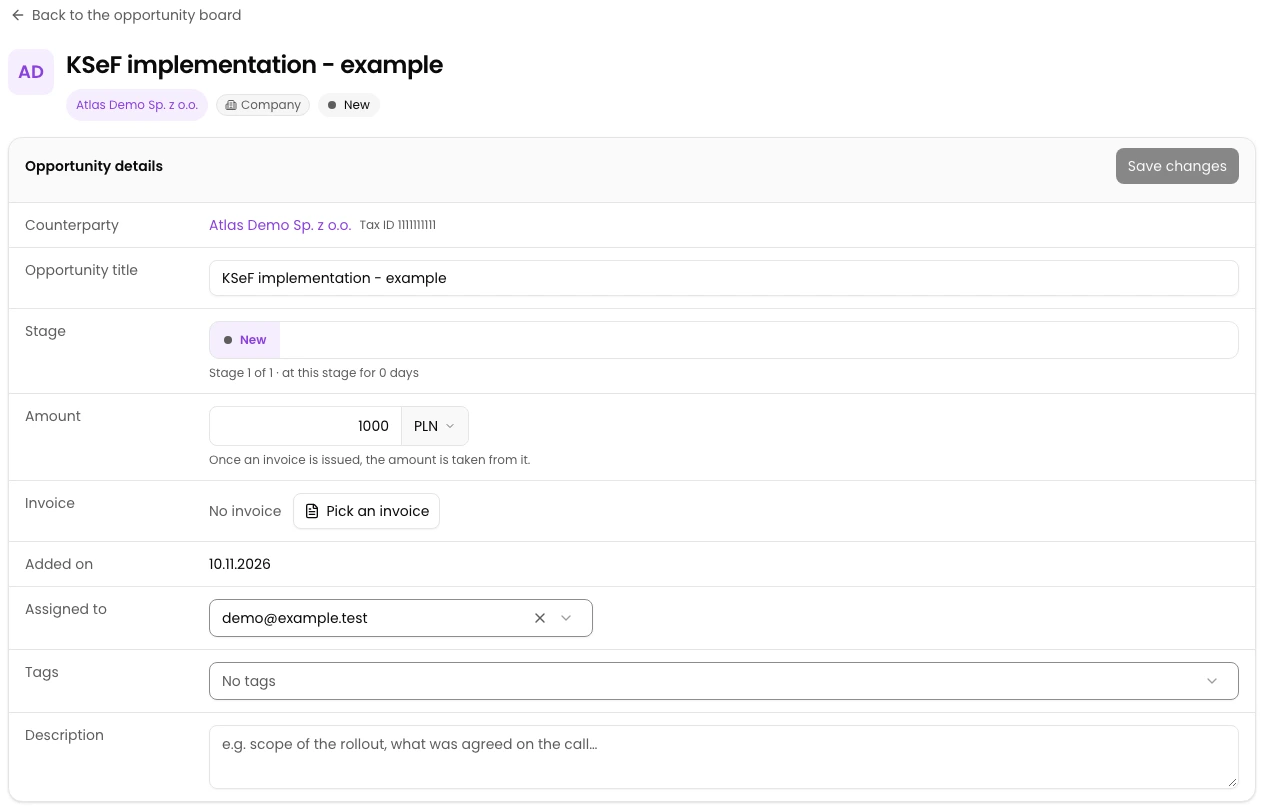
In the selected company, open CRM, Sales opportunities. Open an existing opportunity and check its title and counterparty.
Open the invoice picker
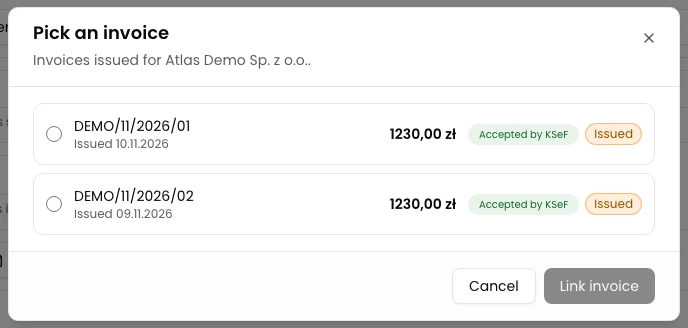
In the Invoice field, click Pick an invoice. The list contains available invoices issued for this opportunity’s counterparty.
Select the correct document
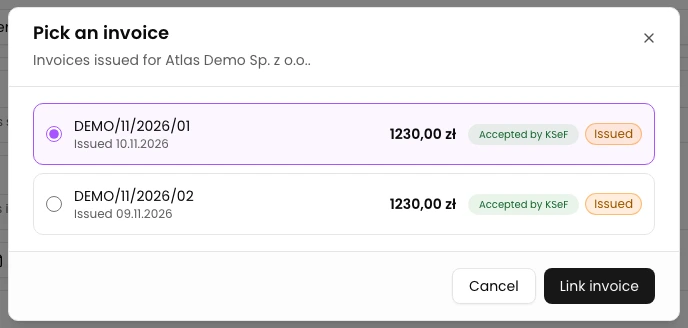
Check the invoice number, date, gross amount and currency. Select DEMO/11/2026/01 using the radio button on the left.
Link the invoice
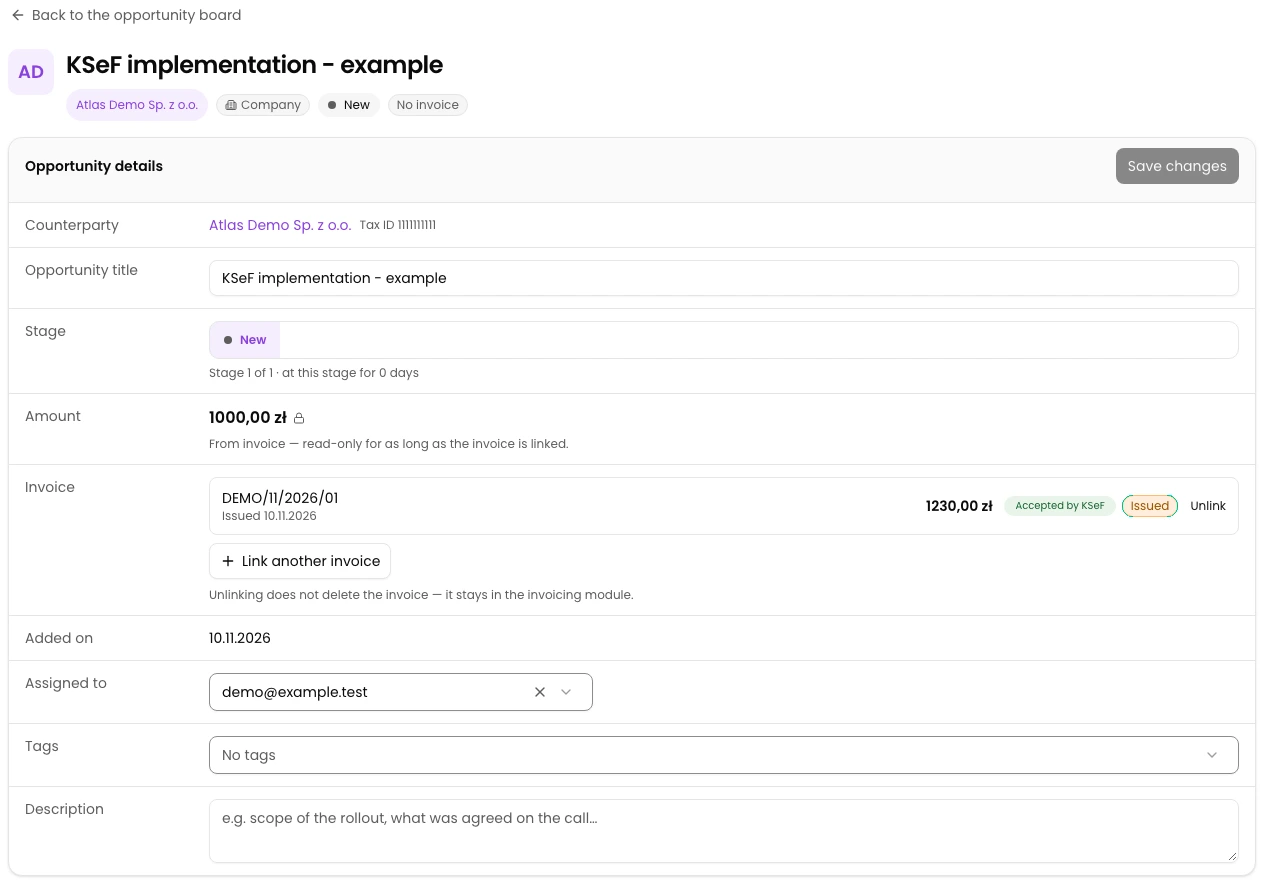
Click Link invoice. Wait for the window to close and the document to appear in the opportunity details.
Check the saved link
Reload the page and check the linked invoice number. Linking does not issue a new invoice or send it to KSeF.
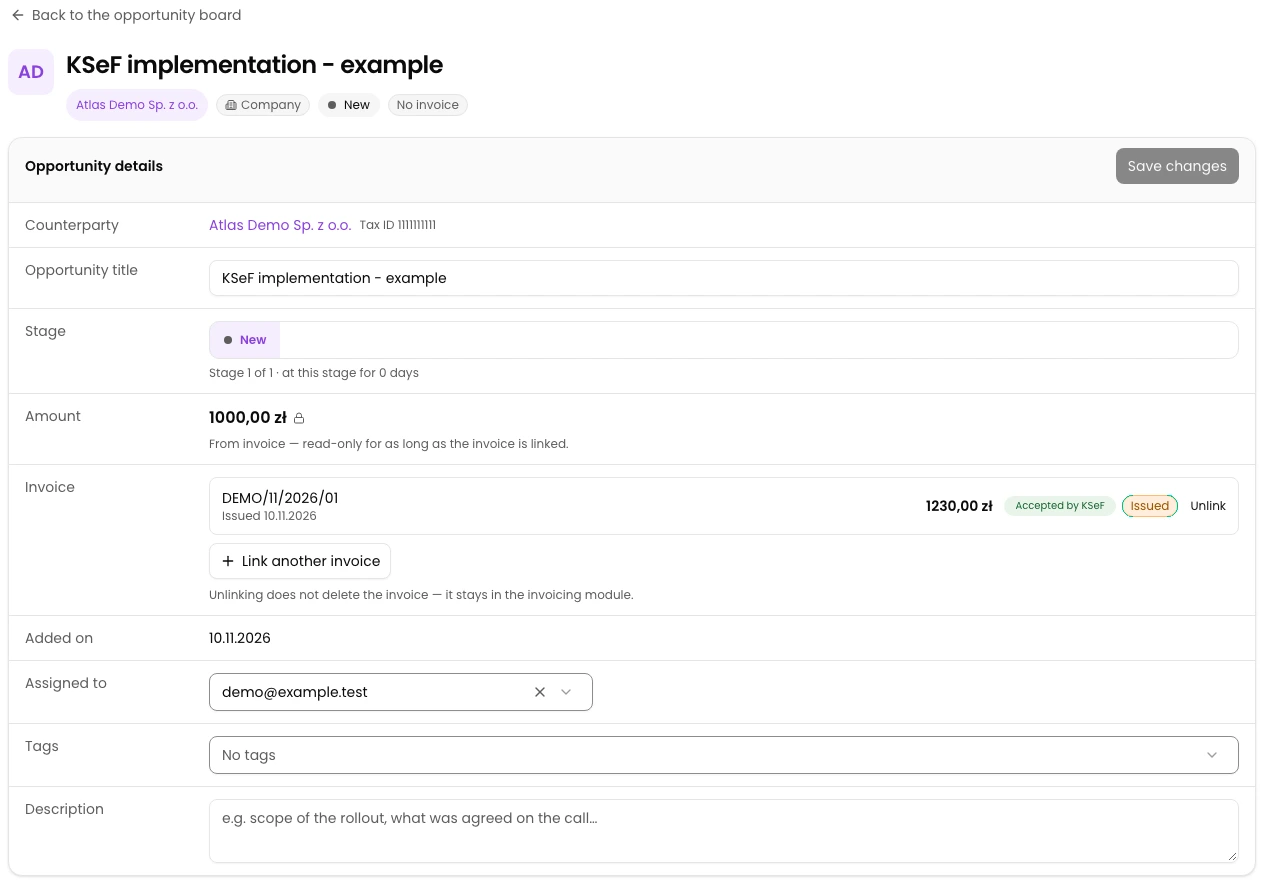
Final state
Expected result
After a fresh read, DEMO/11/2026/01 remains in the Invoice field with its date, gross amount of 1230 PLN and statuses. These are example values; check your own document’s number and amounts.
To add another document, click Link another invoice and repeat selection and saving. The linked invoice disappears from the available picker entries.
Linking does not independently confirm KSeF acceptance or payment. It does not change the opportunity’s stage or automatically create a new invoice.
Diagnostics
If something does not work
Check the selection requirements before attempting to save again.
| Symptom | What to check |
|---|---|
| Link invoice is disabled | Select one invoice using its radio button. While saving, wait for the operation to finish. |
| The expected invoice is missing | Check the company, counterparty and NIP. The list contains outgoing invoices recognised for this counterparty, without a link to any opportunity. |
| An older document is missing | CRM fetches the first 100 outgoing invoices. This picker does not automatically search every page of the history. |
| The list is empty | No available invoices does not necessarily mean the counterparty has no invoices. The document may already be linked or outside the fetched portion of the list. Close the window and check it in Invoices. |
| The window remains open after saving | Linking may have failed. Do not assume success; reload the opportunity details and check the list before trying again. |
What next
You can continue managing the opportunity independently of its invoice link.