How to create a sales opportunity template in CRM?
Open the template catalog from the opportunity board and save a stage, amount and task for future opportunities. You need access to sales opportunities for the selected company.
- Module
- CRM / Sales opportunities
- Reading time
- 4 min
- Difficulty
- Easy
You could do this with your eyes closed :)
- Published
- November 9, 2026
- Author
- Rafał Zeidler
- Format
- Written guide and video
Written procedure
What you will do
Create a KSeF implementation template with the New stage, a default amount of PLN 5000, the Project tag and a Prepare a quote task. The task will have an assignee and a due date 3 days after an opportunity is created from the template.
After saving, check the template in the catalog. Saving a template does not create an opportunity or an item in Tasks. Those are created when you use the template.
Requirements
Before you start
Stage names, tags and available people depend on the selected company. Choose the corresponding values in your own setup.
| Item | Requirement |
|---|---|
| Access | CRM access and a plan that includes sales opportunities. The example shows the owner of the selected company. |
| Required information | A template name, an existing starting stage, amount and currency, an existing tag and a person available in the task assignee list. |
| Starting point | After signing in, select the correct company and open CRM → Sales opportunities. |
| Time needed | About 3 to 5 minutes. |
| Result | A new catalog entry with default values and one task to create together with an opportunity. |
Process recording
1:05Save a stage, amount and task to reuse them for future opportunities.
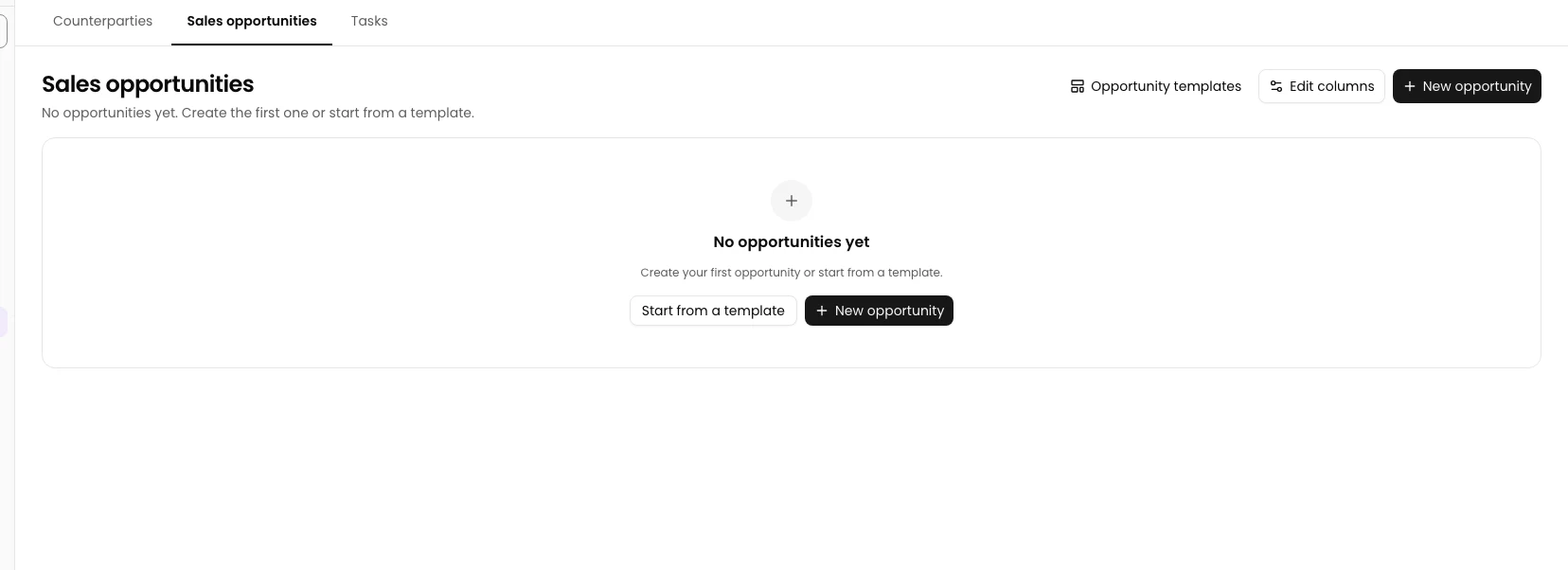
Open the template catalog
On the Sales opportunities board, check the selected company. Click Opportunity templates.
The template catalog opens with the New template button.
Start a new template
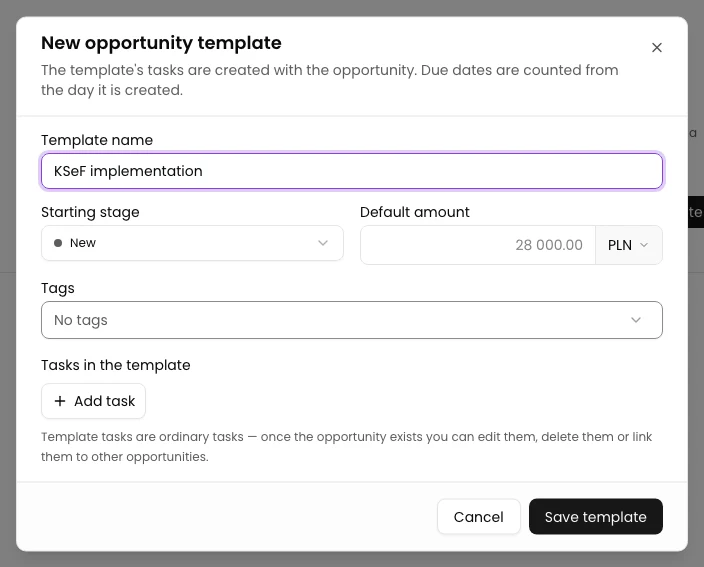
Click New template. In the New opportunity template window, enter KSeF implementation in Template name.
The name will help you find the template in the catalog. You will enter the remaining settings in the same window.
Set the stage, amount and tag
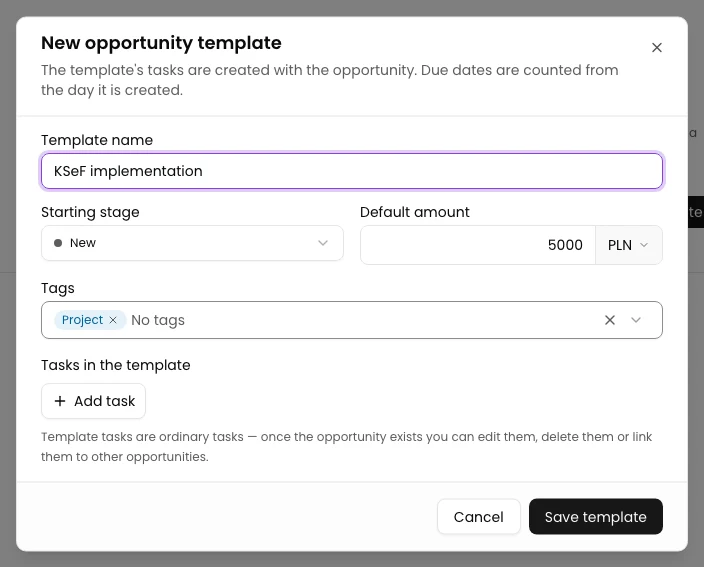
Select New in Starting stage. Enter 5000 in Default amount and check that the currency selector to the right of the amount shows PLN.
In the upper Tags field, select Project. This is the template’s tag. Check the stage, amount, currency and tag before moving on to tasks.
Fill in the template task
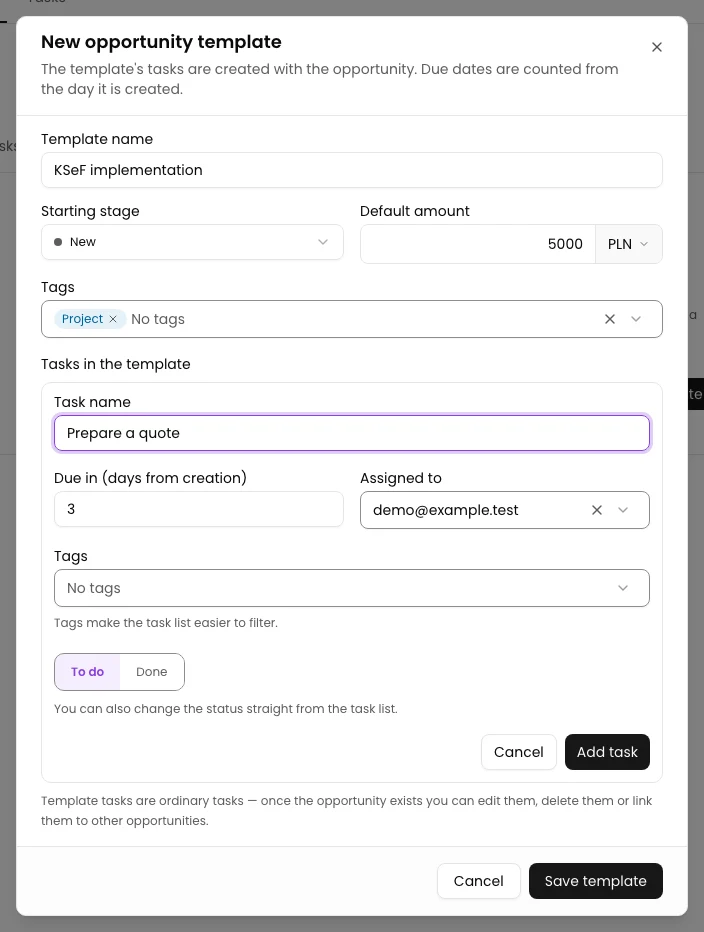
Under Tasks in the template, click Add task. Enter Prepare a quote in Task name and choose an available person in Assigned to.
Enter 3 in Due in (days from creation). The due date will be 3 days after the opportunity is created from the template, rather than after the template is saved. Leave the status as To do and the task tags empty, as shown in the example.
Confirm the task in the template
Click Add task inside the open task form. This is the second click on a button with that name: the first opened the form, and this one adds the task to the template.
The task form closes. A Prepare a quote row appears with the assignee and +3 d. Before saving the template, make sure the task is already shown as a list row.
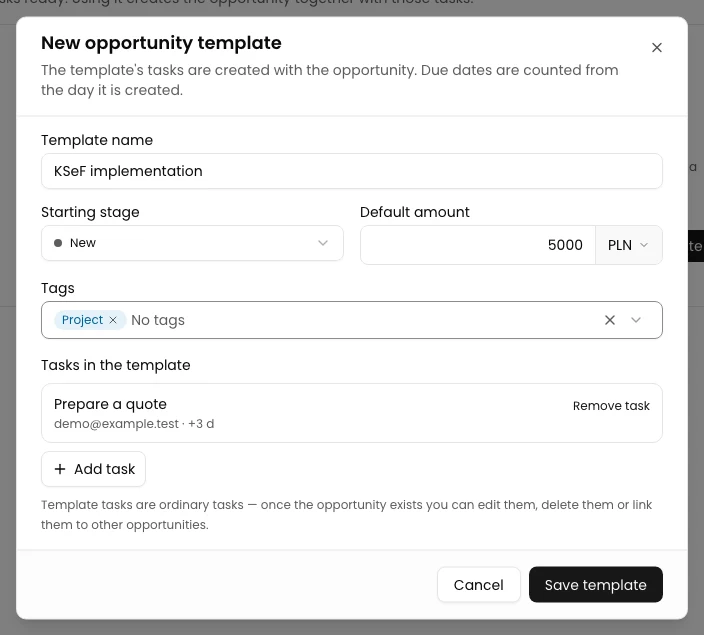
Save the template
Click Save template. The window closes. Wait for the KSeF implementation card to appear in the catalog.
Click the name KSeF implementation on the card to expand the details. Check the stage, PLN 5000, the Project tag and the task with its assignee and the due +3 days label.
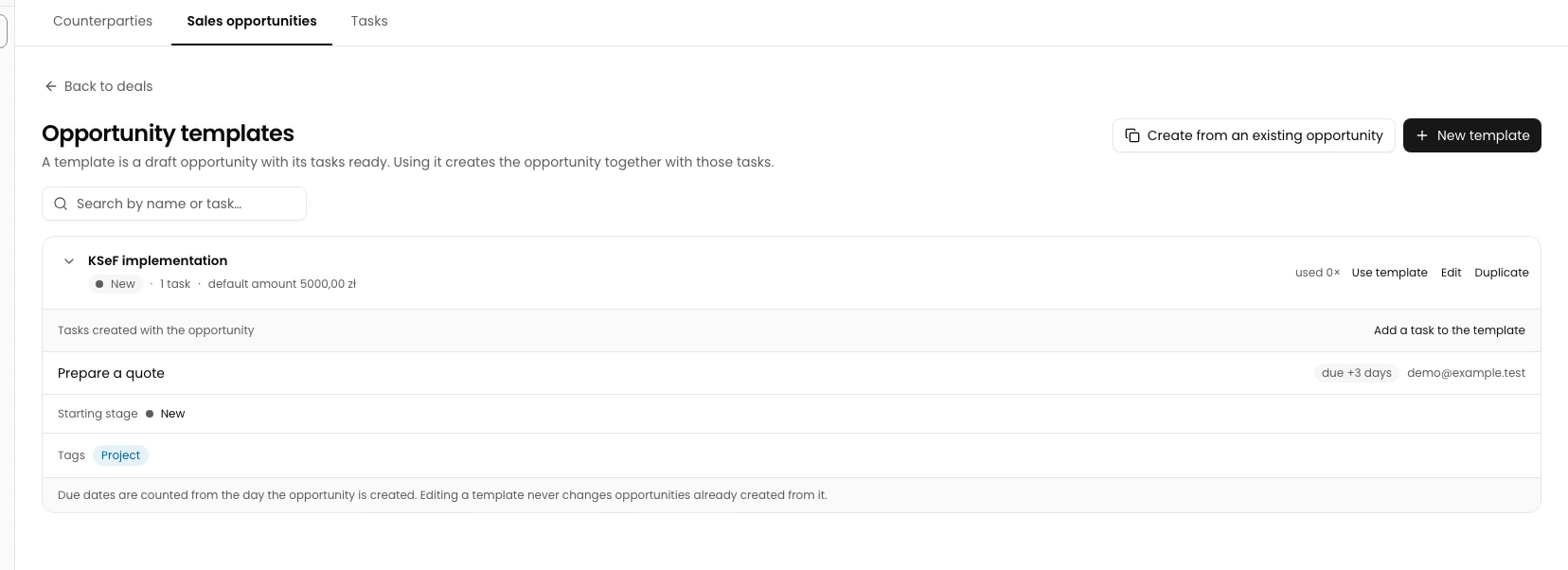
Check the settings after reloading
Reload the page and find KSeF implementation. Open Edit for this template to compare the saved settings in the form. On a phone, open the three-dot menu next to the template name and choose Edit.
Check the New stage, PLN 5000, the Project tag and the Prepare a quote task with the chosen assignee and +3 d. Finish checking with Cancel without changing any values.
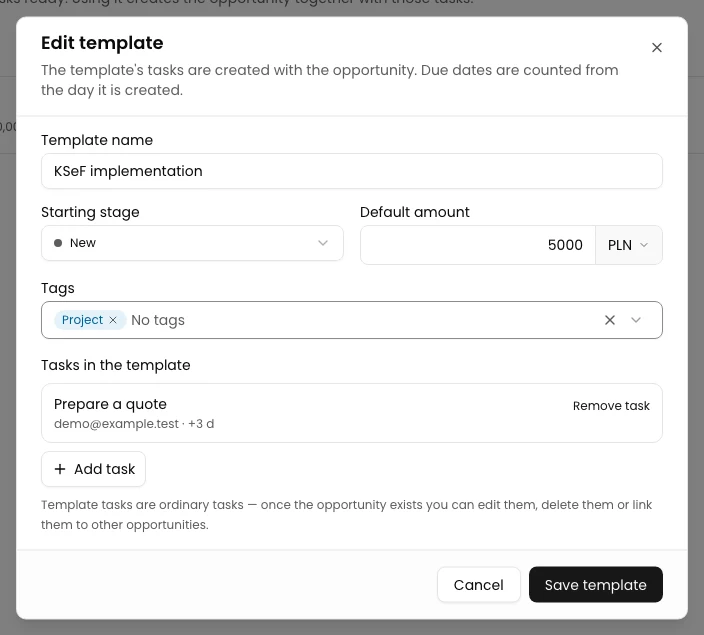
Final state
Check the result
The template remains in the catalog after reloading and contains all the chosen settings and one confirmed task. Its card offers Use template.
Your template is now ready. To create an opportunity and task from it, follow the separate guide below.
Diagnostics
If something goes wrong
| Issue | Cause | What to do |
|---|---|---|
| You see Enter a template name. | Template name is empty. | Enter a name and click Save template again. |
| You see Enter a task name. | You are confirming a task without a name. | Enter a name and click Add task inside that task’s form. |
| You see A template with this name already exists. | The catalog already contains a template with this name. This warning does not block saving. | Check the existing entry. Give the new template a distinctive name if it is intended as a separate entry. |
| The task you entered is missing after saving. | The task remained in the open form and was not added to the list before saving. | Open Edit. Add and confirm the task with Add task, check its row in the list, then click Save template. |
Next steps
Create your own CRM template
Sign in, select a company and open the opportunity template catalog.
Sign in to KSeFGPT