How to replace an expiring KSeF certificate in KSeFGPT
Add the new PEM key and certificate, verify the subject and expiry date of the new record, and only then remove the old credential.
- Module
- Settings
- Reading time
- 5 min
- Difficulty
- Intermediate
Follow the instructions carefully and you will succeed
- Published
- August 29, 2026
- Author
- Rafał Zeidler
- Format
- Written guide and video
Written procedure
What you will do
You will add a new certificate credential for the same company, verify its identifier, Subject and Valid until values, and then remove only the old record.
Two certificates will be active in the list for a short time. Do not perform KSeF operations during this period. Remove the old record immediately after confirming the new one because credential selection can be nondeterministic when more than one is active.
Requirements
Before you start
Generate a new certificate for the correct entity in KSeF beforehand. Prepare the matching private key and certificate. Keep the old credential active until the new record is visible with the correct metadata.
| Item | Requirement |
|---|---|
| Access | The company owner or a user with the credentials:manage scope who can manage this company's KSeF credentials. |
| Files | A private key in a .key or .pem file and its matching certificate in a .crt, .cer or .pem file. Each file can be up to 1 MB. |
| Password | The key password if the private key is encrypted. |
| Details to compare | The old record's identifier prefix, Subject, Valid until date and Created date. |
| Starting point | After signing in, open Settings, then KSeF Connection. |
| Time required | About 3 minutes. |
| Important effect | Selecting the trash icon deletes the credential immediately. The interface does not ask for confirmation and does not provide an undo action. |
Process recording
0:25The recording shows how to add a new PEM certificate, verify its subject and expiry date, and safely remove the old record.
Identify the old certificate
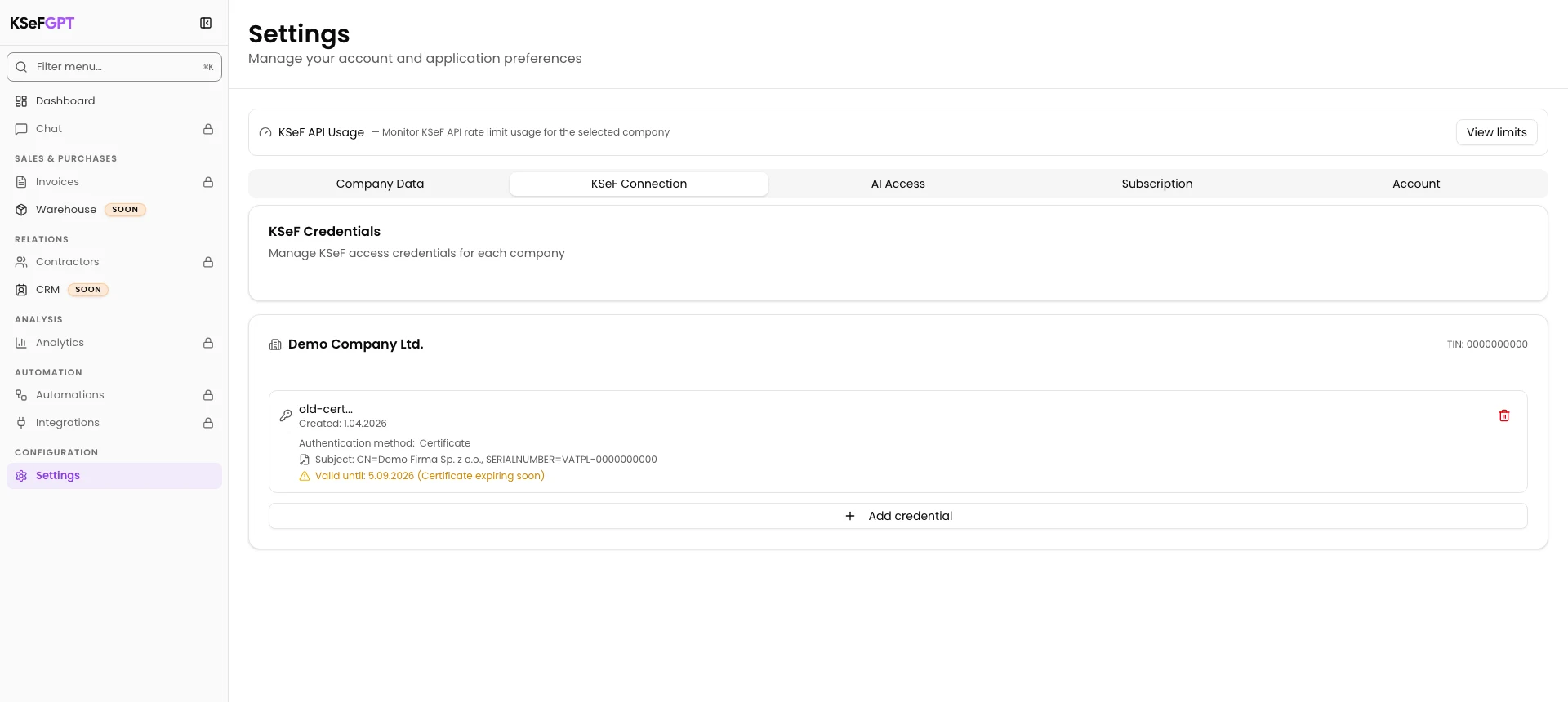
In Settings, open KSeF Connection and find the correct company card by its name and TIN. In the certificate row, note the first eight characters of the identifier shown above Created.
Check Subject and Valid until. The yellow Certificate expiring soon warning appears when the expiry date is within 30 days or has already passed.
Open the new credential form
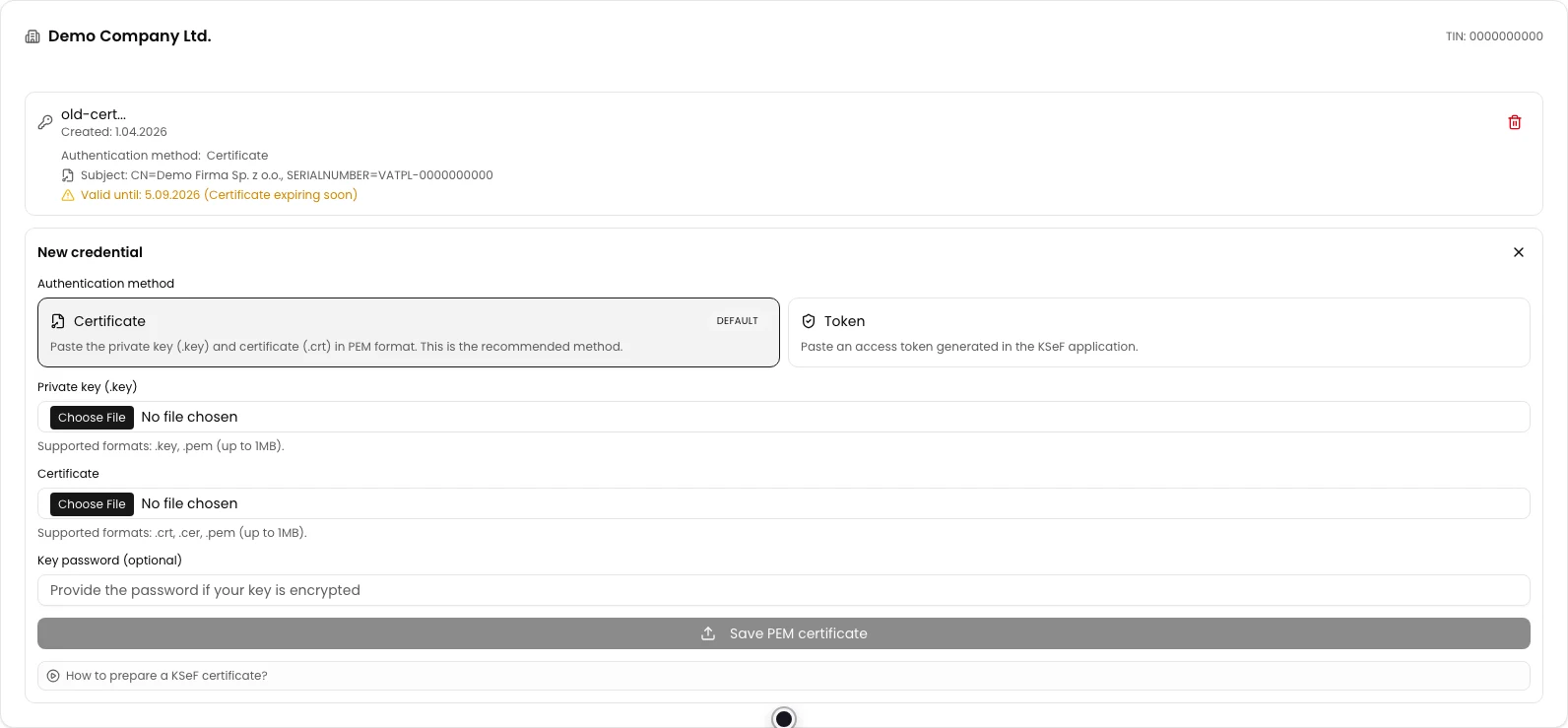
On the same company card, select Add credential. Under Authentication method, select Certificate if it is not already selected.
The Private key (.key), Certificate and Key password (optional) fields appear. Do not remove the old record yet.
Select the new key and certificate
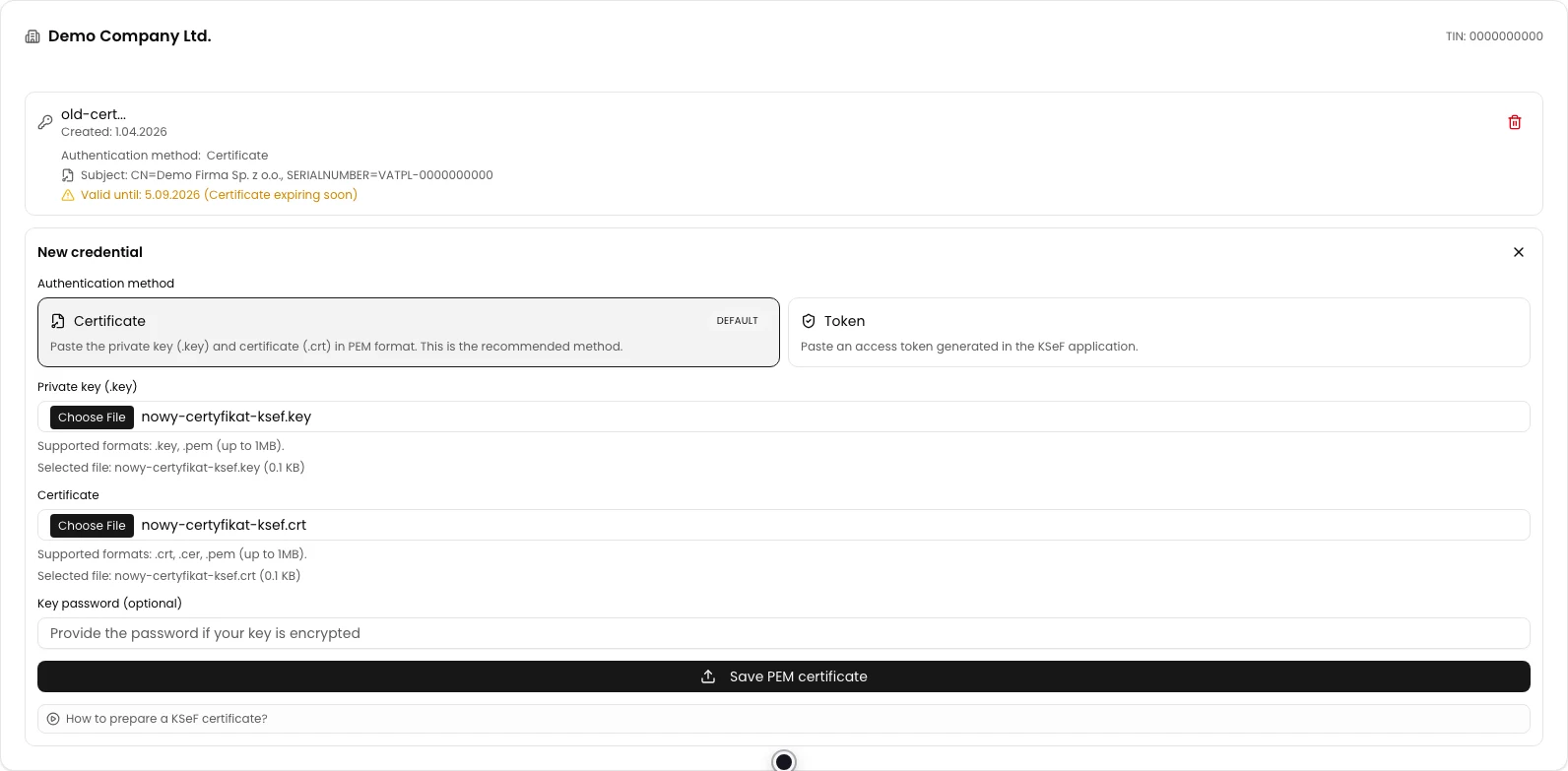
Under Private key (.key), select the new key file. Under Certificate, select the matching certificate file. If the key is encrypted, enter its password under Key password (optional).
Selected file and the file name appear below each input. Save PEM certificate becomes available only after both files have been loaded.
Save the new certificate
Select Save PEM certificate. The application checks the file pair and certificate subject, saves the credential, closes the form and fetches the list again.
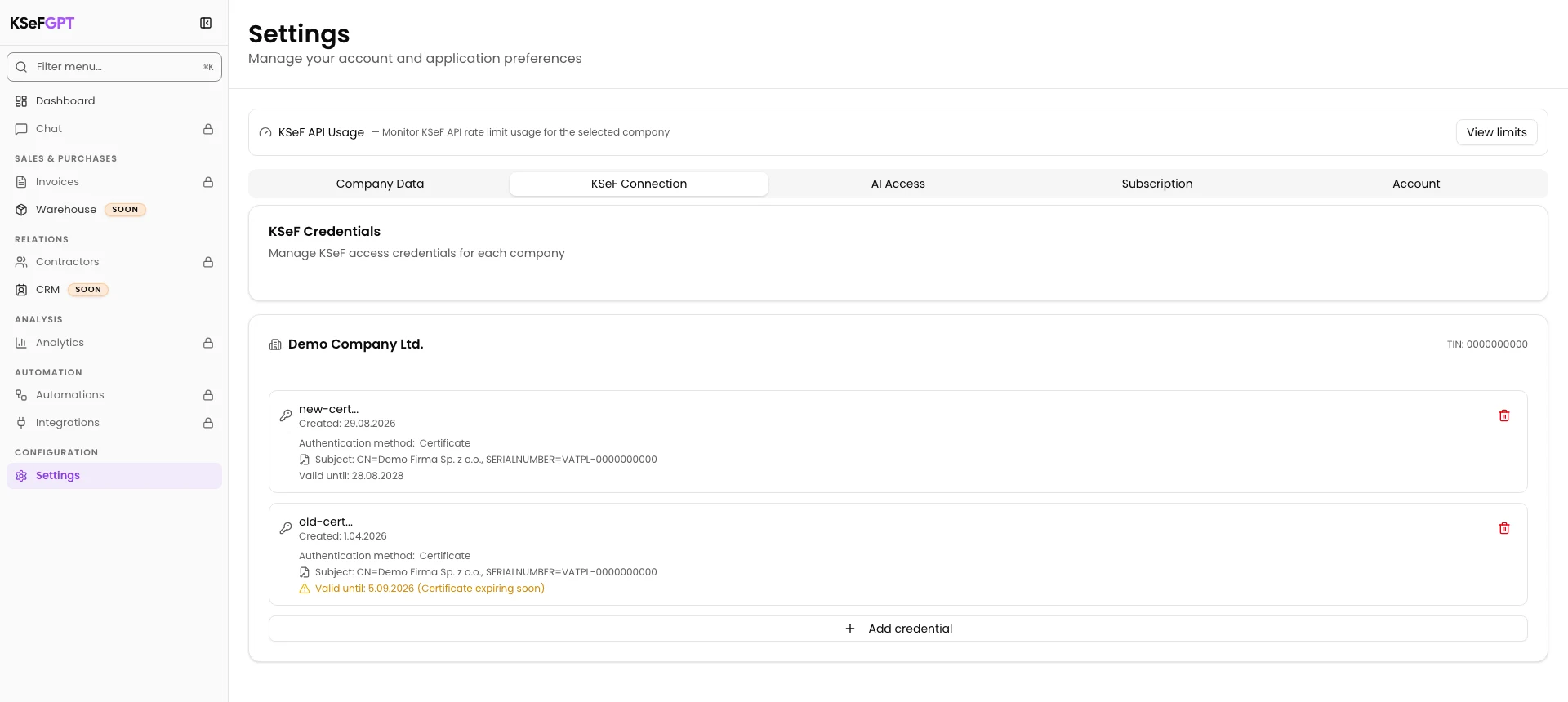
After a successful save, two certificate rows are visible. This screen does not display a separate success message. If the new row does not appear, leave the old certificate unchanged.
Compare both records
Distinguish the rows by the identifier prefix and Created date. In the new row, check Subject and Valid until. The subject should match the correct company, and the new certificate should have a later expiry date than the old one.
Do not remove the old record if the new one has no Subject or Valid until value, identifies another entity, or shows an unexpected date. Do not perform KSeF operations while both records remain active.

Remove the old certificate
Compare the identifier prefix, Created date and Valid until one more time. Select the trash icon only in the old certificate row.
Deletion happens immediately, without a confirmation dialog or success message. Wait for the old row to disappear. Only the new certificate with the later expiry date should remain on the company card.
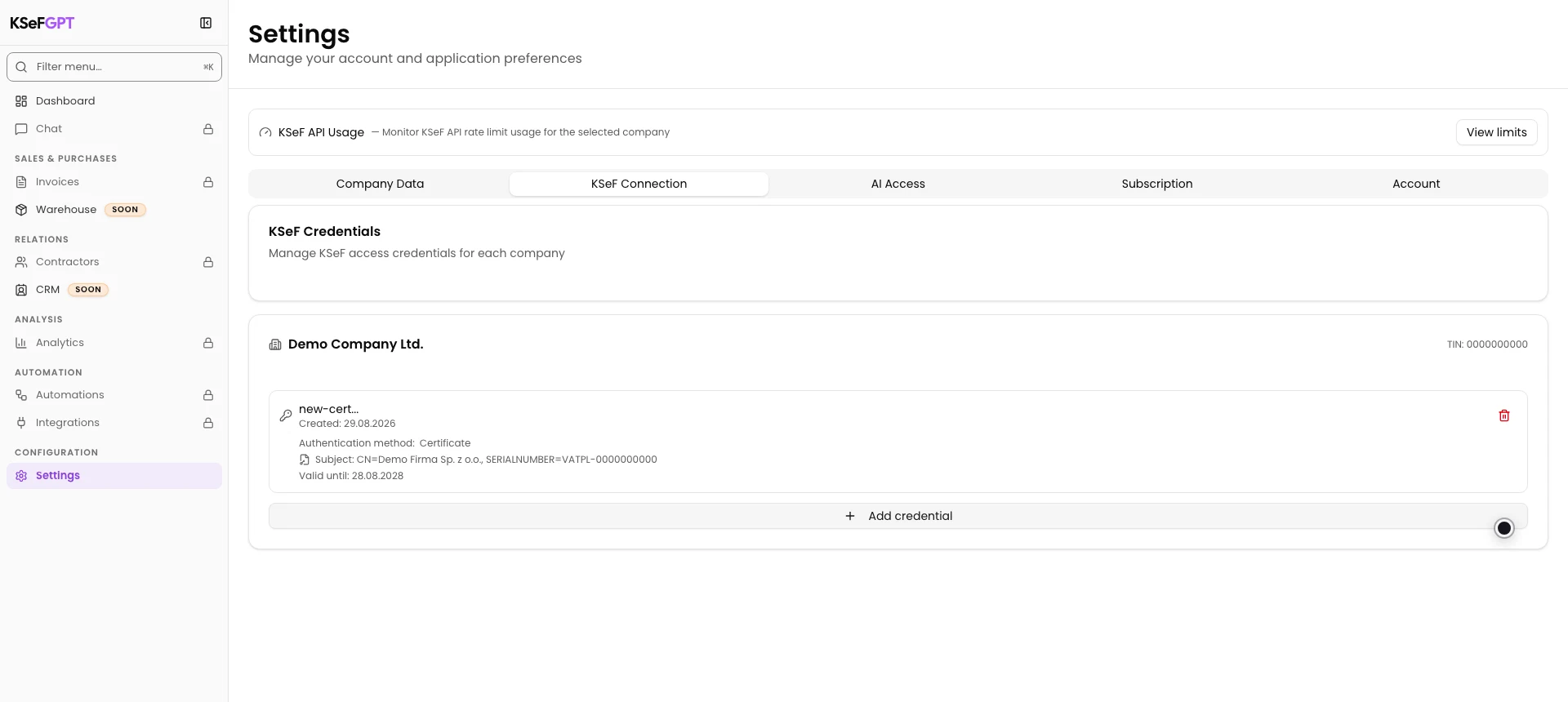
Final state
Check the result
The correct company card contains one row with the Certificate method. Its identifier prefix matches the new record, Subject identifies the correct company, and Valid until shows the new expiry date.
The old identifier prefix is no longer present in the list. Return to operations that require the KSeF connection only after this check.
Diagnostics
If something does not work
Compare the visible symptom with the table below.
| Symptom | Likely cause | What to do |
|---|---|---|
| Save PEM certificate is disabled | Both files have not been loaded. | Select the private key and its matching certificate separately. A password is required only for an encrypted key. |
| An invalid PEM format or size error appears | A file lacks BEGIN and END headers, has an unsupported extension, or exceeds 1 MB. | Select the original .key or .pem key file and .crt, .cer or .pem certificate file. Do not edit the file contents manually. |
| The application rejects the password or file pair | The password is incorrect or the private key does not match the certificate. | Use the password set during export and select files from the same pair. |
| The application says the TIN in the certificate does not match the company | The certificate was issued for another entity. | Do not remove the old record. Generate a certificate for the company shown on the card and add the correct file pair. |
| The form closed, but only the old record is visible | The new certificate was not saved or the list did not refresh. | Do not remove the old certificate. Refresh the page and add the new one again only after checking the files and your access. |
| The new record has no Subject or Valid until value | The response lacks the metadata required to distinguish the certificates safely. | Do not remove the old record or perform KSeF operations. Contact support and provide the new identifier prefix. |
| The old row remains after selecting the trash icon | Deletion was not accepted or the list refresh did not finish. | Do not select the trash icon in the other row. Refresh the page and try again only after identifying the old prefix. |
What next
Perform a safe read operation to verify the company's KSeF connection. If authorization fails, do not remove the new record before finding the cause.
Record the new certificate expiry date in your calendar and plan the next replacement before the warning appears.
If you are setting up the connection for the first time, see How to configure a KSeF connection in KSeFGPT.
Replace the certificate without interrupting access
Sign in, add the new certificate and remove the old one only after checking its metadata.
Sign in to KSeFGPT