How to change company details in KSeFGPT?
Update the address, email and bank details of an existing company in Settings.
- Module
- Settings
- Reading time
- 3 min
- Difficulty
- Easy
You could do this with your eyes closed :)
- Published
- September 11, 2026
- Author
- Rafał Zeidler
- Format
- Written guide and video
Written procedure
What you will do
Update the address, email and bank details of a company already added to your account. After saving, check the list and reopen the form to compare every value.
Requirements
Before you start
The example keeps the name and Polish NIP of the same company. Demo data, including the all-zero account number, must not be used for real payments. Enter your own verified details.
| Item | Requirement |
|---|---|
| Access | Company owner with access to Settings. Organization members need the settings:edit permission to save. The example was verified as the owner. |
| Details needed | The current address, email, account number, SWIFT code and bank name, as applicable to your changes. |
| Starting point | After signing in, open Settings → Company Data. Find the existing company under Your companies. |
| Time | About 2 minutes. A KSeF connection is not required to edit company details. |
Process recording
0:43Update the address, email and bank details of an existing company in Settings.
Find the correct company
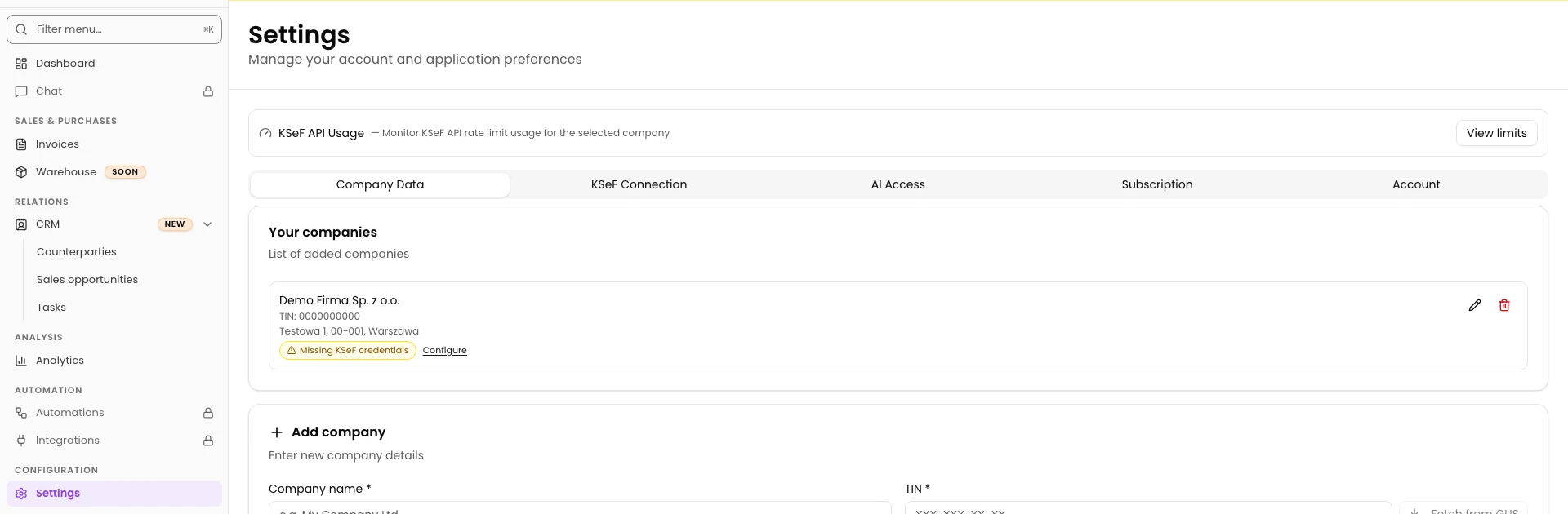
Choose Settings, then Company Data. Under Your companies, check the name and TIN of the entry you want to edit.
The pencil is on the right of the row, beside the bin. The Add company form below the list is for adding another company.
Open the edit form
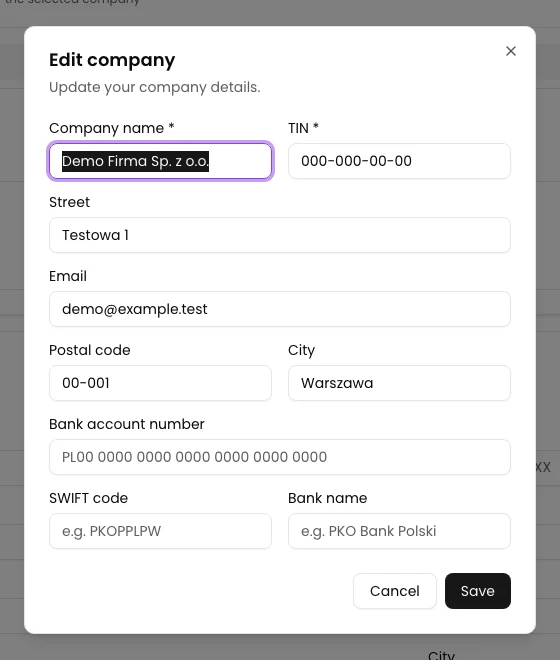
Click the pencil beside the correct company. The Edit company window opens with its current details.
Check Company name * and TIN *. Here, TIN contains the Polish NIP. Keep both unchanged in this example. If you selected a different company, click Cancel and open the correct entry.
Enter the current details
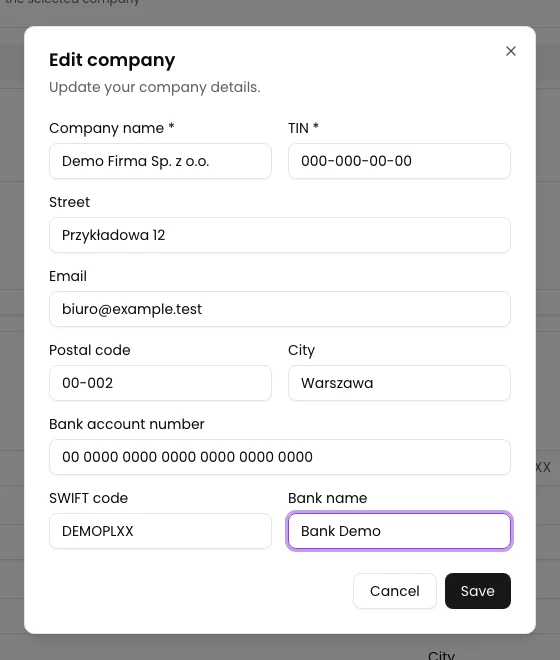
Update Street, Email, Postal code and City. The example uses Przykładowa 12, 00-002 Warszawa and biuro@example.test.
To update the bank details, fill in Bank account number, SWIFT code and Bank name. The form automatically converts the SWIFT code to uppercase. Keep correct values in fields you do not need to change.
Compare the whole form with your details before saving. Cancel closes the window without saving changes.
Save the form
Click Save. After a successful response, the Edit company window closes.
Your companies should show the new address and bank details. The name and TIN stay the same in this example. The email is not displayed in the list row.

Final state
Check the result
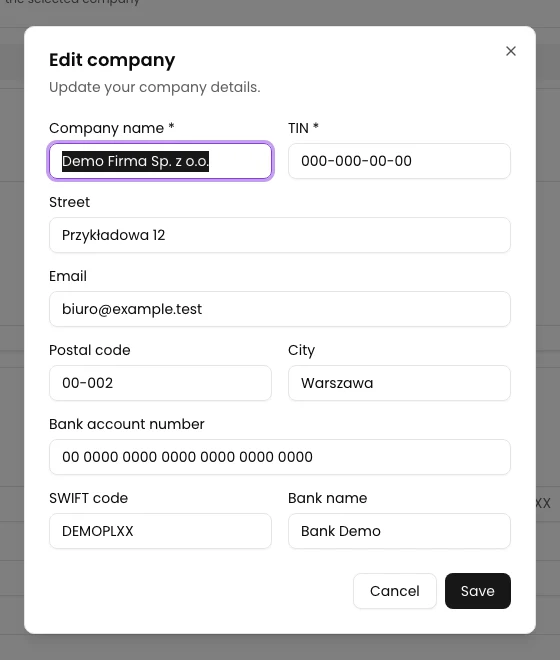
Reload the page and, in Company Data, click the pencil beside the same company again. Compare the saved address, Email and bank details.
If the values are correct, close the window with Cancel. Opening the form just to check it does not require another save.
Diagnostics
If something goes wrong
| Issue | Cause | What to do |
|---|---|---|
| Save is disabled. | Company name or TIN is empty. The button is also disabled while saving. | Fill in both required fields and wait for the current request to finish. |
| The new email is missing from the list. | The company row does not display the Email field. | Reopen Edit company and check the value in the form. |
| Changes disappeared after Cancel. | Cancel closes the form without saving. | Enter the required values again and click Save. |
Update your company details
Open the existing company and check the values before saving.
Open Settings