How to change an opportunity stage in CRM
Choose a stage on the opportunity profile and check its board column.
- Module
- CRM / Sales opportunities
- Reading time
- 3 min
- Difficulty
- Easy
You could do this with your eyes closed :)
- Published
- September 7, 2026
- Author
- Rafał Zeidler
- Format
- Written guide and video
Written procedure
What you will do
Move an existing opportunity from New to Offer using its profile. Reload the board to confirm its new column.
Requirements
Before you start
| Item | Requirement |
|---|---|
| Access | Owner of the selected company with CRM access and a plan that includes tasks and sales opportunities. |
| Required data | An existing opportunity and at least two board stages. This example uses New and Offer. Your company may use different names or ordering. |
| Starting point | After signing in, select the correct company and open CRM > Sales opportunities. |
| Time | 2 min |
| Effect | The opportunity stage changes. No invoice or payment is created. |
Process recording
0:20Choose a stage on the opportunity profile and check its board column.
Find the opportunity on the board
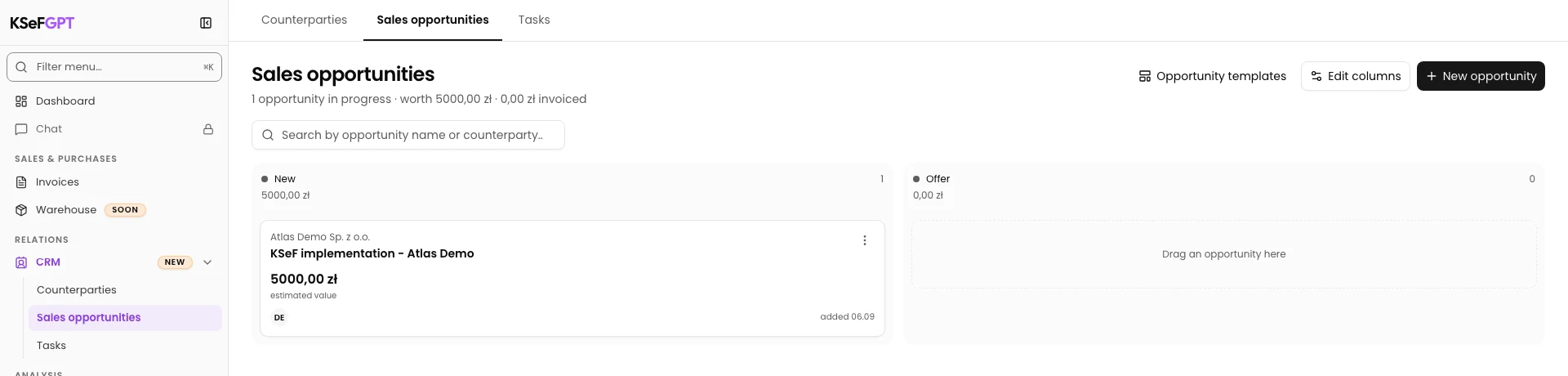
Open CRM > Sales opportunities. Find KSeF implementation - Atlas Demo in New and select its name.
Select the stage on the profile
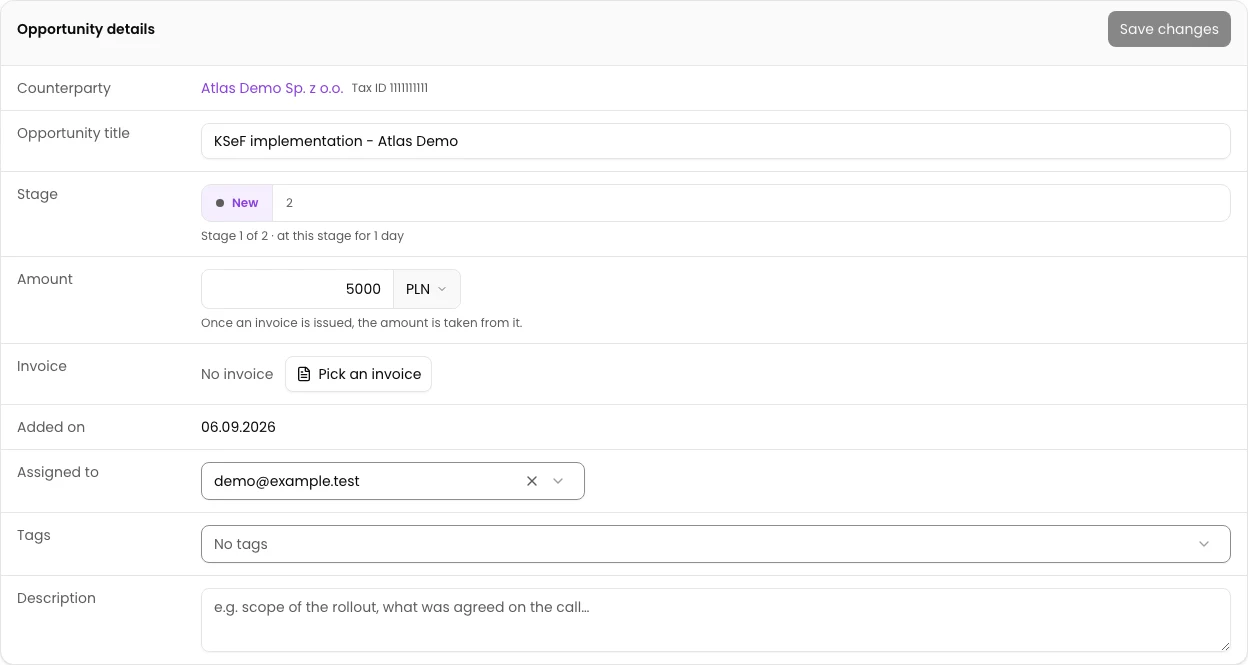
In the opportunity information card, find Stage. The active segment shows New and the second segment shows 2. In this example, the second stage is Offer.
Select segment 2. The change saves immediately and the active segment displays Offer. You do not need Save changes for this operation.
On a narrow screen, Stage is a dropdown. Open it and select the target stage by name.
Check the column after reloading
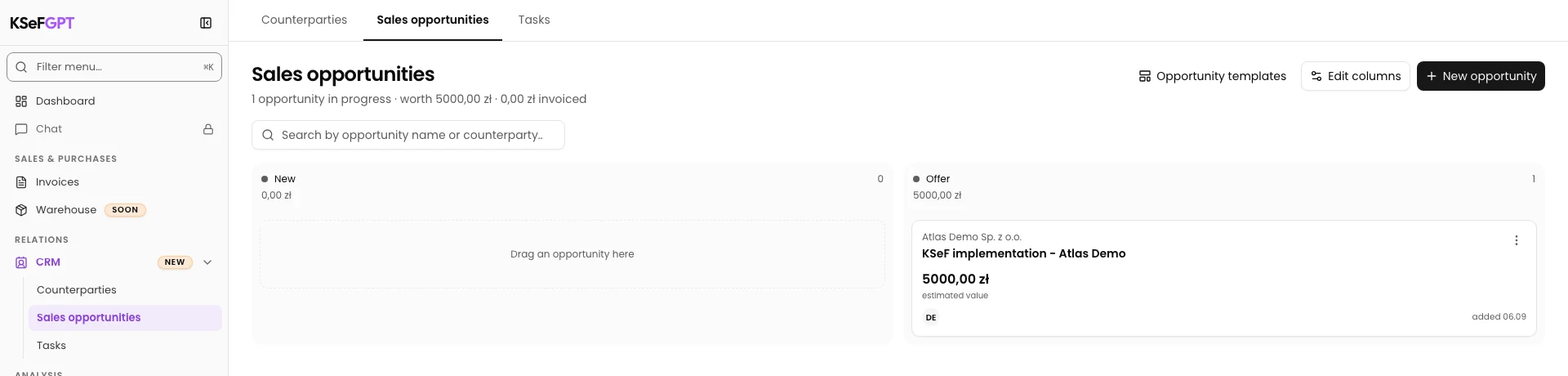
Select Back to the opportunity board and reload the page. Find the same card in Offer.
Check the opportunity name and counterparty to confirm that you moved the correct card.
Final state
Check the result
After reloading, KSeF implementation - Atlas Demo is in Offer. A stage change does not confirm invoice issuance, KSeF submission or payment.
Diagnostics
If something does not work
| Symptom | Cause | What to do |
|---|---|---|
| Save changes is disabled after changing the stage. | The stage selection saves separately from the other profile fields. | Return to the board and check its column after reloading. There is no need to edit another field to enable the button. |
Next steps
Continue with the related instruction: How to create a sales opportunity in CRM.
Continue with the related instruction: How to create a CRM opportunity from a template.
The opportunity is at the chosen stage
After reloading, KSeF implementation - Atlas Demo is in Offer. A stage change does not confirm invoice issuance, KSeF submission or payment.
Open CRM