How to configure sales stages in CRM?
Rename a stage, add a new one and arrange the columns on the opportunity board.
- Module
- CRM / Sales opportunities
- Reading time
- 3 min
- Difficulty
- Easy
You could do this with your eyes closed :)
- Published
- September 11, 2026
- Author
- Rafał Zeidler
- Format
- Written guide and video
Written procedure
What you will do
Change stage names and their order on the opportunity board, and add a new column. The example renames Offer to Offer sent and adds Negotiation before Completed.
The configuration applies to the selected company’s board. The existing opportunity stays in the renamed column. To move an individual opportunity to another stage, use the separate guide linked at the end.
Requirements
Before you start
Changes in the window remain a draft until you click Save columns. Cancel discards them. This procedure keeps the existing stages; the bin removes columns. The window warns that opportunities from a removed column move to the first column on the board.
| Item | Requirement |
|---|---|
| Access | Owner of the selected company with CRM access. Saving the configuration was verified with this account. |
| Preparation | Decide which names and order you need. The example has three columns and one opportunity in Offer. Your board may differ. |
| Starting point | After signing in, select the correct company and open CRM → Sales opportunities. |
| Time | About 2 minutes. Editing the board does not require a KSeF connection. |
Process recording
0:33Rename a stage, add a new one and arrange the columns on the opportunity board.
Open the column editor
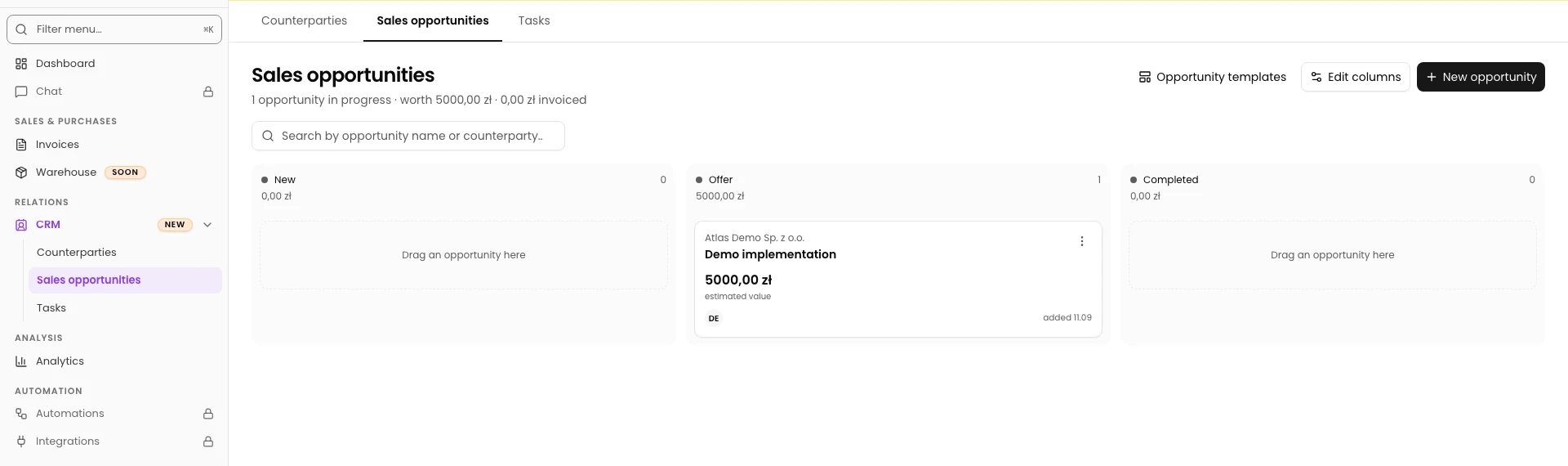
On Sales opportunities, check the selected company. Click Edit columns in the upper-right area.
The Edit columns window shows the stage list. The top-to-bottom order corresponds to columns from left to right on a wide screen.
Rename a stage
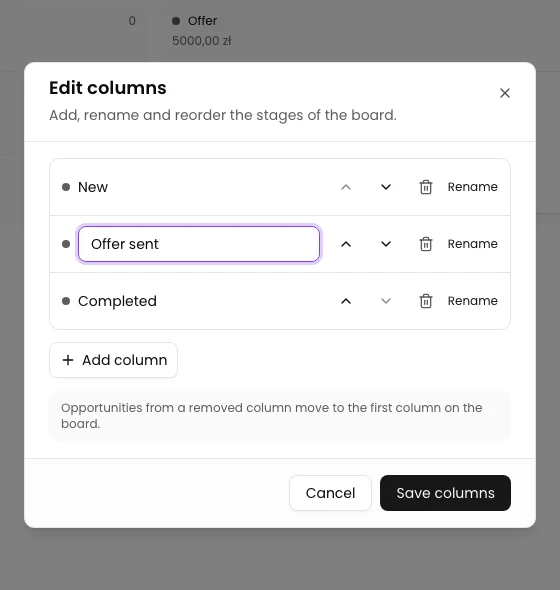
Click Rename beside Offer. In Column name, enter Offer sent and press Enter.
The new name appears in the draft list. Enter only finishes editing the name; you will save the whole board in step 5.
Add a new stage
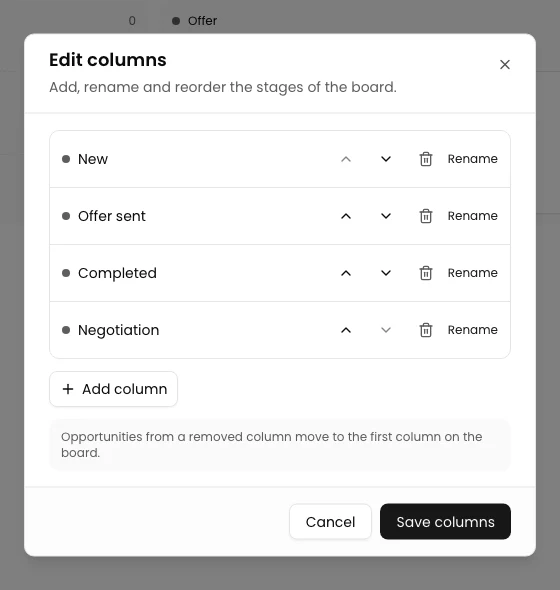
Click Add column. A field named New stage appears at the end of the list.
Enter Negotiation and press Enter. The new stage stays at the end of the draft list, after Completed.
Set the order
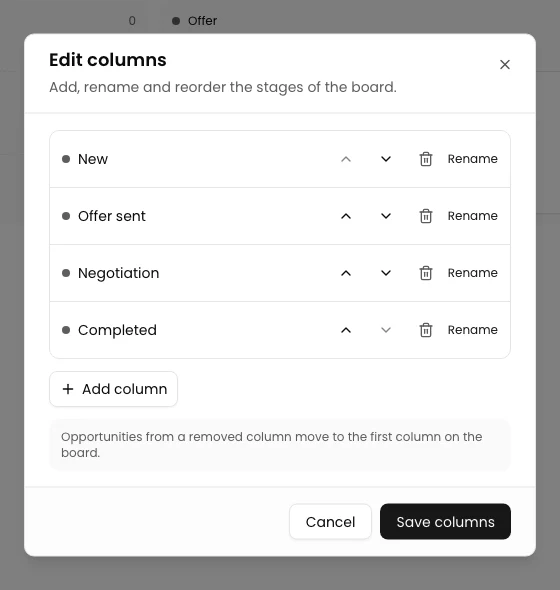
Beside Negotiation, click the upward arrow labelled Move left. The stage moves up one position in the list and will appear earlier on the board.
Check the order: New → Offer sent → Negotiation → Completed. The opposite arrow, Move right, moves a stage down one position.
Save the columns
Click Save columns. The window closes, and after the application responds, the board shows four stages in the new order.
Check that Demo implementation is still in Offer sent. Renaming an existing stage keeps its opportunities in that stage.
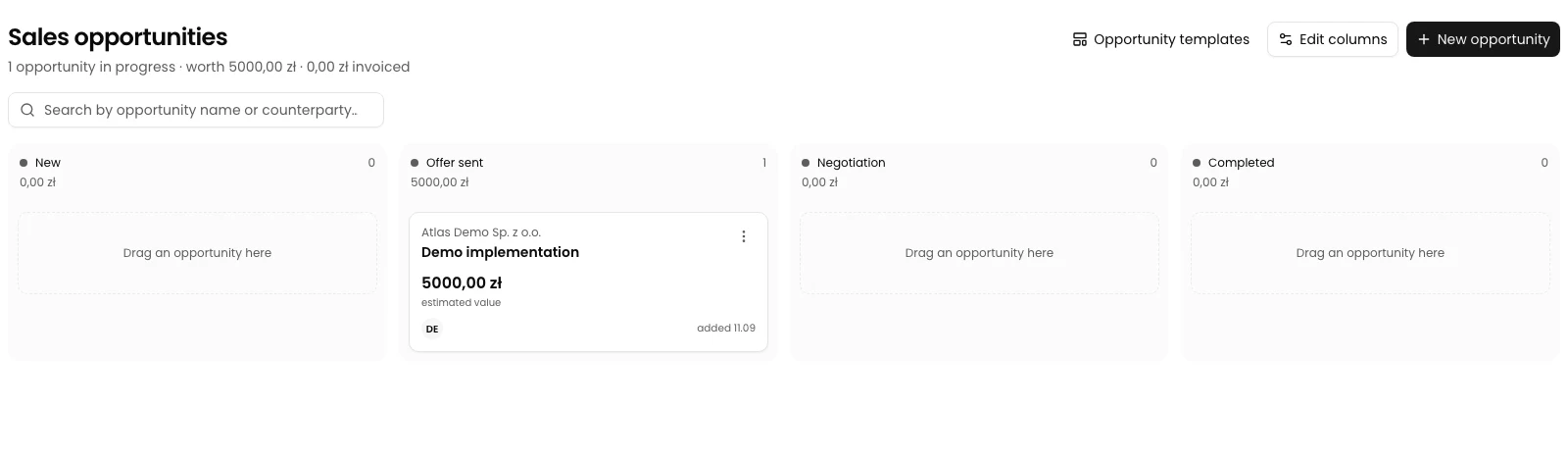
Final state
Check the result
Reload Sales opportunities. Compare all stage names, the column order and the existing opportunity’s position. In the example, Negotiation is third and Offer sent still contains one opportunity.
You can reopen Edit columns to check the list, then close it with Cancel. On a phone, the board shows one selected stage at a time. Use the stage selector above the board to switch to the other columns.
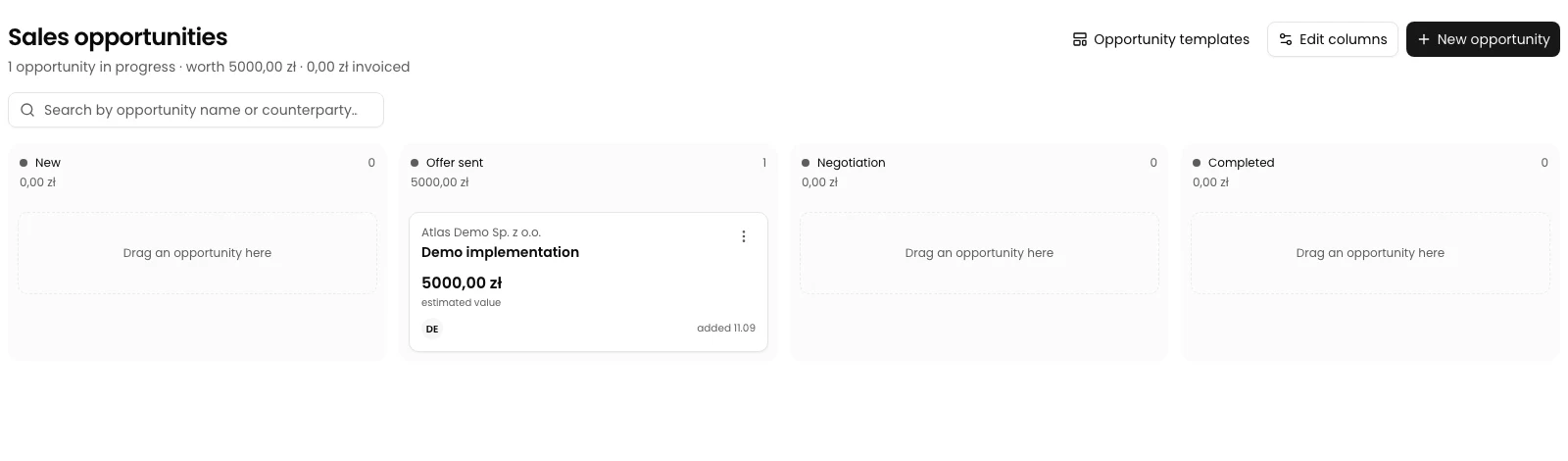
Diagnostics
If something goes wrong
| Issue | Cause | What to do |
|---|---|---|
| The board shows no changes after Cancel. | The edits in the window were not saved. | Repeat the edits and finish with Save columns. |
| A blank name does not replace the old one. | The form ignores names containing only spaces. | Enter a non-empty name and press Enter. |
| Clicking the bin shows a warning about moving opportunities. | The column contains opportunities. The window identifies the first column as their destination. | Check the stages and count. If you only need a new name, click Cancel, reopen the window and use Rename. |
| The last column cannot be removed. | The board must retain at least one stage. | Keep this column or add a stage you need. |
Next steps
Set up your sales stages
Open the correct company’s board and check column names and order.
Open Sales opportunities