How to create automation from scratch in KSeFGPT?
Create an empty workflow, add a schedule and fetch KSeF invoices. Save your configuration and verify it after reloading.
- Module
- Automation
- Reading time
- 6 min
- Difficulty
- Intermediate
Follow the instructions carefully and you will succeed
- Published
- September 17, 2026
- Author
- Rafał Zeidler
- Format
- Written guide and video
Written procedure
What you will do
Build a workflow from an empty template: a schedule triggers an action that fetches incoming and outgoing KSeF invoices. The example uses a daily schedule.
The result of this guide is a saved, inactive workflow. Running it and checking the fetched data are the next stage, covered in a separate guide.
Requirements
Before you start
The screenshots and video show the current interface with demonstration data. Configuration and its reload in the UI were checked; this does not verify actual invoice retrieval or backend persistence.
| Item | Requirement |
|---|---|
| Access | A signed-in account, selected company and access to Automations. The example uses the company owner; organization members need permission to manage automations. |
| KSeF connection | A working KSeF token for this company. The creation screen requires a credential; the fetch action shown here uses a token without a separate authentication-method selector. |
| Starting point | Open Automations and select the company that will own the workflow. |
| Time and result | About 5 minutes. A saved schedule and action; the workflow is not run in this guide. |
Process recording
1:01Build and save a workflow with a schedule and an action to fetch KSeF invoices.
Create an empty workflow
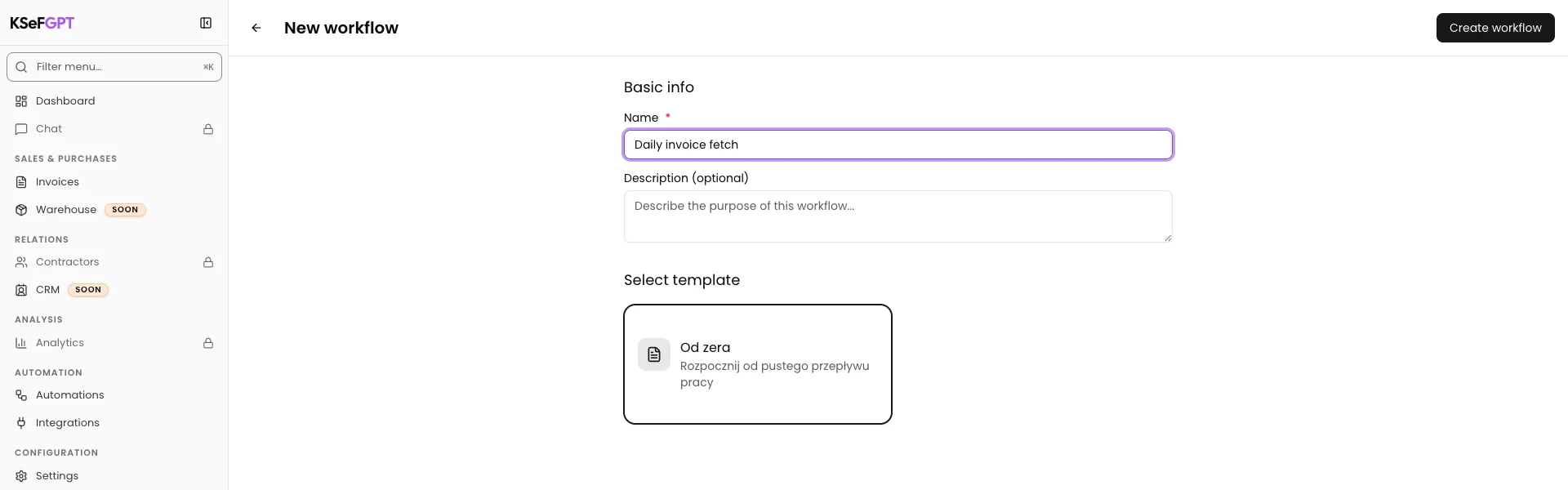
Choose New Workflow; if the list is empty, click Create Your First Workflow. Enter “Daily invoice fetch” in Name.
Keep the Od zera template (its API-provided name can remain Polish) and click Create workflow. An empty editor opens with Choose a trigger.
Add the schedule trigger
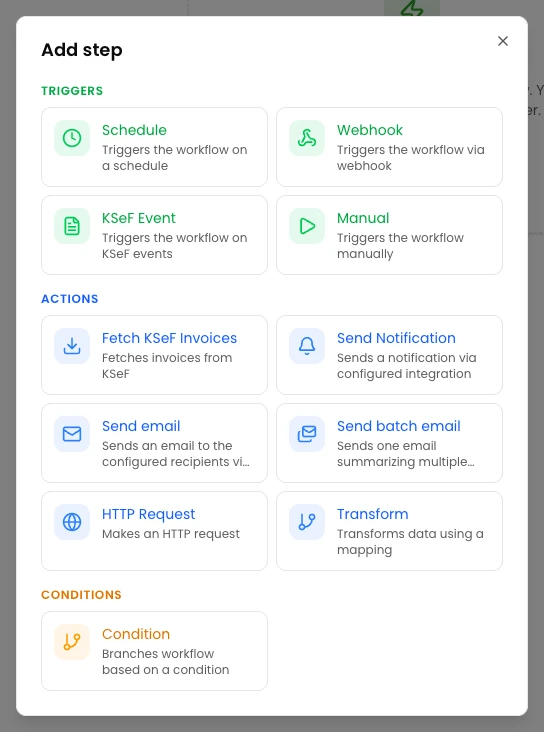
Click Choose a trigger. Under Triggers, select Schedule.
The Schedule Trigger block appears. A trigger determines when a workflow run begins.
Set a daily schedule
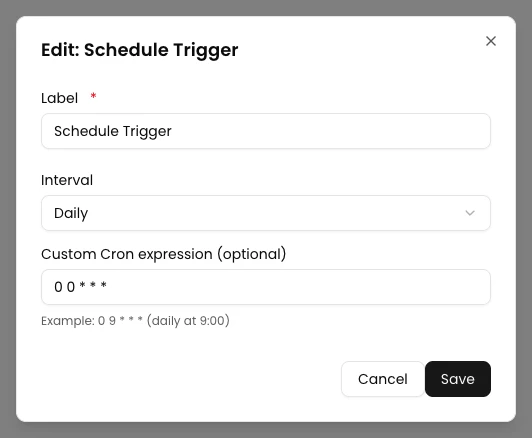
Hover over Schedule Trigger and click Edit. Select Daily in Interval.
Custom Cron expression (optional) is filled automatically with 0 0 * * *. Keep it and click Save in the dialog. This selects a daily schedule; saving does not activate the workflow.
Add the invoice fetch action
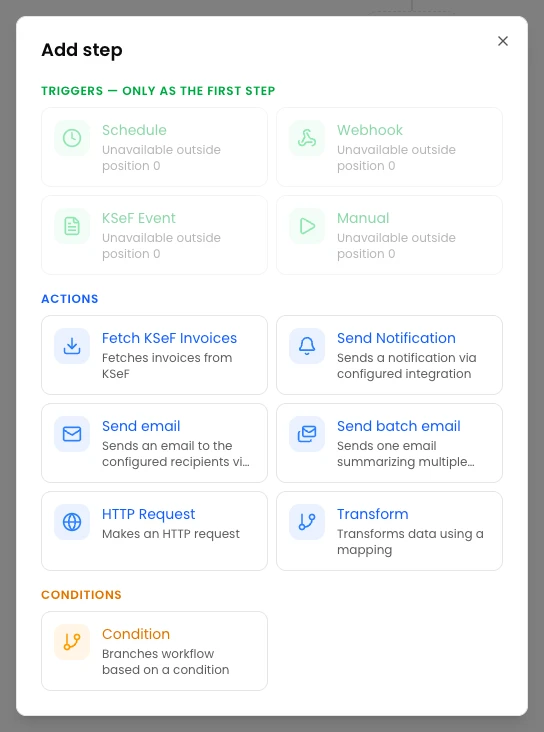
Click Add step below the trigger. Under Actions, choose Fetch KSeF Invoices.
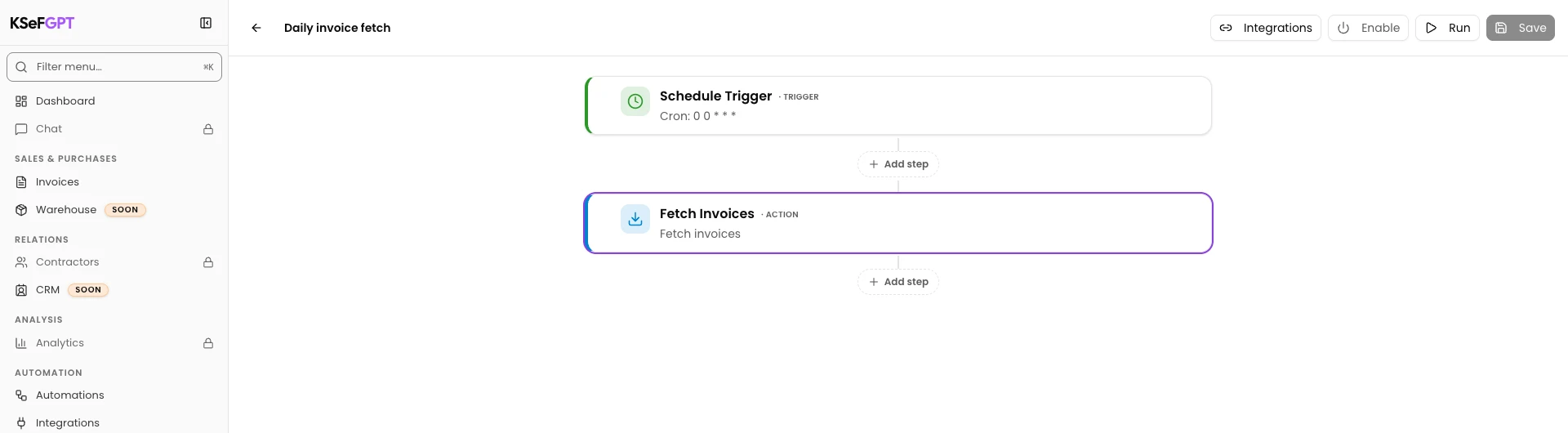
The Fetch Invoices block appears below the schedule. An action determines what the workflow does after the trigger starts it.
Choose both invoice types
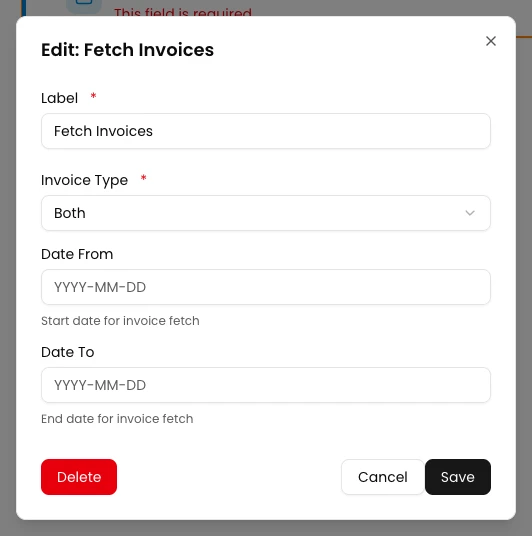
Hover over Fetch Invoices and click Edit. In Invoice Type, first select Income, then Both. This explicitly stores the choice even when the field initially displays Both.
Leave Date From and Date To empty to avoid a fixed date range. Click Save in the dialog. Both directions are selected; an empty range does not promise retrieval of the entire KSeF archive.
Save and check both blocks again
Click Save at the top right of the editor. Wait for “Workflow saved successfully.”. Saving an individual block does not save the entire workflow.
Reload the page. Edit Schedule Trigger, check Daily and the generated Cron, then close with Cancel. Edit Fetch Invoices, check Both and empty dates, then choose Cancel again.
Check the workflow in the list
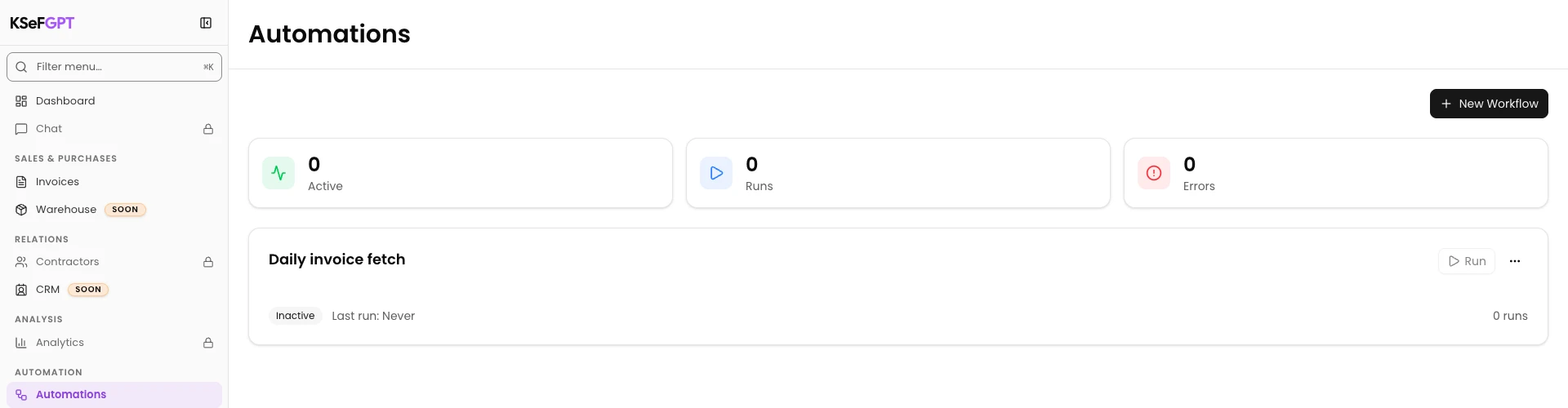
Use the back arrow to return to the automation list. Find “Daily invoice fetch” and check its Inactive status.
This is the expected result: your configuration is saved and is not running yet. Building the workflow from scratch is complete.
Final state
Check the result
Your inactive workflow is listed. Reopening it shows two connected blocks: Schedule Trigger and Fetch Invoices, with Daily, both invoice types and empty dates.
A saved configuration is not evidence that documents have been fetched. For the next stage, follow How to run an automation and check execution history.
Diagnostics
If something does not work
| Symptom | Cause | What to do |
|---|---|---|
| An empty workflow name cannot be submitted | The name is required. | Enter Name, then click Create workflow. |
| A block shows a missing-field message | A required block setting has not been saved. | Open Edit, select the interval or invoice type and save the block. |
| Both is displayed but not stored | A visual default is not necessarily a saved value. | Select Income, then Both; save the block and the workflow. |
| A change disappears after Cancel | Cancel keeps the previous block settings. | To retain a change, click Save in the dialog and then in the editor. |
| The saved workflow does not fetch anything | A new workflow remains inactive. | Configuration is complete. The linked guide explains activation and run history. |
Next steps
How to run an automation and check execution history covers running the workflow and checking its result.
How to configure a KSeF connection in KSeFGPT helps you prepare KSeF access.
How to send a sales invoice PDF to a fixed team email address? shows another workflow from scratch: sending sales invoice PDFs to your team.
Build your own workflow
Sign in, select your company and connect a trigger to an action.
Open KSeFGPT