How to send a sales invoice PDF to a fixed team email address?
Configure an email with a PDF of each new outgoing KSeF invoice. Set a fixed team inbox, choose the language and verify the saved workflow.
- Module
- Automation
- Reading time
- 6 min
- Difficulty
- Intermediate
Follow the instructions carefully and you will succeed
- Published
- September 17, 2026
- Author
- Rafał Zeidler
- Format
- Written guide and video
Written procedure
What you will do
Create a workflow that sends a PDF visualization to your team when it detects a new sales invoice in KSeF. Each invoice gets a separate email.
The trigger watches outgoing invoices for the selected company. No invoice-creation action is needed: the document already has a KSeF number. The recipient is a fixed inbox entered in the settings, not a buyer address retrieved from CRM.
Requirements
Before you start
The video and screenshots show the real interface with demonstration data. Saving, reloading settings, activation and the history view were checked. No real email was sent or PDF generated; verify delivery in your own inbox.
| Item | Requirement |
|---|---|
| Access | A selected company, access to Automations and permission to manage workflows. The example uses the company owner. |
| KSeF connection | A working KSeF token with access to company invoices. The current PDF attachment path uses a token; a certificate alone is not enough for this scenario. |
| Team address | A fixed inbox for sales invoices. sales-team@example.test is a demonstration address: replace it with your own. |
| Starting point | After signing in, open Automations and select the correct company. |
| Time and effect | About 5 minutes of setup, then a wait for a new invoice to be detected. An active workflow automatically sends documents to the specified team. |
Process recording
1:07Send a PDF of each new sales invoice to a fixed email address for your team.
Create an empty workflow
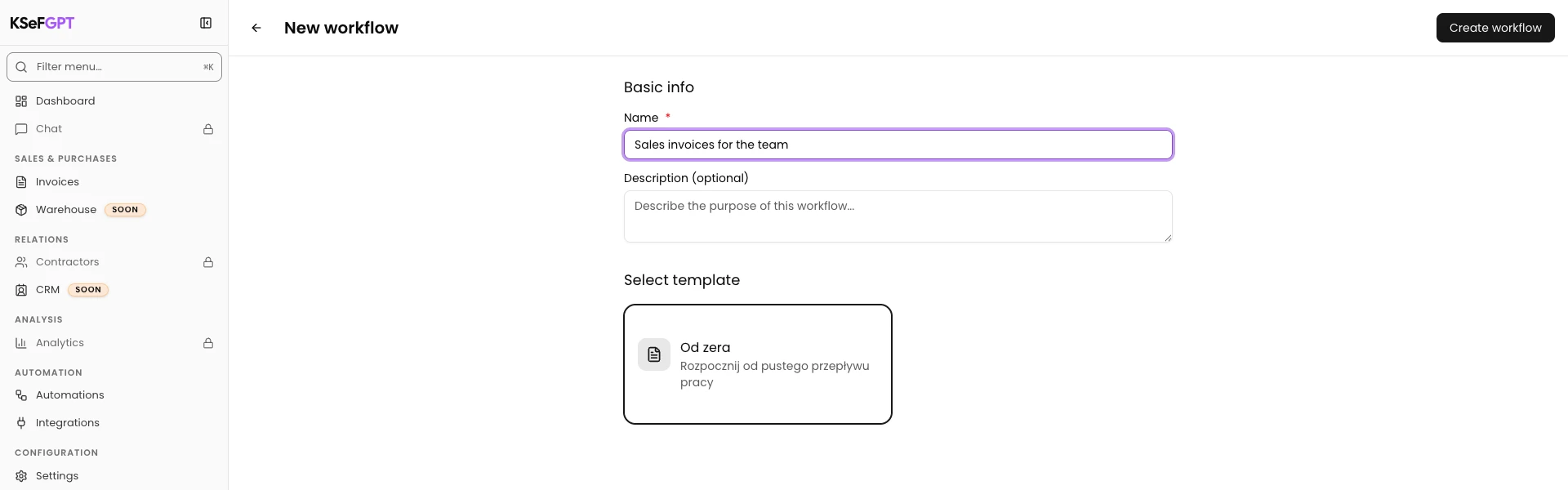
Choose New Workflow; on an empty list, use Create Your First Workflow. Enter “Sales invoices for the team” in Name.
Keep the Od zera template; its API-provided name can remain Polish. Click Create workflow to open the empty editor.
Select the invoice sent event
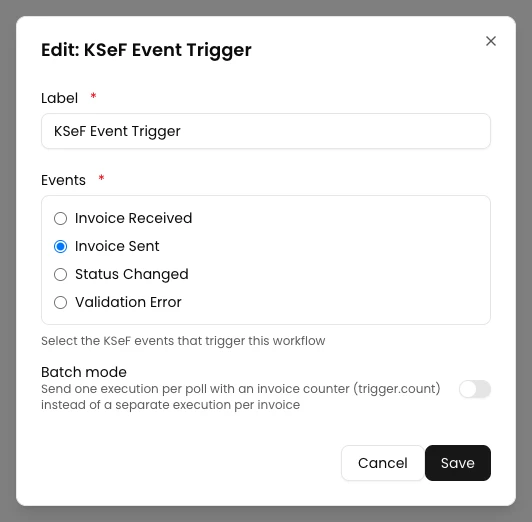
Click Choose a trigger and select KSeF Event. Hover over KSeF Event Trigger and click Edit.
Select Invoice Sent. Leave Batch mode off and click Save in the dialog. This selects sales invoices: each detected invoice must start its own run with its KSeF number.
Add the email action
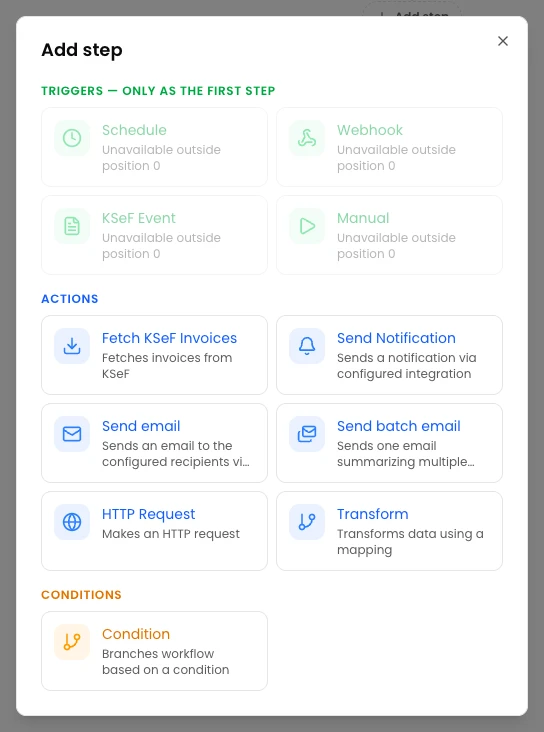
Click Add step below the trigger. Under Actions, choose Send email.
This action sends email through KSeFGPT and supports the PDF attachment. You do not need to configure your own SMTP integration.
Enter the fixed team address
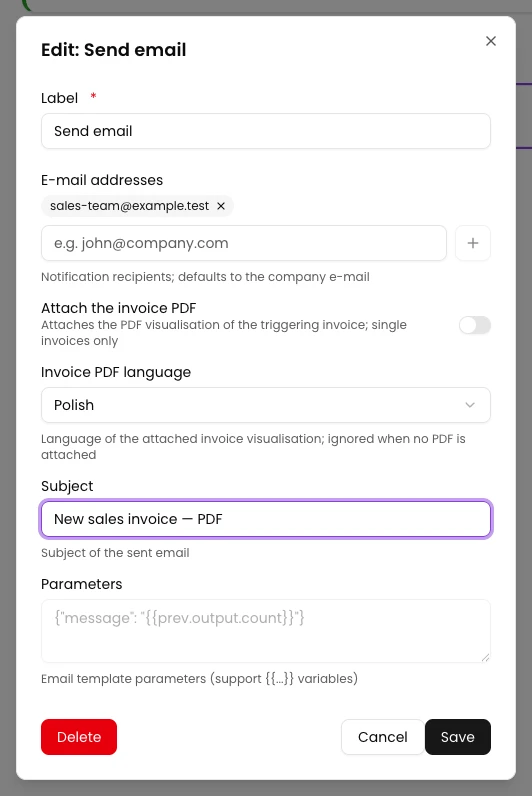
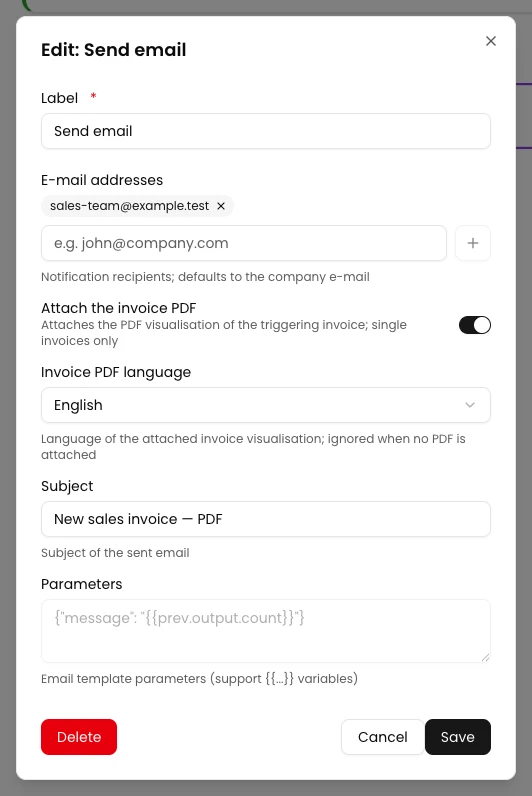
Hover over Send email and click Edit. Enter your team inbox in E-mail addresses. Click the plus button Add recipient; the address must appear as a separate chip above the field.
Enter a description in Subject, for example a notice about a new sales invoice PDF. Add the recipient explicitly even if the hint suggests the company email. The same recipient will receive subsequent sales invoice PDFs; the app does not select an address based on the buyer.
Enable the PDF and choose its language
Enable Attach the invoice PDF. In Invoice PDF language, choose English, as shown in the video, or another available version your team needs.
This controls the PDF visualization language; your manually entered subject is unchanged. The attachment is generated from the document fetched by KSeF number, without uploading a file. Click Save in the dialog.
Save and check the settings
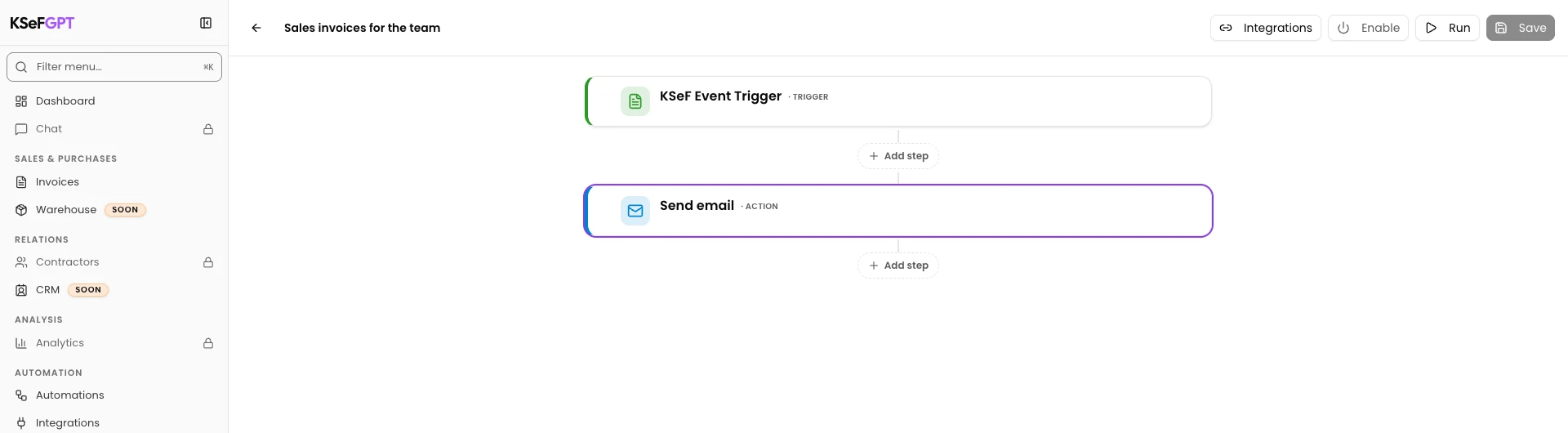
Click Save at the top right of the editor and wait for “Workflow saved successfully.”. Saving only the block dialog does not save the entire workflow.
Reload. Edit the trigger and check Invoice Sent with Batch mode off, then close with Cancel. Edit the email action, check the team address, subject, enabled PDF and language, then close with Cancel again.
Activate the workflow
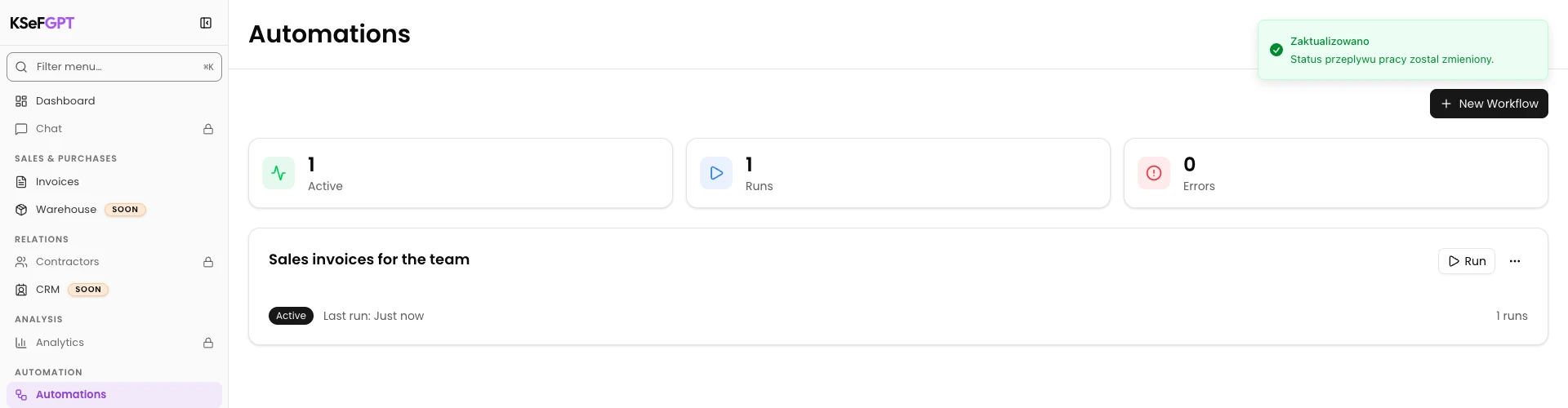
Return to the list with the back arrow. Open your workflow's three-dot menu and choose Activate. The Active status should appear.
Wait for a new sales invoice to be detected in KSeF. Clicking Run alone does not replace an event carrying a specific invoice's data. To stop future emails, choose Deactivate in the menu.
Check the history and team inbox
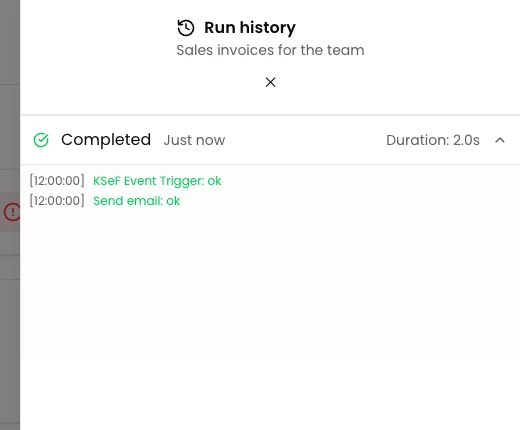
Open Run history from the workflow menu. Expand the new Completed execution and check the trigger and Send email results.
In your team inbox, find the email by subject and open the attachment. Compare its invoice number, KSeF number, seller, buyer, amount and PDF language with the correct sales invoice. Also check spam. History status alone does not confirm delivery.
Final state
Check the result
After a real new event, your team should receive a separate email with an opening PDF of the correct sales invoice. An incoming purchase invoice or a draft without a KSeF number is not the document covered by this scenario.
To send PDFs to several fixed addresses, add each to the same action. All receive the same language version. For incoming invoices, see How to send an invoice notification with a PDF.
Diagnostics
If something does not work
| Symptom | Cause | What to do |
|---|---|---|
| Invalid e-mail address. | The address format is invalid. | Correct it and click Add recipient. Check that a recipient chip appears. |
| That address is already on the list. | The address is already added. | Check the existing chip instead of adding it again. |
| There is no PDF switch | A different action was selected, such as an integration notification or batch email. | Choose Send email, rather than Send Notification or Send batch email. |
| The attachment cannot be generated | A token or individual KSeF number is missing, or document retrieval failed. | Check the token, selected event, disabled batch mode and block error in history. Attachment failure can stop the email from being sent. |
| History shows success but there is no email | Execution status is not confirmation of inbox delivery. | Check the stored recipient, subject and spam folder. Complete the procedure only after opening the correct PDF. |
Next steps
How to send an invoice notification with a PDF covers the equivalent workflow for purchase invoices.
How to run an automation and check execution history explains execution history and block results.
How to configure a KSeF connection in KSeFGPT helps you check KSeF access before starting.
Send sales invoice PDFs to your team
Sign in, select your company and set a fixed document recipient.
Open KSeFGPT