How to send a notification after a new KSeF event
Create a workflow for new incoming invoices, set the recipients of single and batch e-mails, activate it and check the result in history.
- Module
- Automation
- Reading time
- 7 min
- Difficulty
- Intermediate
Follow the instructions carefully and you will succeed
- Published
- September 1, 2026
- Author
- Rafał Zeidler
- Format
- Written guide and video
Written procedure
What you will do
You will create an automation that detects new incoming invoices in KSeF. It sends one e-mail for a single invoice and a batch message for several documents detected during one check.
Finally, you will activate the workflow, check the recipient's inbox and confirm in Run history which branch KSeFGPT executed.
Requirements
Before you start
After KSeF credentials are added, the application may already contain an active default workflow named Powiadomienie o nowej fakturze. Check the list before creating another one to avoid duplicate messages.
| Item | Description |
|---|---|
| Access | The company owner or an organization member with automation:manage. |
| Plan | A KSeFGPT plan with access to Automation. |
| KSeF connection | The selected company has an active KSeF token or certificate. |
| Recipients | From 1 to 20 valid e-mail addresses. Enter the same set in both branches if every message should reach the same people. |
| Starting point | After signing in, select the correct company and open Automation. |
| Time required | About 6 minutes for configuration. Detection time depends on the KSeF polling cycle. |
| Important effect | An active workflow sends messages automatically. Do not use Run to simulate the event because a manual run does not provide new-invoice metadata. |
Process recording
0:53The recording shows template selection, configuration of both e-mail branches, workflow activation and execution history review.
Start creating the workflow
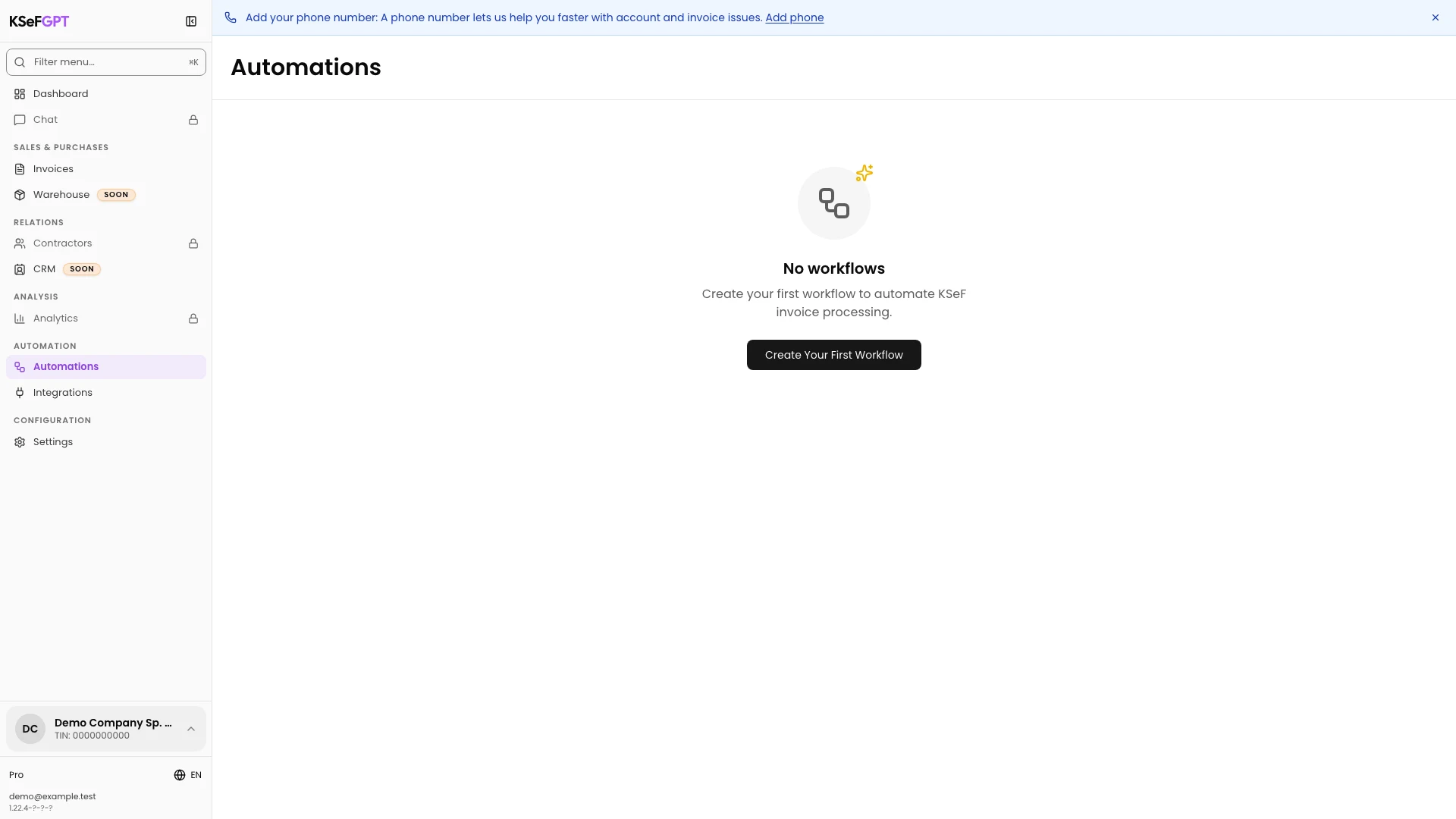
Open Automation. If the list is empty, select Create Your First Workflow. If automations already exist, select New Workflow in the top right.
If the list already contains an active Powiadomienie o nowej fakturze workflow, open it with Edit instead of creating a duplicate and continue from step 3.
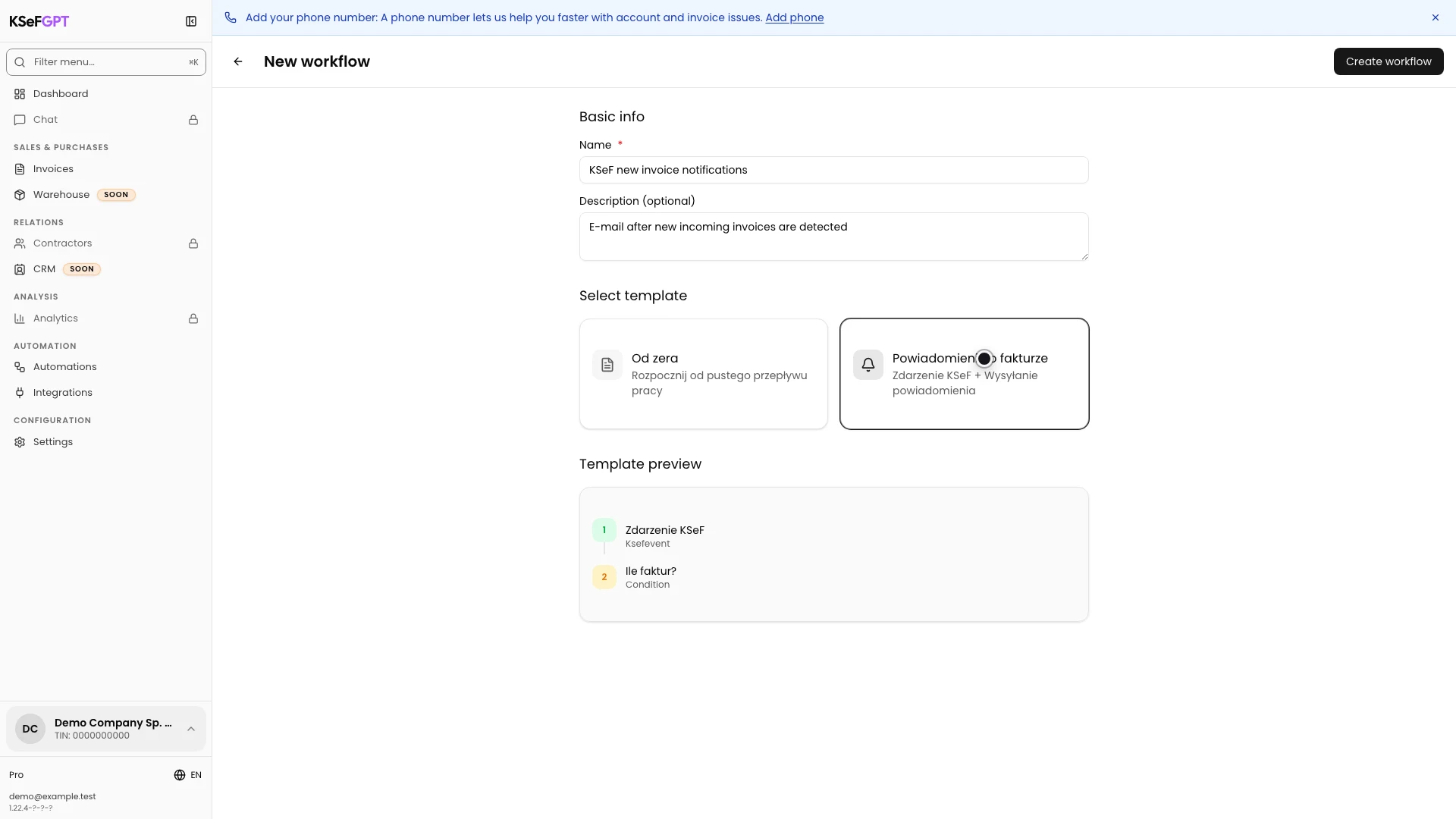
Name the workflow and select a template
Enter a name, such as KSeF new invoice notifications, and a short description. Then select the Powiadomienie o fakturze template.
The template and block names supplied by KSeFGPT currently remain in Polish in the English interface. The preview shows Zdarzenie KSeF and the Ile faktur? condition. Both e-mail branches become visible after the workflow is created.
Create the workflow and check its branches
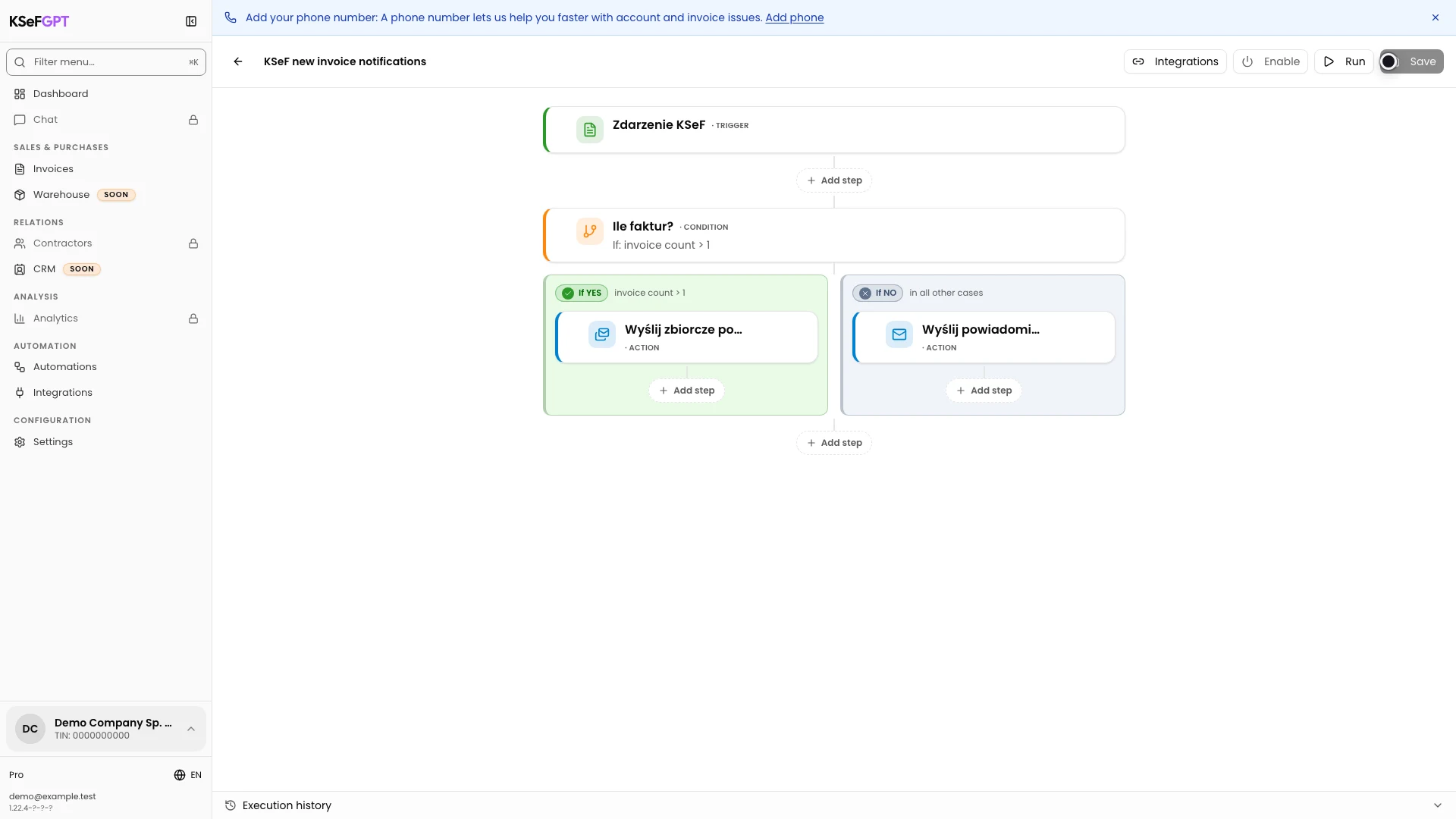
Select Create workflow. In the editor, review Zdarzenie KSeF and then the Ile faktur? condition.
The `{{trigger.count}} > 1` condition routes several invoices to the YES branch and Wyślij zbiorcze powiadomienie. Otherwise, the NO branch runs Wyślij powiadomienie for one document.
Set the Invoice Received event
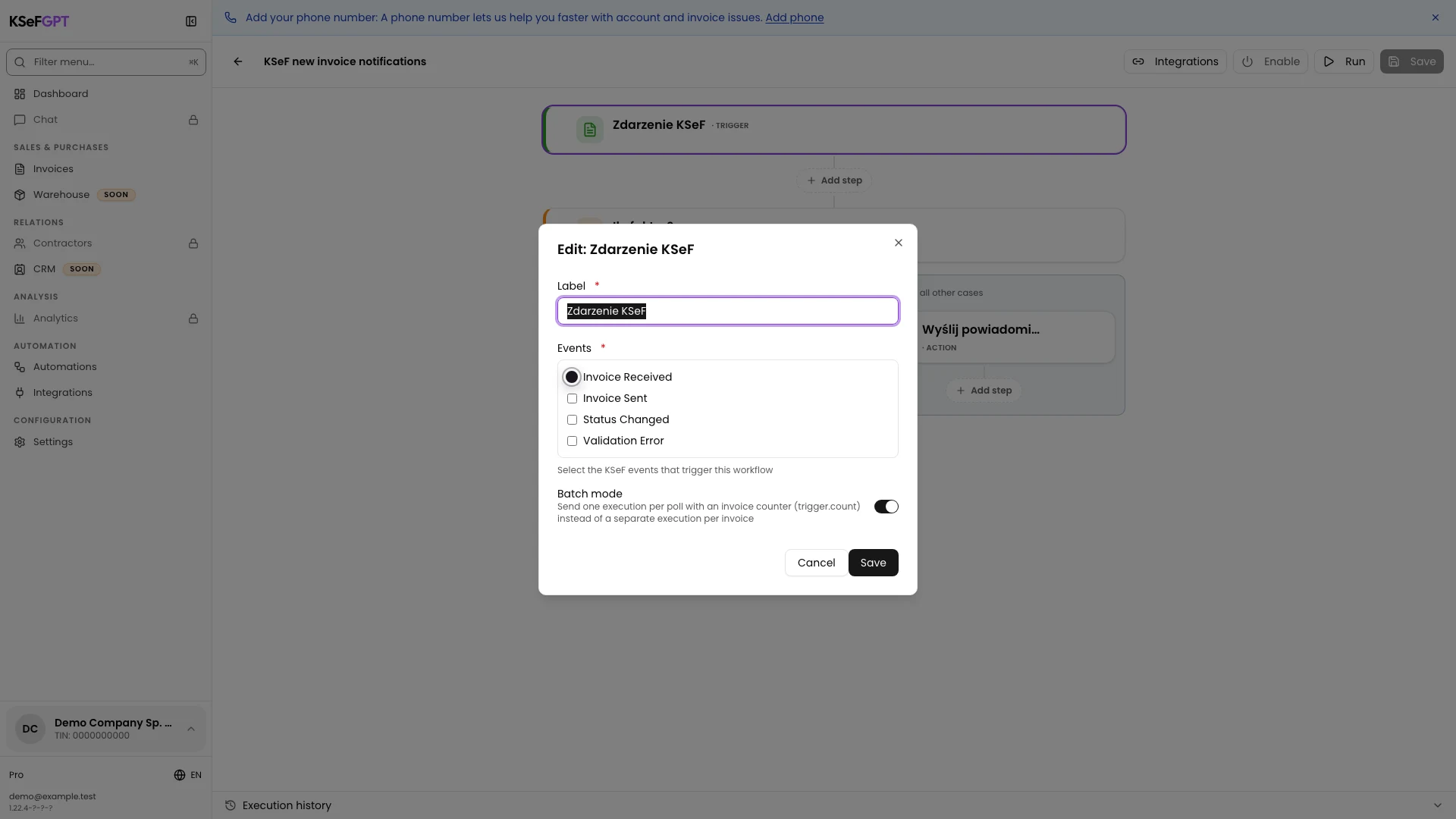
Hover over Zdarzenie KSeF and select Edit. Leave only Invoice Received selected and keep Batch mode enabled.
Batch mode creates one execution for documents detected during one check and provides `trigger.count`. Select Save in the block window.
Set the e-mail for one invoice
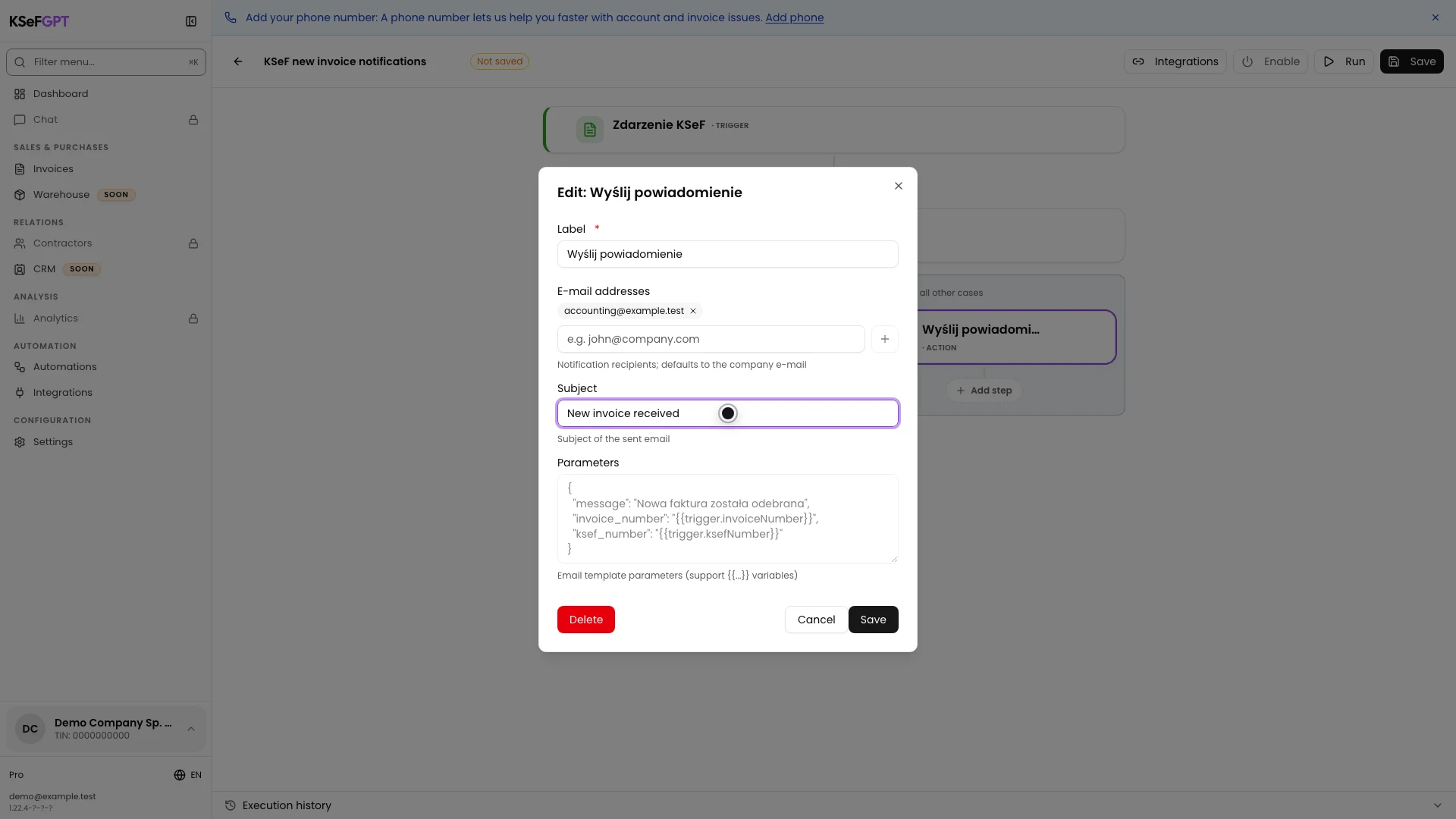
In the NO branch, edit Wyślij powiadomienie. Add each address with the plus button and enter a subject, such as New invoice received.
The message parameters contain system text, the invoice number and the KSeF number. They are read-only. Select Save in the block window.
Set the e-mail for multiple invoices
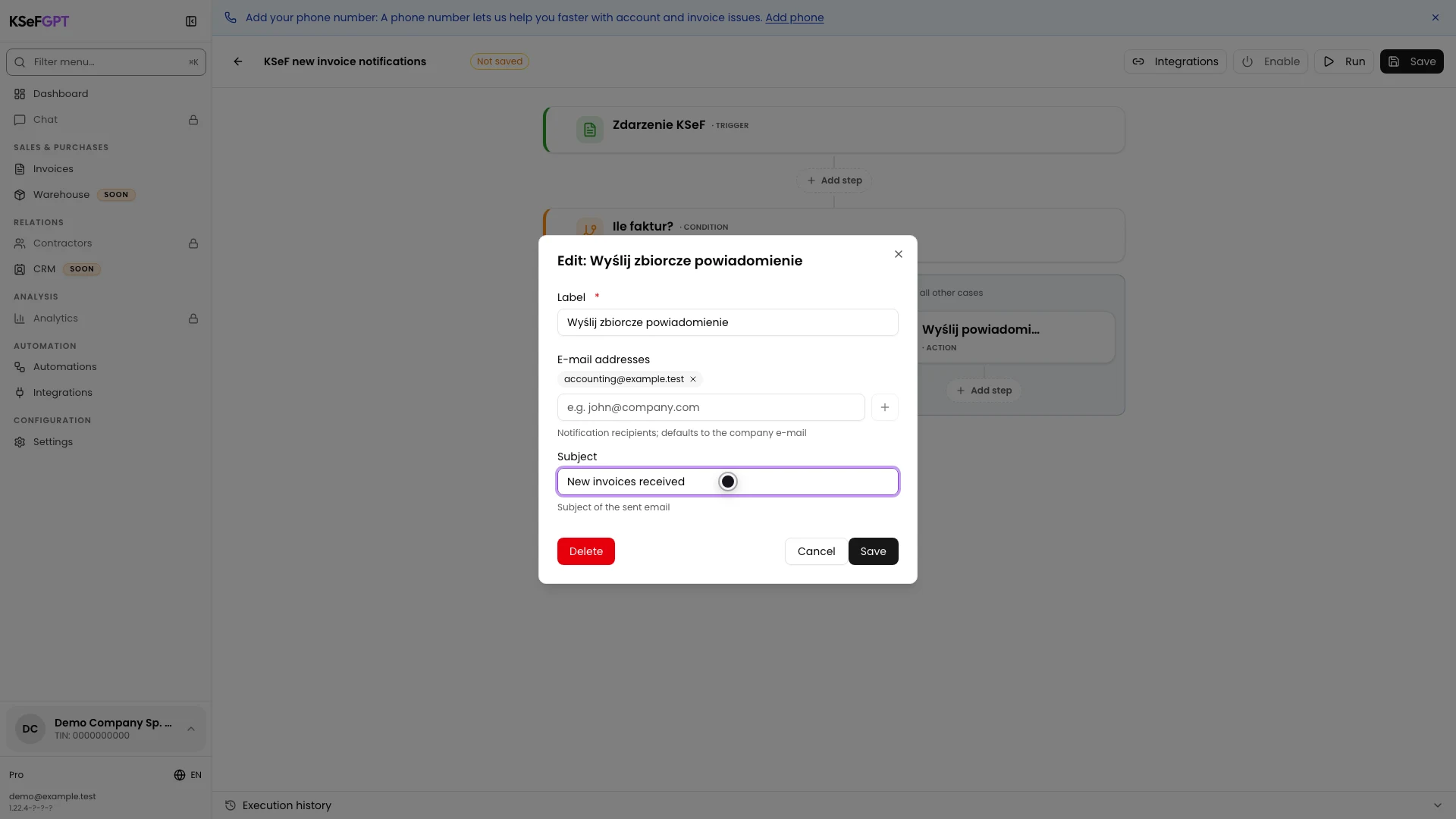
In the YES branch, edit Wyślij zbiorcze powiadomienie. Add the recipients and enter a subject, such as New invoices received.
The batch message includes the document count and a summary of up to ten invoices. Save the block.
Save and activate the workflow
Select Save in the top right of the editor and wait for Workflow saved successfully. Return to the list with the back arrow.
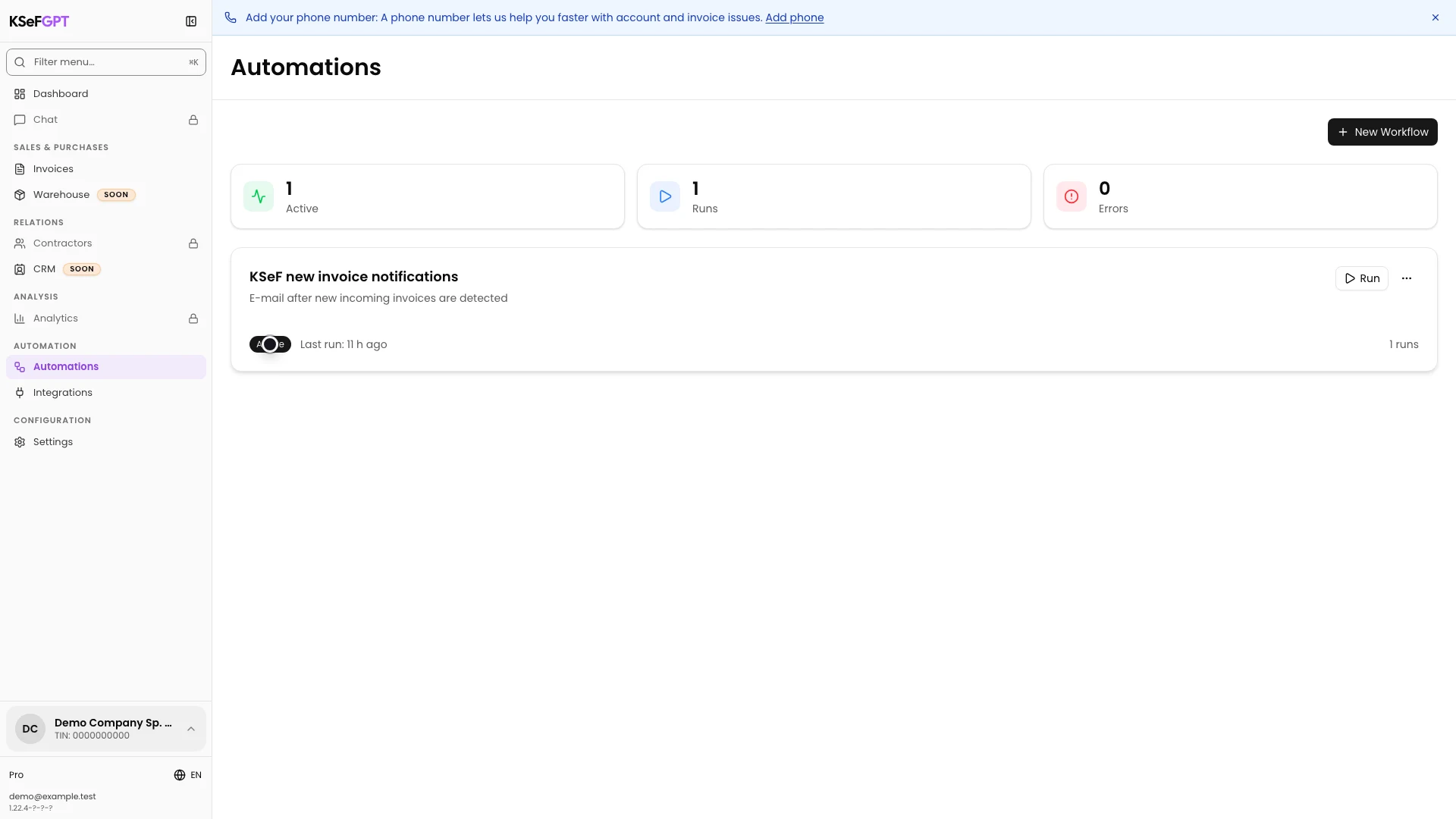
Open the card menu and select Activate. Active means KSeFGPT can periodically check for new invoices and start the workflow.
Check the message and history
After a new incoming invoice appears, check the selected recipient's inbox. In production, KSeFGPT polls KSeF every 15 minutes, so the e-mail may not appear immediately. The first check establishes a baseline and does not report older invoices.
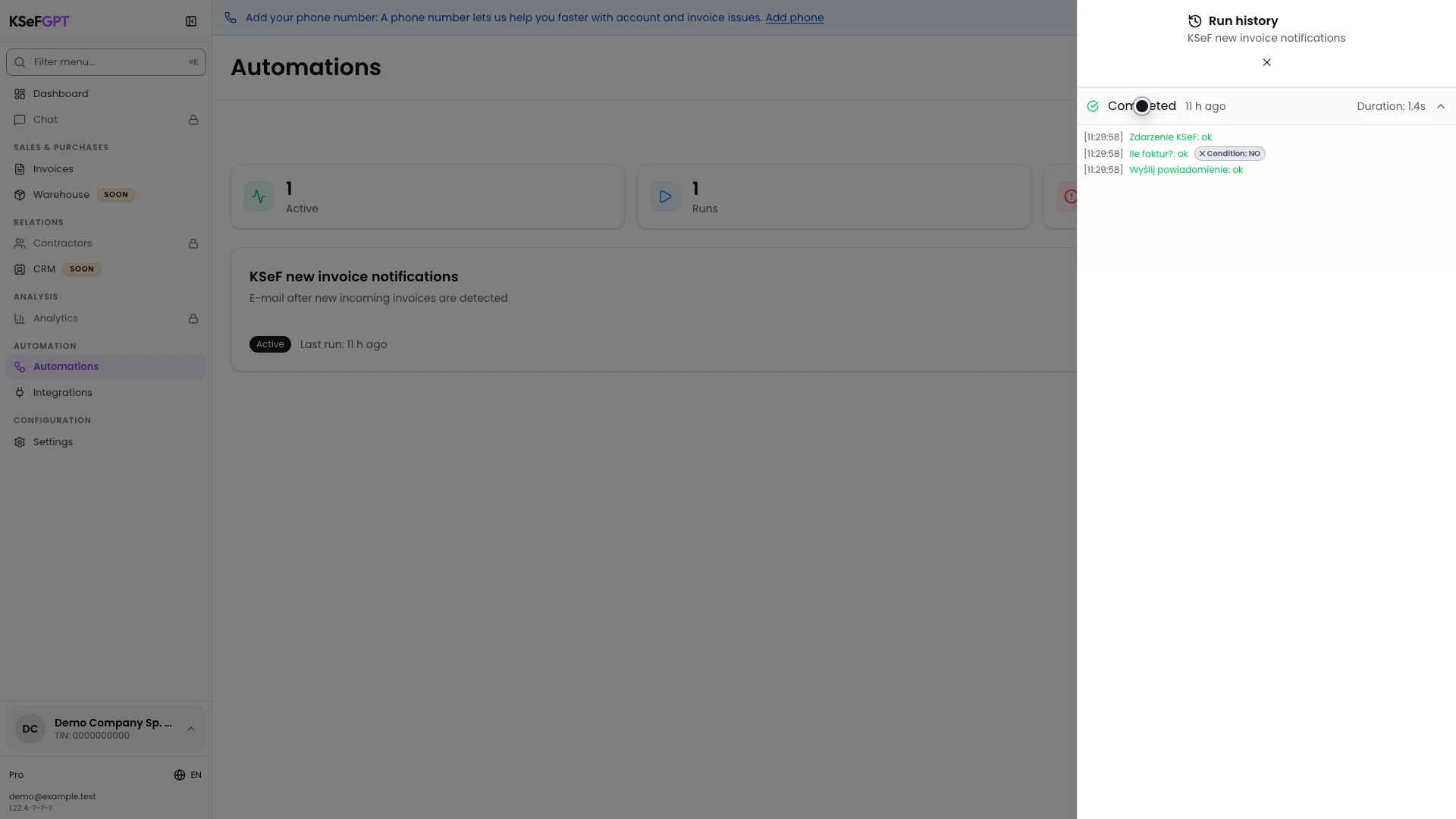
Open the workflow menu and select Run history. Expand the newest row. For one invoice, expect Zdarzenie KSeF: ok, the NO branch at Ile faktur? and Wyślij powiadomienie: ok. For several invoices, the YES branch with the batch block runs.
Final state
Check the result
The workflow card is Active, the recipient received an e-mail and the newest execution is Completed. Expanded logs show the expected branch and the action with `ok` status.
The `ok` status means that the notification service accepted the message. It does not confirm that it was read, so also check the actual inbox and spam folder.
Diagnostics
If something does not work
Compare the visible symptom with the table below.
| Symptom | Likely cause | What to do |
|---|---|---|
| Create workflow is disabled | The name or an active KSeF token or certificate is missing. | Enter a name, configure the company's KSeF connection and try again. |
| Two e-mails are sent for the same invoice | The company has more than one active Invoice Received workflow. | Leave only the correct workflow active or separate their recipients and purposes. |
| An address cannot be added | The format is invalid, the address is duplicated or the list has reached 20 recipients. | Correct the address, remove the duplicate or shorten the list. |
| No execution appears after activation | No new invoice was detected after the baseline or the next KSeF polling cycle has not finished. | Do not use manual Run to test the event. Wait for a new document and reopen history. |
| The execution is Failed | The log points to a KSeF connection, recipient or notification service problem. | Expand the row, find the `failed` block, fix the reported cause and leave the workflow active for the next event. |
| History shows `ok`, but there is no e-mail | The message was accepted for sending but later reached spam, used a wrong address or was rejected. | Check the addresses, spam folder and mailbox rules. If needed, test a controlled address and contact support. |
What next
Read how to run an automation and check execution history to learn all block statuses and errors.
For broader context, read Notifications about new invoices in KSeF.
If your team needs a shared channel instead of e-mail, configure Slack, Telegram or a webhook and create a separate workflow for that channel.
Enable new invoice notifications
Sign in, set recipients for both branches and activate a controlled KSeF event workflow.
Sign in to KSeFGPT