How to give your accountant access to KSeF invoices
Compare accountant access in Fakturownia, IFIRMA and wFirma. See how to share invoices through a KSeFGPT organization and permission groups.
Summary
You can give your accountant access to invoices through KSeF permissions or a separate account in the application your company uses to manage documents. First agree whether they will work in your application or download invoices into their own system.
Fakturownia describes inviting an accountant, IFIRMA supports additional users and assignment to a KSeF connection, and wFirma also supports managing KSeF permissions within the application. A role called Accountant does not necessarily mean access is limited to viewing documents.
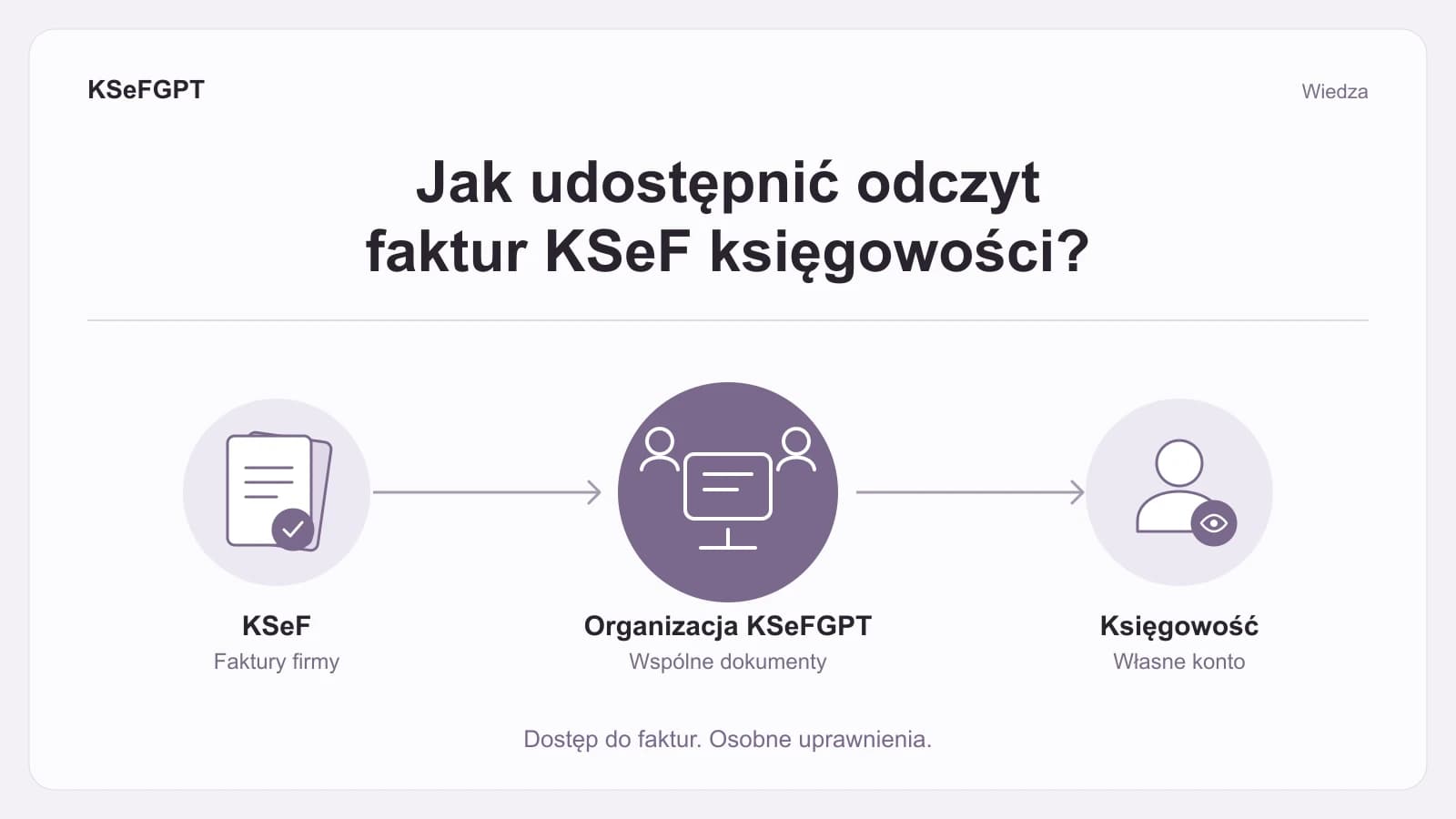
In KSeFGPT, you create an organization for the company, set up a group with permission to view invoices and invite your accountant by email. Sending invoices to KSeF and administration require separate permissions. However, viewing access also includes downloading documents and changing the local payment status.
Table of contents
Where should you start when sharing invoices?
How do you grant direct KSeF access?
How do Fakturownia, IFIRMA and wFirma handle access?
Fakturownia and accountant invitations
IFIRMA and KSeF connection assignments
wFirma and two types of permissions
How do you share invoices through a KSeFGPT organization?
What does invoice viewing access allow in KSeFGPT?
How can a service business check access?
Where should you start when sharing invoices?
Agree with your accountant where they will view documents. If they use your application, they need a user account with the appropriate access. If they will download invoices directly from KSeF into their own system, agree on KSeF permissions and authentication. You can also use both options alongside each other.
These are two levels of access. One determines who can download or issue invoices in Poland’s Ministry of Finance system. The other determines what a user can do with documents and settings in a particular application. An accountant’s account in your application does not necessarily mean they have separate KSeF permissions.
Describe the agreed work as specific actions: viewing purchases and sales, downloading documents, bookkeeping, marking payments, issuing invoices or managing the connection. This lets you check actual permissions instead of relying on a role name.
How do you grant your accountant direct KSeF access?
If your accountant or accounting firm will connect independently to KSeF in your company’s context, arrange access in the Ministry of Finance system. The KSeF 2.0 handbook allows invoice access without the right to issue invoices. Permission management is also a separate scope. Downloading documents therefore does not require granting all these rights.
You can grant permission to an individual or an entity, such as an accounting firm identified by its NIP, the Polish tax identification number. If the firm needs to delegate access to its employees, enable further delegation of invoice viewing permissions. The firm can then designate a person to serve your company. This does not grant full control over your company’s KSeF permissions.
In the standard taxpayer context, access covers all of that taxpayer’s sales and purchase invoices. It is not limited to expenses or the documents selected for a particular month’s accounts. The Ministry’s handbook explains this scope on page 55. Special arrangements for organizational units, local government units and VAT groups require separate access planning.
A person with the appropriate KSeF permission management rights grants access. They select the correct company context, recipient and viewing scope. After saving, the accountant should check access to a specific document belonging to that company, rather than merely checking whether they can sign in.
Authentication and permissions are also different matters. A certificate confirms identity when connecting; it does not itself define the actions allowed. The Ministry’s answers about KSeF certificates explain that an entrepreneur should not share a personal certificate issued in their own name with their accountant. For direct access, the accountant should receive the appropriate permissions and authenticate using their own means of identification.
How do Fakturownia, IFIRMA and wFirma handle access?
The comparison below is based on vendor documentation checked on September 14, 2026. It compares ways of sharing work and access boundaries. Check current pricing and user limits in the relevant application’s plan.
| Application | How access is shared | What to check before granting access |
|---|---|---|
| Fakturownia | An email invitation and the accountant’s own login. Access to Income and Expenses. | The Accountant role’s scope and the separate KSeF sending setting for the company connection. |
| IFIRMA | An additional user with function permissions and an assigned KSeF connection or separate activation. | Whether the selected Income and Expenses permissions also include adding and editing. |
| wFirma | An application user with a defined scope. Separate KSeF permission management within the integration. | Whether you are sharing documents, granting Ministry permissions or handing broader account management to an accounting firm. |
| KSeFGPT | A company organization, a permission group and an invitation accepted in the accountant’s own account. | All groups assigned to the user. Viewing access covers purchases and sales and includes local payment status changes. |
Fakturownia provides an invitation for accountants
Using Access for an accountant, the owner enters an email address and sends an invitation. A new user sets their own password; an existing user signs in with their own credentials. According to Fakturownia’s guide, the accountant can download documents independently from the Income (Przychody) and Expenses (Wydatki) tabs.
Access to expenses and downloading purchase invoices from KSeF follows the user’s general permissions. Permission to send invoices to KSeF is set separately in the company connection details. If you manage several NIP numbers, check each connection. The vendor explains this in its KSeF user permissions guide.
The built-in Accountant role is not equivalent to viewing only. The documentation also describes access to integrations and the ability to authorize a connection after obtaining the necessary details. If you only want to provide visibility, check the entire role scope. Income here means documents available in the account; do not assume that sharing an account automatically retrieves all sales issued in other applications.
IFIRMA combines user permissions with KSeF connection access
IFIRMA describes adding further users in paid plans. Each has a unique login and an assigned set of functions. During KSeF setup, you can assign selected users to a certificate or token added to the account, or arrange separate activation for them. These options appear in the IFIRMA KSeF integration guide.
The application documents downloading purchase and sales invoices from KSeF, including sales issued in other services. Document access depends on both KSeF permissions and the user’s scope in IFIRMA. Assigning someone to a connection does not replace checking their application permissions.
In IFIRMA user configuration, full Income access includes viewing, adding and editing; full Expenses access works similarly. Do not automatically select entire areas if you have agreed on viewing only. Check permissions for individual actions and the people assigned to the connection.
wFirma separates application users from KSeF permissions
A wFirma administrator can add a new user or assign an existing one to a company. Permissions can be restricted to modules and individual actions, as described in the wFirma user guide. The vendor also describes importing purchase and sales invoices from KSeF and preparing them for bookkeeping.
A separate feature allows you to grant and revoke KSeF permissions within wFirma. The operation is submitted to the Ministry of Finance system. You can specify a person or accounting firm and the invoice viewing scope, among other options. This requires the manager’s appropriate permissions and active authentication. Adding an application user alone does not perform this operation.
Do not confuse this with assigning a client’s entire account to an accounting firm. The vendor describes that process as handing over broader control of the account and some modules. It is a decision about how your bookkeeping is managed, beyond simply providing invoice access.
How do you share invoices through a KSeFGPT organization?
In a KSeFGPT organization, your accountant works with the same company data as the owner. Everyone uses their own account, with access determined by groups. KSeF operations use the company’s configured connection and its permissions. The accountant does not need to connect that company again merely to use shared invoice access.
1. Select the correct company and check its name and NIP. If no organization exists yet, follow the organization creation guide. An organization belongs to one company; you do not create a second organization for the same NIP. Availability and the number of member places depend on your plan.
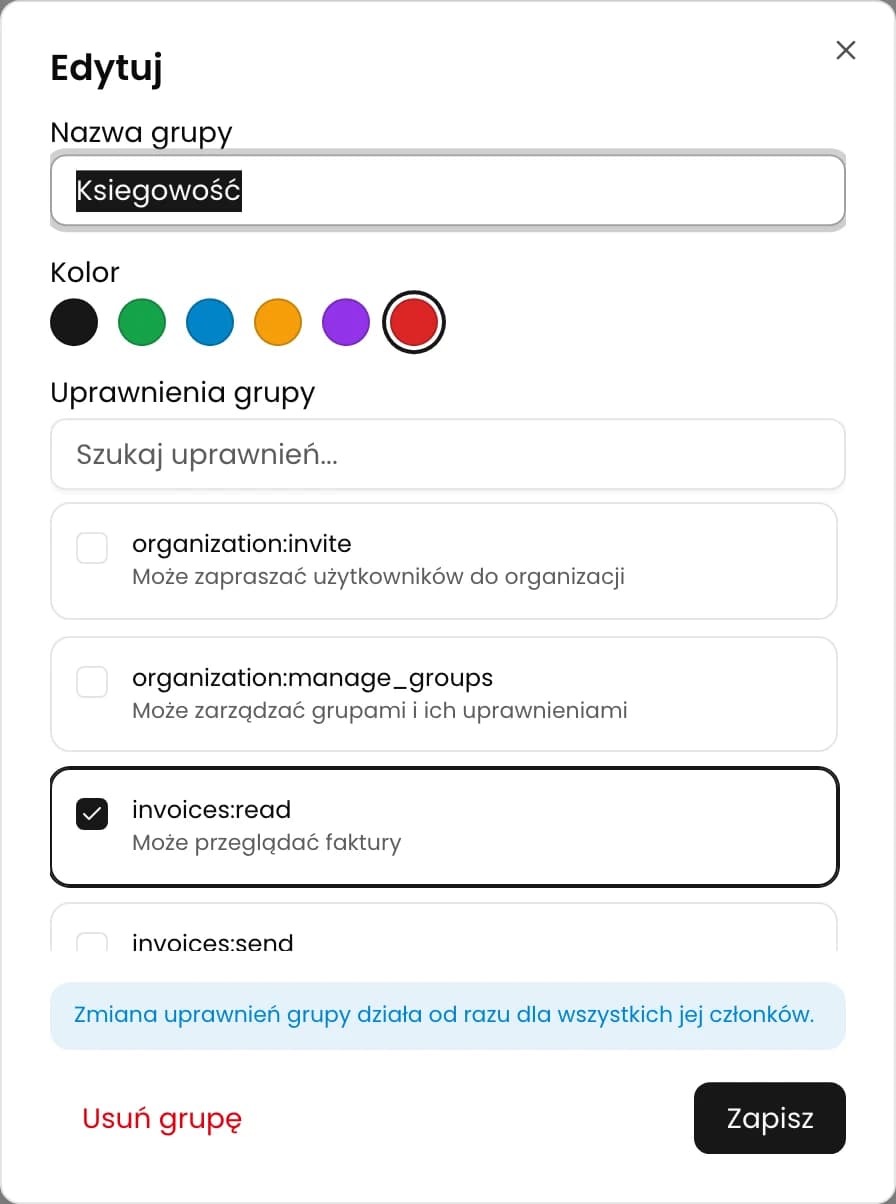
2. Open Organization → Groups and create a separate group, for example Accounting. Select the permission to view invoices. If the task is viewing, do not add sending, importing, connection management or administration. The group name is your own label; the selected permissions determine access.
3. Under Organization → Settings → Users, click Invite, enter the accountant’s email and select the group you prepared. Check the address and the available places in your plan. A pending invitation also uses a place. The guide to adding an organization user describes the full process.
4. The accountant signs in or creates an account with the same email address and accepts the invitation. Active membership starts only then. They select the company organization in the account switcher and open Invoices.
5. Check every group assigned to the user. Permissions add up: joining a restricted Accounting group does not remove access granted by Management or another group. Changing a group’s scope affects every member. See the guide to granting permissions through groups.
What does invoice viewing access allow in KSeFGPT?
The viewing permission covers the company’s incoming and outgoing invoices, document details, XML downloads and data refreshes. It also allows exports within the available features and limits. It cannot restrict access to purchases only, one counterparty or one month. List filters help organize work but do not create an access boundary.
In the current version, viewing access also allows changes to the local payment status. This information is maintained in KSeFGPT; it does not change the invoice stored in KSeF. The setting therefore provides visibility without sending or administrative rights, but it does not block every change to application data.
| Accounting need | Scope in KSeFGPT | Decision when sharing invoice access |
|---|---|---|
| Viewing purchases and sales, downloading documents | Permission to view invoices | Grant it. Also account for exports and the ability to change the local payment status. |
| Sending invoices to KSeF | Separate sending permission | Leave unassigned if the accountant will not issue invoices in this process. |
| Importing documents and working on drafts | Import and draft handling permissions | Do not add these for viewing alone. Agree on the scope if the accountant will prepare documents. |
| Changing the KSeF connection and company settings | Separate authorization and settings permissions | Leave these with the person responsible for setup. |
| Inviting people and managing groups | Separate administrative permissions | These are not needed to view invoices. |
How can a service business check access?
Suppose Anna runs a service business and issues invoices herself, while her external accountant Marta needs documents to close the month. This is an illustrative setup, not a description of an actual customer. Anna selects her company in KSeFGPT, creates an Accounting group with invoice viewing permission and invites Marta.
After accepting, Marta checks the company name and NIP. She opens a sample sales invoice and purchase invoice and downloads the document she needs. Anna confirms that Marta is not in another group granting sending, importing or user management. They also agree who will update payment statuses.
If Marta cannot see documents, they check the active company, invitation acceptance, group and KSeF connection in that order. They do not immediately expand access to Management. If Marta also wants to download invoices into her own application, they arrange direct KSeF access separately.
How do you end cooperation and revoke access?
In KSeFGPT, you can change an active member’s groups, remove them from the organization or cancel an invitation that has not been accepted. Removing one group may be insufficient if another still grants the same permissions. Removing a member affects that organization, not the accountant’s entire account.
When cooperation ends, check the correct email address and company, perform the appropriate action and review the user list again. The guide to removing a user or cancelling an invitation shows the process.
Separately check any direct KSeF access granted to the person or accounting firm. Revoke permissions no longer needed and decide what to do with connections used by the previous firm. Revoking application membership does not perform these actions in the Ministry system or delete previously downloaded invoice copies.
Frequently asked questions
Does my accountant need my password?
No. These ways of working together allow each person to use a separate account. In KSeFGPT, you invite your accountant by email and assign a permission group. They accept the invitation in their own account. You work with the same company data without sharing the owner’s password.
Does an invitation to a KSeFGPT organization grant permissions in KSeF?
Accepting the invitation creates membership in the KSeFGPT organization and grants the access provided by the assigned groups. It does not grant a separate permission in the Ministry of Finance system. Shared work in the application uses the company’s configured KSeF connection and its scope. Direct KSeF access for an accountant or accounting firm requires separate permission arrangements.
Can I share only purchase invoices with my accountant in KSeFGPT?
The permission to view invoices in a KSeFGPT organization covers both incoming and outgoing invoices for that company. There is no separate scope that limits a member to purchases. Filters for dates, counterparties or document types organize the list but do not restrict the user’s permissions.
How do I revoke access when changing accounting firms?
Remove the user from the organization or change their assigned groups, and cancel any invitation that has not been accepted. Then check the separate permissions granted directly in KSeF to that person or firm and revoke those no longer needed. Removing a KSeFGPT member does not revoke Ministry of Finance permissions or delete copies of documents already downloaded by the accountant.
Recommended next steps
How to create an organization in KSeFGPT Prepare your company and the first group for your team.
How to add a user to an organization Go from an invitation to active membership.
How to grant user permissions Check group scopes and assignments.
How to remove a user or cancel an invitation Review access after changing your working arrangements.
Share invoices with your accountant in KSeFGPT
Select the company, prepare a permission group and invite your accountant to a shared organization.
Sign in to KSeFGPTSources
KSeF permissions are described in Ministry of Finance documentation. Application features are described in vendor help pages and KSeFGPT guides. Information was checked on September 14, 2026. Role scopes and feature availability may change with the application version and plan.
- KSeF 2.0 handbook, part I, version of August 6, 2026
Polish Ministry of Finance · accessed: September 14, 2026
Page 55: access to all purchase and sales invoices without issuing rights. Pages 74 and 75: delegation of permissions by an accounting firm.
- Ministry of Finance KSeF 2.0 questions and answers
Polish Ministry of Finance · accessed: September 14, 2026
KSeF certificates, questions 8 and 10: the entrepreneur’s personal certificate and the distinction between certificates and permissions. Permissions and authorization, question 10: working with an accounting firm.
- Accountant access in Fakturownia
Fakturownia · accessed: September 14, 2026
Invitations, individual sign-in and the scope of the built-in Accountant role.
- KSeF integration in IFIRMA
IFIRMA · accessed: September 14, 2026
Multiple account users and assigning people to a KSeF connection.
- Users in wFirma
wFirma · accessed: September 14, 2026
Adding users and restricting their application permissions.
- KSeFGPT organizations
KSeFGPT · accessed: September 14, 2026
A shared company, separate accounts, groups and the company’s KSeF connection.
- KSeFGPT: granting group and user permissions
KSeFGPT · accessed: September 14, 2026
Defining group scope, assigning a member and checking additional groups.
- KSeFGPT: inviting an organization user
KSeFGPT · accessed: September 14, 2026
Email address, group and acceptance in the recipient’s account.
- KSeFGPT: removing a member and cancelling an invitation
KSeFGPT · accessed: September 14, 2026
Revoking access provided by organization membership.