How to check invoice status in KSeF after submission?
You sent an invoice to KSeF, but you do not know whether it has been accepted, is still being processed, or was rejected? Check the status, reference number, KSeF number and UPO step by step.

Article Summary
Invoice status in KSeF shows whether a document is still being processed, has ended successfully, or needs error diagnostics. The fact that an invoice was submitted is not enough to treat it as accepted.
Statuses 100 and 150 are transitional states, 200 means invoice success, and error statuses require reading the details before any resubmission. Do not confuse a technically successful HTTP response with the invoice status stored in the document status field.
Session status, invoice reference number, KSeF number and UPO are different parts of the same process. Only their combination tells you whether to wait, download confirmation or diagnose rejection.
Invoice status in KSeF in one sentence
After sending XML, check the status of the same invoice or session, do not automatically submit a second version, save the KSeF number and UPO when the invoice succeeds, and read the error code, description and response details before making the next decision.
The invoice was sent to KSeF, but you do not know whether it has already been accepted, is still being processed or was rejected. This guide walks through the decisions after submission, from transitional status to KSeF number, UPO or error diagnostics.
What to check immediately after submission
After submission, there should be both a technical and business trace. If you only have a general sent message, you do not yet have full control over the process.
The minimum data set is the session reference number, invoice reference number, the seller invoice number from the invoice number field, seller tax ID, submission date, status, possible KSeF number and UPO information. These elements let you return to the same operation instead of guessing whether the document needs to be sent again.
| Element | What it means | What it is used for | What not to confuse it with |
|---|---|---|---|
| Session reference number | Identifier of the technical sending session | Lets you check the session and invoice status in that session | It is not the KSeF number |
| Invoice reference number | Identifier of the document inside the session | Lets you check the status of a specific invoice | It is not the seller invoice number |
| Seller invoice number | Invoice number from the seller system | Helps find the document in accounting | It does not confirm acceptance by KSeF |
| Seller tax ID | Taxpayer context in which the document was sent | Helps avoid checking the wrong entity | It does not replace permissions |
| Invoice status | State of a specific document | Decides whether to wait, download UPO or diagnose an error | It is not an HTTP status |
| KSeF number | Identifier of an accepted invoice | Confirms that the document entered circulation in KSeF | It is not entered into XML before submission |
| UPO | Official receipt confirmation | Documents acceptance of the invoice or session | It is not generated for a rejected invoice |
Invoice status, session status and reference number
Session status describes the state of the sending container. Invoice status describes a specific document inside that session. A reference number lets you return to the technical operation, but it is not the KSeF number.
In an interactive session, you can track a single document sent within the session. In a batch session or when multiple invoices are involved, you also need to check how many documents were processed correctly, how many were rejected and what statuses individual invoices have.
The KSeF number appears only after the invoice has been accepted. If you only see a reference number, you are still tracking the operation, not confirming document acceptance.
| Concept | Scope | Most important decision |
|---|---|---|
| Session status | Whole session or sending package | Whether the session is still running, has been processed or needs diagnostics |
| Invoice status | One document in the session | Whether the invoice is waiting, has succeeded or has an error |
| Reference number | Technical operation | Which session or invoice to query again |
| KSeF number | Invoice accepted by the system | Which identifier to save in records and link to UPO |
| UPO | Acceptance confirmation | What to save after invoice or session success |
Invoice status codes and the next step
The key rule after submission is simple: monitor a transitional status, archive a success and diagnose an error. There is no single button or single code that replaces checking invoice status.
The table below is a practical decision map. It does not replace the full API documentation, but it helps avoid the most common mistakes after XML submission.
| Status | What it means | What to do | What not to do |
|---|---|---|---|
| 100 | Invoice accepted for further processing | Keep monitoring the same invoice or session | Do not immediately submit a second version |
| 150 | Processing is in progress | Wait for the final result and refresh status in the same trace | Do not look for UPO as final confirmation yet |
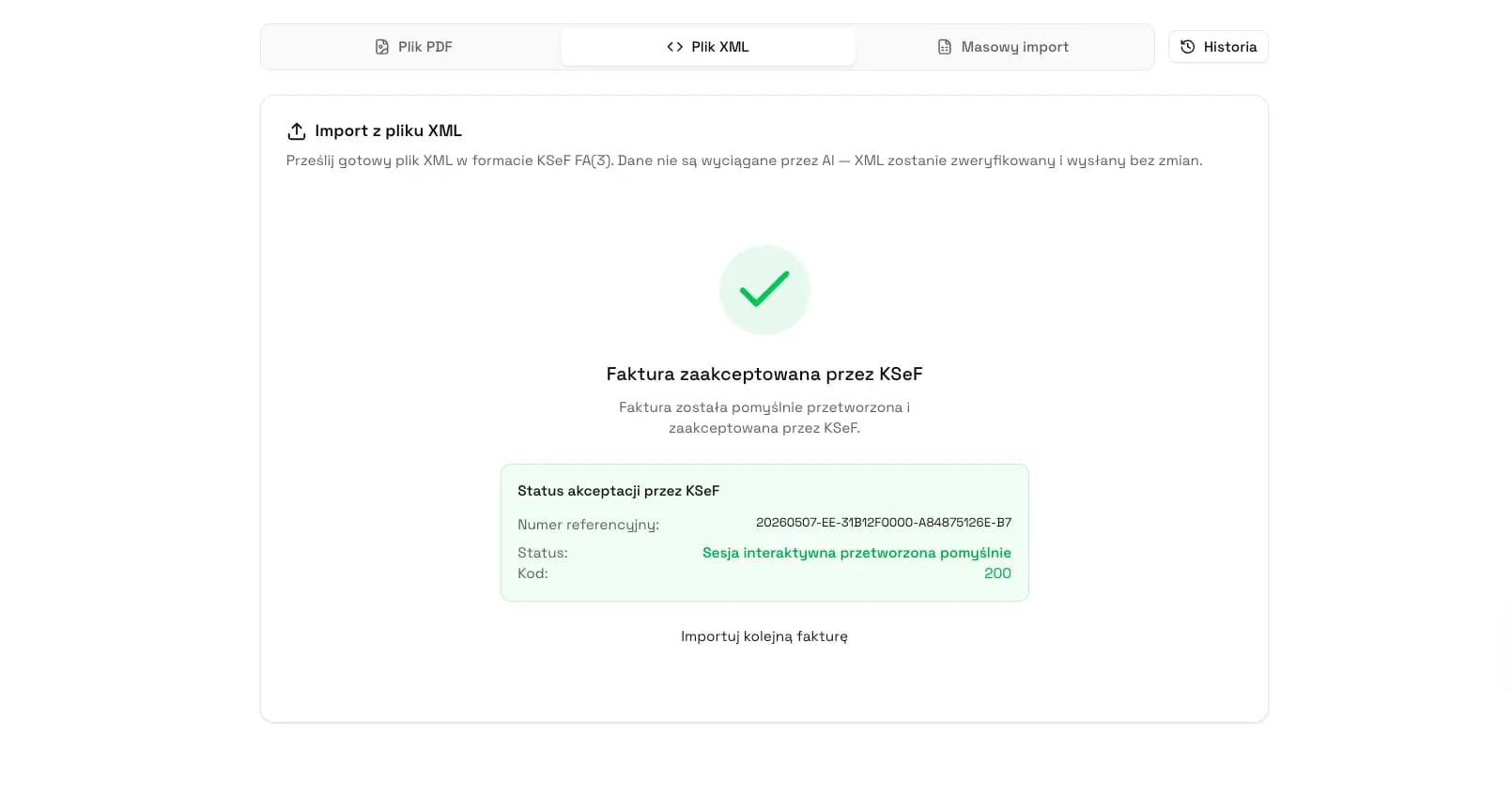
| 200 | Invoice success | Save the KSeF number, acceptance date and UPO | Do not confuse it with a technically successful HTTP response |
| 405 | Processing cancelled because of a session error | Check the description and details, including session context | Do not reduce diagnostics to the code alone |
| 410 | Problem with permissions or access scope | Check tax ID, entity, session and issuing permission | Do not correct XML if the problem is access |
| 415 | Invoice with attachment cannot be sent | Read the response details and metadata | Do not assume that the invoice was accepted |
| 430 | Invoice file verification error | Check XML, structure, schema and required data | Do not look for UPO for a rejected file |
| 435 | File decryption error | Check encryption, metadata and file preparation method | Do not retry without checking configuration |
| 440 | Duplicate invoice | Check the original session reference number and original KSeF number if they were returned | Do not change the invoice number only to bypass the error |
| 450 | Document semantics error | Check the meaning of the data and dependencies indicated in the details | Do not limit checking to XSD only |
| 500 or 550 | Unknown error or operation cancelled by the system | Keep identifiers and establish the state of the previous operation | Do not retry automatically without checking whether success already occurred |
When to wait and when to react
If the invoice status is 100 or 150, the basic reaction is to continue monitoring the same submission. Do not internally publish that the invoice has already been accepted, but do not automatically treat it as rejected either.
If the invoice status is 200, move to the KSeF number, acceptance date and UPO. This is the stage of organizing confirmations, not looking for the cause of an error.
If the status indicates an error, you are not looking for UPO. You read the code, description, details and possible duplicate data. Only then decide whether to correct data, fix permissions, find the original submission or repeat the technical operation.
Does session status 200 mean every invoice succeeded?
Do not treat session status as automatic confirmation that every document succeeded. Sessions and invoices have separate control levels. Especially with packages, you need to check counters for correctly and incorrectly processed invoices and the list of documents in the session.
In practice, it is not enough to check whether the session is processed. You need to determine which invoices in that session succeeded, which have errors and which identifiers must be saved. This protects you from a situation where the package looks handled, but a single invoice still needs correction.
| What to check in the session | Why it matters | Typical mistake |
|---|---|---|
| Session status | Shows the state of the sending container | Treating it as the status of every invoice |
| Correct invoice counter | Shows how many documents were processed correctly | Not comparing it with the number of submitted invoices |
| Incorrect invoice counter | Shows how many documents have an error | Ignoring rejected invoices in the package |
| Invoice list in the session | Lets you check the status and identifiers of each invoice | Archiving only session data |
| Rejected invoice list | Contains error details for invalid documents | Resubmitting the whole package instead of diagnosing specific items |
Missing UPO with invoice status
Missing UPO is not a diagnosis on its own. For statuses 100 and 150, UPO is not yet the target point because the invoice still has no final result.
For status 200, check the KSeF number, generated UPO download link, link expiry time and the tool through which the document was submitted. The UPO download link is part of the status response and may require querying the status again if the link has expired.
If the problem is missing visible confirmation, go to the guide Missing UPO in KSeF. This article focuses on status after submission, not the full UPO recovery procedure.
Error status and resubmission
Resubmission makes sense only after establishing what happened to the previous operation. If you do not know whether the document already received a KSeF number or whether the API indicated a duplicate, a second submission can only make the event trace harder to interpret.
For status 440, first find the original session and original KSeF number if they were returned. For XML, semantics or permission errors, fix the source of the problem, not only the final file.
The detailed diagnostic procedure is covered in Invoice rejected by KSeF.
How to check status in an app or accounting system
In a user workflow, start with the right entity. Select the correct seller tax ID or company context, because a status read in the wrong entity will not explain the real submission.
Then find the invoice by seller invoice number, date, counterparty, reference number or KSeF number if it has already been assigned. Check the document status, not only the status of the last action in the interface.
If the invoice succeeded, save the KSeF number and download UPO in the tool that handled the submission. If the status indicates an error, read the details. Button names are not listed here as definitive because application interfaces and manuals can change.
How to check status through the KSeF API
In an API integration, status is checked in stages. First you establish the session, then the documents in the session, and only after a specific invoice succeeds do you move to UPO. UPO does not replace status. It is the next step after confirmed success.
Typical control paths include the session list, details of a specific session, invoice list in a session, details of a specific invoice and rejected invoice list.
The integration should save at least the session reference number, invoice reference number, status, KSeF number, acceptance date, errors and UPO information. Without this data, later handling of complaints, duplicates or missing confirmation becomes manual.
How KSeFGPT organizes statuses after submission
In KSeFGPT, post-submission status is meant to be readable for someone who does not want to analyze a raw API response. After handling submission, the app helps you see whether the document was passed to KSeF, what status it has, whether a KSeF number appeared and whether UPO is available for the handled document.
This distinction matters: KSeFGPT organizes statuses and confirmations for invoices sent through the app. Do not assume that the tool will retrieve UPO for every invoice that was previously sent by another ERP or another integration. In that case, look for confirmation in the system that performed the submission, in the KSeF Taxpayer Application or in your own API integration.
In practice, this means one work trace: invoice, status, KSeF number and confirmation are linked in the same context. That makes it easier to distinguish a processed document from an accepted one, and an error from a missing visible UPO.
Check invoice status in one place
KSeFGPT helps send an invoice to KSeF, monitor status, save the KSeF number and handle UPO for documents sent through the app.
Go to KSeFGPTMost common mistakes when checking status
The most common errors do not come from one difficult code. They come from mixing layers: HTTP, session, invoice, reference number, KSeF number and UPO.
| Mistake | Why it is risky | How to handle it correctly |
|---|---|---|
| Confusing a technically successful HTTP response with invoice status 200 | The endpoint may have responded correctly, while the invoice may still be processing | Read the invoice status field |
| Confusing the reference number with the KSeF number | The reference number does not confirm document acceptance | Wait for the KSeF number after invoice success |
| Resubmitting at status 100 or 150 | It may lead to a duplicate or create chaos in the operation trace | Monitor the same submission |
| Treating session status as the status of every invoice | A package may contain both correct and incorrect documents | Check the invoice list and counters |
| Looking for UPO for a rejected invoice | UPO is not generated for a document that was not accepted | Diagnose the error code |
| Ignoring the incorrect invoice counter | You may miss invoices that require correction | Compare counters with the document list |
| Copying status from the wrong tax ID context | A status from another context does not apply to this submission | Check the entity and permissions |
Frequently Asked Questions
What does status 100 mean in KSeF?
Status 100 means that the invoice has been accepted for further processing. It is not final success and it is not rejection. Continue monitoring the same invoice or session instead of submitting the document again.
What does status 150 mean in KSeF?
Status 150 means that processing is still in progress. At this stage, do not look for UPO as final confirmation yet and do not assume that the document was rejected.
Does invoice status 200 mean that I have a KSeF number?
Invoice status 200 means that invoice processing succeeded. Then check the KSeF number, acceptance date and UPO path. Do not confuse it with a technically successful HTTP response from an endpoint.
Does session status 200 mean that all invoices succeeded?
Do not simplify it that way. Session status must be read together with the invoice list, document statuses and counters for correctly and incorrectly processed invoices. When multiple invoices are involved, check each document separately.
Does missing UPO mean rejection?
Not always. Missing UPO can mean processing is still ongoing, the wrong seller tax ID context, an expired link, checking the wrong session, a tool limitation or rejection. First check the status and KSeF number.
Is the reference number the same as the KSeF number?
No. The reference number identifies a technical operation, session or invoice inside a session. The KSeF number identifies an invoice accepted by the system and appears only after document success.
Can I submit the invoice again when the status does not change?
Do not automatically send a second version only because the status remains transitional. First check the same session, the same invoice, the reference number and any duplicate details.
How do I check rejected invoices in a session?
In an API integration, check the invoice list in the session and the rejected invoices endpoint. In a user application, look for the error view, document status and response details, not only the message shown after clicking submit.
Recommendation
After sending an invoice to KSeF, work in a fixed sequence: check status, check identifiers, decide whether to wait, download UPO or diagnose an error. Do not start with resubmission and do not archive only the reference number as proof of acceptance.
If you need the full process, start with Sending invoices to KSeF. After success status, go to UPO in KSeF. When confirmation is not visible, use the guide Missing UPO in KSeF. For a document error, go to Invoice rejected by KSeF.
Monitor KSeF invoice submission in KSeFGPT
Send an invoice to KSeF, check its status, save the KSeF number and handle UPO for documents sent through the app.
Go to KSeFGPTSources
This article was prepared based on official materials from the Ministry of Finance, CIRF documentation and KSeF API 2.0 documentation, verified on July 2, 2026.
- KSeF API 2.0
Ministry of Finance · accessed: July 2, 2026
Documentation of invoice and session statuses, UPO download links, session counters and status-checking endpoints.
- KSeF API 2.0 - test environment
Ministry of Finance · accessed: July 2, 2026
Test OpenAPI documentation used to verify integration endpoints and statuses.
- CIRFMF/ksef-api
CIRF / Ministry of Finance · accessed: July 2, 2026
Official technical documentation repository for KSeF API 2.0 for integrators.
- Session: status check and UPO download
CIRF / Ministry of Finance · accessed: July 2, 2026
Description of checking session status, invoice list in a session, rejected invoices and downloading invoice and session UPO.
- Interactive session
CIRF / Ministry of Finance · accessed: July 2, 2026
Description of invoice submission in an interactive session, asynchronous verification and document reference number.
- Batch session
CIRF / Ministry of Finance · accessed: July 2, 2026
Description of sending multiple invoices in a ZIP file and using the batch session reference number.
- KSeF number and collective identifier
Ministry of Finance · accessed: July 2, 2026
Official explanation of the KSeF number, its assignment after invoice acceptance and its return in UPO.
- KSeF number
CIRF / Ministry of Finance · accessed: July 2, 2026
Technical description of the KSeF number structure and its role as an identifier of an accepted invoice.
- Invoice verification
CIRF / Ministry of Finance · accessed: July 2, 2026
Description of technical and semantic invoice checks and duplicate rules.
- Technical KSeF topics
Ministry of Finance · accessed: July 2, 2026
Technical FAQ about KSeF, including practical topics related to UPO.