How to add custom fields in the older contractor form
The new CRM form has no custom fields. Save BDO and a customer number in the older Contractors view, available through a direct address.
- Module
- CRM / Counterparties
- Reading time
- 4 min
- Difficulty
- Easy
You could do this with your eyes closed :)
- Published
- August 20, 2026
- Updated
- September 7, 2026
- Author
- Rafał Zeidler
- Format
- Written guide and video
Written procedure
What you will do
The menu now places counterparties under CRM > Counterparties. Custom name/value pairs are not available in the new CRM profile. This procedure applies only to the older form. It does not confirm that the values appear in CRM.
Requirements
Before you start
Custom fields belong to the contractor record under the selected company. Prepare the exact field names and values you want to store.
| Item | Requirement |
|---|---|
| Access | The company owner or an organization member with the contractors:manage permission. The Contractors module must be included in the plan. |
| Required details | An existing contractor record and your own name and value pairs, for example BDO: 000123456 and Customer number: KLI-2026-001. |
| Starting point | After signing in and selecting the correct company, open /dashboard/contractors directly. This differs from Counterparties inside CRM. |
| Time required | About 1 minute. |
| Important effect | Custom fields are visible after opening the record for editing. They do not appear directly in the contractor row in the list. |
Process recording
0:28The new CRM form has no custom fields. Save BDO and a customer number in the older Contractors view, available through a direct address.
Open the contractor record
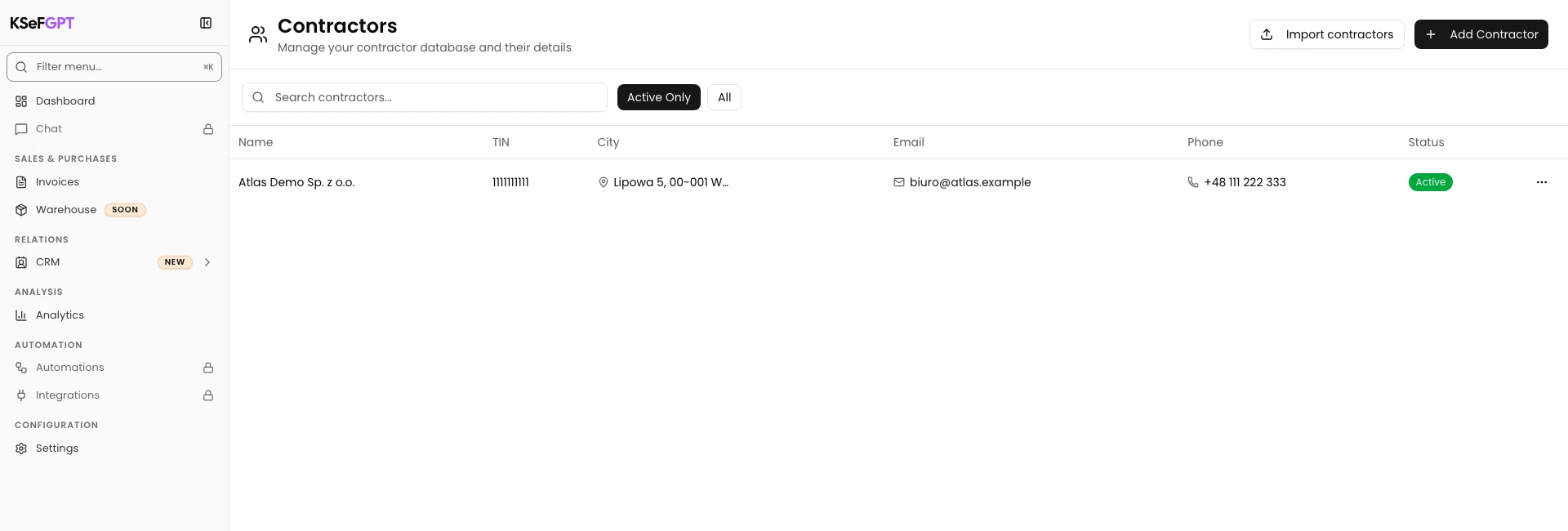
Open the older contractors list while signed in. You can also change the path in the app address to /dashboard/contractors.
Find the record by name or tax ID and select its row. The older Edit Contractor dialog contains Custom fields. A separate profile with cooperation history is the CRM view; return to the direct address.
Go to Custom fields
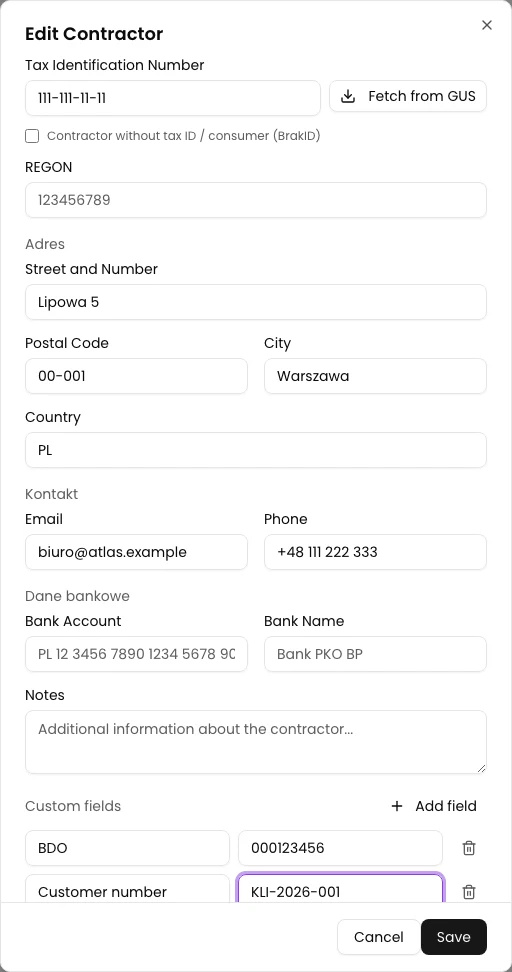
Scroll below Notes to the Custom fields section. Select Add field.
A row with the Field name and Value inputs appears in the form.
Add the BDO number
Enter BDO in Field name and the contractor's registration number in Value. The recording uses the safe demonstration value 000123456.
Do not leave the field name empty. A row without a name is omitted when the record is saved.
Add the customer number
Select Add field again. Enter Customer number in the second row and the identifier used in your system, for example KLI-2026-001.
Before saving, make sure each name matches the correct value.
Save the contractor record
Select Save in the lower-right corner of the dialog. After a successful save, the form closes and you return to the contractor list.
Verify the saved fields
Select the same contractor row again and scroll to Custom fields.
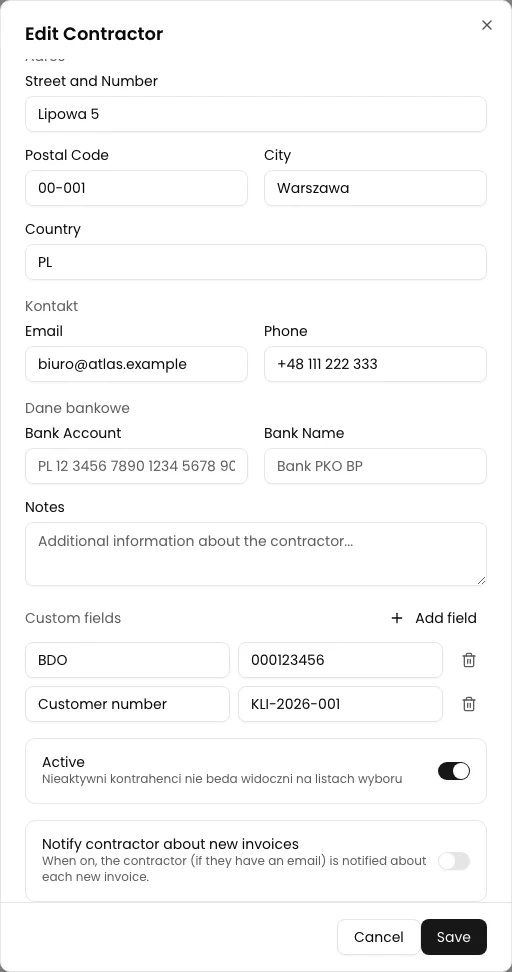
Both saved rows should be visible: BDO with the registration number and Customer number with the internal identifier.
Final state
Check the result
In Edit Contractor, Custom fields shows BDO: 000123456 and Customer number: KLI-2026-001. This confirms that the custom data was saved in the correct record.
Diagnostics
If something does not work
Compare the visible symptom with the table below.
| Symptom | Likely cause | What to do |
|---|---|---|
| No Custom fields in CRM | The new CRM form does not include this feature. | Open /dashboard/contractors and use the older form if available for your account. |
| The module is not visible or the record cannot be edited | The plan does not include Contractors, or you do not have the contractors:manage permission. | Check the plan or ask the organization owner for the required permission. |
| The added row disappeared after reopening | Field name was empty, so the pair was omitted when the record was saved. | Add the field again and enter both a name and a value. |
| BDO and the customer number are not visible in the list | The list shows only primary contractor details and status. | Select the contractor row and check Custom fields in the edit form. |
| The fields were saved in another record | A different contractor or active company was selected before editing. | Check the active company name and find the correct record before editing it again. |
What next
These values remain in the older record. CRM tags do not replace name/value pairs. Do not assume the new CRM displays these fields.
Complete the contractor record
After signing in and selecting the correct company, open /dashboard/contractors directly. This differs from Counterparties inside CRM.
Sign in to KSeFGPT