How to edit contractor details in KSeFGPT CRM
Open the profile through CRM > Counterparties, update the address and contact under Identification details, then verify the save after reloading.
- Module
- CRM / Counterparties
- Reading time
- 4 min
- Difficulty
- Easy
You could do this with your eyes closed :)
- Published
- August 29, 2026
- Updated
- September 7, 2026
- Author
- Rafał Zeidler
- Format
- Written guide and video
Written procedure
What you will do
Update the address, email and phone on an existing CRM profile. After saving, reload the profile and reopen its form.
Requirements
Before you start
Prepare verified contractor details and make sure the correct company is active. The changes apply only to the selected record under that company.
| Item | Requirement |
|---|---|
| Access | The selected company owner with CRM access. Verified as the owner. |
| Counterparty | An existing company profile. |
| Required details | The current address, email and phone confirmed by the counterparty. |
| Starting point | CRM > Counterparties with the correct company selected. |
| Time | About 2 minutes. |
| Effect | Saving replaces previous values. The new CRM form has no bank account fields. |
Process recording
0:29Open the profile through CRM > Counterparties, update the address and contact under Identification details, then verify the save after reloading.
Open the CRM counterparty profile
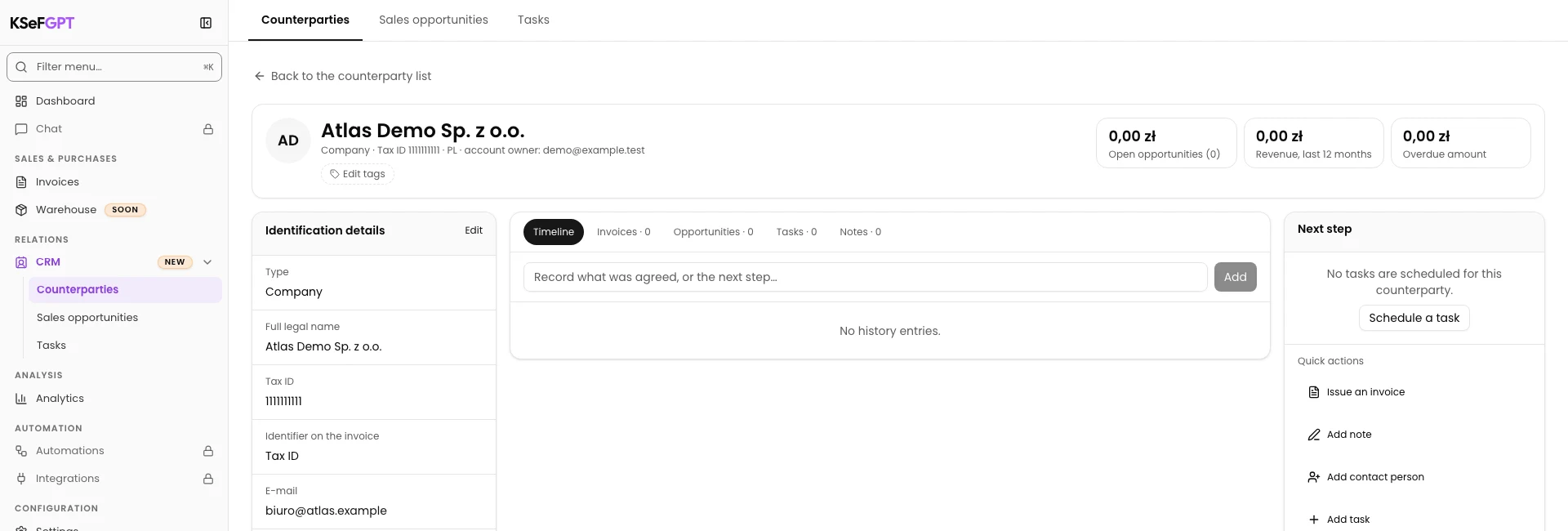
Expand CRM and select Counterparties. Find the company by name or tax ID and select its name.
A separate profile opens. Check its name and tax ID under Identification details. Selecting the row no longer opens the edit dialog directly.
Open editing and update the address
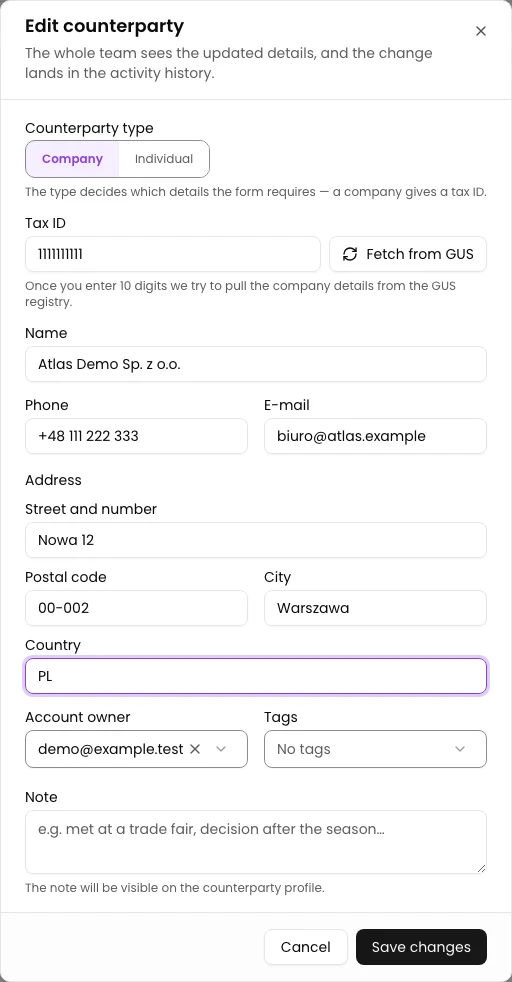
Select Edit under Identification details.
In Edit counterparty, update Street and number, Postal code, City and Country. The example changes the street to Nowa 12 and postal code to 00-002.
Update contact details
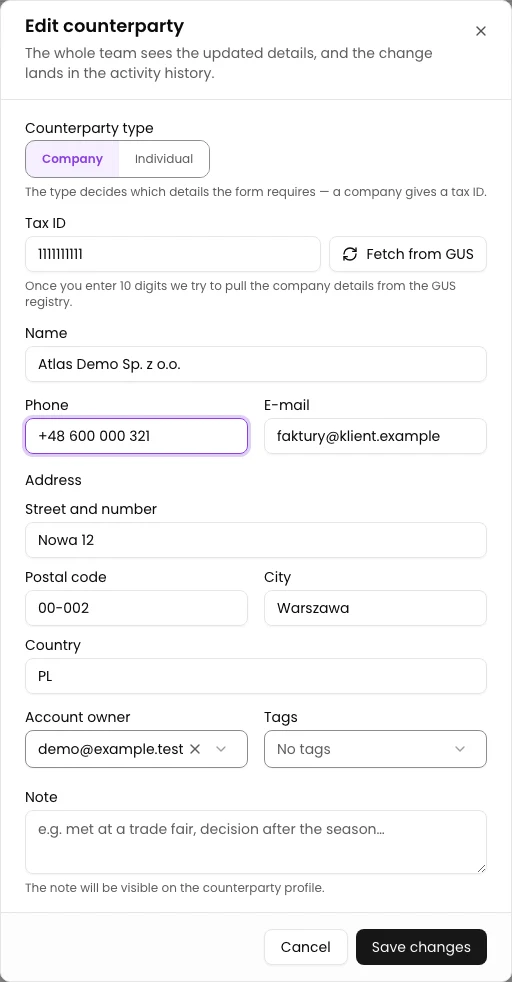
Update E-mail and Phone. The example uses faktury@klient.example and +48 600 000 321.
Check that the details belong to the same company. The form also offers account owner, tags and a note.
Check and save changes
Compare the values with the counterparty information and select Save changes. The dialog closes and the profile shows the updated values.
Bank details are not edited in this form. The previous guide covered a different view.
Reopen the form
Reload the profile page and select Edit under Identification details again.
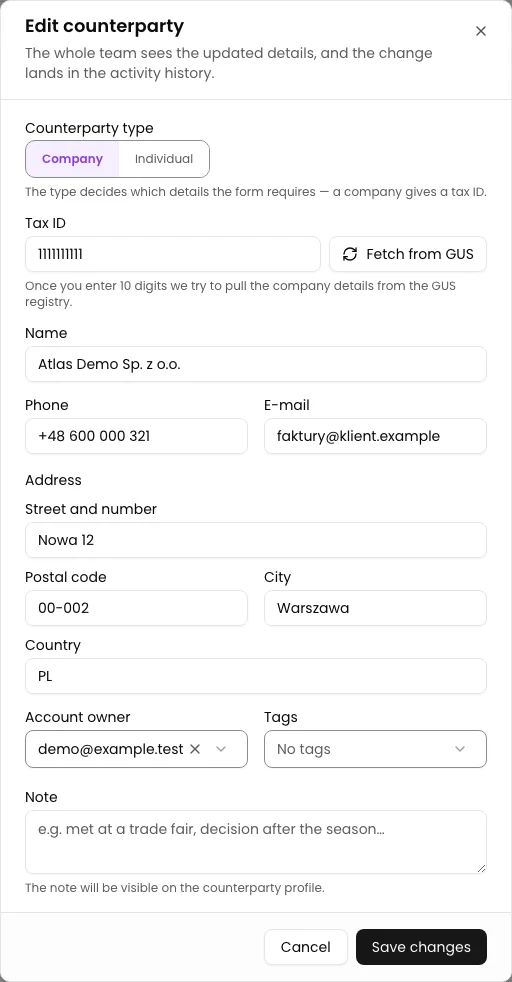
Verify that the fields still contain Nowa 12, 00-002, faktury@klient.example and +48 600 000 321.
Final state
Check the result
After reloading, the reopened form retains the updated address and contact details on the correct profile.
Diagnostics
If something does not work
Compare the visible symptom with the table below.
| Symptom | Likely cause | What to do |
|---|---|---|
| Selecting the name opens a profile instead of a form | This is the current CRM workflow. | Select Edit under Identification details. |
| Bank fields are missing | The CRM form has no bank account or bank name inputs. | These controls are not available in this dialog. |
| Email or tax ID length error | A value has an invalid format. | Correct the field and select Save changes again. |
What next
From the CRM profile you can add a contact person or cooperation note. BDO and Customer number are covered by the separate older-form guide.
Update the contractor record
Open the profile through CRM > Counterparties, update the address and contact under Identification details, then verify the save after reloading.
Sign in to KSeFGPT