KSeFGPT
Get started for free
Contractors

How to add a new contractor in KSeFGPT

Create a contractor record, fetch details from GUS or enter them manually, and check the new entry in the list. When a PDF invoice import is completed by sending the invoice to KSeF, a new buyer can be saved automatically.

Module
Contractors
Reading time
6 min
Difficulty
Published
August 13, 2026
Author
Rafał Zeidler
Format
Written guide

Written procedure

What you will do

You will add a contractor to the selected company in KSeFGPT and save identification, address, contact, and bank details, together with your own supporting information, in the contractor record.

Once created, the record will be available in Contractors and in selection lists used during invoicing. You will also learn when KSeFGPT creates a contractor automatically from a PDF invoice.

Requirements

Before you start

Make sure you are working with the correct company before adding the contractor. Contractors belong to the selected company, so a record created under one company account will not appear in another company's list.

ItemRequirement
AccessThe company owner or an organization member with the contractors:manage permission. The Contractors module must be included in the plan.
Required detailsThe company name or the contractor's first and last name.
Optional detailsNIP or the BrakID designation, REGON, address, email, phone, bank account, bank, notes, and custom fields.
Starting pointAfter signing in, select the correct company and open Contractors.
Time requiredAbout 2 minutes.
Important effectIf you enter an email address and leave the sending option enabled, the contractor will receive a welcome email after the record is created.
01Step

Open Contractors

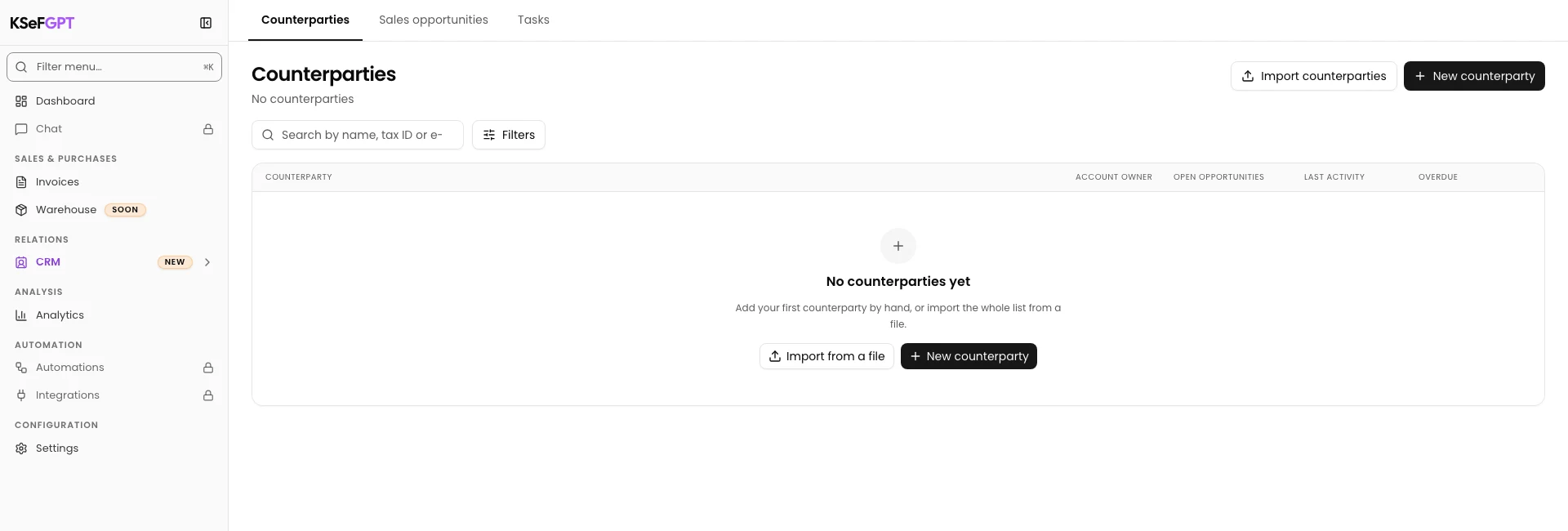
Select Contractors in the main KSeFGPT navigation. At the top of the page, you will see the search field, activity filter, and the Import contractors and Add Contractor buttons.

Check the active company name in the account switcher. Then select Add Contractor.

Step 1
Contractors in KSeFGPT with an empty list and the Add Contractor button
02Step

Complete the identification details

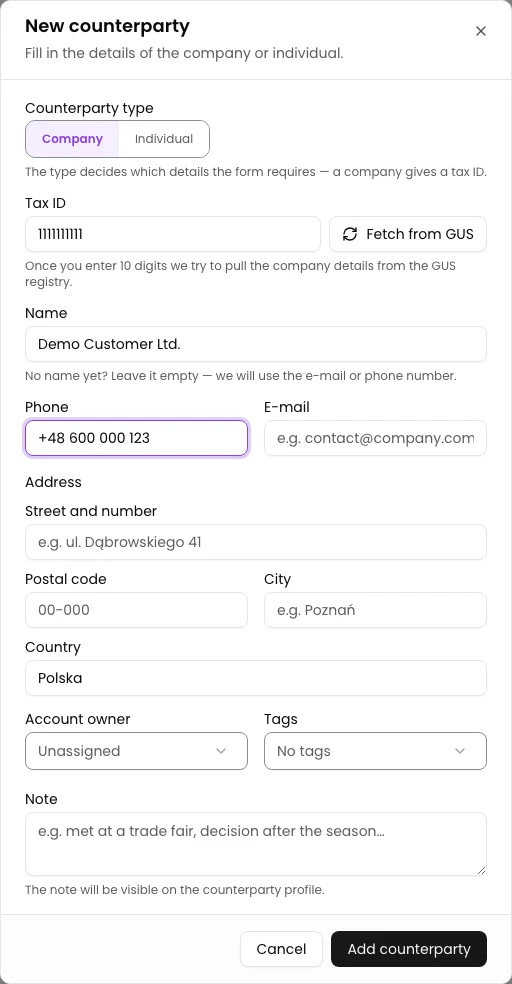
In the Add Contractor dialog, enter Contractor Name. This is the only field required to create the record.

If the contractor has a Polish NIP, enter its 10 digits. Then select Fetch from GUS so KSeFGPT can fill the available details: name, REGON, street, city, postal code, and country. Compare the returned values with the contractor's documents before saving.

For a consumer or a contractor without a tax number, select Contractor without tax ID / consumer (BrakID). Selecting this option clears the Tax Identification Number field.

Step 2
Add Contractor form in KSeFGPT with identification, address, contact, and bank details
03Step

Complete the contractor record

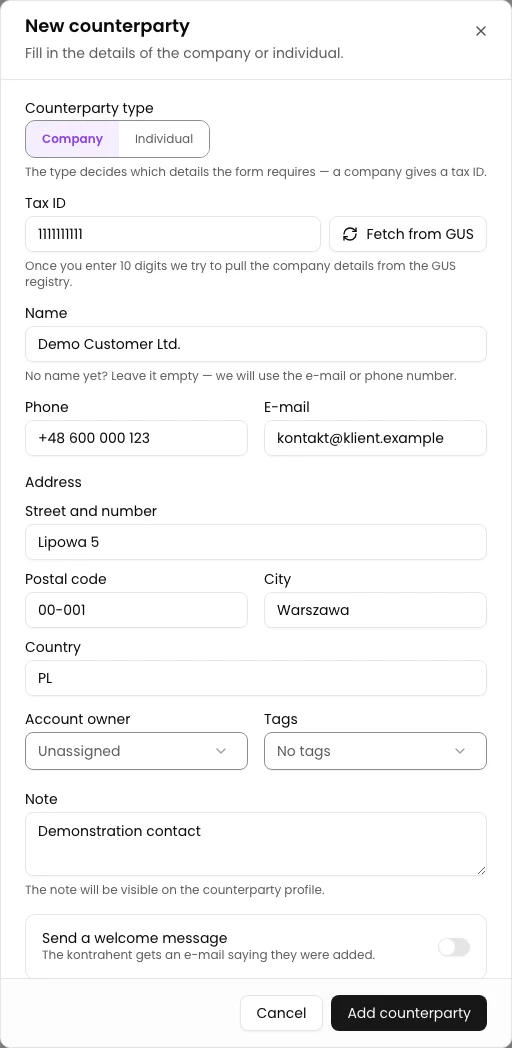
Add only the information that should be available when working with the contractor later. All fields except the name are optional, and you can change the details later by selecting the contractor's row in the list.

The contractor record does not have a SWIFT field. To store this code or other information that is not covered by the form, use Custom fields and give the field your own name.

Record sectionDetails you can saveHow they are used
IdentificationContractor name, NIP or BrakID, REGONIdentifying and finding the contractor and filling buyer details. Only one record can be saved for a given NIP.
AddressStreet and number, postal code, city, countryFilling the contractor's address details during invoicing.
ContactEmail and phoneQuick contact and messages about adding the contractor and new invoices when the corresponding options are enabled.
Bank detailsBank account and bank nameStoring the account used for settlements with the contractor.
Internal informationNotesAny working information, such as a contact person or an agreed settlement method.
Custom fieldsYour own name–value pairsDetails specific to your process, for example Customer code: DEMO-001.
StatusActive or inactiveAn inactive contractor remains in the database but is not shown in selection lists.
NotificationsSend a welcome email when creating the record; Notify contractor about new invoices when editing it laterControlling messages sent to the saved email address.
Step 3
Lower part of the contractor record with a note, Customer code custom field, Active status, and welcome email option
04Step

Create the contractor

If you entered an email address, decide whether to leave Send a welcome email enabled. Also check Active—turn it off if the record should remain in the database but should not appear when selecting a contractor.

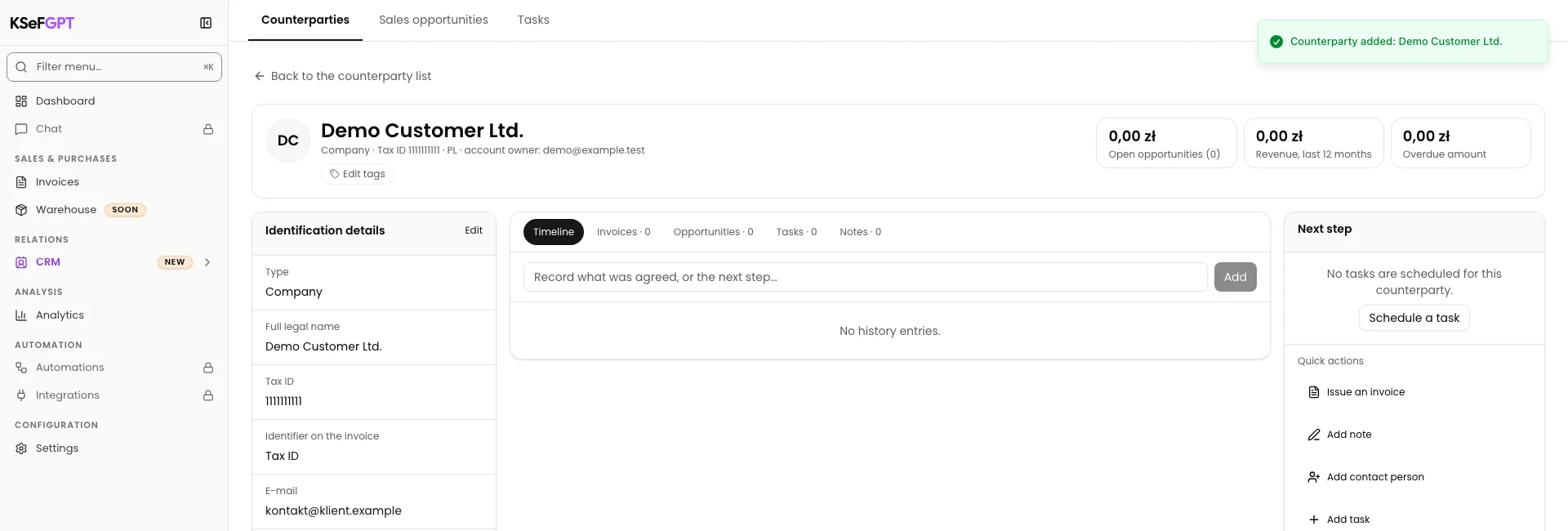
Select Create. After a successful save, the dialog closes and the new contractor appears in the list with its name, NIP, address, email, phone, and status.

Step 4
Contractors list in KSeFGPT with a newly created active Demo Client Ltd. record

Final state

Check the result

Find the contractor in the list by name, NIP, city, or email address. The row should show the saved primary details and the Active status.

Select the row to open Edit Contractor. In this view, you can check the complete record, correct the details, and set Notify contractor about new invoices.

Diagnostics

If something does not work

Compare the displayed message or form behavior with the table below.

SymptomLikely causeWhat to do
The module or add form is not visibleThe plan does not include Contractors, or you are an organization member without the contractors:manage permission.Check the plan or ask the organization owner to assign you to a group with contractors:manage.
Fetch from GUS is disabledThe NIP field does not contain 10 digits, or BrakID is selected.Enter the complete NIP and clear BrakID. Enter the details manually for a foreign tax number.
NIP number not found in GUS appearsGUS did not return details for the entered number.Check the NIP. If it is correct, enter the contractor's details manually.
GUS service temporarily unavailable appearsKSeFGPT did not receive a response from the GUS service.Enter the details manually or retry the lookup later.
The form reports a NIP, REGON, or email errorThe NIP does not have 10 digits, REGON does not have 9 or 14 digits, or the email format is invalid.Correct the indicated field and select Create again.
A contractor with this NIP already exists. appearsA record with this NIP already exists under the company.Find the existing contractor and edit its record instead of creating a duplicate.
Contractor limit reached. Upgrade your plan. appearsThe contractor allowance for the plan has been used.Remove an unnecessary entry or increase the limit before trying again.
The contractor from the PDF did not appear automaticallyThe PDF created only a draft, the invoice was not sent to KSeF, the buyer has no NIP, the record already exists, or the limit has been reached.Check the buyer details and complete the process by sending the invoice to KSeF. Then open Contractors and search for the buyer by NIP.

What next

When importing an invoice from a PDF, you do not need to create the buyer's record first. After uploading the file, check the extracted details and send the invoice to KSeF. Only after the document is successfully submitted does KSeFGPT automatically add the new contractor to the list, provided that the invoice contains its NIP, a record with that NIP does not already exist, and the plan has available capacity. Uploading the PDF or saving a draft alone does not create a contractor.

The automatically created record can include the name, NIP, email, REGON, and address details extracted from the invoice. Open it in Contractors to check the details and add the phone, bank account, bank, notes, or custom fields.

If you have a larger client database, use Import contractors to upload details from a CSV or XLSX file. This is a separate process from importing a PDF invoice.

Add a contractor in KSeFGPT

Sign in, select a company, and save the contractor's details in one record.

Sign in to KSeFGPT