How to delete an integration in KSeFGPT
Select the correct connection, verify its name in the warning and safely remove an unused integration from the company.
- Module
- Integrations
- Reading time
- 4 min
- Difficulty
- Easy
You could do this with your eyes closed :)
- Published
- August 28, 2026
- Author
- Rafał Zeidler
- Format
- Written guide and video
Written procedure
What you will do
You will delete an unused integration assigned to the selected company. After a successful operation, its card will disappear from the Integrations list.
Deletion removes the configuration and stored credentials from KSeFGPT. It does not delete an account, channel, webhook or any other resource in the external service.
Requirements
Before you start
Check that no workflow uses the integration. The database protects such a reference and prevents deletion of a connection that is still in use.
If an automation needs this integration, select another connection in its block or remove the block and save the workflow first. Then return to the integration deletion.
| Item | Description |
|---|---|
| Access | The company owner or an organization member with the integrations:manage scope. |
| Plan | A plan with the Automation module enabled, which provides access to Integrations. |
| Integration | An existing connection card that is not used by a saved workflow. |
| Starting point | After signing in, select the correct company, then open Automation and Integrations. |
| Time required | About 2 minutes. |
Process recording
0:13The recording shows how to select an unused integration, verify its name in the confirmation dialog and check the list after deletion.
Select the integration
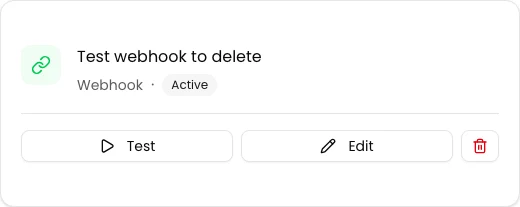
Open Integrations in the Automation group. Find the connection card that you want to delete.
Before continuing, verify the selected company, the integration name and its type. Select the button with the trash icon on the correct card.
Check the warning
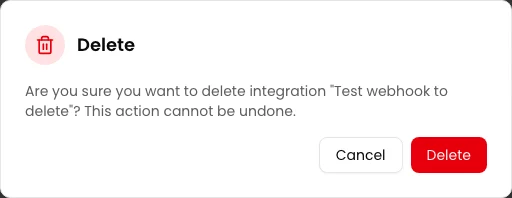
The Delete dialog shows the selected integration name and warns that the action cannot be undone. Compare the name with the card you intend to remove.
If the name is incorrect, select Cancel. To continue, select Delete and wait for the dialog to close.
Check the integrations list
After a successful response, the dialog closes and KSeFGPT fetches the list again. Confirm that the deleted card is no longer visible.
If it was the company's last connection, you will see No integrations and the Add first integration button. The application does not show a separate success message.

Final state
Check the result
Look for the deleted integration name in the list. Its absence confirms that the operation completed. If it was the last card, the No integrations state is the confirmation.
A deleted connection cannot be restored. If you need it again, add a new integration and enter its credentials from the beginning.
Diagnostics
If something does not work
Compare the visible symptom with the table below.
| Symptom | Likely cause | What to do |
|---|---|---|
| Your integrations are not visible | No company is selected, or you opened a company other than the one that owns the connection. | Select the correct company and open Automation and Integrations again. |
| A plan message covers the view | The Automation module is not enabled in the current plan. | Check the company plan or ask the owner for access to the required feature. |
| An error appears after you select Delete | The integration may still be assigned to a block in a workflow. The integrations:manage scope may also be missing, or the connection may have failed. | Remove or replace the reference in every workflow and save the changes. Then check your permission and try again. |
| The dialog closed, but the card is still visible | The list has not refreshed yet, or the request did not complete successfully. | Wait a moment and refresh the view. If the card remains, check the error message and do not assume the integration was deleted. |
| The external service still shows the account or webhook | KSeFGPT removes its own configuration but does not delete resources at the provider. | If you also want to disable the external resource, do it separately in that service's control panel. |
What next
Open the workflows that previously used this connection type and check their configuration before the next run.
If the deletion was part of switching providers, add a new connection, assign it to the correct blocks and run a controlled automation test.
Manage KSeFGPT integrations
Sign in, select a company and keep only the connections its automations need.
Sign in to KSeFGPT