How to send KSeF invoices to Fakturownia.pl in KSeFGPT
Select sales or purchase invoices from KSeF, send them through a saved integration and check the result for every document.
- Module
- Integrations
- Reading time
- 5 min
- Difficulty
- Intermediate
Follow the instructions carefully and you will succeed
- Published
- August 28, 2026
- Author
- Rafał Zeidler
- Format
- Written guide and video
Written procedure
What you will do
You will send up to 50 selected KSeF invoices to the Fakturownia.pl account connected to the current company. Each row will show Created or Already exists, and a notification will summarize the batch.
The export has no additional confirmation dialog. KSeFGPT starts processing immediately after you select Send selected.
Requirements
Before you start
Verify that the saved integration points to the correct Fakturownia.pl account. The current version sends documents using a KSeF token even when the list was fetched with a certificate selected, so a certificate alone is not sufficient for this operation.
| Item | Requirement |
|---|---|
| Access | The company owner or an organization member with invoices:read and integrations:manage. |
| Plan | A plan with the Invoices module, currently Medium or higher. |
| KSeF | An active KSeF token for the selected company. In the current version, a certificate alone may not be sufficient to send. |
| Integration | An active connection to the correct Fakturownia.pl account. |
| Documents | Invoices with a KSeF number. VAT and KOR documents are supported. |
| Starting point | After signing in, select the correct company and open Invoices, then Export. |
| Time required | About 3 minutes for a small batch. |
| Effect | New documents may be created in Fakturownia.pl. The operation starts without another confirmation. |
Process recording
0:20The recording shows destination, period and invoice selection and verification of the Fakturownia.pl results.
Open invoice export
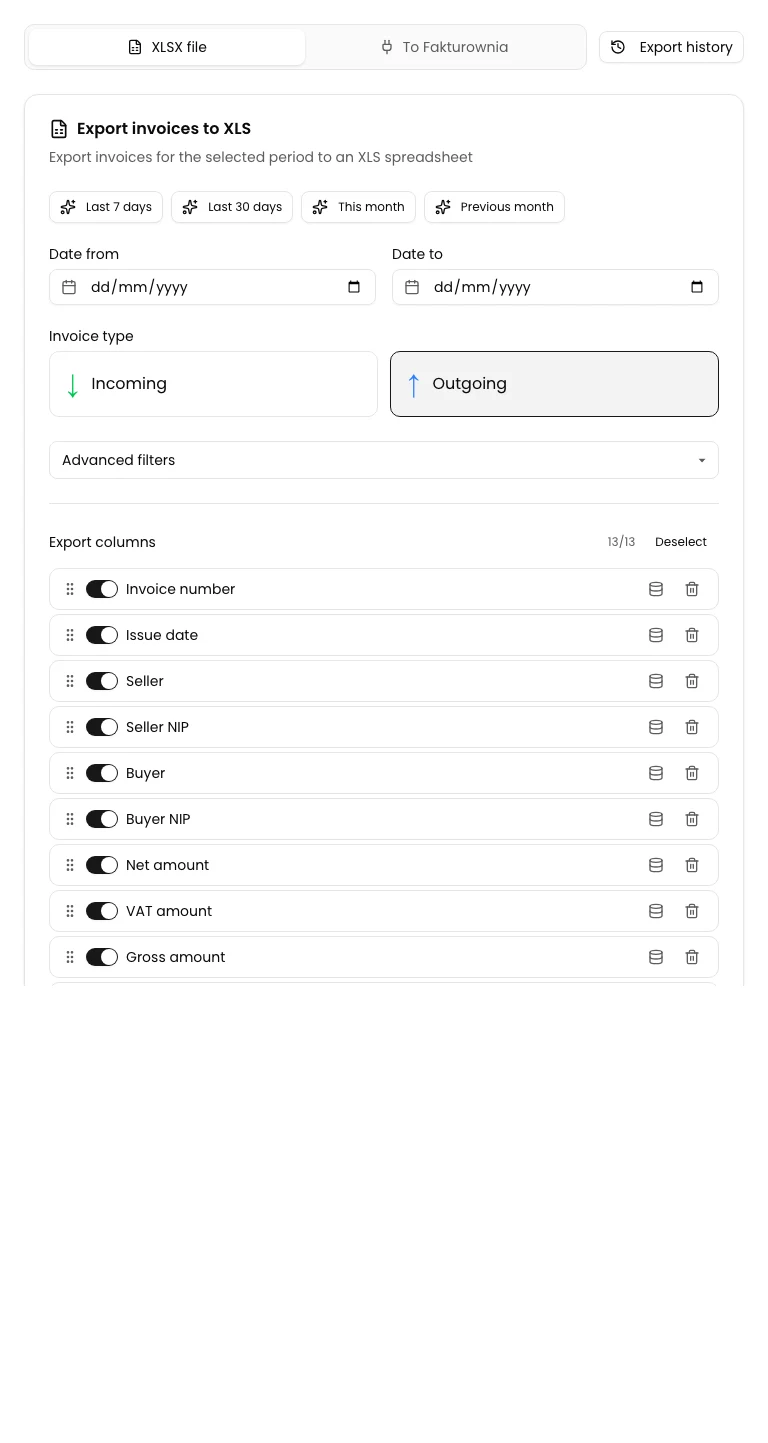
Select Invoices in the side navigation, then open the Export tab.
You will initially see the XLSX file option and the export destination switch at the top of the view.
Select To Fakturownia
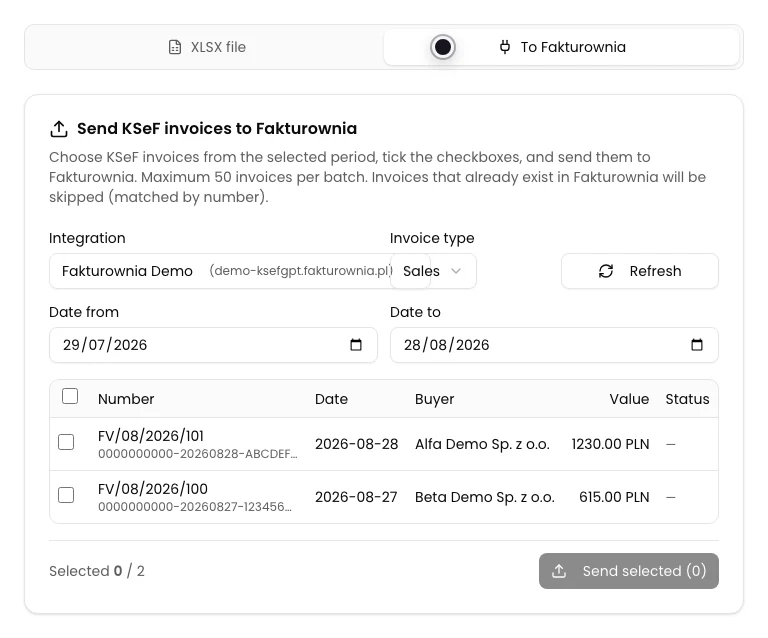
In the export destination switch, select To Fakturownia.
The Export to Fakturownia.pl panel will appear. If there is no saved integration, the panel shows a button that opens its configuration.
Set the integration, type and period
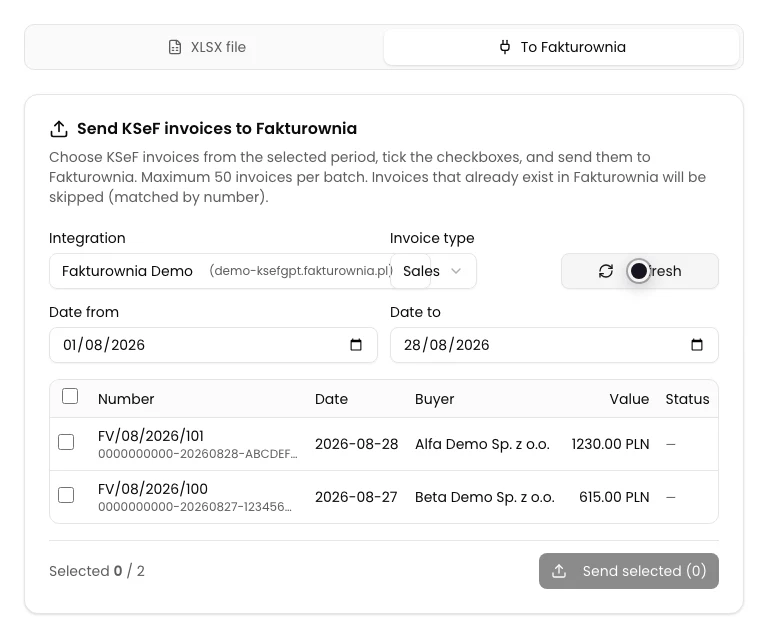
Select the correct integration. Then choose Sales or Purchase and set the From and To dates. Sales and the last 30 days are selected by default.
Select Refresh. KSeFGPT fetches the first 100 documents matching the filters and displays them in the table.
Review and select invoices
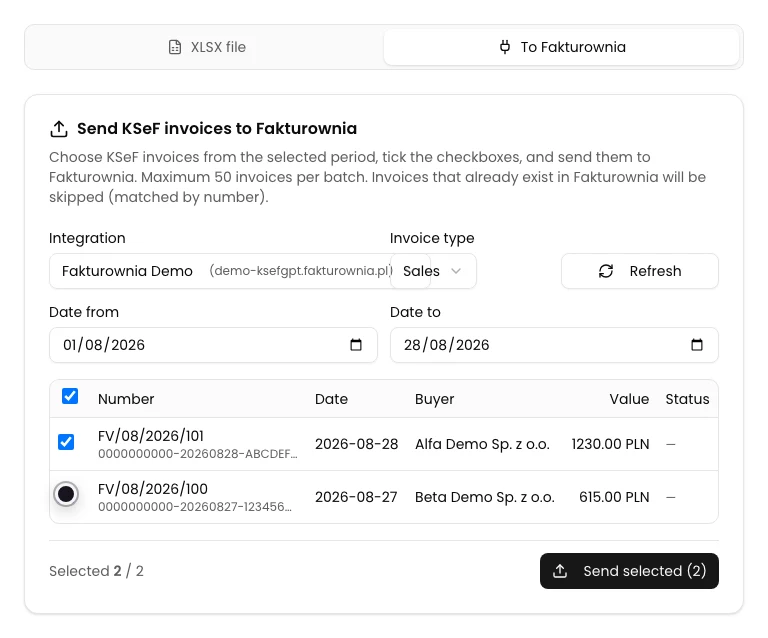
Compare the document number, date, counterparty, value and currency. Select only the invoices you want to send to Fakturownia.pl.
A row without a KSeF number has a disabled checkbox. One batch can contain up to 50 documents even if the table shows more.
Send the selected documents
Check the selected count and select Send selected (n). There is no additional confirmation, so review the integration and document list again before selecting the button.
KSeFGPT processes the documents one by one. A failure for one invoice does not stop the remaining items in the batch.
Check statuses and the summary
When processing finishes, check the Status column. Created means a new document was added in Fakturownia.pl. Already exists means a document with the same invoice number was found and no duplicate was created.
The notification reports the number of created, skipped and failed items. A link in the result can open the document in Fakturownia.pl.
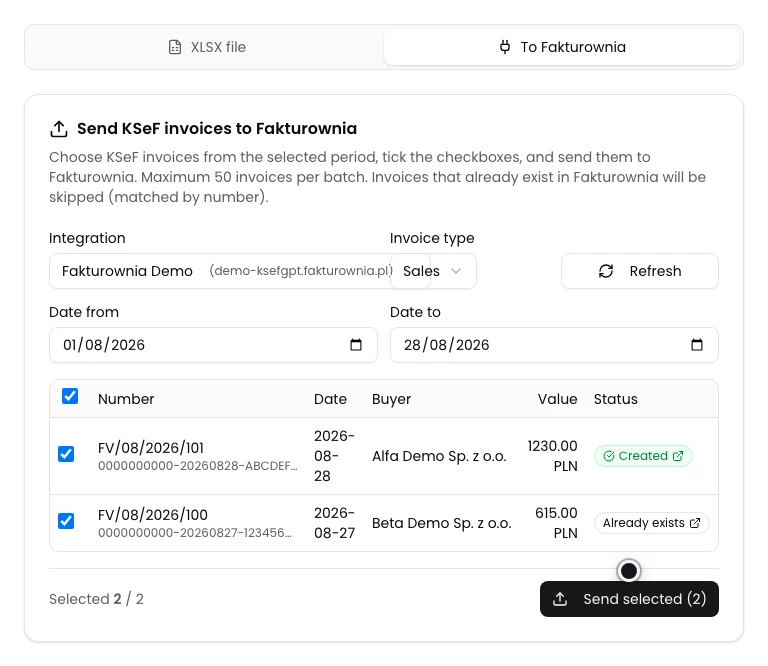
Final state
Check the result
The operation is complete when every selected row shows Created or Already exists and the summary reports no errors.
Open new documents with the status links and compare their numbers and amounts with the KSeFGPT table. Already exists is a correct skip, not an export error.
Diagnostics
If something does not work
Compare the visible symptom with the table below.
| Symptom | Likely cause | What to do |
|---|---|---|
| The To Fakturownia option is missing | The account does not include the Invoices module or the current user cannot access the page. | Check the plan and the invoices:read scope for an organization member. |
| The panel asks you to add an integration | No active Fakturownia.pl connection is saved for the selected company. | Add or correct the integration, then return to Invoices and Export. |
| The list is empty or fetching fails | The date range has no invoices, the KSeF connection is inactive or invoices:read is missing. | Check the company, active token, dates and permission, then select Refresh. |
| A row cannot be selected | The document has no KSeF number. | Select a document accepted by KSeF and displayed with its full KSeF number. |
| The send button reports a limit | More than 50 documents are selected. | Split the export into batches of no more than 50 invoices. |
| Mapping error | The document has an unsupported type such as ZAL or ROZ, or its number, issue date or line items are missing. | Export a VAT or KOR invoice with all required data. Handle the other document manually. |
| Export fails even though the certificate works | The current form does not pass the selected method and the backend attempts to use a KSeF token. | Add an active KSeF token for the company and retry. Do not treat the certificate alone as sufficient for this flow. |
| Already exists | Fakturownia.pl already contains a document with the same invoice number. | Open the existing document and compare the data. Do not retry merely to create a duplicate. |
What next
Open Fakturownia.pl and review the created documents, especially counterparties, line items and tax values.
To send invoices in the other direction, use How to fetch Fakturownia.pl invoices and send them to KSeF?.
Send invoices to Fakturownia.pl
Sign in, select the company and open export through the saved integration.
Sign in to KSeFGPT