How to cancel an invoice with a zero-out correction in KSeFGPT
Select the source invoice, prepare a separate document that reduces all its values to zero, review the preview and submit the correction to KSeF.
- Module
- Invoices
- Reading time
- 5 min
- Difficulty
- Intermediate
Follow the instructions carefully and you will succeed
- Published
- August 21, 2026
- Author
- Rafał Zeidler
- Format
- Written guide and video
Written procedure
What you will do
You will create a correcting invoice that changes every value of the source document to zero. KSeFGPT keeps the state before the correction, calculates the full negative differences and prepares a separate KOR XML for submission.
A zero-out correction does not delete or technically invalidate the invoice stored in KSeF. The source invoice remains in the system and its amounts are offset by a new correcting document.
Requirements
Before you start
Confirm from your company records that every invoice value should be reduced to zero and prepare an unambiguous reason. This guide explains the interface and does not assess whether the operation is justified for tax purposes.
| Item | Description |
|---|---|
| Access | The company owner or an organization member with invoices:read and invoices:send. |
| KSeF connection | The selected company has an active token or certificate allowed to read and submit invoices. |
| Source invoice | An accepted invoice with a KSeF number. Do not select a KOR document because the current form does not support correcting a correction. |
| Required data | Reason for the full zero-out, correction number, issue date and optional place of issue. |
| Starting point | After signing in, open Invoices → Issue. |
| Time required | About 3 minutes after the basis for the operation has been confirmed. |
| Effect | Submission creates a separate correcting invoice. It cannot be undone like an unsaved draft. |
Process recording
0:28The recording shows source invoice selection, zero-out correction generation, value review and submission.
Select the zero-out correction
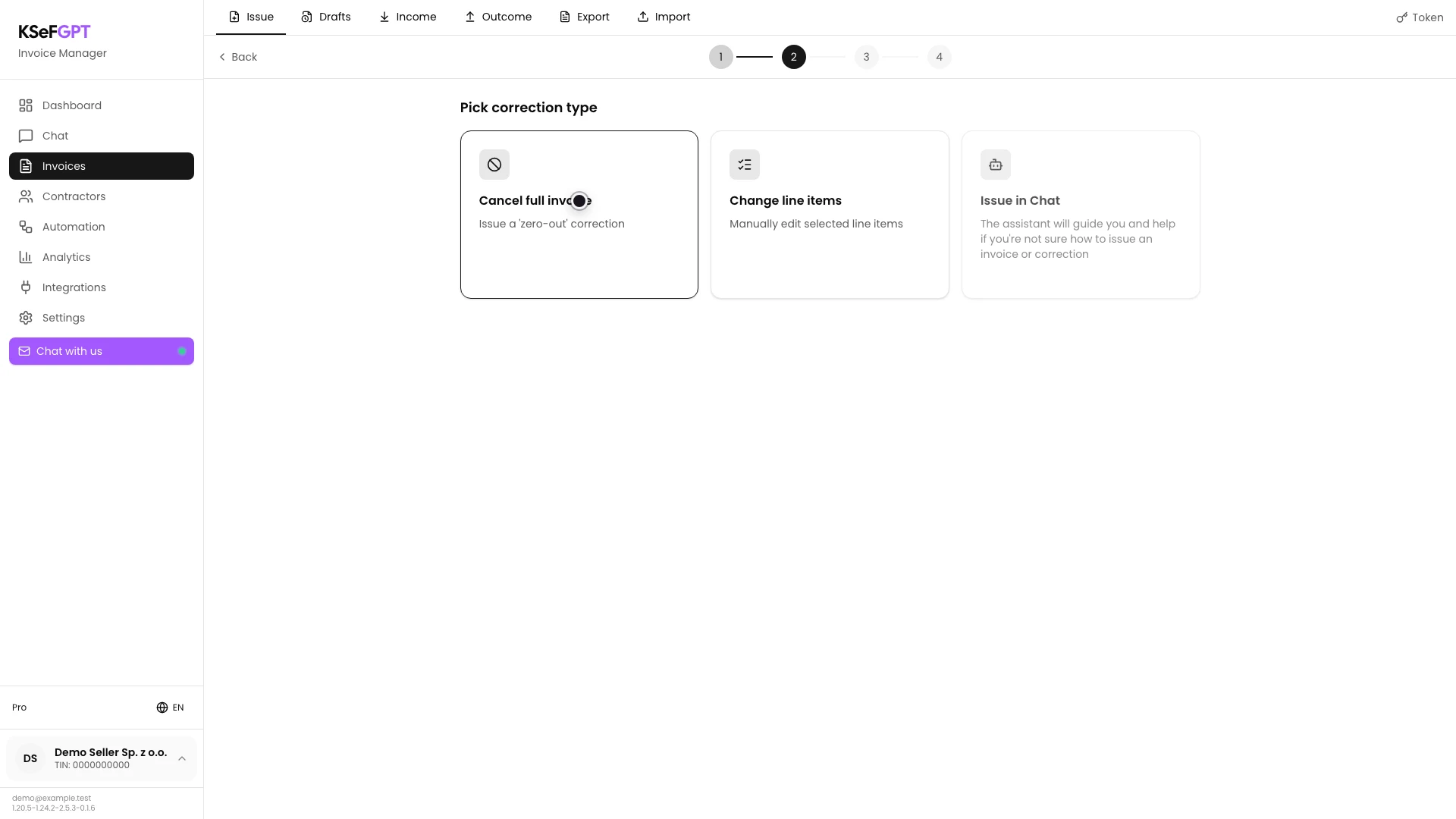
In Issue, select Correction. On Pick correction type, select Cancel full invoice.
The card description is Issue a 'zero-out' correction. Change line items is for partial changes to selected rows and has a separate guide.
Select the source invoice
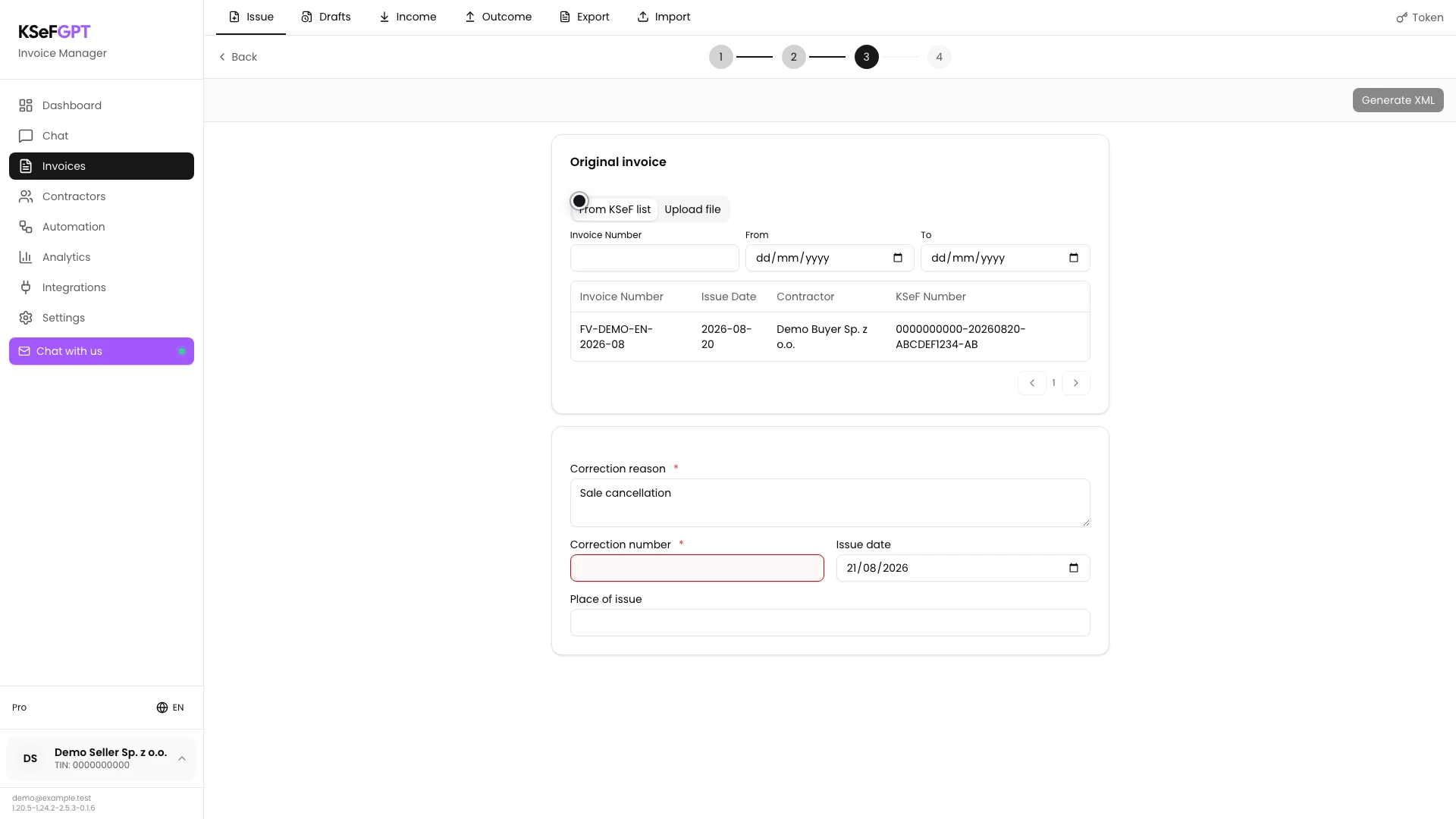
Keep From KSeF list in Original invoice. Find the document by number or date range and select the correct row.
Compare the invoice number, issue date, contractor and KSeF number. A row without a KSeF number and a KOR document are disabled. Upload file can use the source XML together with the original invoice KSeF number.
Complete the correction data
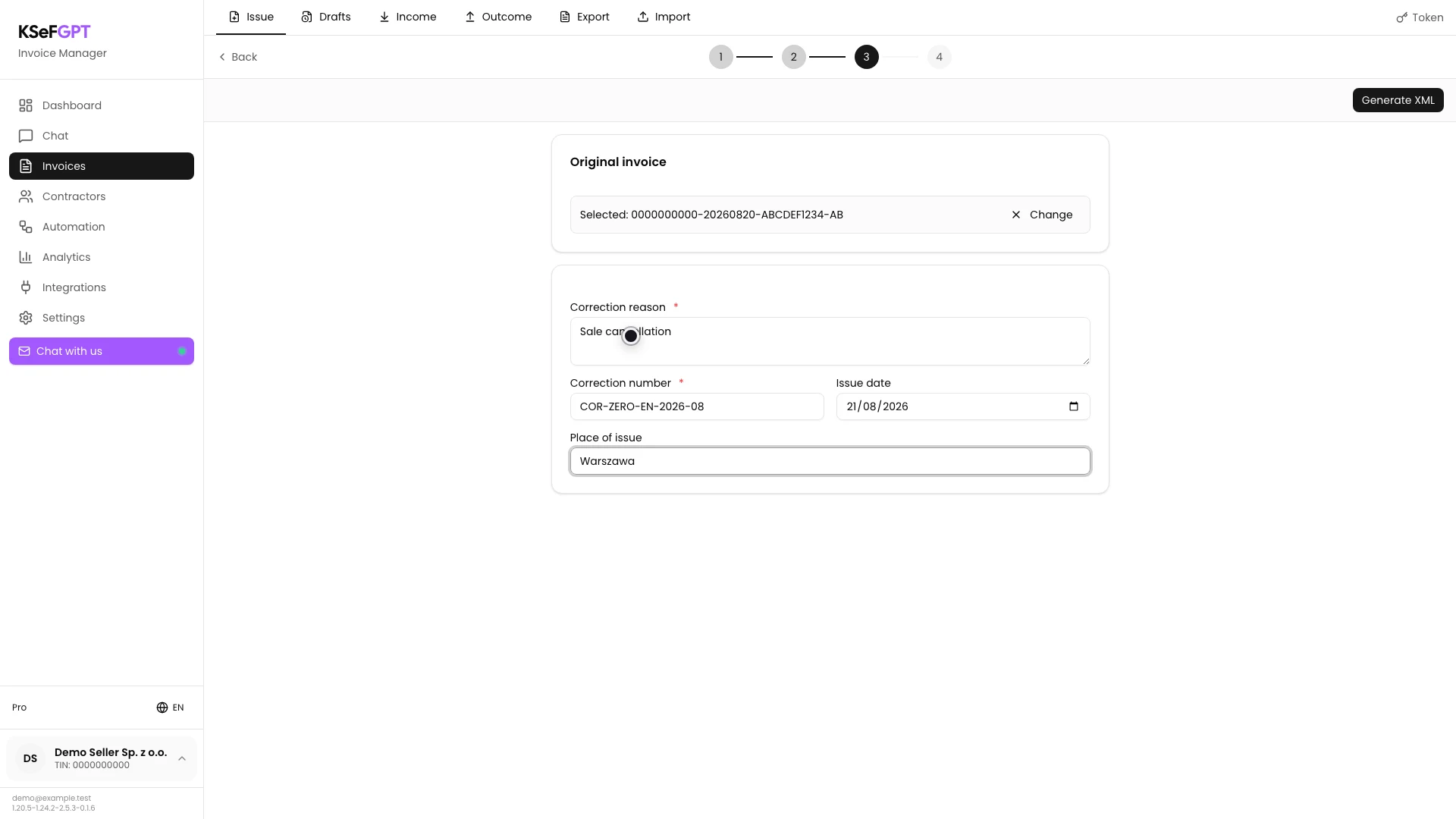
After selecting the invoice, check the displayed KSeF number. Enter a Correction reason that describes the full zero-out of the document.
Check the proposed Correction number and adapt it to company numbering. Confirm the Issue date and enter the Place of issue if it should appear in the document.
Generate and check the preview
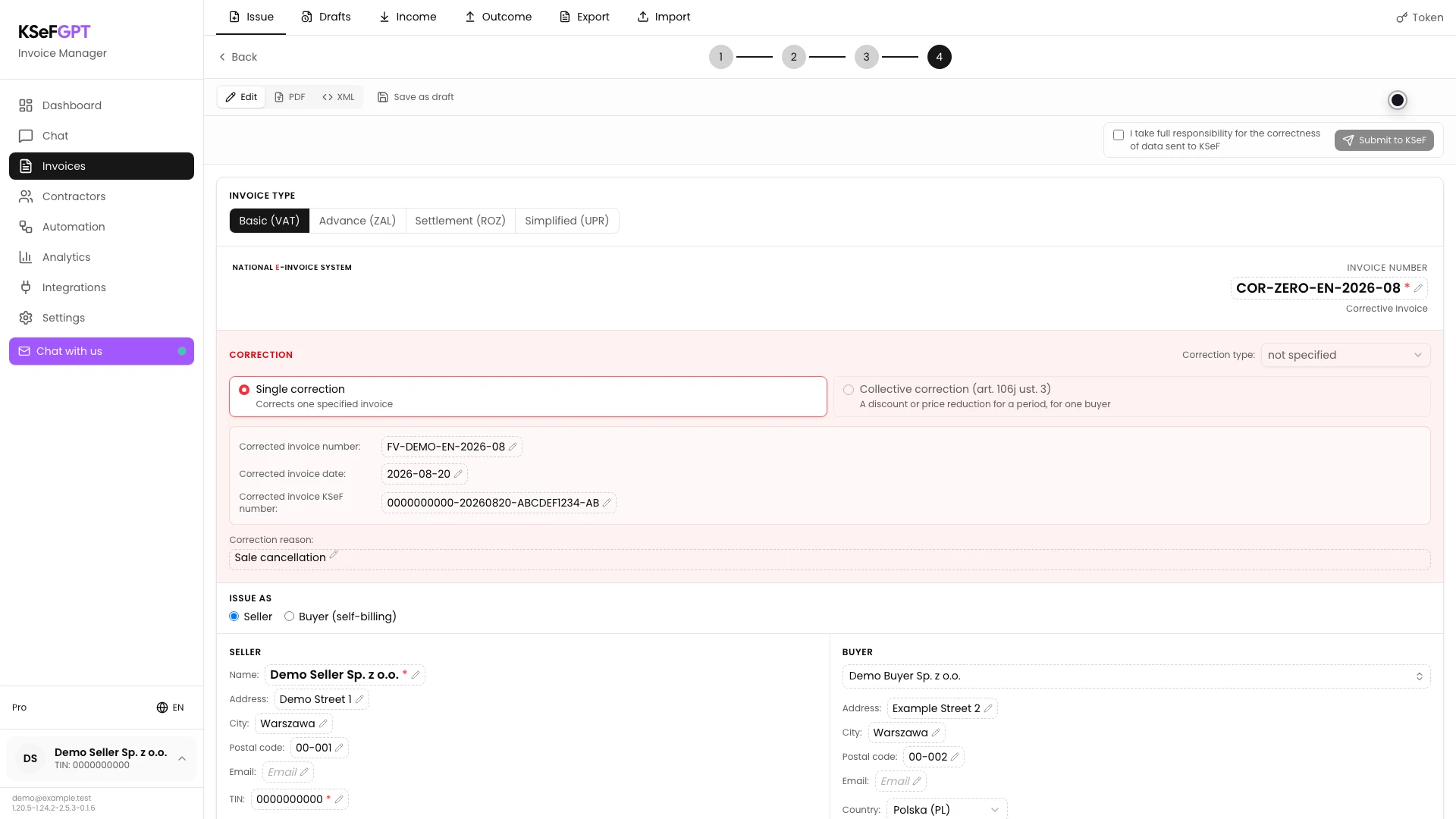
Select Generate XML. In the pink Correction block, check the corrected invoice number and date, its KSeF number and the reason.
The number in the top right belongs to the new correcting invoice. Seller and buyer details should match the source document.
Check the zero values and submit
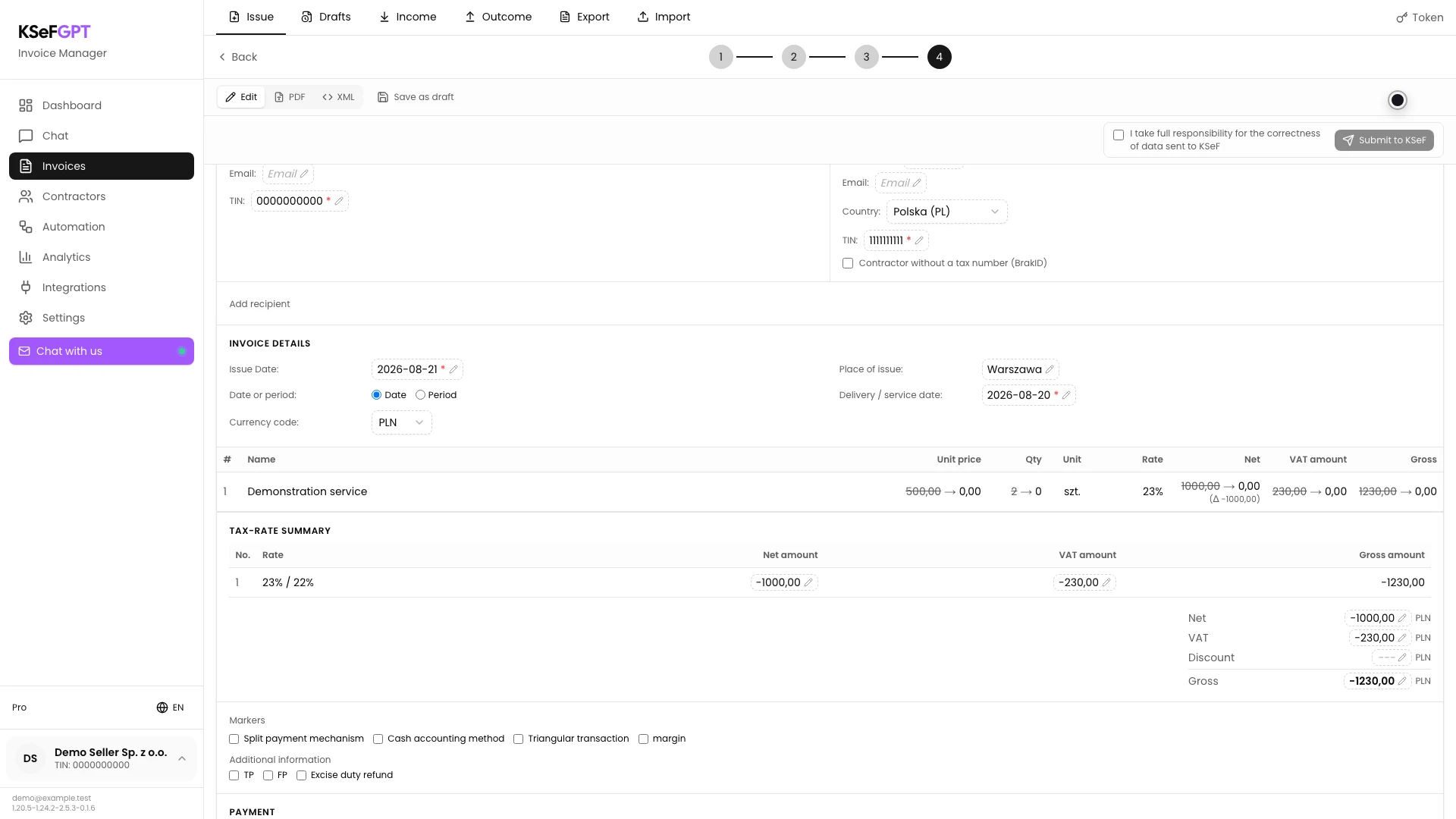
Scroll to the lines and compare the values before and after the correction. Every quantity and amount covered by the cancellation should end at zero. The summary shows the full negative net, VAT and gross differences that offset the source invoice.
Select the correct authorization method, select I take full responsibility for the correctness of data sent to KSeF and choose Submit to KSeF. Wait for the final result.
Final state
Check the result
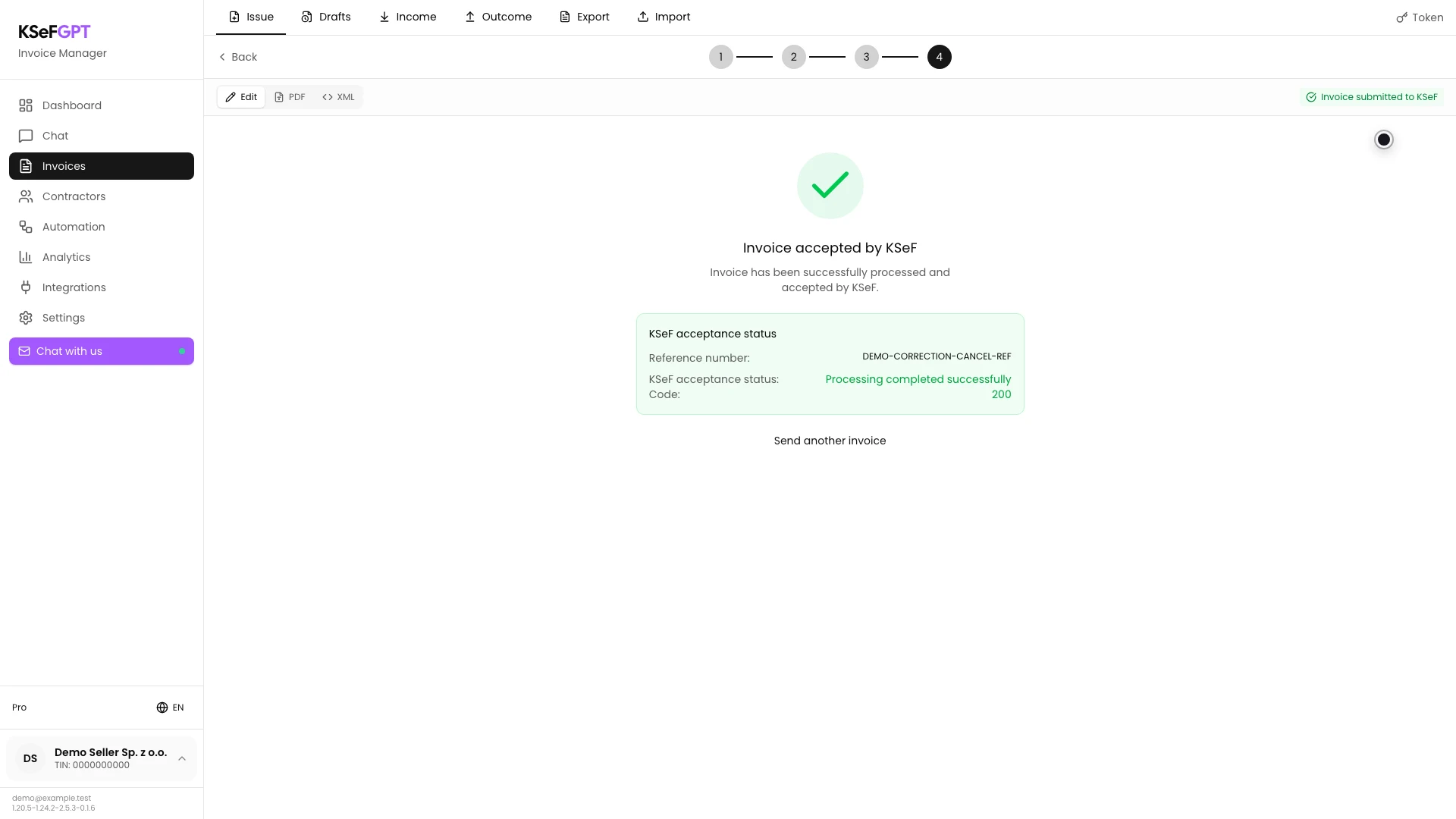
Invoice accepted by KSeF confirms that the process finished. Check code 200, the status description and the reference number.
After refreshing Outcome, find the correction by its number. The source document remains in history and the zero-out correction is a separate KOR document.
Diagnostics
If something does not work
Compare the symptom with the table below.
| Symptom | Likely cause | What to do |
|---|---|---|
| Correction is not available | Corrections are disabled for the account or current deployment. | Check invoice issue access and contact the KSeFGPT administrator. |
| The invoice row cannot be selected | The document has no KSeF number or is itself a KOR correcting invoice. | Select an accepted source invoice with a KSeF number. The current form does not support correcting a correction. |
| Generate XML is disabled | No invoice is selected or the reason, correction number or date is missing. | Select the document and complete every required field. |
| Failed to generate correction | The source could not be fetched, its XML could not be read or the authorization method failed. | Check the company, KSeF connection, invoices:read and invoices:send, then select the document again. |
| Submission is unavailable | The company has no active token or certificate, or the member lacks invoices:send. | Configure the KSeF connection and ask the owner for the required scope. |
| KSeF rejected the correction | The data, XML or sender permissions failed KSeF checks. | Read the error code and description. Correct the indicated issue before preparing another submission. |
What next
If only selected lines need to change, follow How to issue an invoice line-items correction in KSeFGPT.
After acceptance, open the document in Outcome and download its XML, PDF visualisation and available UPO.
Issue a zero-out correction in KSeFGPT
Sign in, select the source invoice and review the zero-out document before submission.
Sign in to KSeFGPT