How to export KSeF invoices to a file in KSeFGPT
Choose the period and invoice direction, start a background job, check its status and download the finished spreadsheet.
- Module
- Invoices
- Reading time
- 4 min
- Difficulty
- Easy
You could do this with your eyes closed :)
- Published
- August 22, 2026
- Author
- Rafał Zeidler
- Format
- Written guide and video
Written procedure
What you will do
You will export incoming or outgoing invoices from a selected period, check the job in Export history and download the finished spreadsheet.
The interface uses XLS in several labels, but the downloaded file is the modern `.xlsx` format. The job and file remain available for 30 minutes, so download it promptly.
Requirements
Before you start
Decide on the period and invoice direction. A wider range can take longer to prepare.
| Item | Description |
|---|---|
| Access | The company owner or an organization member with invoices:read. |
| KSeF connection | The selected company has an active token or certificate allowed to read invoices. |
| Range | Date from, date to and Incoming or Outgoing invoices. |
| Starting point | After signing in, open Invoices → Export. |
| Time required | About 2 minutes plus KSeF processing time. |
| File availability | The completed export can be downloaded for 30 minutes after the job is created. |
Process recording
0:26The recording shows range selection, export start, status tracking and spreadsheet download.
Open the XLSX file export
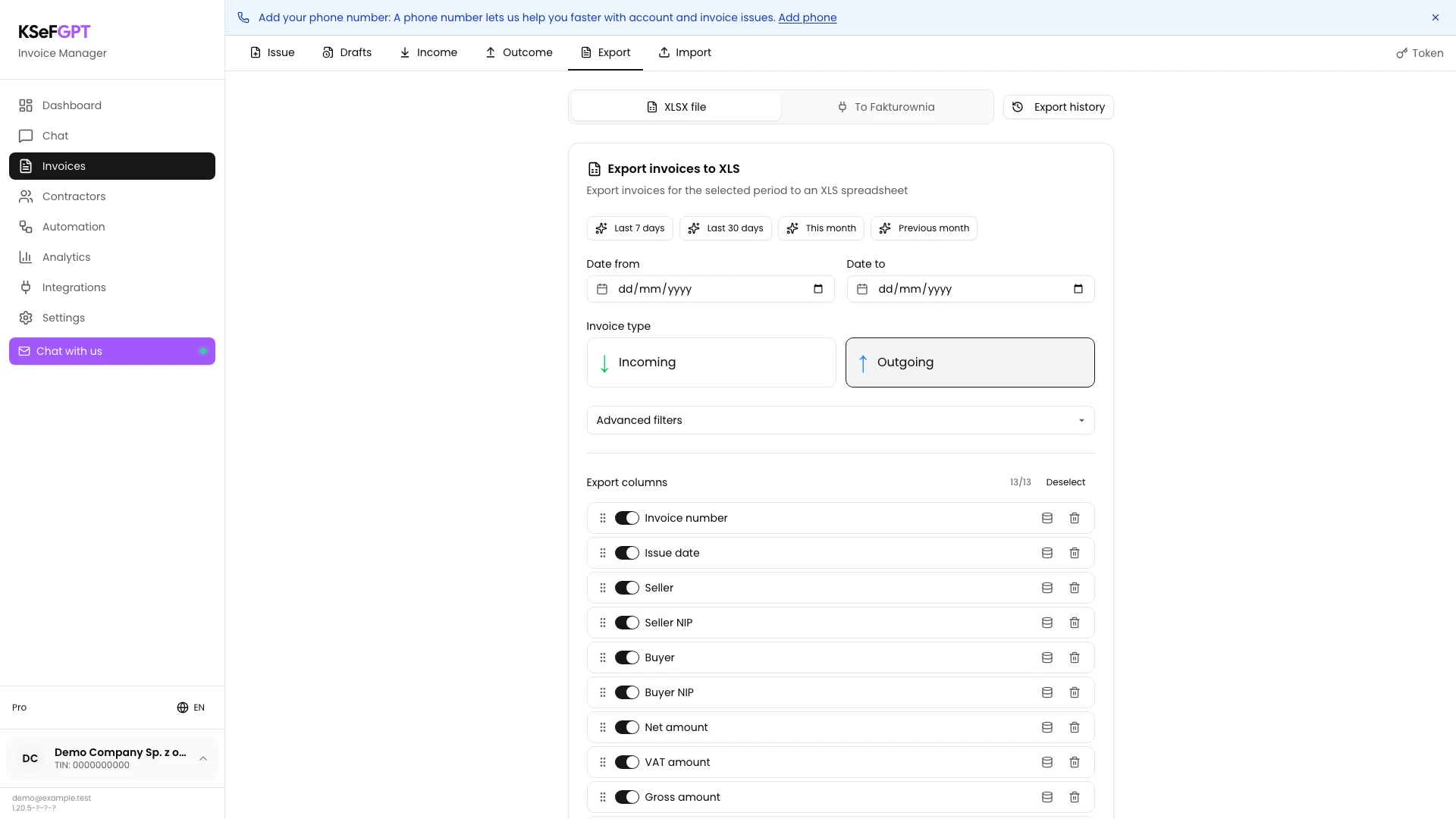
In Invoices, open Export and keep XLSX file selected at the top.
To Fakturownia sends documents to the integration and does not create a local file.
Select the period and invoice type
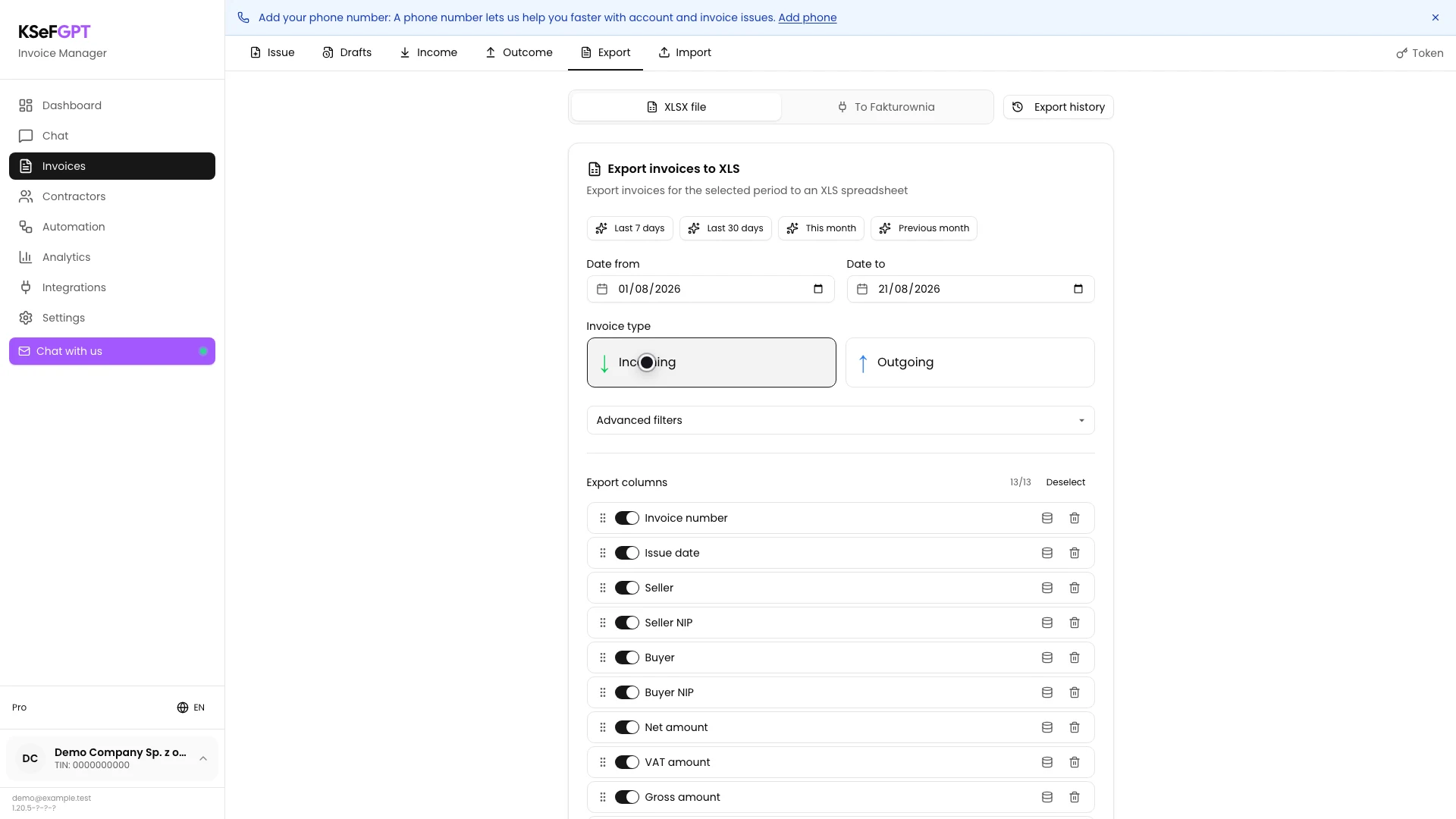
Enter Date from and Date to or use a preset such as Last 30 days. Select Incoming or Outgoing.
Advanced filters can narrow the result by invoice kind, annotations, NIP, amount or currency.
Review the file columns
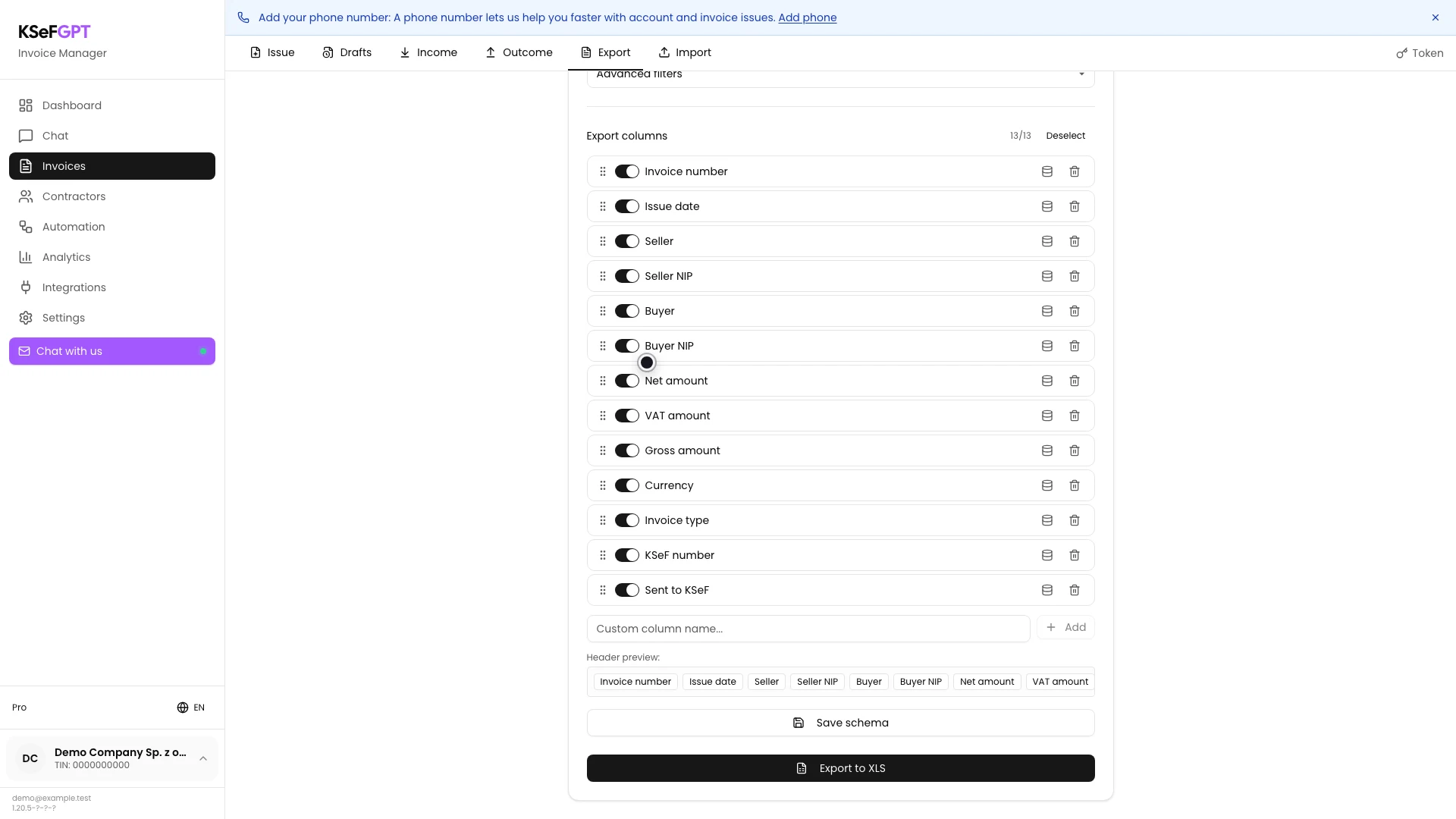
Review Export columns. The 13 defaults include invoice number and date, parties, amounts, currency, document type, KSeF number and KSeF send date.
You can disable, reorder or add columns. Save the schema only if you want to reuse it.
Start the export
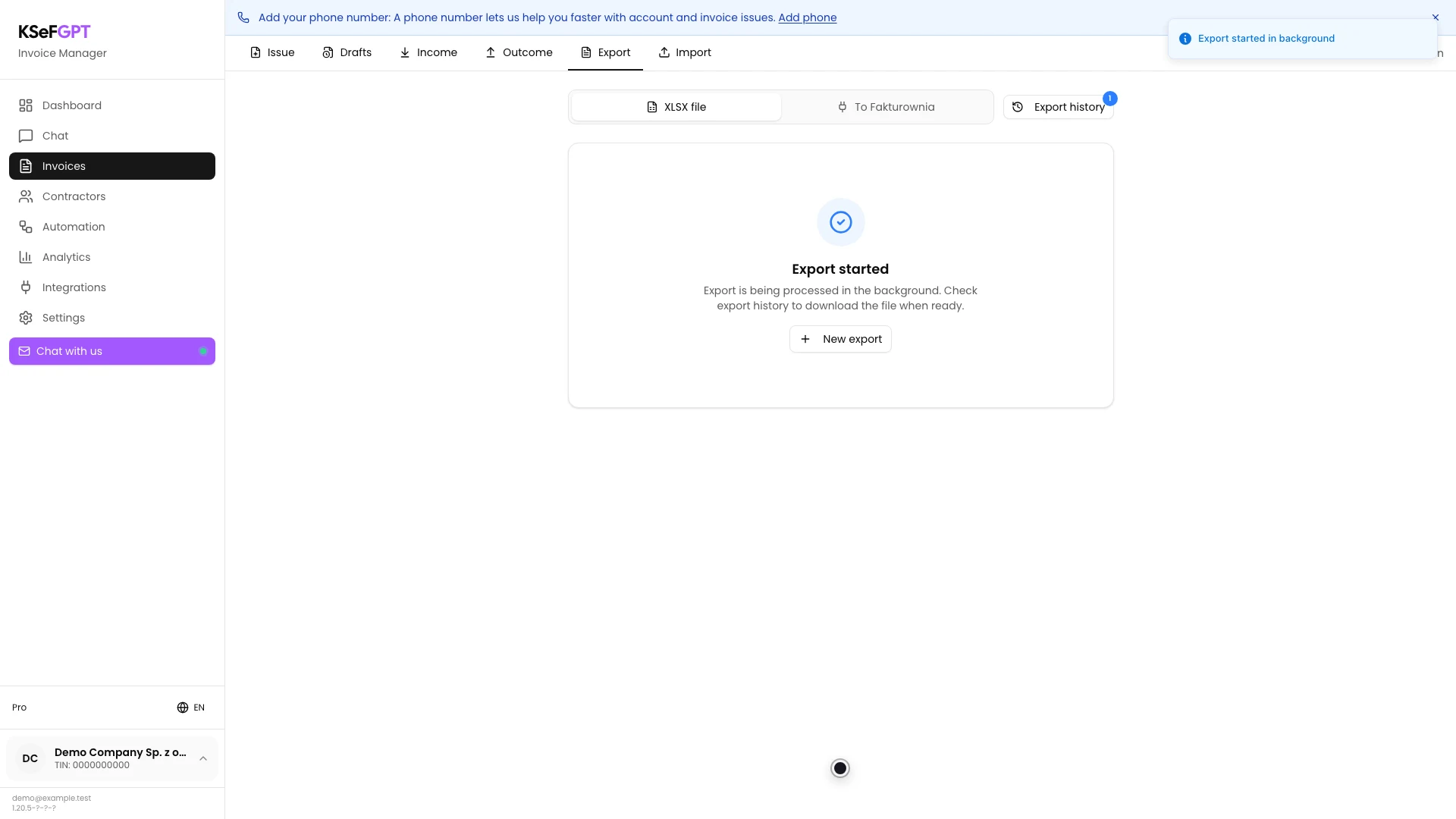
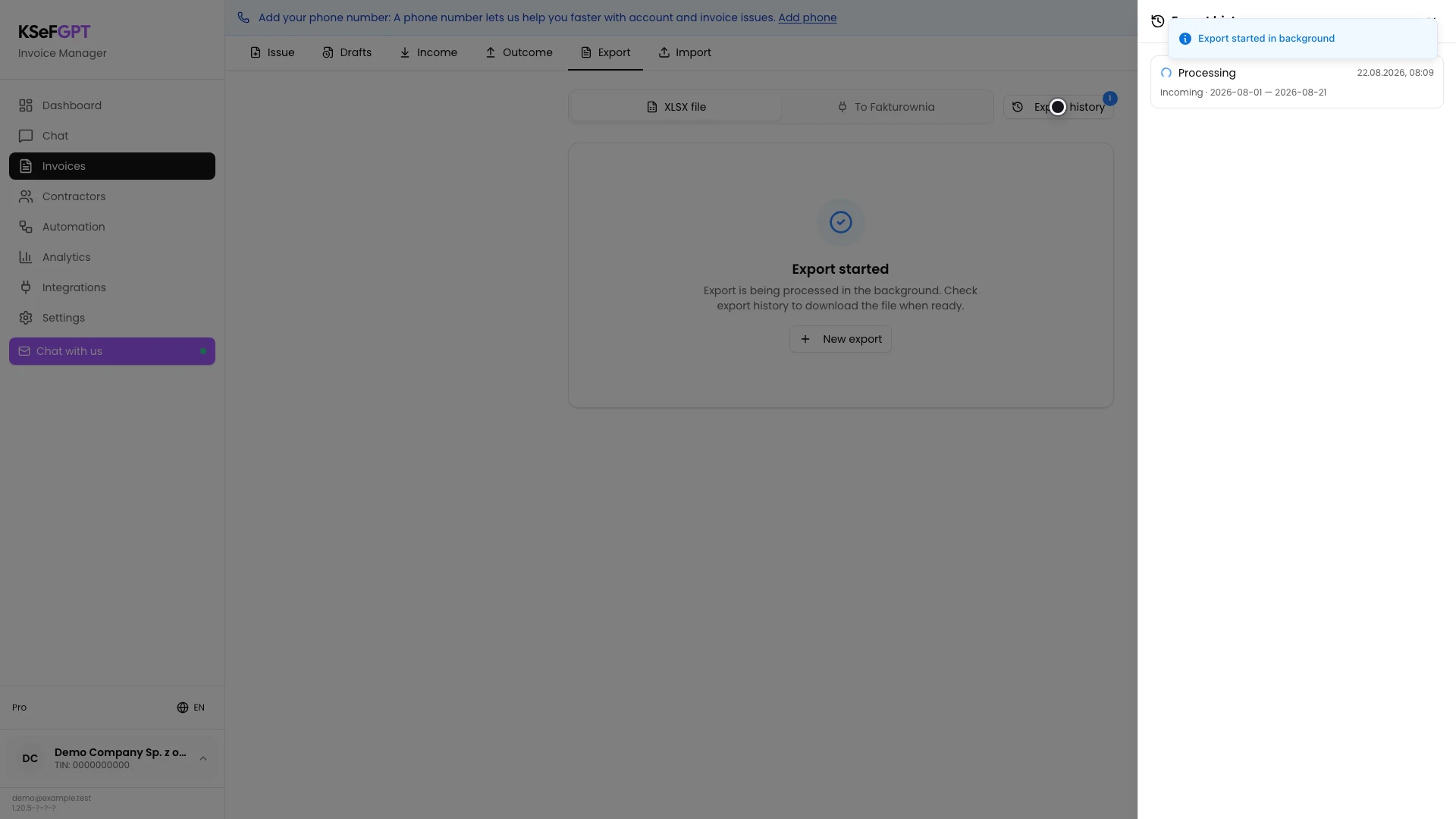
Select Export to XLS. KSeFGPT creates a job and shows Export started.
This confirms that background processing began. It does not mean the file is ready.
Check progress in history
Open Export history. A new job moves through Pending or Processing.
The entry shows invoice direction, date range and creation time. Keep the panel open or return after a moment.
Download the completed file
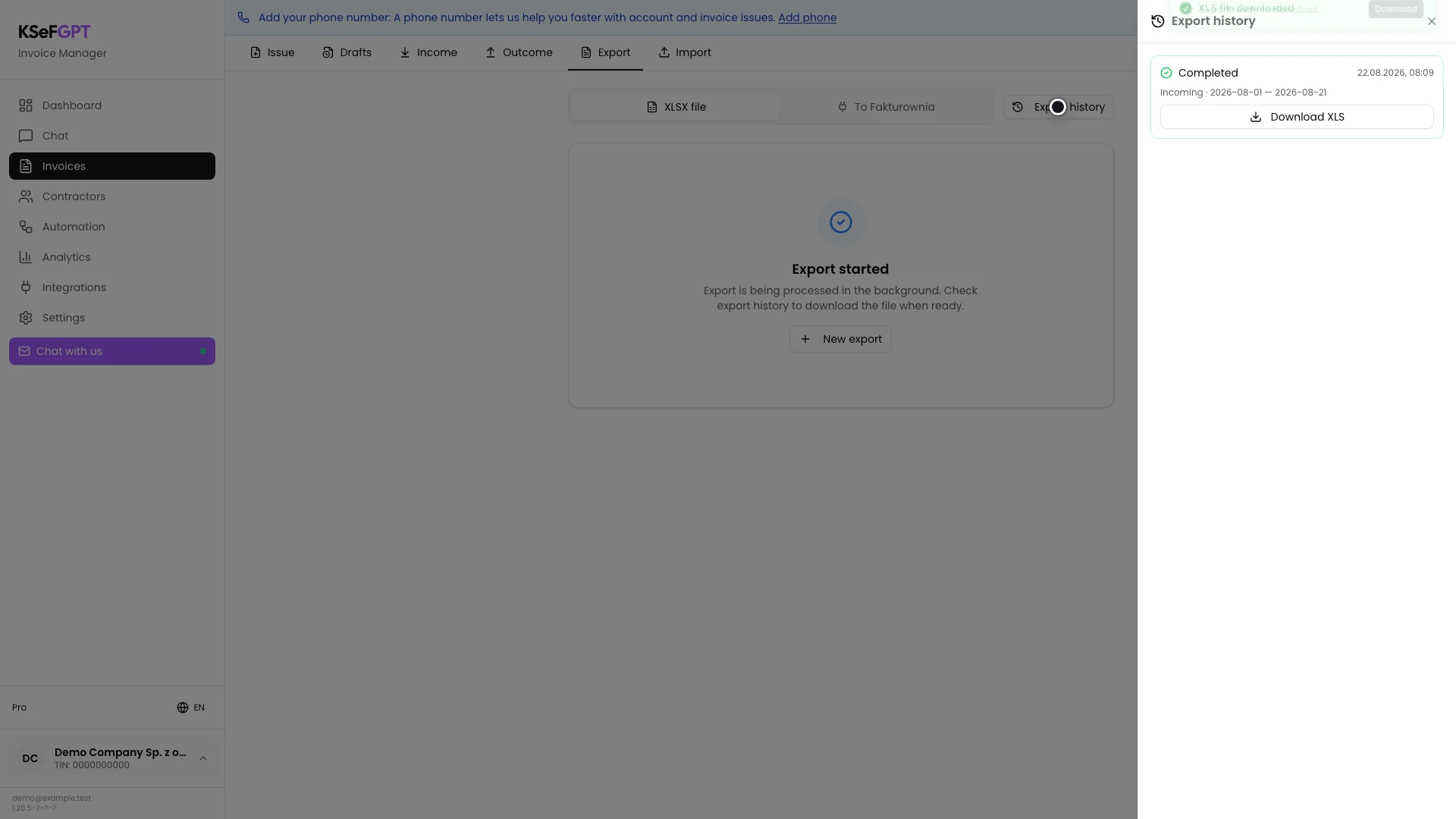
When the status becomes Completed, the app attempts an automatic download. If the browser blocks it, select Download XLS in Export history.
The filename follows `faktury_income_2026-08-01_do_2026-08-21.xlsx` or `faktury_outcome_...xlsx`, based on direction and dates.
Final state
Check the result
Open the `.xlsx` file and check its headers, row count and date range. Each row should represent one invoice matching the filters.
Move the file into the correct protected folder if it is needed later. Export history is not permanent storage.
Diagnostics
If something does not work
Compare the symptom with the table below.
| Symptom | Likely cause | What to do |
|---|---|---|
| Export to XLS is disabled | One or both dates are missing. | Complete Date from and Date to. |
| No invoices found | No document matches the period, direction or filters. | Widen the range or remove filters and start a new job. |
| KSeF authentication error | The token or certificate cannot read invoices. | Check the KSeF connection and invoices:read. |
| The job times out | KSeF did not respond in time. | Wait, narrow the period and retry. |
| The file did not download automatically | The browser blocked it or the connection failed. | Open Export history and select Download XLS before 30 minutes pass. |
| An old export is missing | The 30-minute retention period expired. | Start a new export with the same range. |
What next
Save a frequently used column layout so later files have the same structure.
For a single document, open the invoice and download its XML, PDF or UPO instead of creating a spreadsheet.
Export invoices to XLSX
Sign in, select a period and download an organized invoice spreadsheet.
Sign in to KSeFGPT