How to import contractors from a CSV or Excel file into KSeFGPT
In CRM > Counterparties, upload CSV or Excel, review the preview and confirm the import. Then find the new records in the CRM list.
- Module
- CRM / Counterparties
- Reading time
- 5 min
- Difficulty
- Easy
You could do this with your eyes closed :)
- Published
- August 21, 2026
- Updated
- September 7, 2026
- Author
- Rafał Zeidler
- Format
- Written guide and video
Written procedure
What you will do
In CRM > Counterparties, upload a file, review column mapping and confirm the import. Then find the new companies in the CRM list.
The example has two records: Demo Alfa Sp. z o.o. and Demo Beta S.A. Its CSV columns are name, nip, city and email.
Requirements
Before you start
The import runs in the context of the selected company. The contractors are saved to the company that is active when you confirm the import.
| Item | Requirement |
|---|---|
| Access | The selected company owner with access to CRM and counterparty import. The procedure was verified as the owner. |
| Required file | One XLSX, XLS, or CSV file. The application reads the first sheet and treats its first row as the column headers. |
| Required column | The contractor name. A row without a company name is skipped and does not appear in the preview. |
| Recognized fields | The importer recognizes fields such as name, tax ID, address and contact. This guide checks name, nip, city and email. The new CRM form has no custom-data editor. |
| Starting point | After signing in, select the company, expand CRM and open Counterparties. |
| Time required | About 2 minutes for a file with a few dozen rows. |
| Important effect | Before saving, check the active company and existing profiles. After importing, compare the saved count with the preview. |
Process recording
0:29In CRM > Counterparties, upload CSV or Excel, review the preview and confirm the import. Then find the new records in the CRM list.
Open the Contractors module
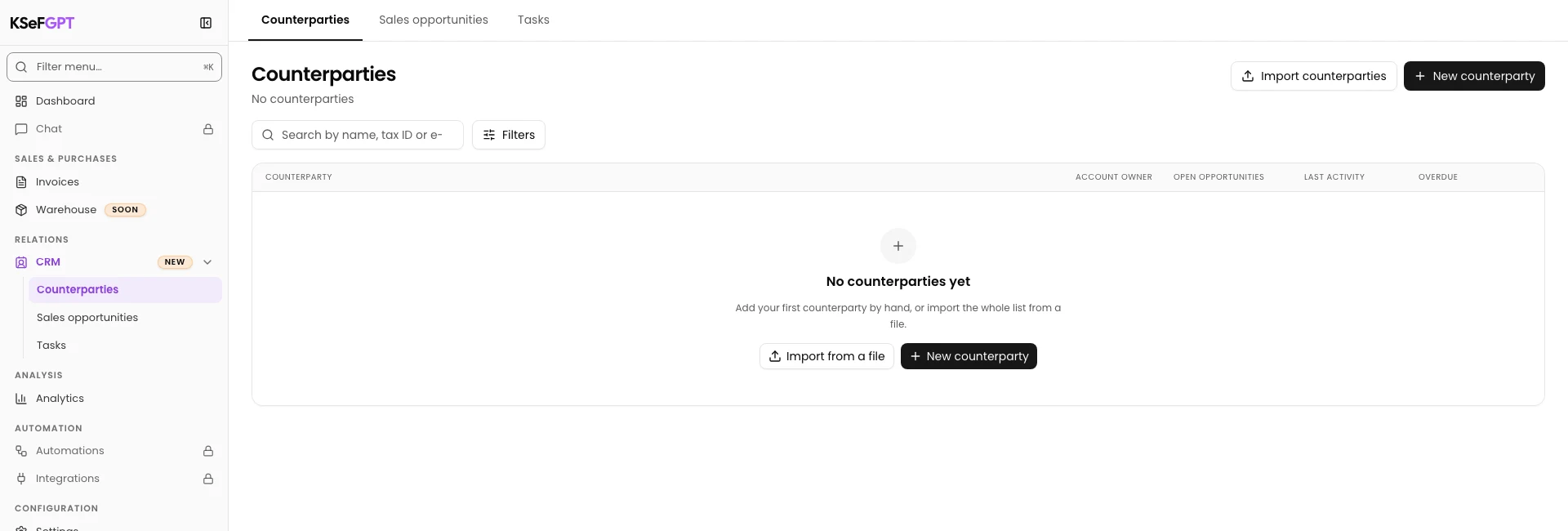
Expand CRM in the sidebar and select Counterparties. Check the selected company.
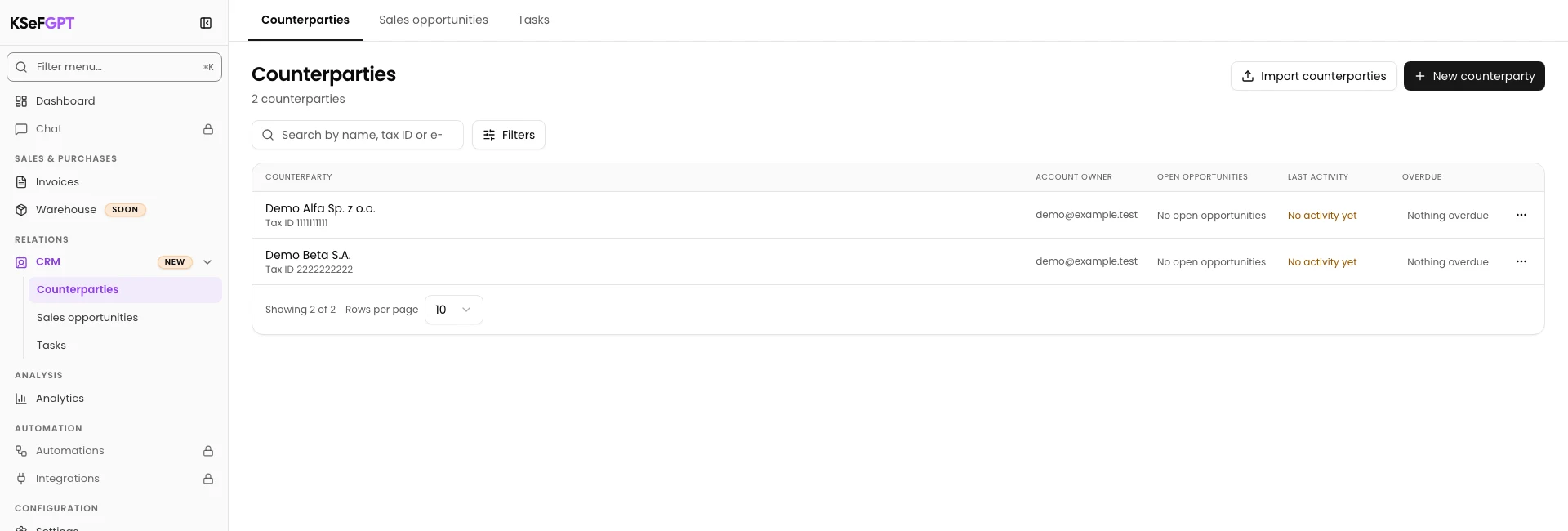
The list offers Import counterparties and New counterparty.
Open the import dialog
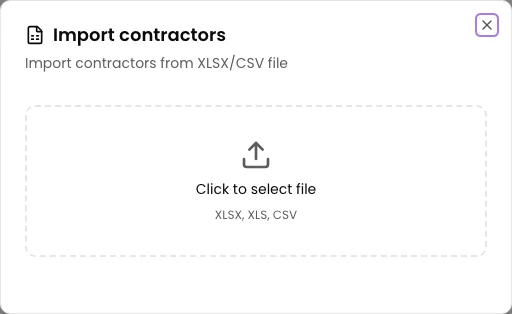
Select Import counterparties. The Import contractors dialog opens inside CRM with a file selection area.
Select the contractor file
Select the upload area and pick the file from your disk. The application starts processing it immediately and the dialog shows Processing file...
At this stage KSeFGPT reads the headers and data from the first sheet and matches the columns to contractor fields. Empty rows are skipped.
Review the mapped columns and the data preview
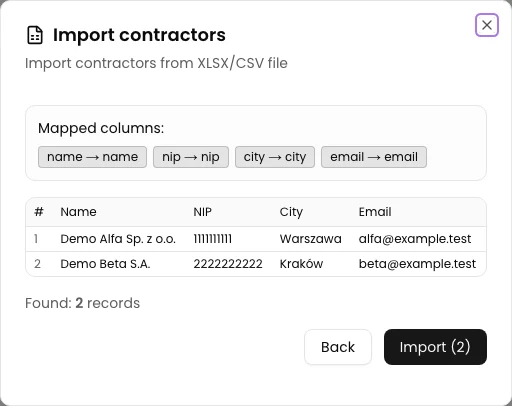
Under Mapped columns, check how the file headers were assigned. The example contains name, nip, city and email, with two records.
Compare the name, tax ID, city and email in the preview. If the mapping is incorrect, select Back, correct the file and upload it again.
The importer can retain other columns as custom data. The new CRM profile has no editor for those fields; this procedure verifies the primary counterparty details.
Confirm the import
Select Import (2) for the two example records. The number depends on your file.
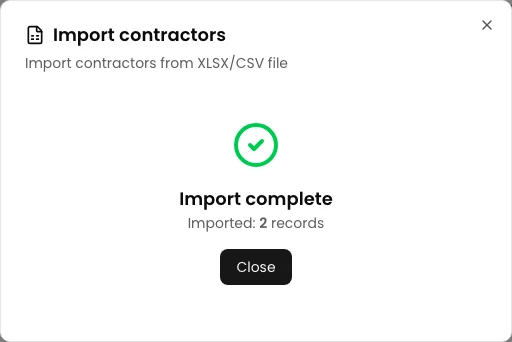
Wait for Import complete. The Imported line shows the actual number of saved records.
Final state
Check the result
Select Close and wait for the CRM list to refresh. Import synchronization can take a few seconds; avoid immediately importing the same file again.
Find the new records by name or tax ID. Select a name to open the profile and check the address and contact under Identification details. The CRM list shows the account owner, open opportunities and recent activity.
Diagnostics
If something does not work
Compare the visible symptom with the table below.
| Symptom | Likely cause | What to do |
|---|---|---|
| An Import error message appears after the upload | The file could not be read, for example it has an unsupported extension, it is damaged, or the first sheet is empty. | Save the data again as XLSX, XLS, or CSV, make sure the first sheet has a header row, and upload the file once more. |
| The preview shows fewer records than the file has rows | Rows without a contractor name are skipped, and so are completely empty rows. | Fill in the company name column in the source file and repeat the import for the missing rows. |
| A column landed in the wrong field | The header was unclear or misleading, so the automatic match picked a different field. | Select Back, rename the header in the file to something unambiguous such as Company name, NIP, or Postal code, and upload the file again. |
| New companies are not in the CRM list yet | Synchronizing the list after importing can take a few seconds. | Wait, then reload and search by name or tax ID. Do not immediately repeat the import. |
What next
To correct primary details, select Edit under Identification details on the CRM profile. For name/value pairs, use the custom-fields guide, which describes the separate older form.
Load your contractor database
After signing in, select the company, expand CRM and open Counterparties.
Sign in to KSeFGPT