How to fetch invoices from Fakturownia.pl and submit them directly to KSeF
Fetch sales invoices through a saved integration, select the correct documents, and submit them to KSeF without downloading and manually uploading XML files.
- Module
- Integrations
- Reading time
- 5 min
- Difficulty
- Easy
You could do this with your eyes closed :)
- Published
- August 19, 2026
- Author
- Rafał Zeidler
- Format
- Written guide and video
Written procedure
What you will do
You will fetch a list of sales invoices into KSeFGPT from the Fakturownia.pl account connected to the selected company. You will then select the correct documents and submit them directly to KSeF.
KSeFGPT fetches the data for every selected invoice, prepares an XML document compliant with FA(3), and submits it to KSeF. You do not need to download XML files from Fakturownia or upload them manually.
Requirements
Before you start
This guide covers sales invoices. The Expenses option runs in self-billing mode and requires a prior agreement with the counterparty and the appropriate KSeF permissions.
| Item | Requirement |
|---|---|
| Company in KSeFGPT | Select the company for which the Fakturownia.pl integration was saved. |
| KSeF connection | The selected company must have an active KSeF token or certificate. |
| Integration | An active Fakturownia.pl connection. If it has not been added yet, follow How to add a Fakturownia.pl integration. |
| Organization member access | The invoices:read permission for Invoices and integrations:manage for the integration, fetching, and submission operation. |
| Documents | Sales invoices saved in the correct Fakturownia.pl account. Before submission, verify their numbers, dates, buyers, amounts, and VAT rates. |
| Starting point | After signing in, select the correct company and open Invoices → Import. |
| Time required | About 3 to 5 minutes, plus the time KSeF needs to process the documents. |
| Effect of submission | An accepted invoice receives a KSeF number. Before submitting, make sure you selected the correct documents. |
Process recording
0:26The recording shows how to choose an integration, fetch sales invoices, select documents, and verify their KSeF numbers after submission.
Open import from an integration
In Invoices, open the Import tab. In the import method switcher, select Integrations.
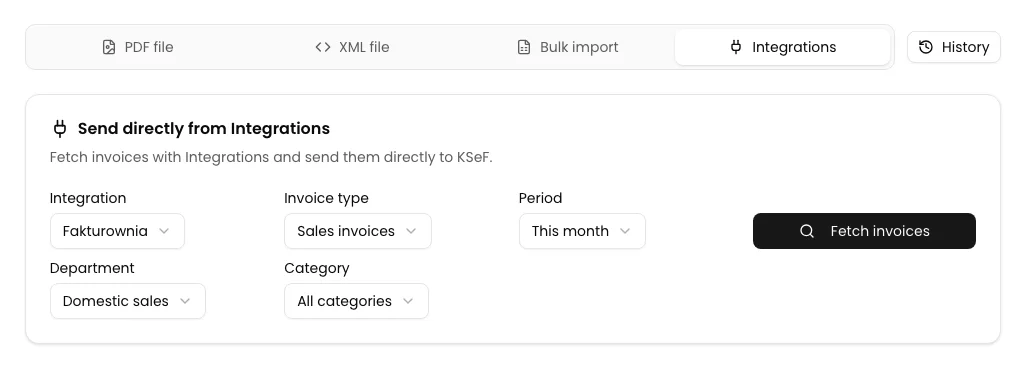
You will see the Send directly from Integrations card with Integration, Invoice type, and Period. If you see This feature requires a KSeF connection instead of the form, first add a token or certificate for the selected company.
Choose the range and fetch invoices
Under Integration, choose the saved connection to the correct Fakturownia.pl account. The first available integration is selected automatically. Leave Sales invoices under Invoice type.
Choose a Period. The default value is This month. You can also select the previous month, last 30 days, the entire year, or Date range. For a custom range, enter both dates. Date from cannot be later than Date to.
If the account provides departments or categories, you can narrow the list further. Select Fetch invoices. KSeFGPT shows up to 50 documents in one fetch, so use a shorter period or another filter if there are more invoices.
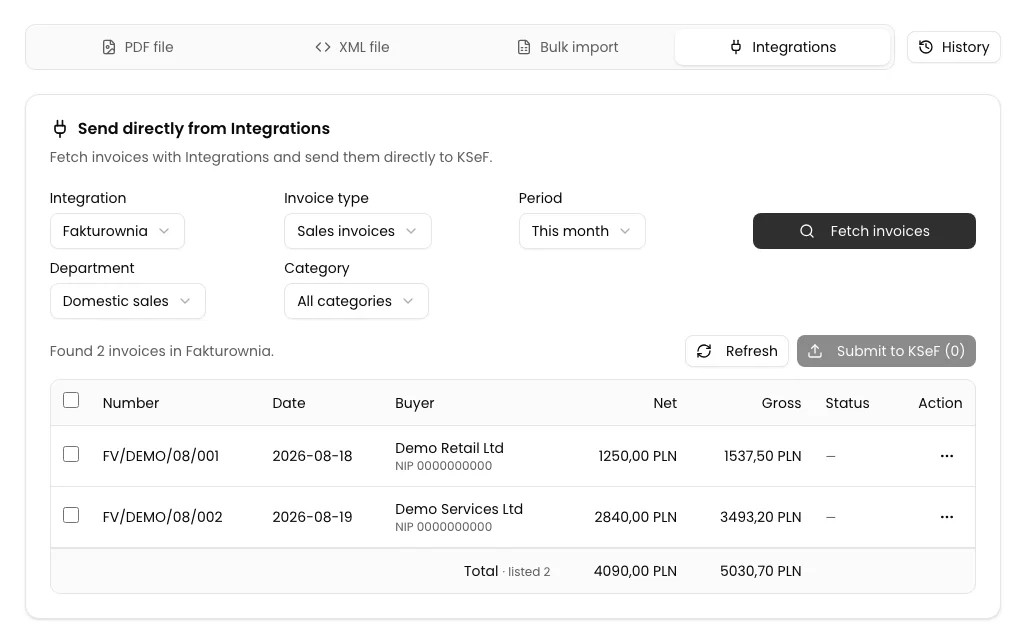
Verify the number, date, buyer, and net and gross amounts for every item. Before submission, the three-dot menu lets you open a PDF visualisation, download XML, or open the document in Fakturownia.
Select invoices for submission
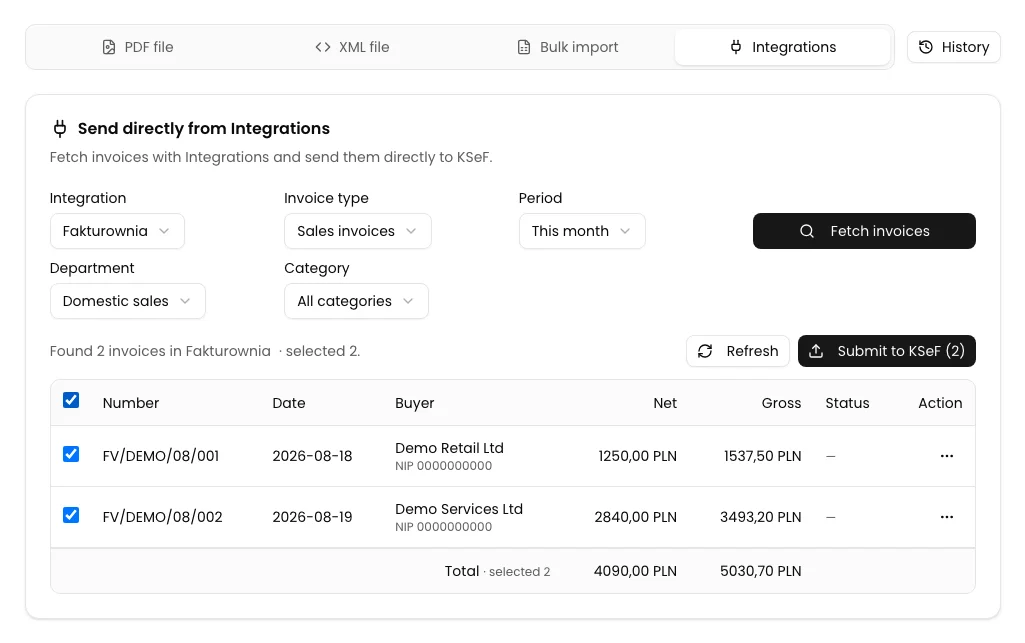
Select the checkbox next to every invoice you want to submit. The checkbox in the table header selects or clears all documents in the fetched list.
Above the table, check the selected item count and the net and gross totals. The Submit to KSeF button shows the number of selected documents, for example Submit to KSeF (2).
Do not submit an invoice if its buyer, date, or amounts do not match the document in Fakturownia.pl. Correct the data in the source system, then select Fetch invoices again.
Submit the documents and wait for KSeF numbers
Select Submit to KSeF. KSeFGPT processes the selected invoices in order. While an item is being submitted, the row shows Sending. After submission, KSeF may return the Processing status.
Do not close the page or resubmit an invoice marked Processing. KSeFGPT checks the status automatically until KSeF returns a final result or the waiting period expires.
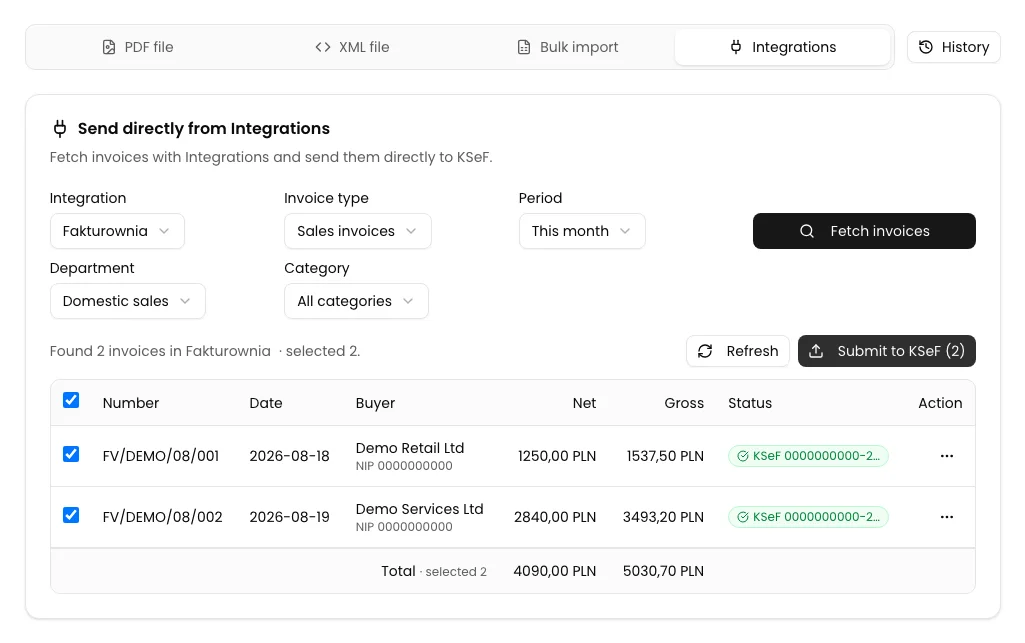
An accepted invoice receives a green status with its KSeF number. If KSeF rejects the document or XML preparation fails, the row shows Error and the reason. Fix the indicated problem before trying again.
Final state
Verify the result
The operation has completed successfully when every submitted invoice shows a green KSeF status with the beginning of its assigned number. Open the three-dot menu and select Copy number to copy the full KSeF number.
An accepted item cannot be submitted again from its row menu, and another bulk submission skips a document that already has a successful status. Keep the link between your invoice number and its KSeF number in your document workflow.
Diagnostics
If something does not work
Compare the message or status you see with the table below.
| Symptom | Likely cause | What to do |
|---|---|---|
| You see This feature requires a KSeF connection | The selected company has no KSeF token or certificate. | Select Configure KSeF or add an authentication method in Settings. An organization member without credentials:manage must ask the owner or administrator. |
| You see No Integrations added | No Fakturownia.pl connection is saved for the selected company, or you do not have integrations:manage. | Add the integration for this company or ask an administrator for the permission. Then return to Invoices → Import → Integrations. |
| Fetch invoices is unavailable | No integration is selected, a fetch is in progress, or a custom date range is incomplete or reversed. | Select an integration, wait for the current fetch to finish, and correct the dates according to the message below the fields. |
| You see Failed to fetch invoices from Fakturownia | The API token, subdomain, or account access is outdated, or the service is temporarily unavailable. | Open Integrations, edit the correct connection, and run Test connection. Return to import after a successful test. |
| The list is empty | There are no invoices in the selected period, or a department or category narrows the result. | Change the period. If filters are active, select All departments or All categories and fetch the list again. |
| Submit to KSeF shows (0) and is unavailable | No invoice is selected. | Select the checkbox next to the required rows or use the checkbox in the table header. |
| The status remains Processing | KSeF has not returned a final number yet, or the session is still being checked. | Leave the page open and do not submit the invoice again. Wait for the green status or an error message. |
| A row shows Error | KSeF rejected the document, XML preparation failed, or the invoice data does not meet the requirements. | Read the message below the row. Correct the data in Fakturownia or the permissions, fetch the list again, and resubmit only after fixing the cause. |
What next
For the next batch, narrow the period or category so the list is easier to verify. Always compare the selected item count with the number on Submit to KSeF.
If you want to submit documents marked as Expenses, first review How to issue a self-billing invoice in KSeFGPT. Fakturownia expenses are submitted in self-billing mode.
If the API token in Fakturownia changes, update the saved connection by following How to add a Fakturownia.pl integration, test it, and only then return to import.
Submit Fakturownia invoices to KSeF
Sign in, select a company, and open import from the saved Fakturownia.pl integration.
Sign in to KSeFGPT