Process multiple PDF invoices to XML in KSeFGPT
Add PDF invoices to a processing queue. KSeFGPT extracts the data, prepares XML and saves every completed document in Drafts.
Summary
KSeFGPT lets you add consecutive PDF invoices to a processing queue. You do not need to wait for AI to finish one document before uploading the next.
Each successfully processed PDF creates a separate item in Drafts. The draft is marked with PDF import as its source and can be opened in the invoice editor.
Extraction is not the same as submission to KSeF. KSeFGPT prepares the invoice data and XML, but the counterparty, dates, line items and totals should be checked before the document moves forward.
Several PDF invoices no longer mean several interruptions
Waiting for the result of one invoice is rarely a major issue. When a company receives several or a dozen PDF documents, repeating the same process one by one starts taking attention away from more valuable accounting work.
KSeFGPT now handles PDF extraction through a queue. Each uploaded document receives its own task, so you can add the next file without waiting for the previous analysis to finish. The application shows which documents are queued and which are already being processed.
It is a small change in the interface, but a meaningful improvement when working with supplier invoices, documents received by email or archived PDFs that need further processing.
Table of contents
Key takeaways
The new flow separates document upload, background extraction and review of completed drafts.
| Point | Details |
|---|---|
| Consecutive files | You can add another PDF invoice while previously uploaded documents are queued or being processed. |
| Separate tasks | Each PDF has its own status, making it easy to identify a queued document, an active conversion or a failed task. |
| Completed drafts | A successfully extracted invoice appears in Drafts, where its data can be checked before further work or submission. |
How the PDF processing queue works
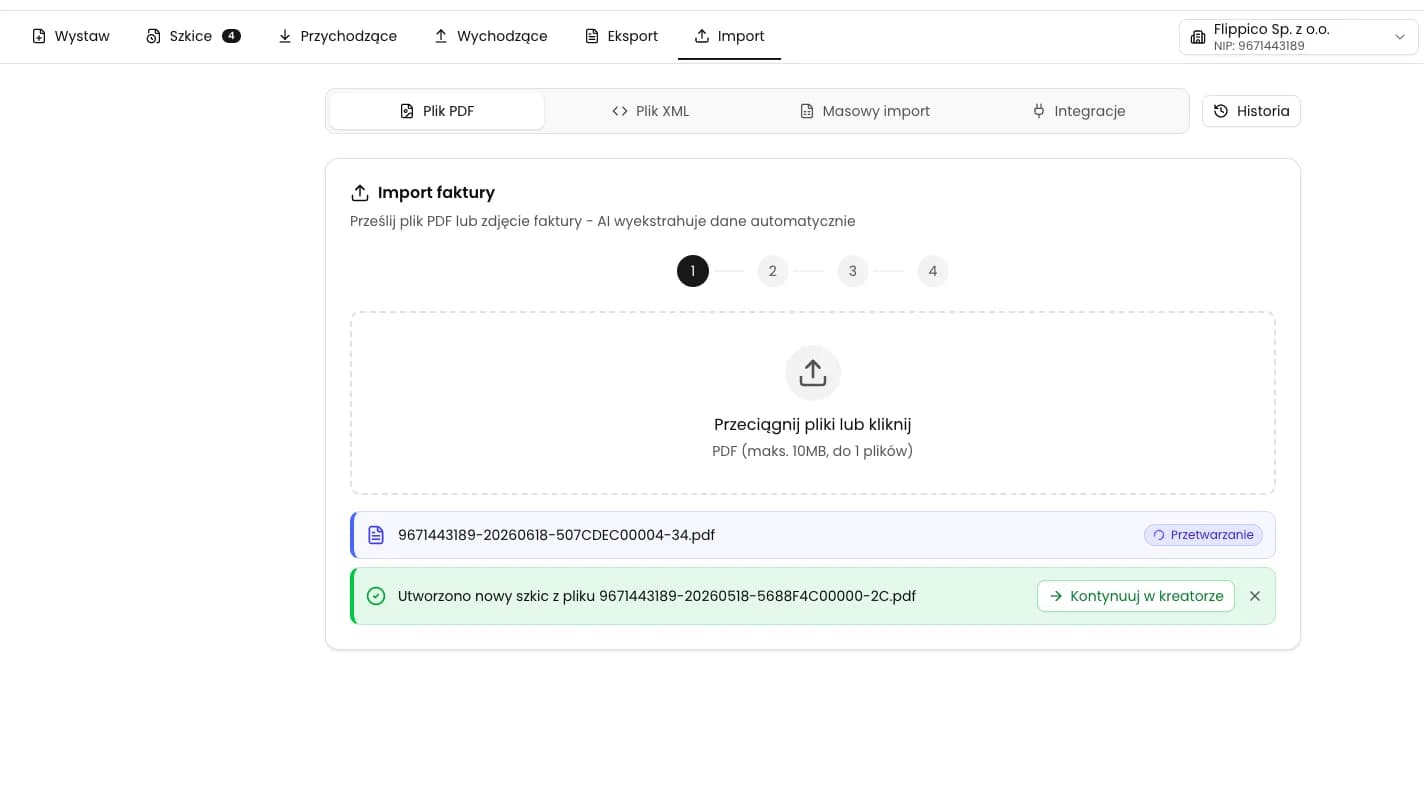
Every PDF invoice you add becomes a separate task. After the file is uploaded, KSeFGPT sends it for extraction and the task list shows the document's current state. You no longer need to watch one screen or remember which file was processed last.
Queued: the file has been accepted and is waiting for extraction to start.
Processing: AI is analysing the document, extracting invoice data and preparing XML.
Conversion failed: the application identifies the document that could not be processed without blocking the remaining tasks.
Files are currently added individually. Once one file has been accepted, however, you can upload the next without waiting for the previous extraction to finish. The queue, rather than selecting an entire folder in one action, is what supports a larger number of PDFs.
| Stage | What KSeFGPT does | What the user does |
|---|---|---|
| Add PDF | Creates a separate task for the document. | Can immediately add another file. |
| Extract | Recognises the data and prepares XML in the background. | Checks the status of the remaining documents. |
| Complete | Creates an invoice draft or reports a failure. | Reviews the completed drafts. |
What appears in Drafts
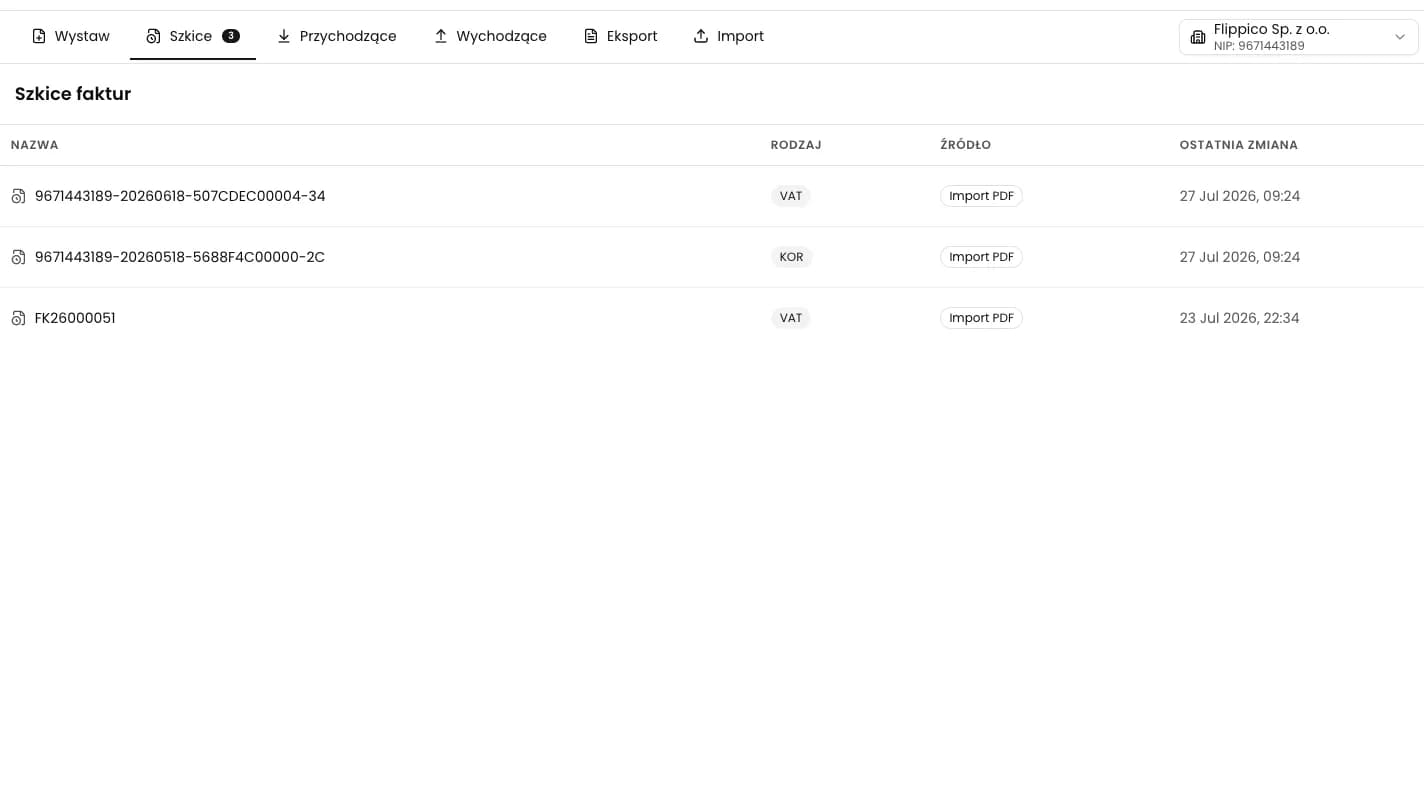
After a file has been processed successfully, KSeFGPT does not leave the result in a temporary converter window. The application creates a separate invoice draft and saves it in Drafts. The PDF import source distinguishes it from a draft created manually, by automation or from an email.
The draft contains data reconstructed from the generated XML. It can be opened in the editor and checked in the same way as an invoice prepared directly in KSeFGPT.
Name: the draft keeps its connection to the uploaded PDF filename.
Source: the PDF import label shows how the document was created.
Next action: the draft can be opened, corrected and prepared for submission after its data has been reviewed.
If you only need to check one document outside the full application, you can still use the free PDF to KSeF XML converter. The in-app queue is designed for regular work with more invoices and keeps every completed result organised in Drafts.
| Element | Meaning |
|---|---|
| Invoice draft | A document ready for review and further editing. |
| PDF import | Indicates that the draft was created from an extracted PDF file. |
| Prepared XML | The basis for preview and further processing after the data has been checked. |
The key limit of automation
Processing multiple files reduces repetitive work, but it should not remove human review. A PDF may be a scan, use an unusual layout or contain data that is difficult to recognise reliably. Compare each draft with its source document before continuing.
Pay particular attention to counterparty details, the Polish tax identification number NIP, dates, invoice numbers, line items, VAT rates and totals. A separate guide covers the most common PDF-to-XML conversion errors and explains what to verify before submission.
A completed draft means that KSeFGPT has processed the document and prepared it for further work. It does not mean that the invoice has been submitted to or accepted by KSeF. The queue automates the most repetitive part of the process while leaving the submission decision with the user.
Frequently asked questions
Can I add several PDF invoices to the queue?
Yes. In KSeFGPT, you can add another PDF invoice without waiting for the previous document to be processed. The current interface accepts files individually, and each upload creates a separate task in the queue.
Where do invoices extracted from PDF appear?
Each successfully processed document appears in Drafts as a separate invoice draft with PDF import shown as its source. You can open it later, review the extracted data and make corrections before continuing.
Does KSeFGPT automatically submit the processed PDF to KSeF?
No. Completing the extraction creates a draft with invoice data and prepared XML, but it does not submit the invoice to Poland's National e-Invoice System, KSeF. Open the draft and verify the extracted data before submission.
Recommended reading
To learn more about PDF invoices and KSeFGPT, continue with:
Free PDF to KSeF XML converter
Add PDF invoices to the queue
Send consecutive documents for extraction and review each completed result in Drafts before continuing.
Open KSeFGPTExpert reviewed: Bogdan Mazurek
Tax adviser · July 27, 2026
The article was reviewed to preserve the distinction between a draft prepared from a PDF and an invoice submitted to and accepted by KSeF.