7 PDF-to-XML KSeF Conversion Errors
Learn the most common errors when converting a PDF invoice to FA(3) XML, their effects in KSeF and how to catch them before submission.
Summary
KSeF does not accept a standard PDF file as a structured invoice. Submission requires a correct XML file that complies with the FA(3) structure, while a PDF can only serve as a data source or a document visualisation.
The most common PDF-to-KSeF-XML conversion errors result from incomplete data extraction, incorrect recognition of NIP numbers, dates, VAT rates and control totals, and missing fields required by FA(3).
A sound conversion process should combine extraction from the PDF, mapping to FA(3) fields, technical XML validation and a business review before submission to KSeF.
This article is not a ranking of converters. It is a list of errors and control tests worth performing after conversion, before the document enters accounting software or KSeF.
Why PDF-to-KSeF-XML conversion errors are costly
PDF-to-KSeF-XML conversion errors are a practical problem, not merely a technical one. A PDF looks like an invoice, but KSeF works with structured data stored in XML. If data from the PDF is read incorrectly or assigned to the wrong FA(3) fields, the system may reject the document or the company may submit an invoice with incorrect content.
According to official KSeF materials, a structured invoice is an XML file that complies with the published logical structure for the Polish e-Invoice. FA(3) has been the applicable structure since February 1, 2026. The document's appearance is not enough. The XML must contain the required fields, correct data types and consistent values.
The most costly consequences include rejection during technical validation, the need to prepare the invoice again, delayed submission to KSeF, incorrect business-partner data, inconsistent net, VAT and gross amounts, and more difficult accounting review.
If you are still choosing a tool for converting PDF to XML, start with the guide to a free PDF-to-KSeF-XML converter, then return to this error list as a practical control checklist.
Table of contents
1. What KSeF expects from an XML file
2. Treating a PDF as a KSeF invoice
3. Not comparing the conversion result with the PDF
4. Incorrectly identified business partner
5. Incorrectly mapped VAT rates and line items
6. Dates placed in the wrong fields
7. Inconsistent currency and totals
8. No XML validation before submission
9. How to diagnose a conversion result
Key takeaways
The table below shows which problems occur most often when converting PDF to KSeF XML and how to reduce them before submitting the document.
| Point | Details |
|---|---|
| A PDF is not a structured invoice | KSeF requires XML that complies with FA(3). A PDF can only be a data source or a visualisation. |
| Data extracted from PDF needs review | OCR and AI can confuse a NIP, date, invoice number, currency or line item, so the result must be validated. |
| Mapping to FA(3) is critical | Correct PDF data must enter the right XML fields, otherwise the file may be rejected or contain an accounting error. |
| Totals must be consistent | Net, VAT and gross amounts should agree at line-item, tax-rate and invoice-summary level. |
| Validation before submission reduces rework | The safest process is conversion, XML validation, business review and only then submission to KSeF. |
What KSeF expects from an XML file
KSeF accepts structured invoices as XML files that comply with the current Polish e-Invoice logical structure. In practice, this means that a document must meet two conditions: it must be technically compliant with the structure and contain business data that is correct for the transaction.
This distinction matters because an invoice may look correct as a PDF but contain missing data or incorrect mapping after conversion to XML. Problems are especially common with scanned PDFs, invoices with unusual table layouts, multiple VAT rates, discounts, advance payments and line items with long descriptions.
Fields to check: invoice number, issue date, supply date, seller's and buyer's NIP, addresses, country codes, currency, VAT rates, net values, VAT values, gross values, markings required for the specific case, and completeness of the invoice line items.
If you are unsure how XML differs from an invoice preview, also read XML and the FA(3) format in KSeF. This distinction explains why PDF conversion cannot consist of copying text alone.
| Element | What can go wrong during conversion |
|---|---|
| The data may not be easy for a machine to read, especially when the document is a scan. | |
| FA(3) XML | Data must be placed in the correct fields and use data types allowed by the logical structure. |
| Technical validation | It detects some structural errors, but does not always assess the invoice's business meaning. |
| Accounting review | It can identify errors in the business partner, VAT rate, service description or settlement. |
Treating a PDF as a KSeF invoice
The first error is assuming that a company can submit an invoice directly to KSeF because it has the PDF. This does not work. A PDF is not a structured invoice for KSeF purposes. The system receives XML, while the PDF can only be a source document, a working attachment or a visual preview of the data.
The symptom is simple: the process ends with a PDF file and the company has no FA(3)-compliant XML file, KSeF number or UPO, the official acknowledgement of receipt. This is not a converter error, but a process-design error.
How to reduce the risk: do not submit a PDF to KSeF as the final invoice, always generate XML, retain the validation result and clearly separate conversion from formal submission to KSeF.
| Situation | Risk | Control |
|---|---|---|
| The company has only a PDF | There is no structured invoice in KSeF. | Generate FA(3) XML before planning the submission. |
| The PDF is treated as the final document | The process confuses a visualisation with a structured invoice. | Establish where FA(3) XML is created and who validates it. |
| No KSeF number or UPO | There is no confirmation that the system accepted the invoice. | Check the status after submitting XML, not after creating a PDF. |
Not comparing the conversion result with the PDF
The second error is trusting the conversion result automatically. A tool may recognise text correctly but assign it to the wrong fields. For example, a bank account number may be read as part of a description, the supply date as the issue date, or the buyer's NIP as the seller's NIP.
This error often does not appear as a red validator message. The XML can be technically correct but wrong from a business perspective because it contains data from the wrong part of the invoice.
A practical test: select 20 typical PDF invoices from the previous month, convert them to XML, manually check the identifiers and amounts, then record which fields most often need correction. This test will show whether the source of the problem is PDF quality, the invoice template or data mapping.
| Field to compare | What can go wrong | How to check |
|---|---|---|
| Invoice number | The converter selects the order or payment number. | Compare the label in the PDF with the XML field. |
| Dates | The first detected date is placed in the wrong field. | Check the issue date, supply date and due date separately. |
| NIP numbers | The seller's and buyer's NIP numbers are assigned to the opposite roles. | Compare the seller and buyer sections with the PDF. |
| Line items | A description or amount from one item is moved to the next. | Check the number of items and totals for every VAT rate. |
Incorrectly identified business partner
The third common error concerns business-partner data. In PDFs containing several identification numbers, a tool may confuse the seller's NIP, the buyer's NIP, an order number or a bank account number. Such an error matters more in XML than in a standard preview because each value enters a specific field in the structure.
The problem is most visible in documents with several address blocks: seller, buyer, recipient, payer, branch or bank details. The converter may read the text correctly but assign the wrong role to it.
If a company receives many supplier invoices and wants to organise their data, the guide to building a business-partner database from KSeF invoices may help, because an incorrectly identified partner quickly becomes a recurring problem.
| Business-partner data | Typical problem | Control before submission |
|---|---|---|
| NIP | A number from the wrong section of the PDF is recognised. | Compare the NIP with the seller and buyer roles. |
| Business-partner name | The name is shortened or incomplete after extraction from the PDF. | Check it against the business-partner master data. |
| Country code | The converter omits the country for a foreign business partner. | Verify the country, tax identifier and address. |
| Bank account | The account number is confused with a business-partner identifier. | Do not use the bank account as confirmation of the NIP or name. |
Incorrectly mapped VAT rates and line items
The fourth error concerns VAT rates and invoice line items. Problems arise when one invoice contains several rates, exempt items, historical reverse-charge descriptions in old document templates, discounts and rounding. Conversion may read the values correctly but assign them to the wrong rate or line item.
The symptom is a difference between the line-item table and the invoice summary. A person can see in the PDF that an item belongs to a rate of 23%, 8%, 0% or an exemption, but the conversion may place the amount in another group.
What to check first: the number of line items, VAT rate for each item, net total for each rate, total VAT amount, discounts, advance payments and items with fractional quantities.
| Element | Typical problem | Control before submission |
|---|---|---|
| VAT rates | A line item is assigned to the wrong rate or summary group. | Compare rates on individual items with the summary table. |
| Discounts | A discount is recognised as a separate item or omitted. | Check the value after discount and the net total. |
| Advance payments | An advance payment is treated like a standard line item. | Check whether the advance-payment settlement has the correct context. |
| Long descriptions | An item description is truncated or joined to the next row. | Compare the number of items and their descriptions with the PDF. |
Dates placed in the wrong fields
The fifth error is confusing dates. An invoice may contain an issue date, supply date, service date, due date, order date and delivery date. The PDF is readable to a person, but a converter may select the first date it finds and assign it to the wrong field.
The riskiest situation is an XML file containing a date in the correct format, but not the date expected by accounting. A technical validator may not detect that the payment due date was used as the issue date.
A good tool should show dates in the preview and allow them to be compared with the labels in the PDF. For foreign invoices, also check day-month-year and month-day-year formats.
| Date | Conversion risk | Example control |
|---|---|---|
| Issue date | The converter selects the due date instead of the issue date. | Compare the date label in the PDF with the XML field. |
| Supply date | The date is missing or replaced with the delivery date. | Check whether the date matches the transaction. |
| Due date | The due date enters a transaction-date field. | Separate the accounting date from payment information. |
| Delivery date | A date from a logistics document is used as the supply date. | Check whether the PDF contains several dates near the line-item table. |
Inconsistent currency and totals
The sixth error is inconsistent amounts. The most common causes are rounding, different currencies, discounts, items with fractional quantities, one-grosz differences between the sum of line items and the summary, and incorrect recognition of the decimal separator.
In XML, these discrepancies can prevent correct validation or require accounting clarification. Some errors become visible only when totals are compared by VAT rate, not merely when the gross amount at the bottom of the invoice is checked.
Amount checklist: check the currency, decimal separator, number of decimal places, net sum of the line items, VAT total by rate, gross amount, discounts, advance payments and consistency between the summary and line items.
| Field | Conversion risk | Example control |
|---|---|---|
| Currency | PLN is applied by default even though the invoice is in EUR. | Compare the currency symbol on line items and in the summary. |
| Decimal separator | 1,234.56 is read as 1.234,56 or the other way around. | Check amount formatting on foreign invoices. |
| Line-item amounts | The sum of the items does not agree with the summary. | Recalculate net, VAT and gross by tax rate. |
| Rounding | A difference of one grosz prevents the result from being accepted. | Compare the rounding rule for line items and the summary. |
No XML validation before submission
The seventh error is the easiest to avoid: submitting XML without validation. PDF-to-XML conversion is only one stage in document preparation. Before submission, the file should undergo technical validation and a business review of its core data.
Technical validation checks compliance with the structure, field types and format requirements. A business review answers a different question: do the data in the file make sense for this transaction? Both stages are needed because syntactically correct XML may still contain the wrong business partner or an incorrect date.
Minimum process before submission: generate XML, run validation, review error messages, compare the data with the PDF, correct the source of the problem, generate XML again and only then submit the document to KSeF.
To understand the difference between XML validation and data processing, also read XML validation and processing in KSeF.
| Stage | What it detects | What it does not replace |
|---|---|---|
| Conversion | Transfers data from PDF to XML. | It does not guarantee tax or accounting correctness. |
| Technical validation | Structural errors, incorrect data types and missing required fields. | It does not confirm that the business partner or service description is correct. |
| Business review | Errors in transaction content, dates, NIP numbers and amounts. | It does not replace technical compliance with the structure. |
| Submission to KSeF | Sends the prepared document to the system. | It should not be the first quality test for the XML file. |
Validate XML before submission
After converting the PDF, run the KSeF XML validator and check whether the file passes structural and basic data validation.
Open the XML validatorHow to diagnose a conversion result
The best diagnosis starts with the symptom, not a guess about the cause. If the validator reports a structural error, first check missing fields and formats. If the XML passes validation but the data do not match the PDF, the issue usually lies in extraction or mapping.
It is useful to separate three types of problem: an error extracting data from the PDF, an error mapping data to FA(3) fields and a business error in the invoice. Each requires a different response. Correct an extraction error in the source data or preview. A mapping error requires a rule or tool correction. A business error requires an accounting decision.
For higher volumes, record the reason for every manual correction. After several dozen documents, you will see whether the problem recurs for one supplier, one type of PDF, one currency or invoices with multiple VAT rates.
| Symptom | Likely cause | Next step |
|---|---|---|
| Structural validation error | A missing field, incorrect data type or non-compliant format. | Review the validator message and correct the XML or input data. |
| NIP does not match the PDF | A number was extracted from the wrong section of the document. | Compare seller and buyer roles, then correct the master data or conversion result. |
| Line items have different totals | A discount, rounding rule or decimal separator was recognised incorrectly. | Recalculate the line items by VAT rate and compare them with the PDF summary. |
| Default currency is used | The converter did not read the currency code from the document. | Check the symbol near line items, the summary and payment terms. |
| XML is valid but the invoice looks suspicious | Technical validation did not assess the business meaning of the transaction. | Send the document for accounting review before submission. |
How KSeFGPT helps reduce errors
KSeFGPT is a private tool that supports work with invoices and KSeF files. It is not a government service and does not replace an accounting decision, but it can organise the conversion and data-control process before submission.
In a practical process, a user can move from a PDF document to structured data, check the conversion result, validate the XML and only then prepare the invoice for further processing. This reduces the risk that the first error is discovered only at the end of the process.
What to measure in an internal test: how many invoices pass conversion without corrections, which fields most often require manual review, how long error correction takes, and whether a problem concerns one supplier or many different PDF templates.
KSeFGPT provides a PDF-to-XML converter and an XML validator. The public tools require an email address before the result can be downloaded, and they share a free limit of 2 uses within 24 hours.
| Function | How it helps with PDF-to-XML errors |
|---|---|
| PDF-to-XML conversion | Helps transfer PDF invoice data to a structure that can undergo further checks. |
| XML validation | Helps detect some technical problems before submission to KSeF. |
| Data preview | Makes it easier to compare fields with the invoice and find obvious mistakes quickly. |
| Analysis of recurring problems | Helps establish which PDF templates or suppliers generate the most corrections. |
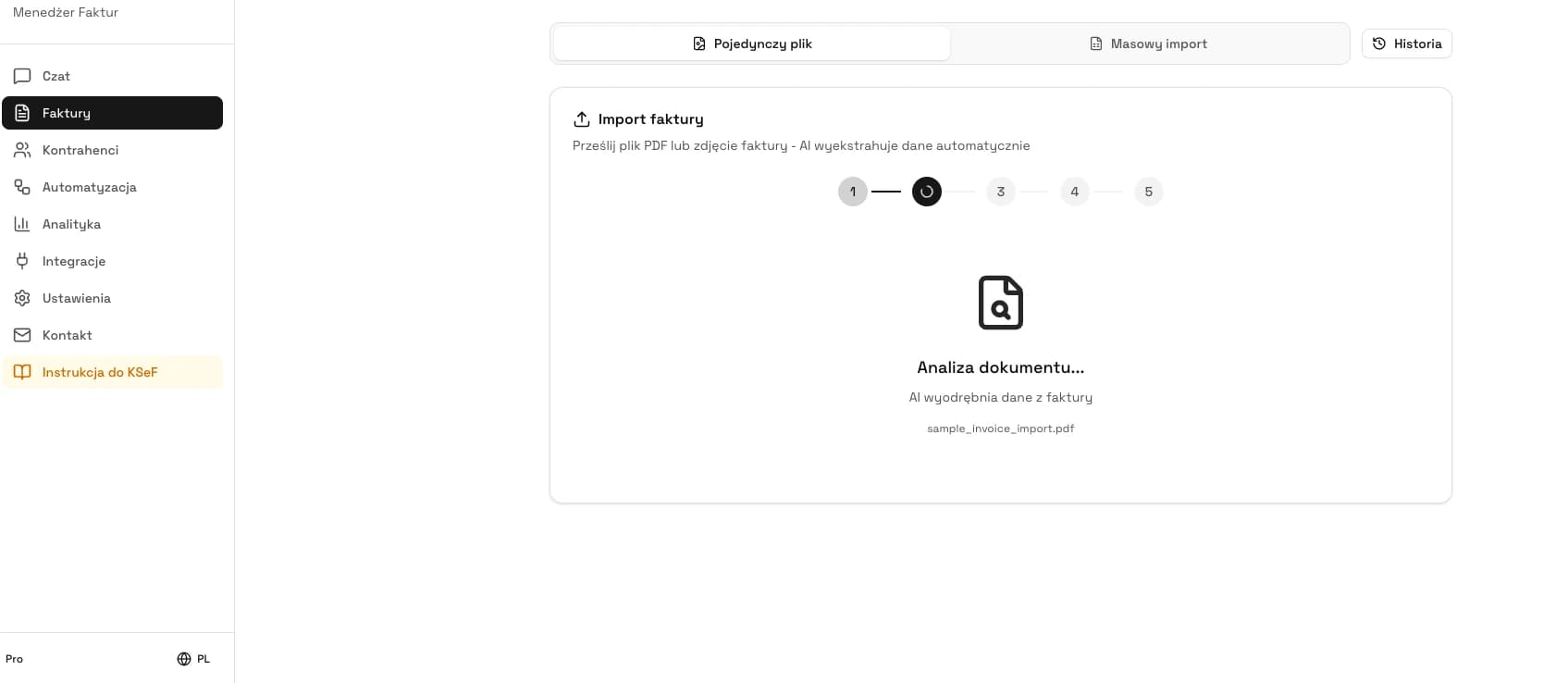
Test PDF-to-XML conversion on your invoices
Upload a PDF invoice, review the recognised data and download the XML file. Check the data and validate the file before submitting it to KSeF.
Open the PDF-to-XML converterExpert perspective
The biggest PDF-to-XML conversion mistake is treating it as a technical operation with no impact on accounting. In practice, conversion determines which data will be stored in the structured invoice.
Companies should pay particular attention to invoices from suppliers that use unusual PDF layouts, scans instead of text PDFs or multilingual documents. These invoices may look correct to a person but be difficult for an automated tool to interpret unambiguously.
The safest model combines automation with exception review. Repetitive, straightforward invoices can be processed more quickly, but documents with multiple VAT rates, corrections, advance payments or a foreign currency should receive a more detailed review.
A conversion rollout should begin by measuring errors on a small sample. Only after this test can a company decide which invoices are suitable for automation and which still require manual approval.
Frequently asked questions
Can a PDF be sent directly to KSeF?
No. Poland's National e-Invoice System, KSeF, accepts a structured invoice as an XML file that complies with the FA(3) logical structure. A PDF can be a data source or a visualisation, but it does not replace XML.
Does a correct-looking PDF guarantee correct XML?
No. A PDF can look correct while the conversion places data in the wrong XML fields. Technical validation and a business review are therefore both necessary.
Which fields most often cause problems when converting PDF to KSeF XML?
The fields that most often require checking are the seller's and buyer's Polish tax identification numbers (NIP), dates, invoice number, currency, VAT rates, net, VAT and gross amounts, and the number of invoice line items.
Is XML validation enough before submission to KSeF?
A validator helps detect technical errors, but it does not replace an accounting review. A file can be technically correct while containing the wrong business partner, an incorrect date or a mistaken amount.
Recommended reading
Reduce errors before submitting an invoice to KSeF
Test PDF-to-XML conversion, review the invoice data and catch problems before the document reaches KSeF.
Try PDF to XMLSources
This article is based on official materials from the Polish Ministry of Finance and the KSeF API 2.0 documentation, as verified on June 21, 2026.
- Structured invoice and the FA logical structure
Polish Ministry of Finance · accessed: June 21, 2026
Official information about the XML format of a structured invoice and the applicable FA(3) logical structure.
- FA(3) logical structure
Polish Ministry of Finance · accessed: June 21, 2026
The target FA(3) logical structure, documentation and sample files published for KSeF 2.0.
- KSeF 2.0 downloads
Polish Ministry of Finance · accessed: June 21, 2026
KSeF 2.0 manuals and materials for issuing and receiving invoices in KSeF.
- KSeF API 2.0
Polish Ministry of Finance · accessed: June 21, 2026
Technical documentation for KSeF API 2.0, including the current API version and production-environment information.
Expert reviewed: Bogdan Mazurek
Tax adviser · June 21, 2026
The article was reviewed for practical risks in PDF-to-FA(3)-XML conversion, the distinction between a PDF and a structured invoice, and a safe control process before submission to KSeF.