How to bulk import invoices from Excel or CSV into KSeFGPT
Upload a spreadsheet, review column mapping and invoice data, validate XML, then submit valid documents to KSeF.
- Module
- Invoices
- Reading time
- 6 min
- Difficulty
- Intermediate
Follow the instructions carefully and you will succeed
- Published
- September 3, 2026
- Author
- Rafał Zeidler
- Format
- Written guide and video
Written procedure
What you will do
You will upload one XLSX, XLS, CSV or ODS file containing multiple invoices. KSeFGPT will recognize its columns, prepare individual documents and display their data for review before submission.
After confirming the data, you will start XML validation. You will submit only valid documents to KSeF and then check the result code, batch reference and accepted and rejected counts.
Requirements
Before you start
Prepare a spreadsheet with one invoice per row. Use clear column names and confirm that each invoice has all data required for its type and tax treatment.
| Item | Description |
|---|---|
| Access | The company owner or a user with invoice access and the bulk import feature in the active plan. |
| KSeF connection | The selected company has an active token or certificate that can issue invoices. |
| File | One `.xlsx`, `.xls`, `.csv` or `.ods` file no larger than 50 MB. |
| Required mappings | Invoice number, issue date and gross total. Other fields depend on the document data and XML requirements. |
| Starting point | After signing in, select the correct company and open Invoices > Import > Bulk import. |
| Effect | Invoices accepted by KSeF become issued documents and cannot be freely edited afterwards. |
Process recording
0:21The recording shows a CSV upload, column mapping, review of two invoices, XML validation and the final KSeF submission result.
Upload the invoice spreadsheet
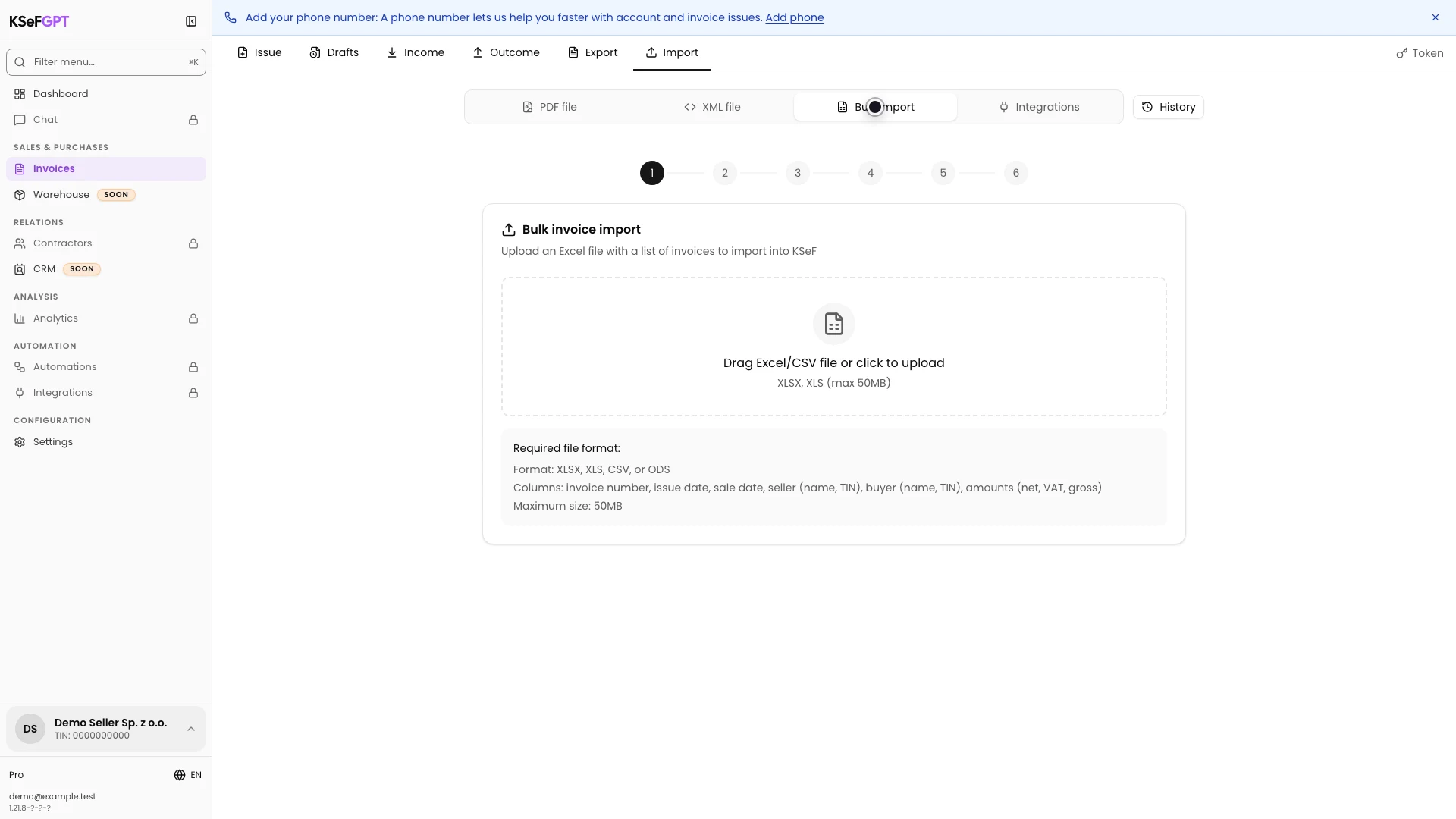
In Invoices, select Import and then Bulk import. Drag the file into the upload area or select it from disk.
You can add one XLSX, XLS, CSV or ODS file no larger than 50 MB. KSeFGPT starts analyzing it as soon as it is selected.
Review column mapping
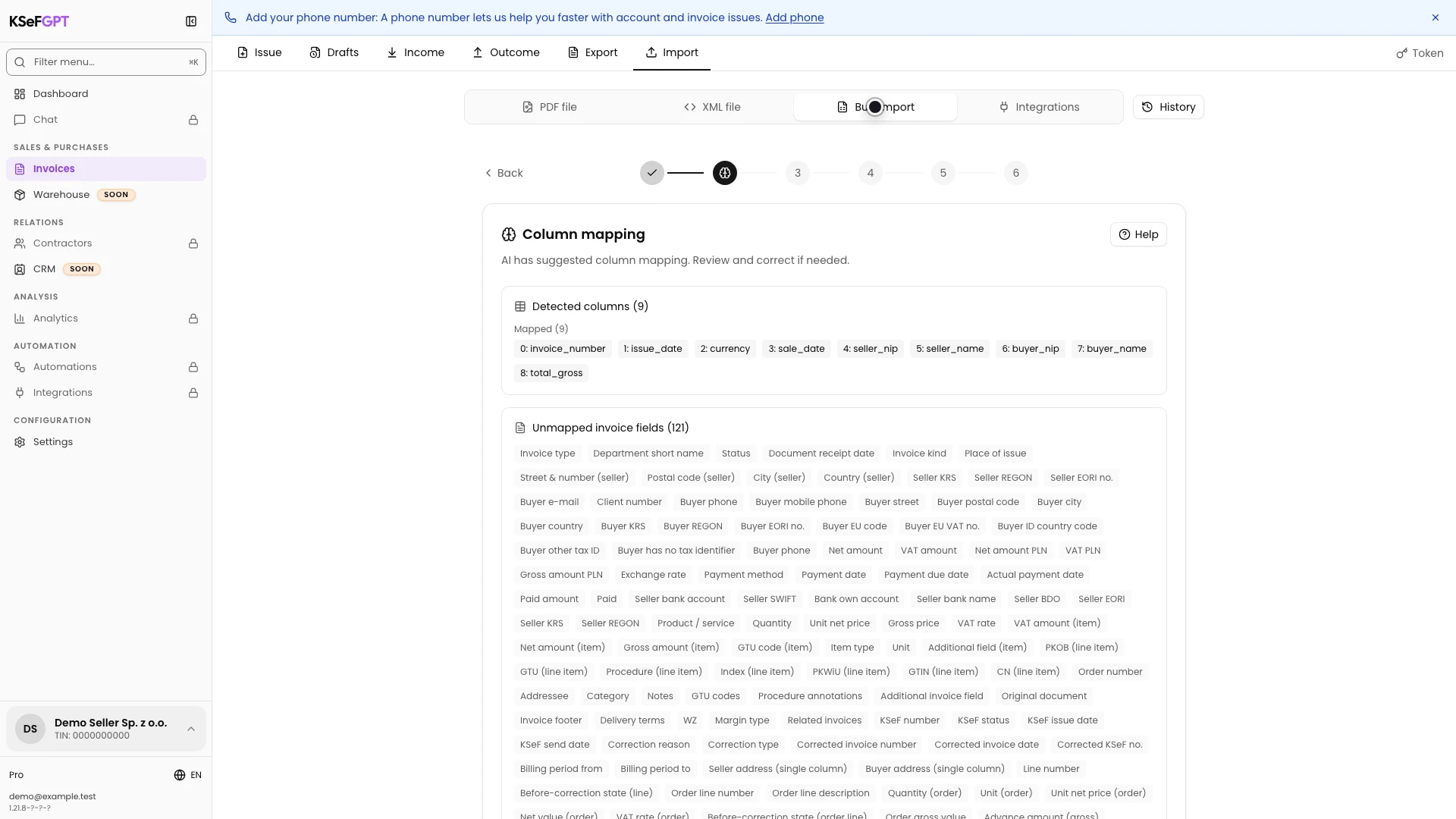
Compare the detected columns with the invoice fields. KSeFGPT suggests mapping automatically, but check the invoice number, issue date and gross total before continuing.
If a column is assigned incorrectly, change its target field. Also map the parties, line items, VAT rates and other data present in the spreadsheet. Then select Next.
Review the invoices
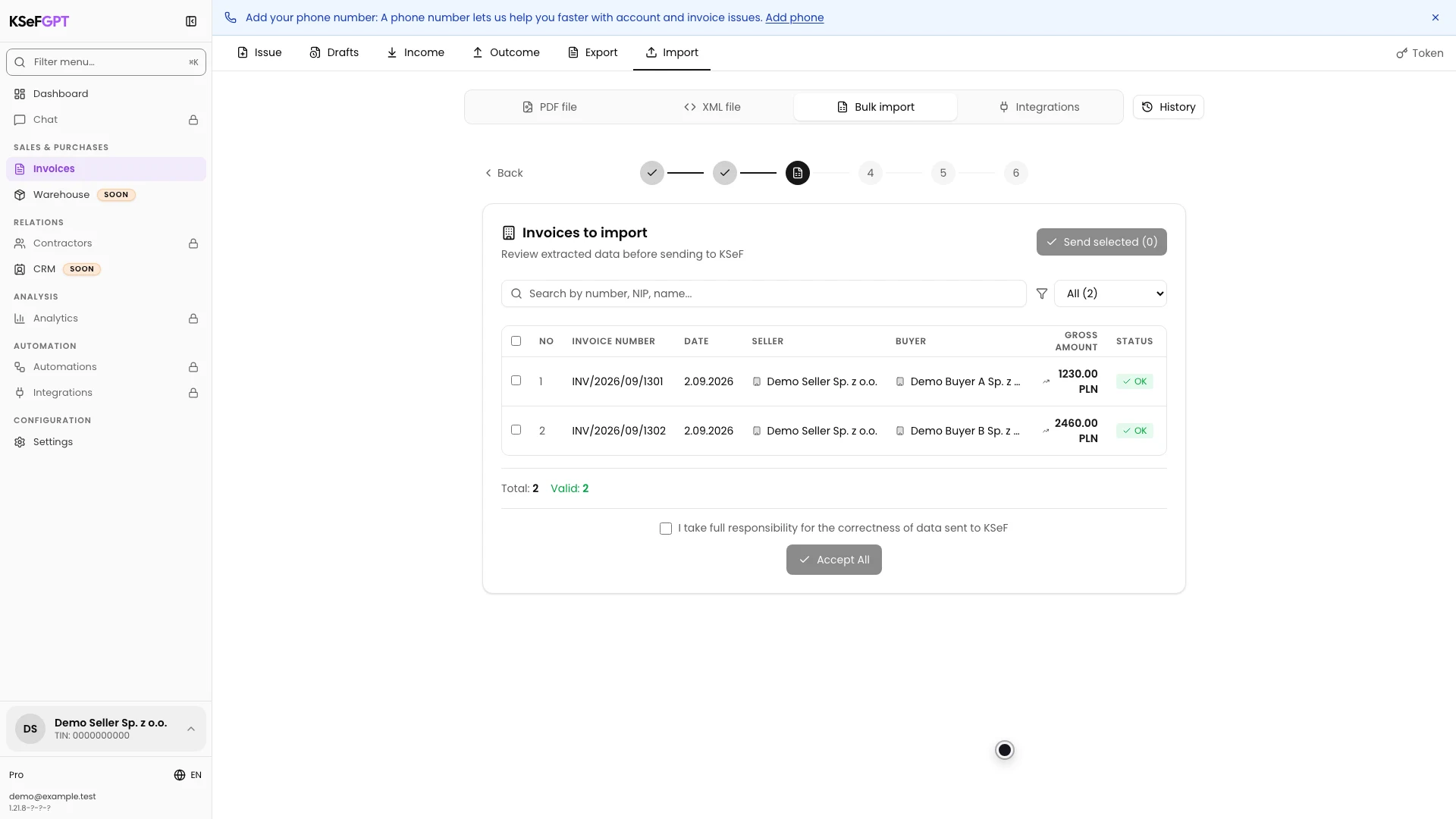
On Invoices to import, compare the item count with the spreadsheet. Check the number, date, seller, buyer, gross total and status of every row.
Open the details when data needs closer review. Correct an invalid row in the source file or skip it so that it does not block valid documents.
Confirm the data for validation
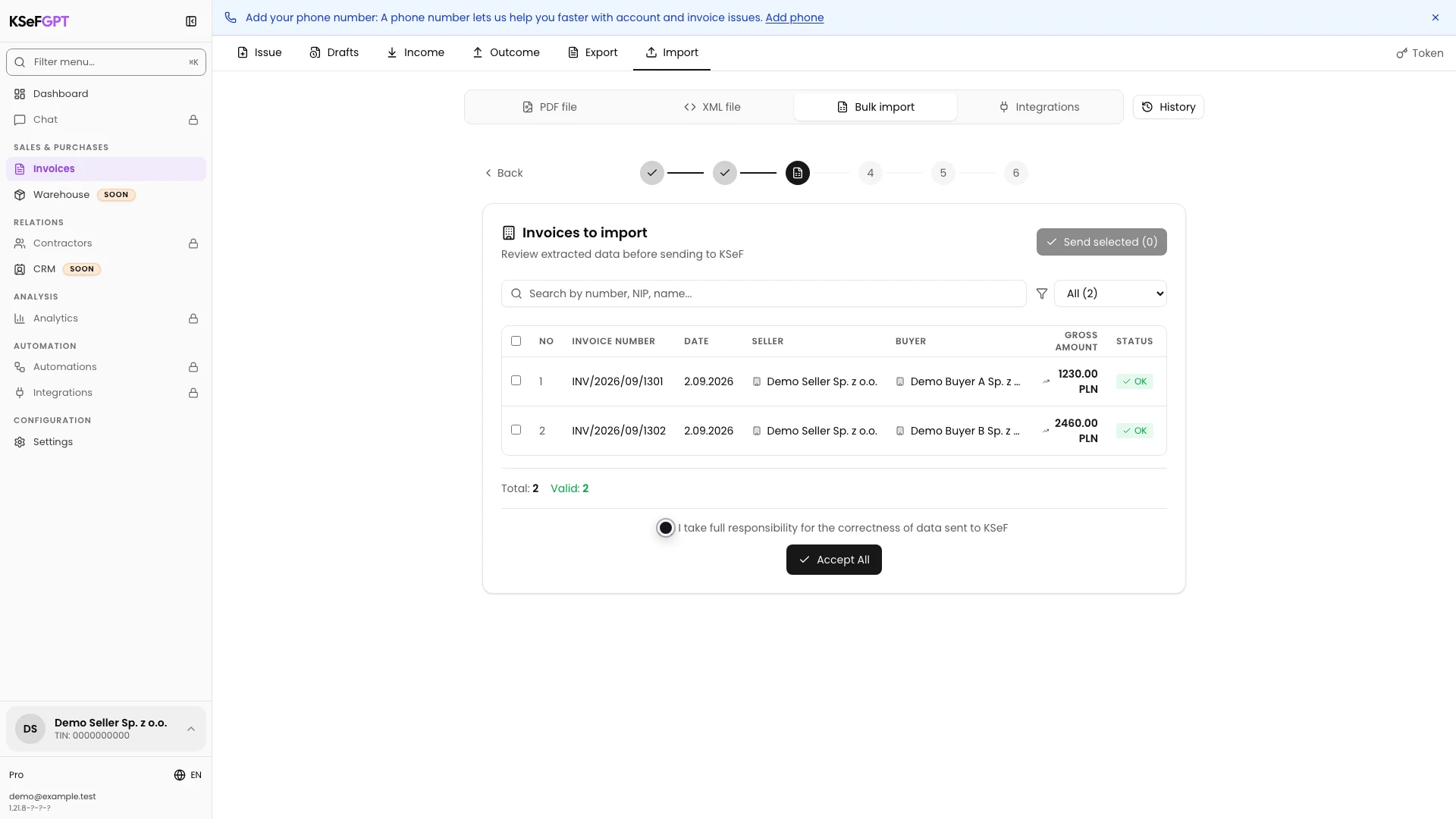
Select the acknowledgement that you are responsible for the accuracy of the data submitted to KSeF. The Accept all button becomes active.
Accept all does not submit invoices to KSeF yet. It starts XML generation and validation for the accepted documents.
Validate XML and submit valid invoices
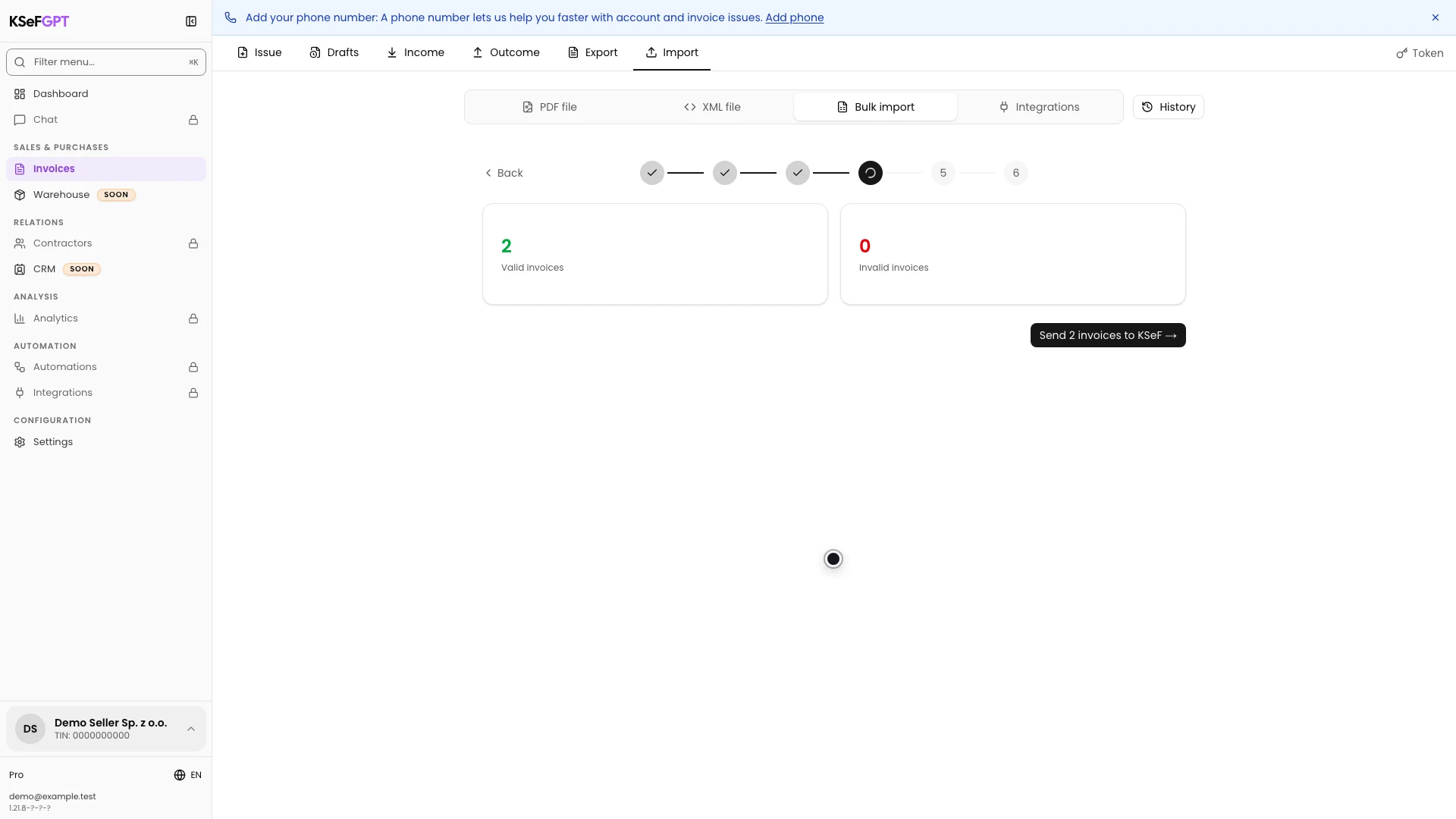
After validation, compare the valid and invalid invoice counts. The submission button states the exact number of documents that will reach KSeF.
If there are errors, do not retry without correcting the source data. When the result is valid, select Send invoices to KSeF and wait for processing to finish.
Check the KSeF result
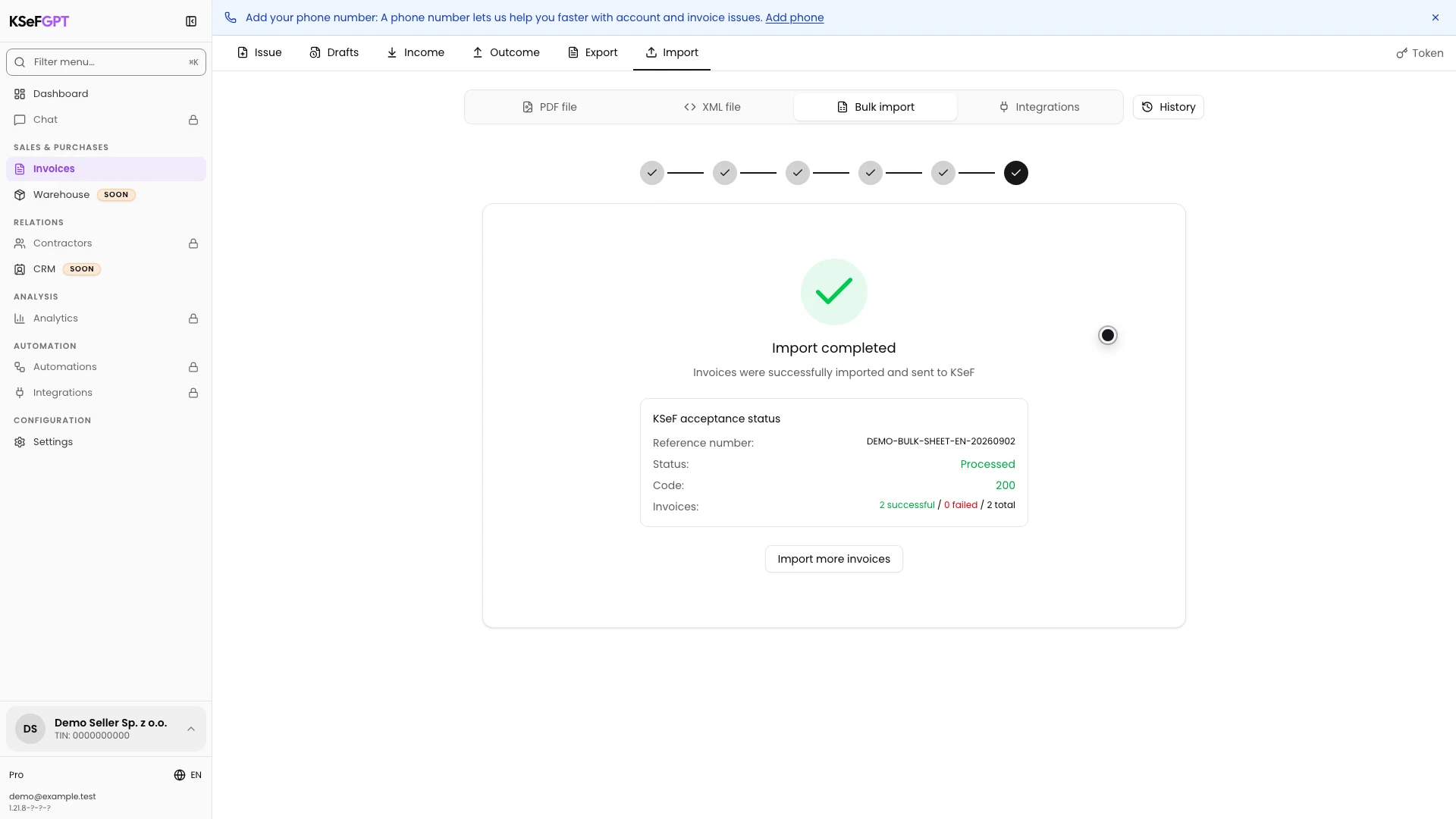
On Import completed, check the reference number, status, code and invoice counts. In a successful run, code 200 and the Processed status confirm completion of the batch.
Make sure that the valid and invalid counts add up to the total. Keep the reference number because it links the result to this particular import during diagnostics.
Final state
Check the result
The procedure is complete when the screen shows the final batch status, response code, reference number and consistent document counts.
If the result is partial or rejected, do not repeat the whole import before reviewing the errors. Correct only documents that were not accepted to avoid duplicates.
Diagnostics
If something does not work
Compare the visible symptom with the table below.
| Symptom | Likely cause | What to do |
|---|---|---|
| The file is not accepted | Its format is unsupported, more than one file was selected or it exceeds 50 MB. | Select one XLSX, XLS, CSV or ODS file no larger than 50 MB. |
| You cannot continue from mapping | Invoice number, issue date or gross total has not been assigned. | Assign all three required fields and review the remaining columns. |
| A row has an error or is missing a tax ID | Party or document data is incomplete or has an invalid format. | Correct the source row and upload it again, or skip this item. |
| Accept all remains inactive | The responsibility acknowledgement has not been selected or there is no valid item. | Review row statuses and select the acknowledgement after checking the data. |
| Validation reports invalid invoices | The generated XML does not meet FA(3) requirements. | Read the error, correct the related spreadsheet data and create the import again. |
| Invoices cannot be submitted | No valid document remains after validation or the KSeF connection is inactive. | Correct the data and check the active token or certificate of the selected company. |
| The result is pending, partial or rejected | KSeF is still processing the batch or rejected some documents. | Do not repeat the whole submission. Keep the reference number and review individual document results. |
What next
Open Invoices > Outcome and check the documents accepted by KSeF. When processing is complete, you can download their XML, PDF or UPO.
Select Import more invoices only when you want to start a new, independent spreadsheet import.
Submit spreadsheet invoices to KSeF
Sign in, select a company and review the mapping and every invoice before submission.
Sign in to KSeFGPT