How to change an invoice payment status in KSeFGPT
Mark an invoice as new, in payment, paid or past due, then confirm the change and filter the document list.
- Module
- Invoices
- Reading time
- 4 min
- Difficulty
- Easy
You could do this with your eyes closed :)
- Published
- August 29, 2026
- Author
- Rafał Zeidler
- Format
- Written guide and video
Written procedure
What you will do
You will change the manual payment status of a selected invoice from New to In payment and then to Paid. Finally, you will use the Payment status filter to verify the saved value on the current list page.
A payment status in KSeFGPT is an organizational label. It does not change the document status in KSeF and is not automatic confirmation of a bank transfer.
Requirements
Before you start
Select the company and KSeF authorization method for which an invoice with a KSeF number is visible. Decide which of the four statuses reflects the actual payment stage.
| Item | Description |
|---|---|
| Access | The company owner or an organization member with the invoices:read scope. |
| KSeF connection | The selected company has an active token or certificate needed to display the invoice list. |
| Document | An invoice in Income or Outcome with an assigned KSeF number. |
| Available statuses | New, In payment, Paid and Past due. |
| Starting point | After signing in, select the correct company and open Invoices → Income. |
| Time required | About 1 minute. |
| Effect | The change saves a supporting status for this invoice and company. You can change it again later. |
Process recording
0:28The recording shows how to select an invoice, change its status from New to In payment and Paid, and verify the result with a filter.
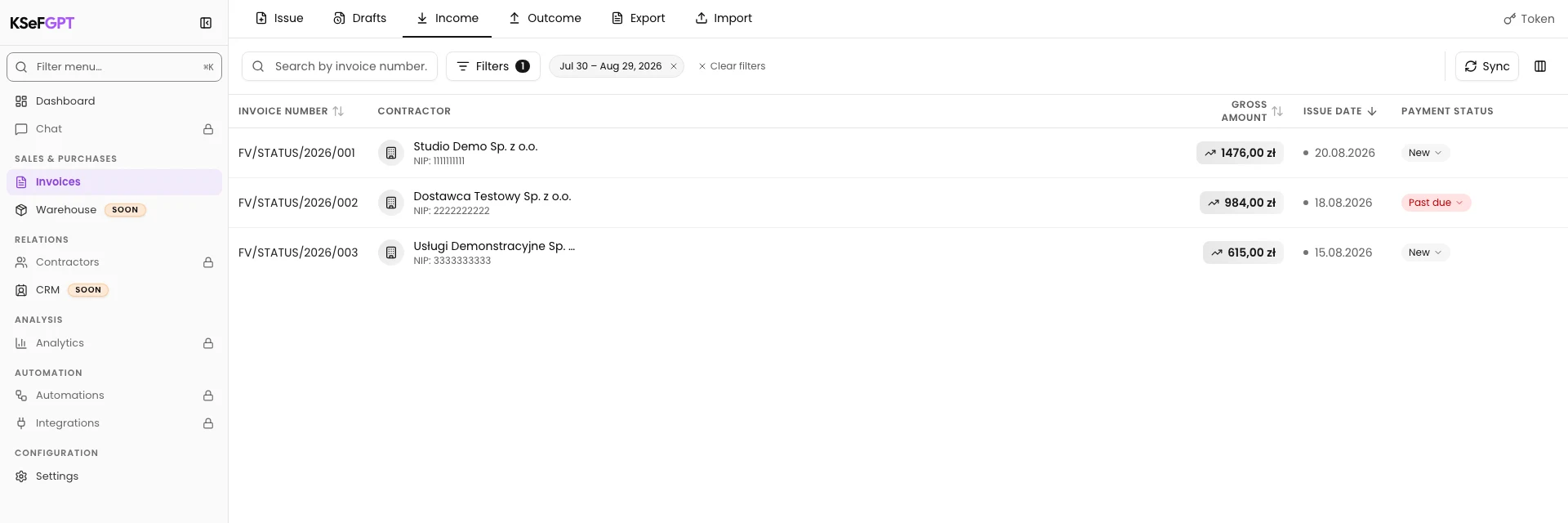
Open the list and find the invoice
In Invoices, open Income or Outcome and find the correct document by invoice number, contractor or KSeF number.
The Payment status column displays the current label. An invoice with a KSeF number receives New as its default status when its status is first loaded.
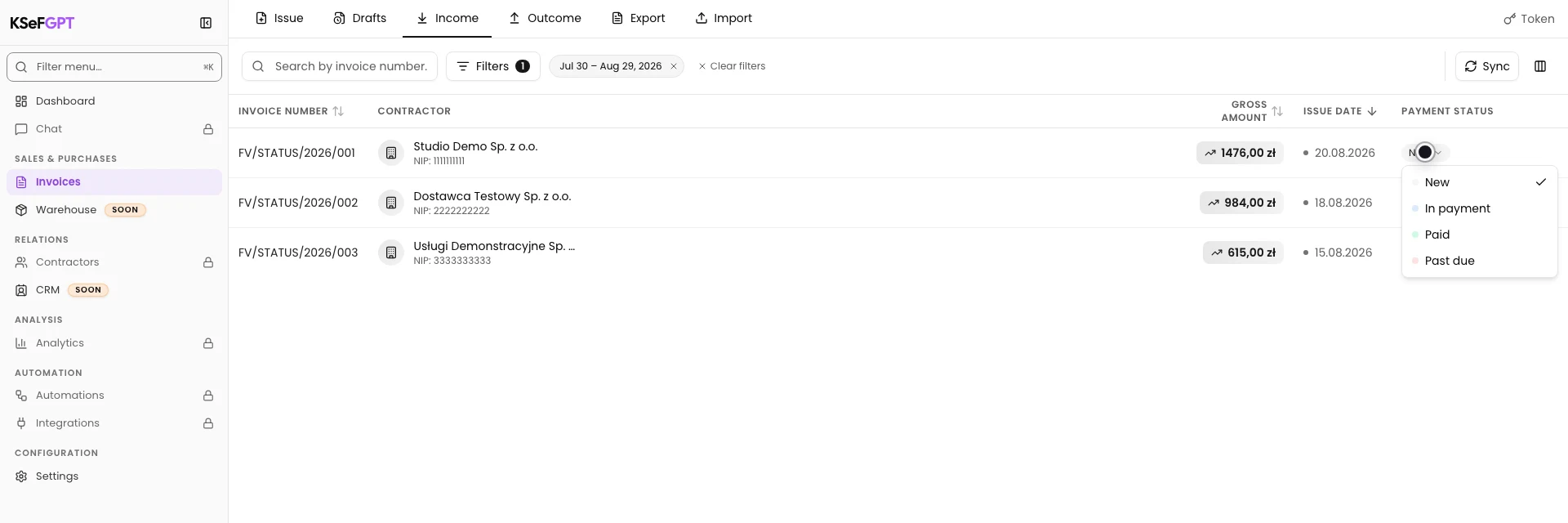
Open the payment status list
Select the status label in the chosen invoice row. The menu lists New, In payment, Paid and Past due in that order.
A check mark identifies the currently saved status. Opening the menu alone does not change any data.
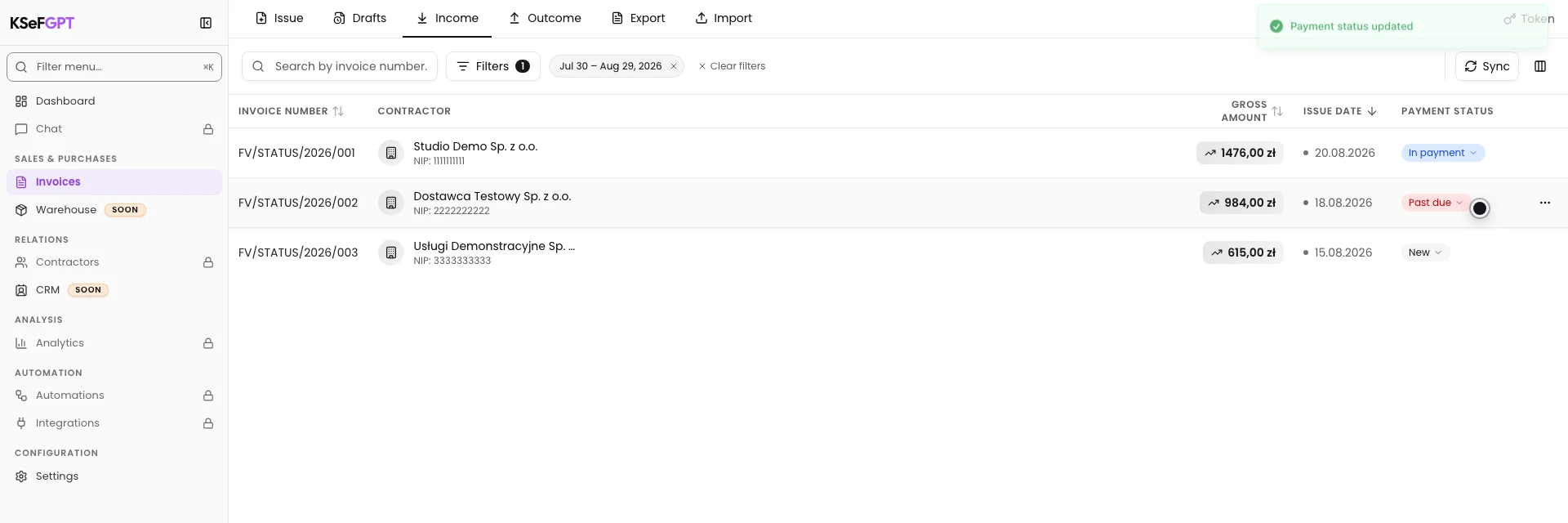
Set In payment
Select In payment. Wait for the Payment status updated message.
The label in the same row changes to the blue In payment status. If an error message appears, do not assume that the change was saved.
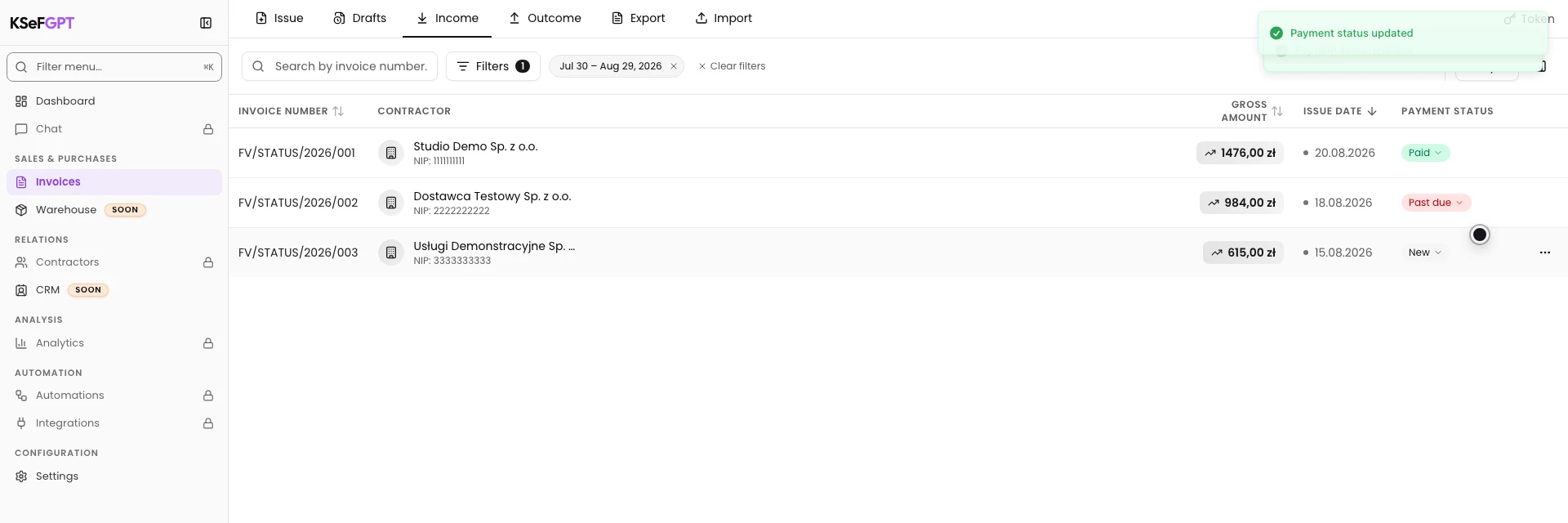
Mark the invoice as paid
Open the status label again and select Paid. You can use the same menu later to return to New or set Past due.
After a successful save, Payment status updated appears and the row receives the green Paid label.
Verify the save with a filter
Select Filters, choose Paid in Payment status and then select Show results. The list keeps documents with that status on the current page.
Confirm the invoice number and the green Paid label. The Filters the current page note means that the filter does not search other KSeF result pages.
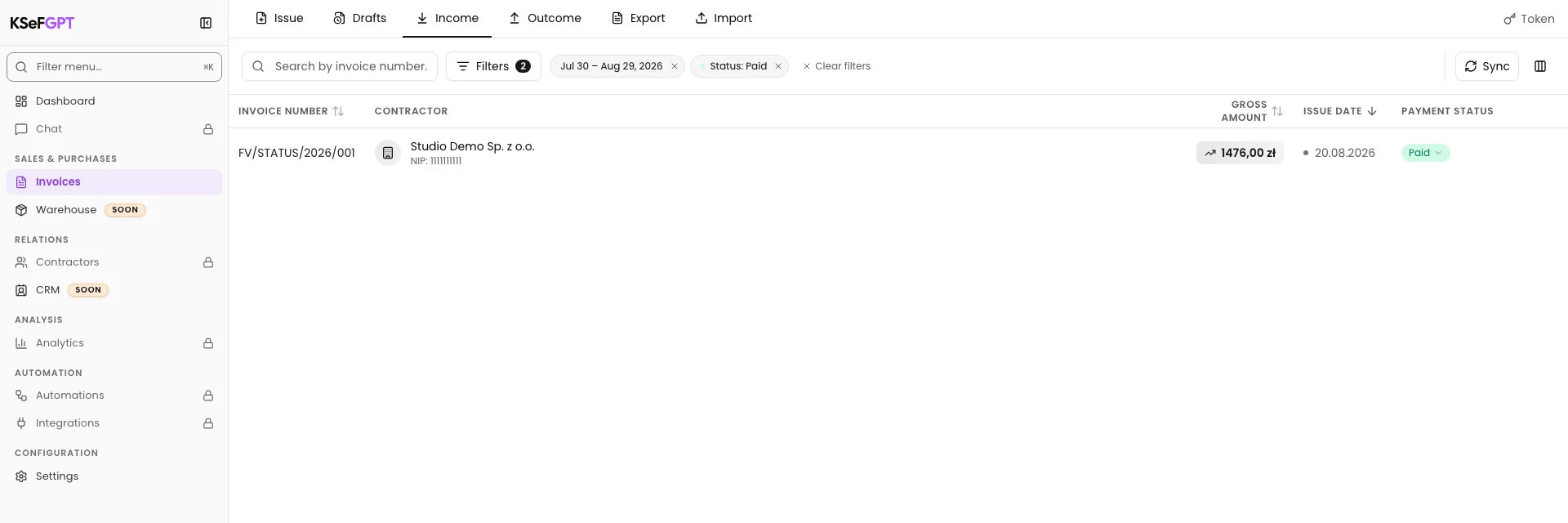
Final state
Check the result
The change is saved when the correct invoice row displays Paid and the status filter keeps the document on the list.
You can clear the filter and open the status menu again. The check mark beside Paid confirms the current value.
Diagnostics
If something does not work
Compare the visible symptom with the table below.
| Symptom | Likely cause | What to do |
|---|---|---|
| The column shows a dash instead of a status | The document has no KSeF number that can identify the saved status. | Choose an invoice with a KSeF number. A document without one has no editable status. |
| A pulsing placeholder appears instead of a status | The app is still loading statuses for the visible page. | Wait for loading to finish. If it does not, refresh the list and check the connection. |
| Failed to update payment status appears | The save request was rejected, company access was lost or the invoices:read scope is missing. | Check the selected company, access and connection. Retry only after fixing the cause. |
| The expected status is missing from Filters | The filter offers statuses present on the current loaded page and values that were already selected. | Clear filters, go to the page containing the invoice and open Filters again. |
| Invoices from other pages are not visible after filtering | Payment status filters only the current list page. | Clear the filter, move to another result page and apply it again. |
What next
Repeat the change after each settlement stage so that the invoice list reflects the current payment state.
If you need the source document, open the accepted invoice details and download its PDF, XML or UPO.
Organize payment statuses
Sign in, select a company and mark the current settlement stage of an invoice.
Sign in to KSeFGPT