How to bulk import XML invoices into KSeFGPT
Add several FA(3) files, correct an invalid document, select valid invoices and check each result from one KSeF session.
- Module
- Invoices
- Reading time
- 6 min
- Difficulty
- Intermediate
Follow the instructions carefully and you will succeed
- Published
- September 1, 2026
- Author
- Rafał Zeidler
- Format
- Written guide and video
Written procedure
What you will do
You will add up to 200 ready FA(3) XML invoices, review the validation result for each file and correct available data without leaving the import. You will then select valid documents and submit them in one KSeF session.
The final table shows a KSeF number or a rejection reason for every invoice. Receipt for processing is not final acceptance. The verdict appears after KSeF responds.
Requirements
Before you start
Prepare one XML file per invoice. Check the selected company and authorization method because every selected document will be submitted on its behalf.
| Item | Description |
|---|---|
| Access | The company owner or an organization member with the invoices:read and invoices:send scopes. |
| KSeF connection | The selected company has an active token or certificate that can issue invoices. |
| Files | From 1 to 200 `.xml` files in the FA(3) format. One file may be up to 5 MB and the whole set up to 40 MB. |
| Starting point | After signing in, select the correct company and open Invoices > Import. |
| Time required | About 5 minutes plus KSeF processing time. |
| Effect | Invoices accepted by KSeF become issued documents and cannot be freely edited afterwards. |
Process recording
0:27The recording shows a multi-file XML upload, validation, correction of one document and final KSeF session results.
Open bulk XML import
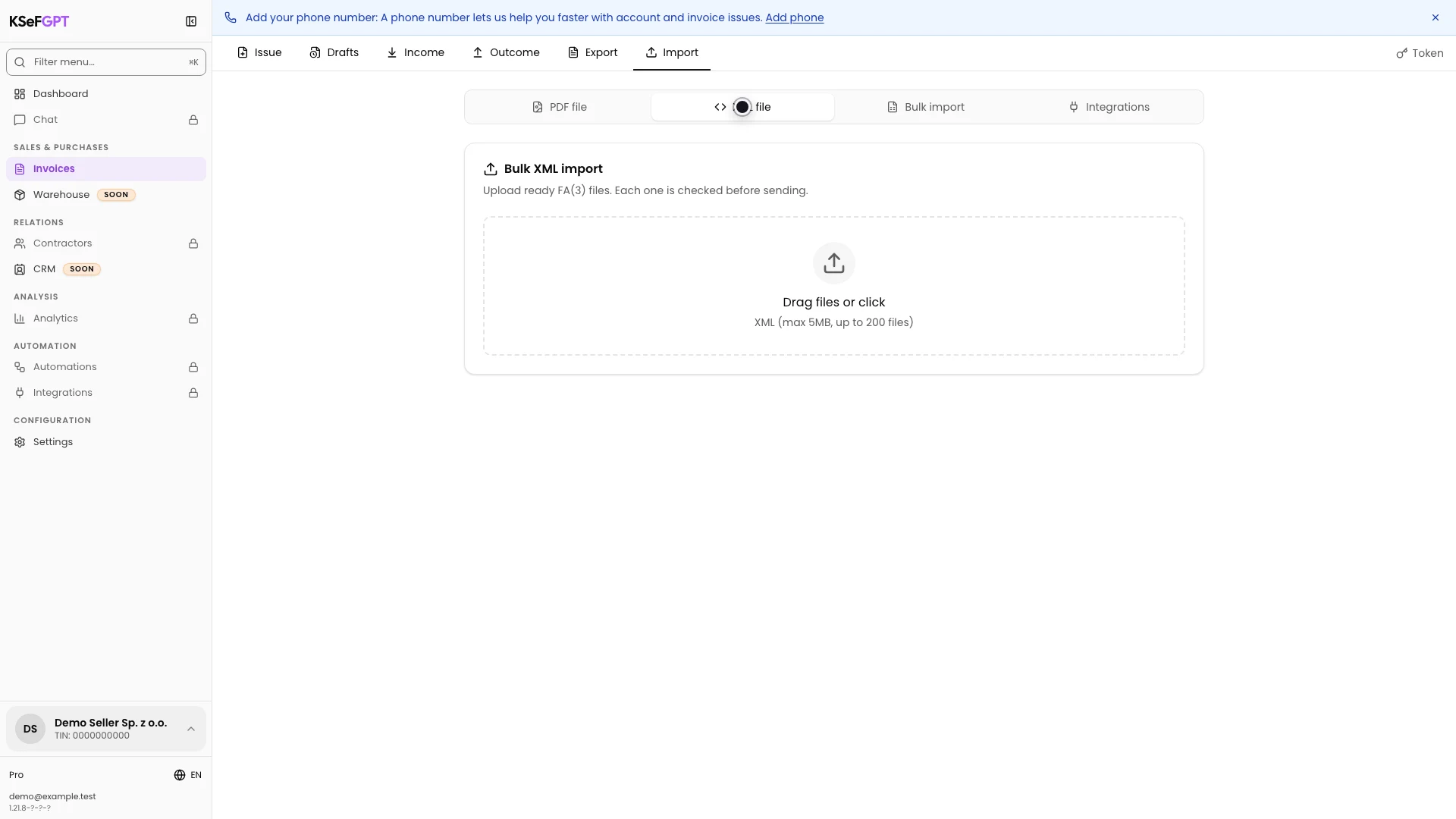
In Invoices, select Import and then XML file. When the feature is active, the card is titled Bulk XML import and accepts multiple files.
If the card still displays the single-file XML flow, bulk XML import is not enabled in this environment.
Add files and review validation
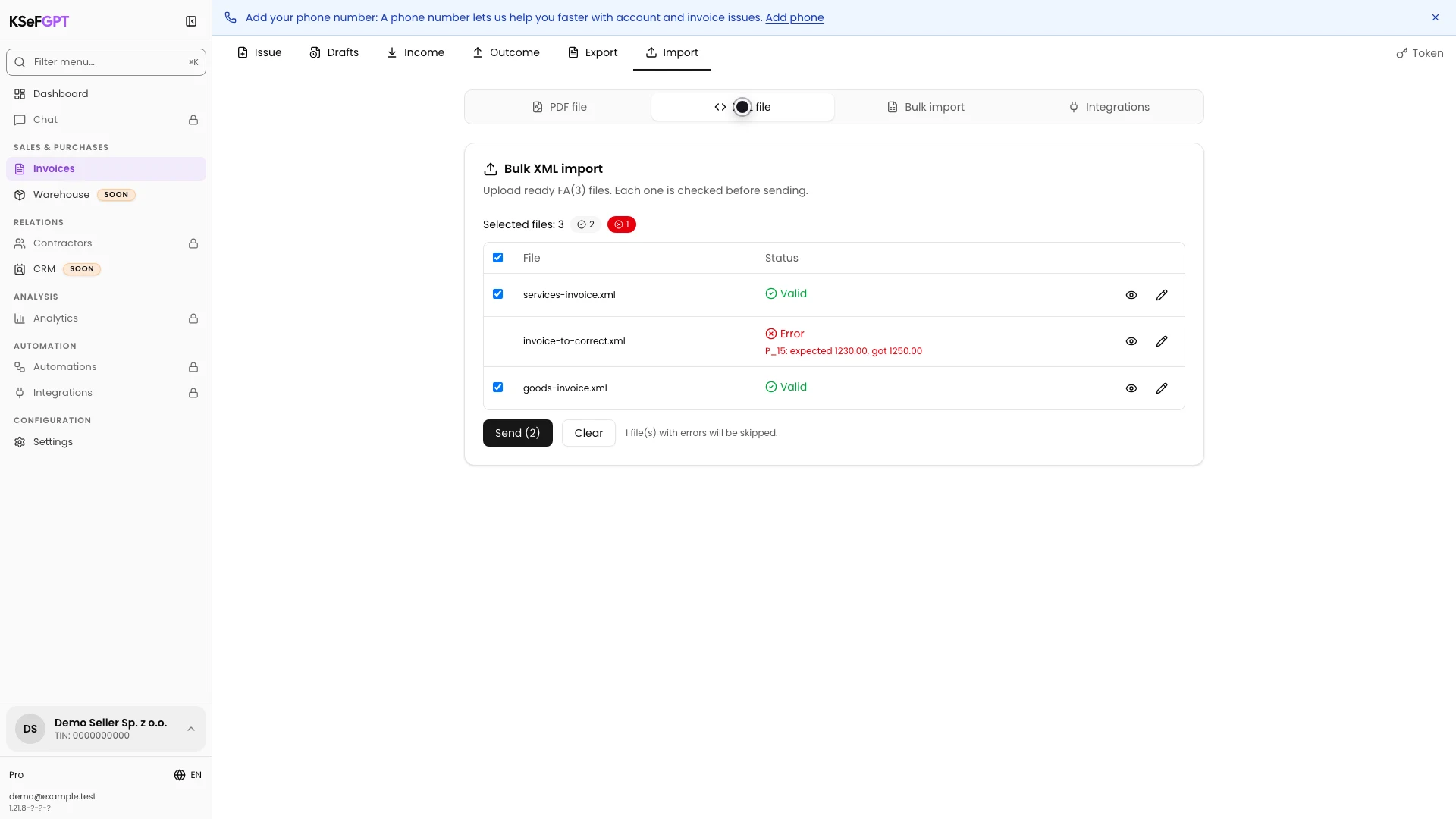
Drag XML files into the upload area or select them from disk. KSeFGPT checks each file separately before opening a KSeF session.
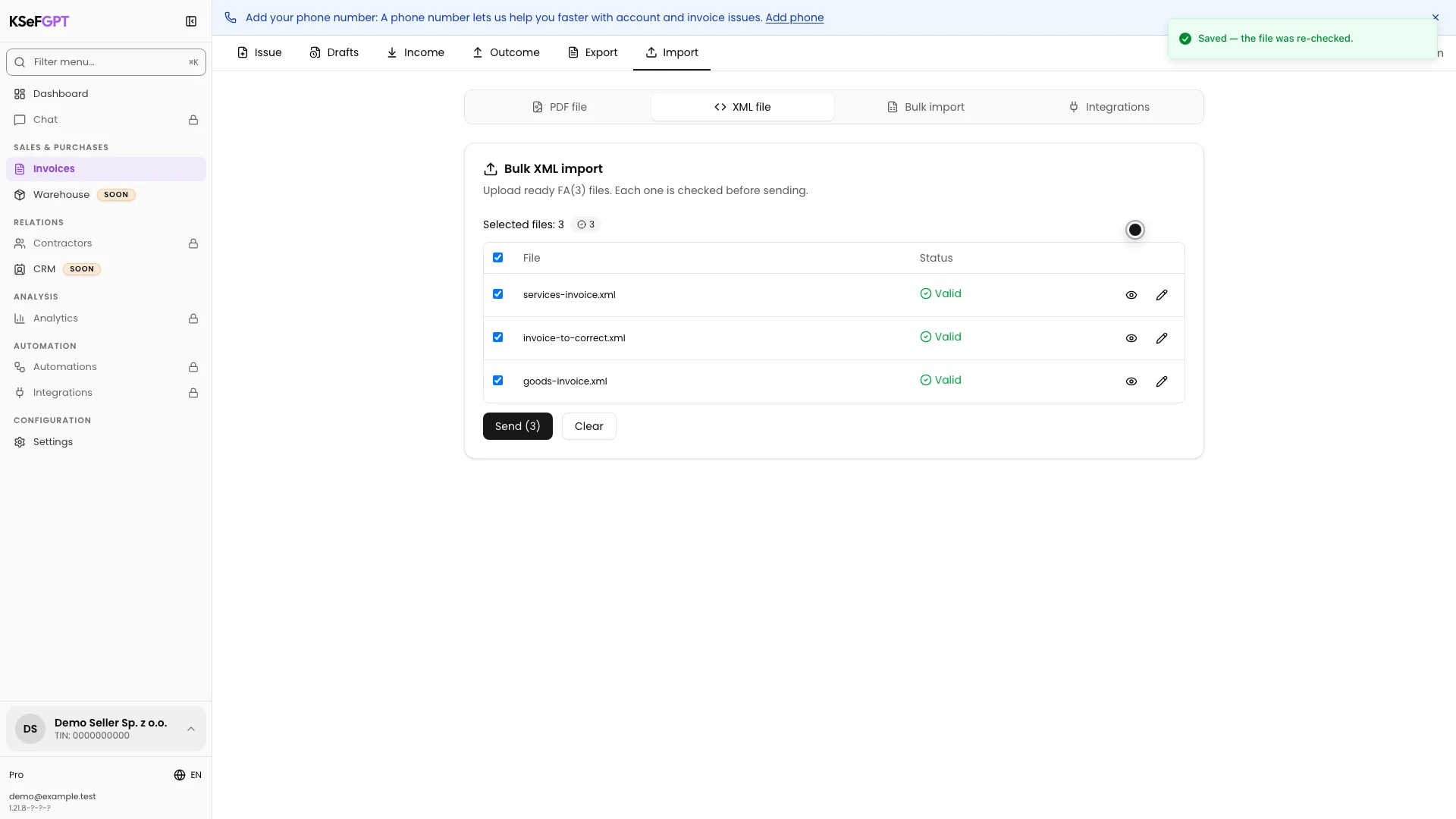
Valid files receive the green Valid status and are selected by default. An invalid file remains listed with its reason, has no checkbox and cannot be submitted.
Open an invoice preview
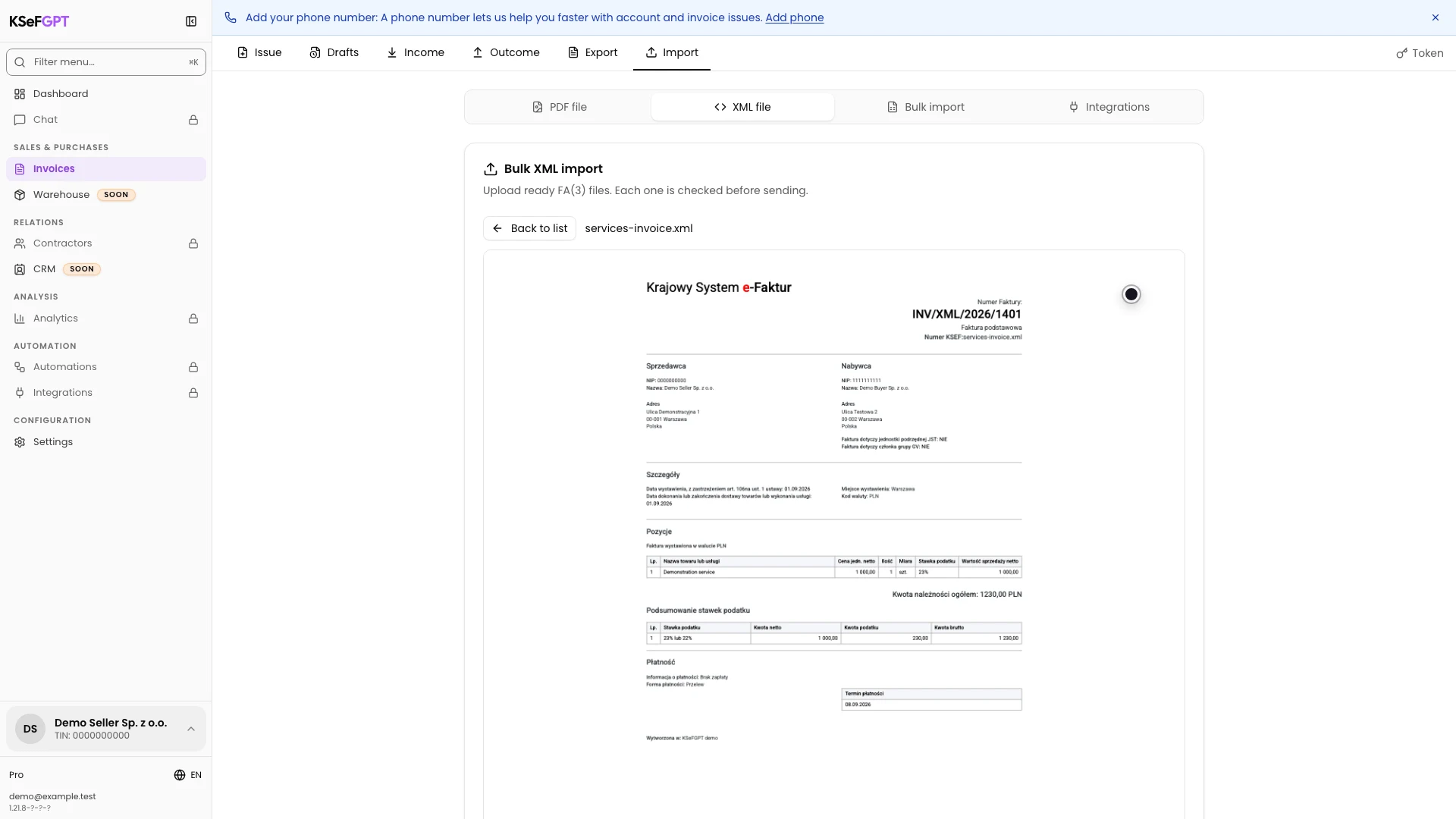
Select the eye icon next to a file. KSeFGPT replaces the list with a readable invoice preview generated from the XML.
Compare the number, parties, dates, line items and totals with the source. Select Back to list to keep the batch and continue.
Correct the invalid document
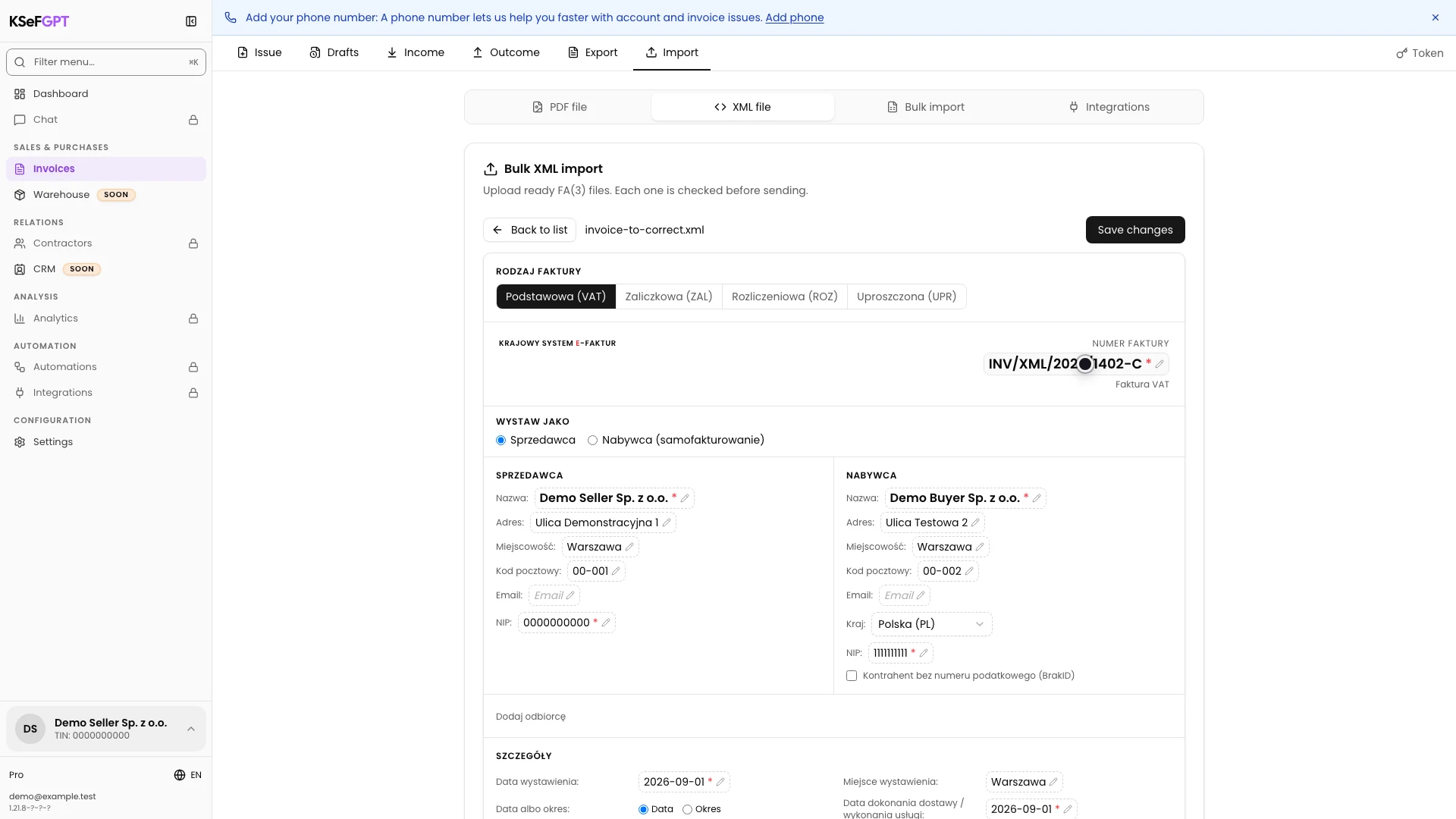
Select the pencil icon beside the invalid file. Change available invoice data and then select Save changes.
KSeFGPT generates new FA(3) XML from the form and validates the whole set again. In build 1.21.8, parts of the shared invoice editor may still display Polish labels in a non-Polish interface.
If the error concerns a field that the form does not expose, correct the XML in the source system and restart the import.
Select and submit invoices
Confirm that every document you want to submit has the Valid status and a selected checkbox. The number on Send is the exact number of files that will reach KSeF.
Clear a checkbox to leave that document out of this session. Then select Send and do not repeat the operation while waiting for KSeF.
Check every invoice result
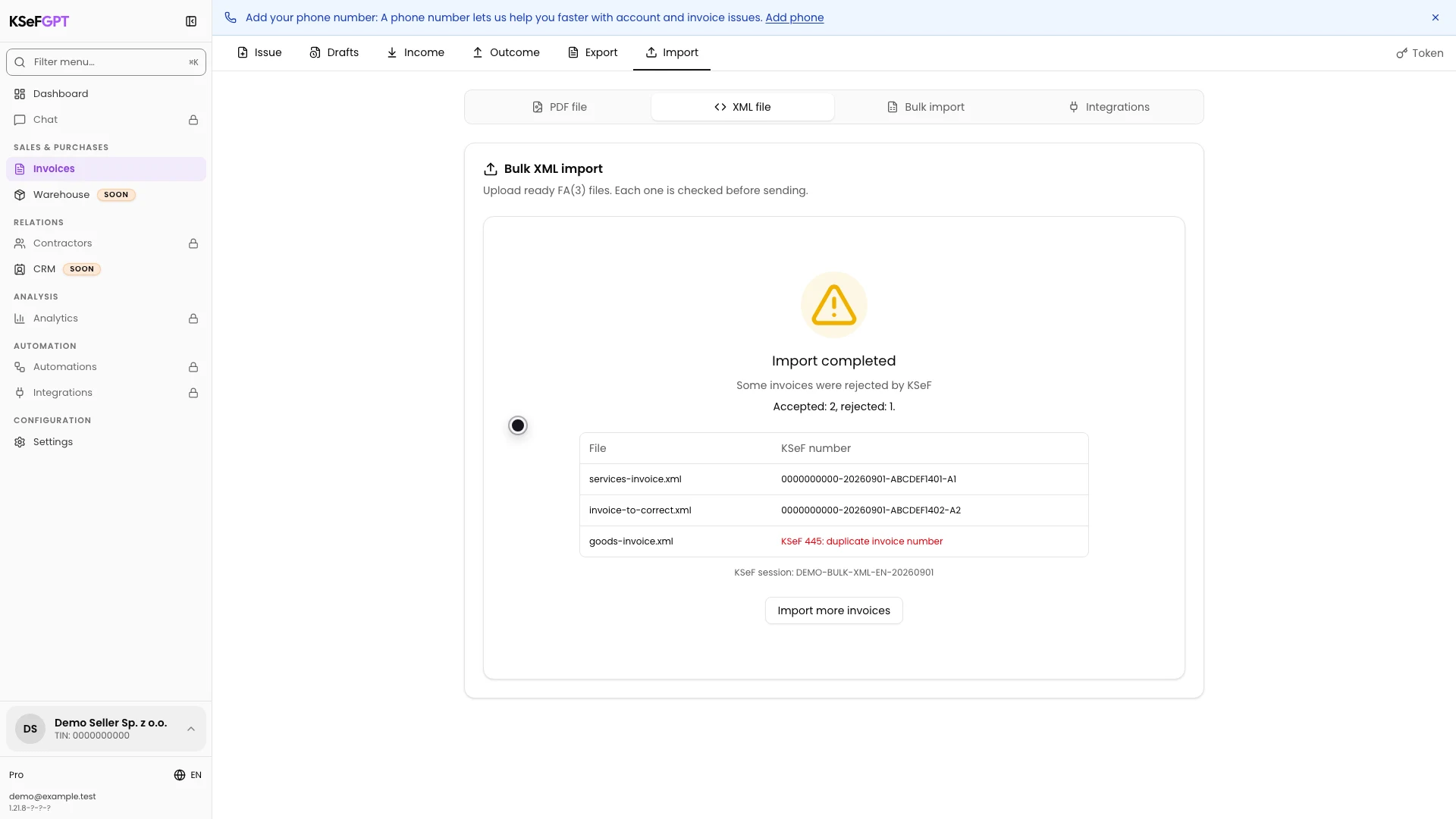
Wait until Awaiting KSeF changes to Import completed. The summary states how many documents were accepted and rejected.
Check each file in the table. An accepted document has its final KSeF number. A rejected document shows the reason, such as a duplicate error. Keep the KSeF session reference for diagnostics.
Final state
Check the result
The procedure is complete when every submitted file has a KSeF number or an explicit rejection reason and the summary matches the table rows.
Do not submit a document marked as a duplicate again. Open Invoices > Outcome and check whether an invoice with that number was accepted earlier.
Diagnostics
If something does not work
Compare the visible symptom with the table below.
| Symptom | Likely cause | What to do |
|---|---|---|
| Bulk XML import is not visible | The `feature.invoices.import.bulk-xml` feature is not active in this environment. | Use single-file XML import or contact the environment administrator. |
| A file is not added | It is not an XML file or it exceeds the 5 MB per-file limit. | Select an `.xml` file no larger than 5 MB. |
| The set is rejected before validation | There are more than 200 files or their total size exceeds 40 MB. | Split the documents into smaller sets. |
| A file has Error and no checkbox | FA(3) validation found a structural or value error. | Read the reason and correct the available field in the editor or fix the source XML. |
| The Send count is too low | Some valid files are cleared or other documents still have errors. | Review every checkbox and status before submitting. |
| The result remains pending | KSeF is still processing at least one invoice. | Do not submit the set again. Wait for a final result and retain the session reference. |
| Some invoices were rejected | KSeF found a semantic error, duplicate or missing permission. | Read the relevant row and correct only the rejected document before trying again. |
What next
Open Invoices > Outcome to find accepted documents and download their XML, PDF or UPO when available.
Select Import more invoices only when you want to start a new, independent file set.
Submit a set of XML invoices to KSeF
Sign in, select a company and review every document before starting one KSeF session.
Sign in to KSeFGPT