How to sync incoming and outgoing invoices with KSeF
Choose a period, refresh Incoming and Outgoing separately, then check the documents retrieved from KSeF.
- Module
- Invoices
- Reading time
- 4 min
- Difficulty
- Easy
You could do this with your eyes closed :)
- Published
- August 28, 2026
- Author
- Rafał Zeidler
- Format
- Written guide and video
Written procedure
What you will do
You will retrieve current incoming and outgoing invoices from KSeF for the selected company. You will sync each direction separately because Sync applies only to the open tab.
Synchronization uses the current date range and any invoice number or Tax ID entered. After success, the app refreshes the list and shows the last synchronization time in the current view.
Requirements
Before you start
Decide which period to retrieve. A wider range can increase the response time and KSeF request usage.
| Item | Description |
|---|---|
| Access | The company owner or an organization member with invoices:read. |
| KSeF connection | The selected company has an active token or certificate allowed to read invoices. |
| Scope | From and to dates, and optionally an invoice number or counterparty Tax ID. |
| Starting point | After signing in, open Invoices → Incoming. |
| Time required | About 2 minutes plus KSeF response time. |
| Important effect | Incoming and Outgoing are synchronized in separate operations. |
Process recording
0:27The recording shows period selection and separate synchronization of the Incoming and Outgoing lists with KSeF.
Open incoming invoices
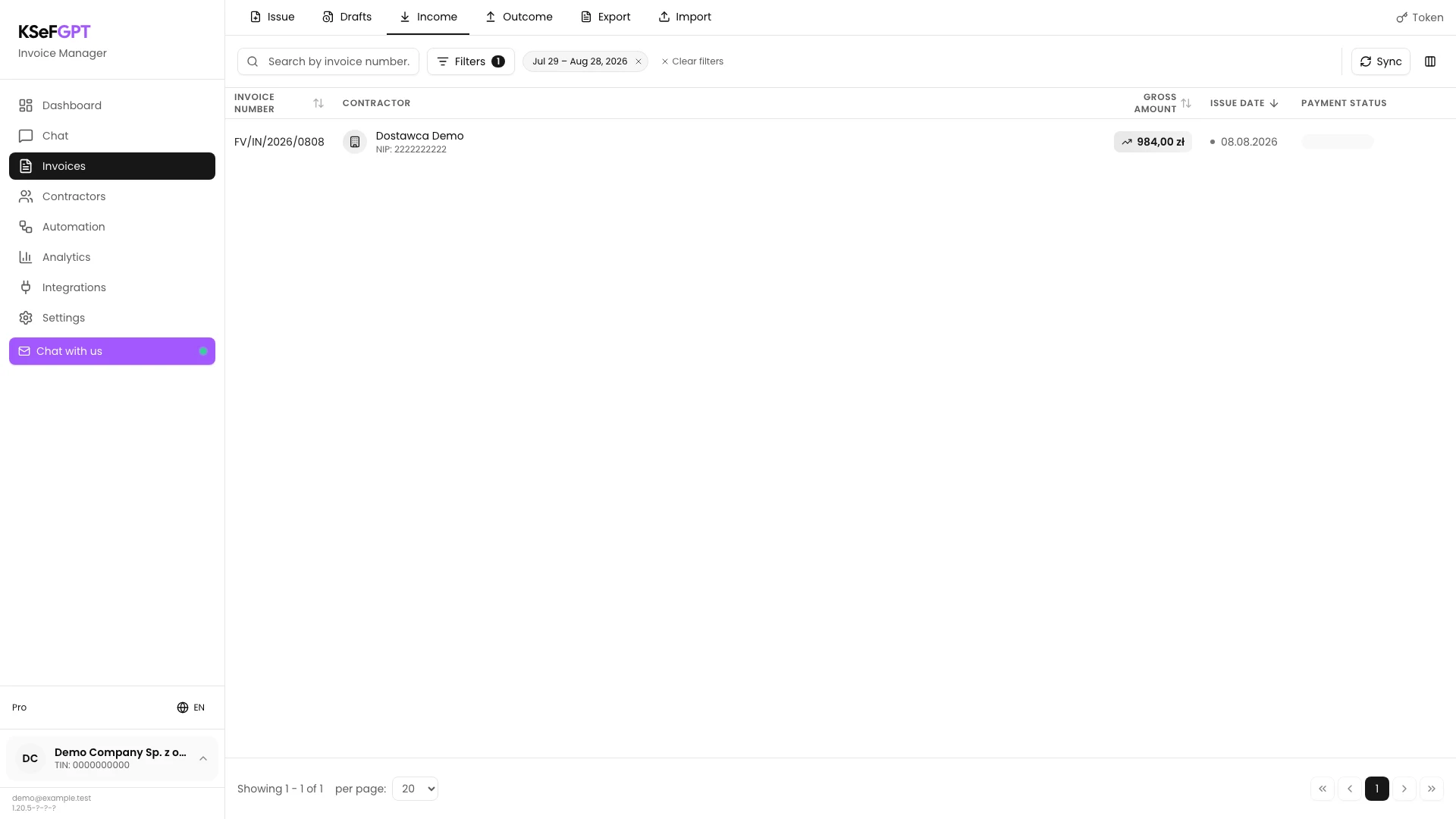
In Invoices, open Incoming. Check the active company in the bottom left and the KSeF authentication method in the top right.
If the company has one method, you will see Token or Certificate as a label. If it has both methods, select the one you want to use to retrieve documents.
Set the incoming invoice range
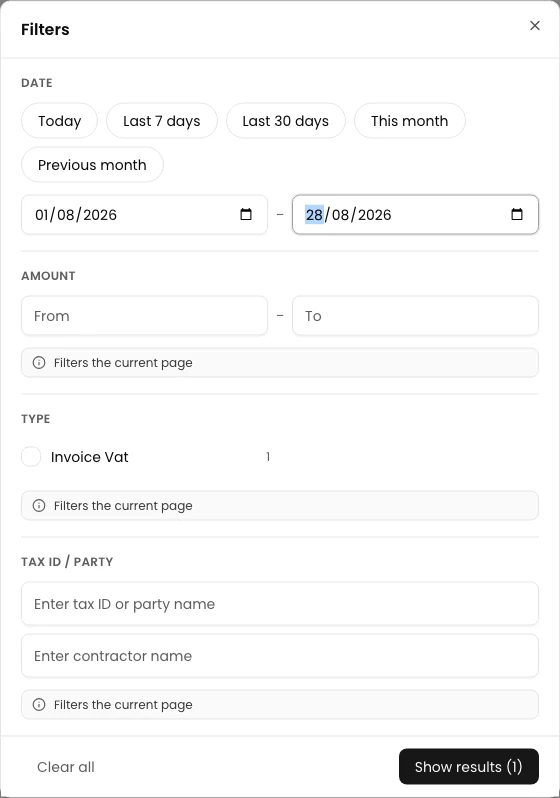
Select Filters and set From and To, or use a preset such as This month. Then select Show results.
The invoice number search and Tax ID filter also narrow the synchronization request. Other view filters may apply only to the currently retrieved page.
Sync incoming invoices
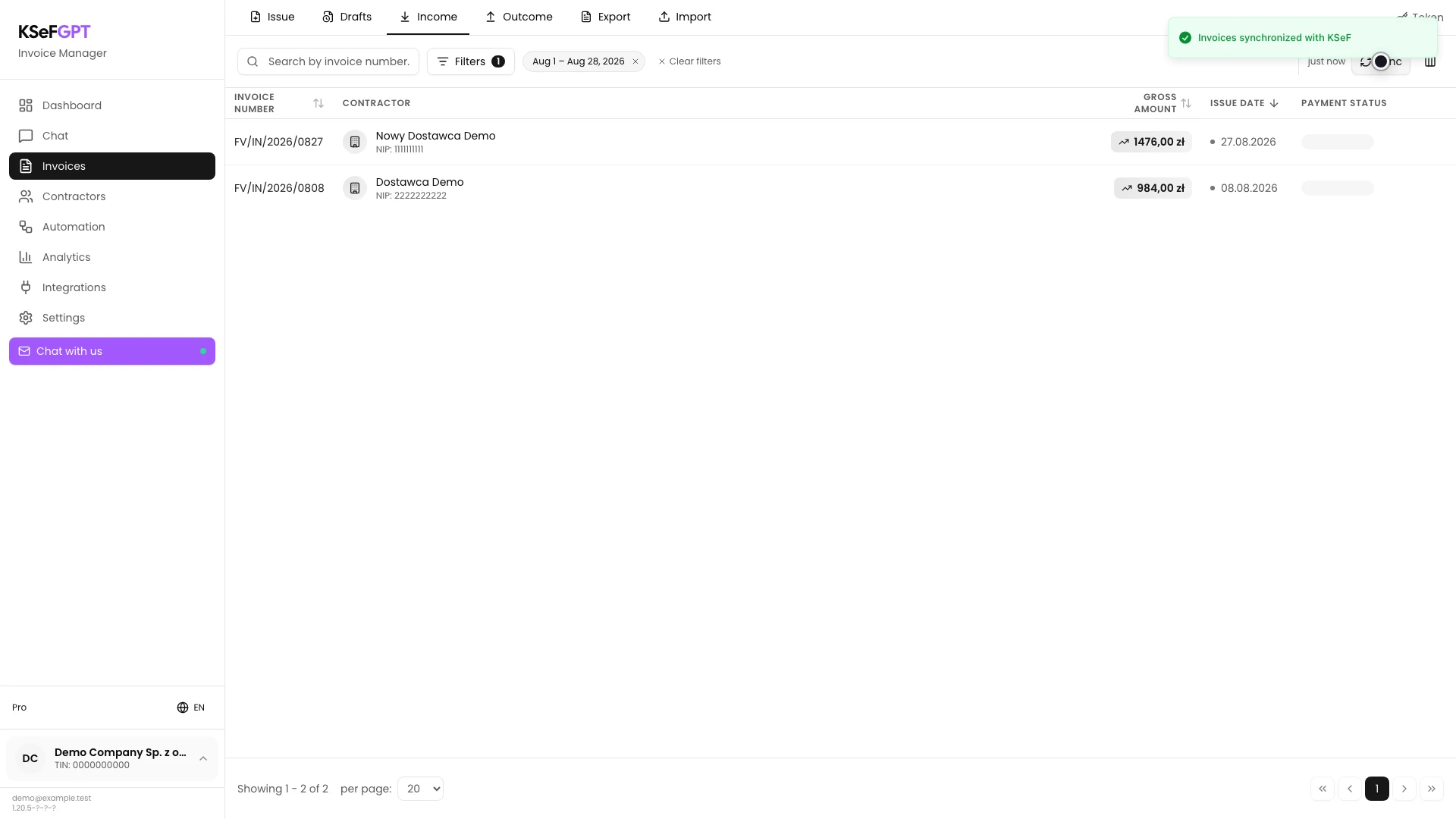
Select Sync and wait until the Syncing... state ends. Do not change the company or authentication method while the request is running.
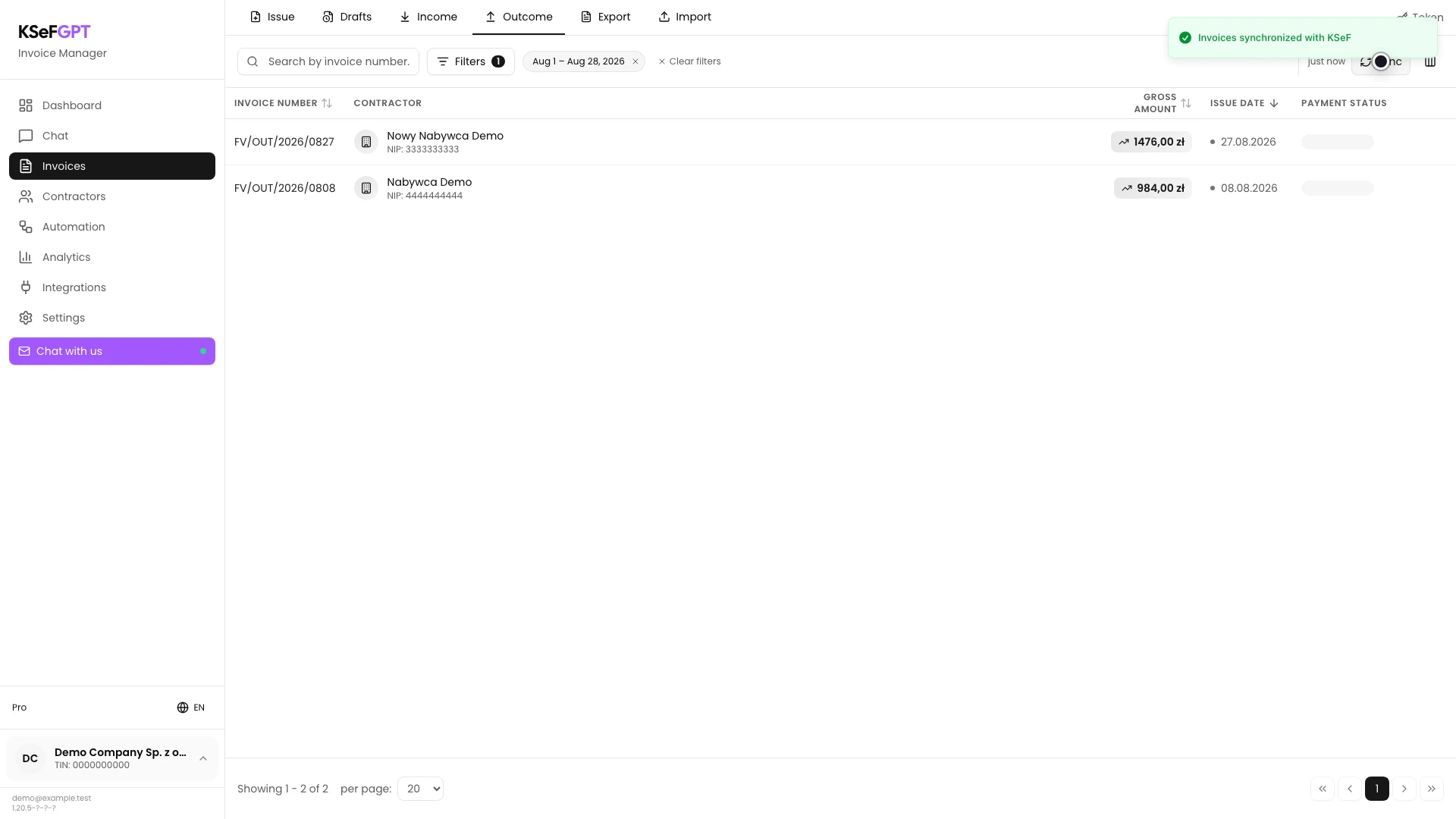
After success, you will see Invoices synchronized with KSeF, just now and the refreshed list. If no row was added, KSeF may have had no new document in the selected range.
Open Outgoing and set the range
Open Outgoing. Select Filters and set the date range to retrieve for documents issued by the company.
Incoming and Outgoing keep separate filter values. Check the visible range before starting the second synchronization.
Sync outgoing invoices
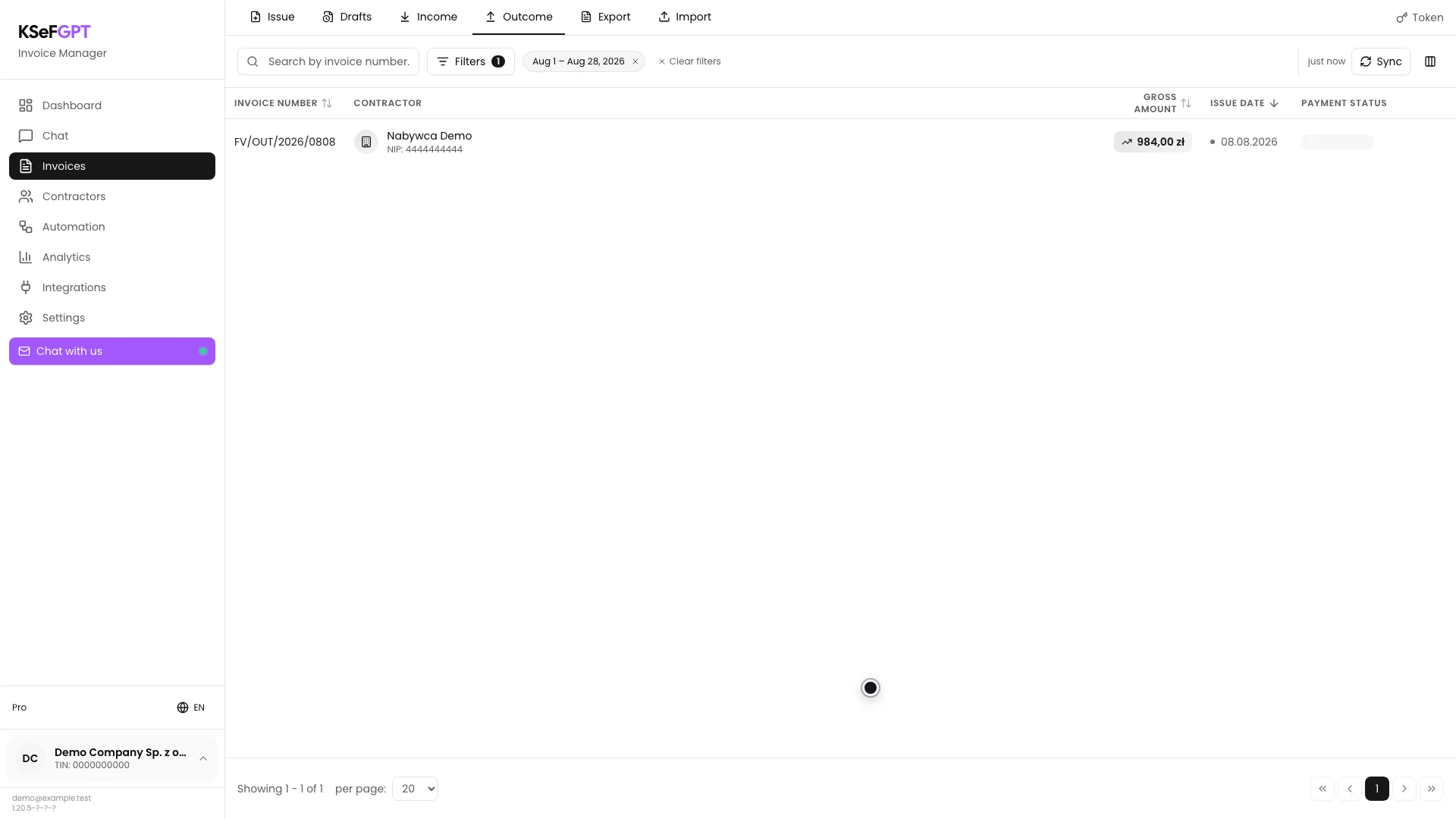
Select Sync on the Outgoing tab and wait for the success message. This operation retrieves only outgoing documents matching the current request conditions.
When it finishes, the list refreshes and just now appears beside the button. In this example, a new sales invoice is shown at the top of the list.
Final state
Check the result
Open both tabs again and check invoice numbers, counterparties and issue dates. A received document belongs in Incoming and an issued document belongs in Outgoing.
The success message confirms that the request finished, but it does not mean KSeF had to return a new document. If the list did not change, compare the range with the issue date of the invoice you need.
Diagnostics
If something does not work
Compare the symptom with the table below.
| Symptom | Likely cause | What to do |
|---|---|---|
| The invoice list is not visible | No company is selected, or it has no active KSeF token or certificate. | Select the company and configure its KSeF connection in Settings. |
| Sync is disabled | The available KSeF request limit has been used. | Wait for the limit shown in the app to renew and try again. |
| KSeF synchronization error appears | The credential expired, KSeF is unavailable, or the account lacks invoices:read. | Check the connection and access. Then retry with a shorter range. |
| No new invoice appears after success | KSeF returned no new document for the current direction and range. | Check the tab, dates, invoice number and Tax ID. Remove overly narrow conditions and sync again. |
| Only one direction was refreshed | Synchronization applies to the currently open tab. | Open the other tab and select Sync again. |
What next
Open a document to check its details and download its XML or PDF visualization.
If you retrieve documents regularly, create a separate automation with the Fetch invoices action and a suitable schedule.
Sync invoices with KSeF
Sign in, select a period and refresh both document directions.
Sign in to KSeFGPT