How to import an FA(3) XML invoice and submit it to KSeF in KSeFGPT
Upload a ready XML file, review its contents and PDF preview, confirm responsibility for the data and wait for the final KSeF status.
- Module
- Invoices
- Reading time
- 5 min
- Difficulty
- Intermediate
Follow the instructions carefully and you will succeed
- Published
- August 28, 2026
- Author
- Rafał Zeidler
- Format
- Written guide and video
Written procedure
What you will do
You will import one ready FA(3) XML invoice, review its contents and readable PDF preview, and then submit the document to KSeF.
This screen does not create a draft or run a separate schema check before submission. The preview helps you review the data, but KSeF decides whether the submitted document is accepted or rejected.
Requirements
Before you start
Prepare the final XML file and confirm that the selected company and authorization method are correct. An invoice accepted by KSeF cannot be edited freely afterwards.
| Item | Description |
|---|---|
| Access | The company owner or an organization member with invoices:read access to Invoices and invoices:send for submission. |
| KSeF connection | The selected company has an active token or certificate permitted to issue invoices. |
| File | One `.xml` file in the FA(3) format, no larger than 10 MB. |
| Starting point | After signing in, select the correct company and open Invoices → Import. |
| Time required | About 3 minutes plus KSeF processing time. |
| Effect | Once accepted by KSeF, the document is an issued invoice and mistakes may require a separate correcting document. |
Process recording
0:20The recording shows file selection, XML and PDF review, data confirmation and the final KSeF status.
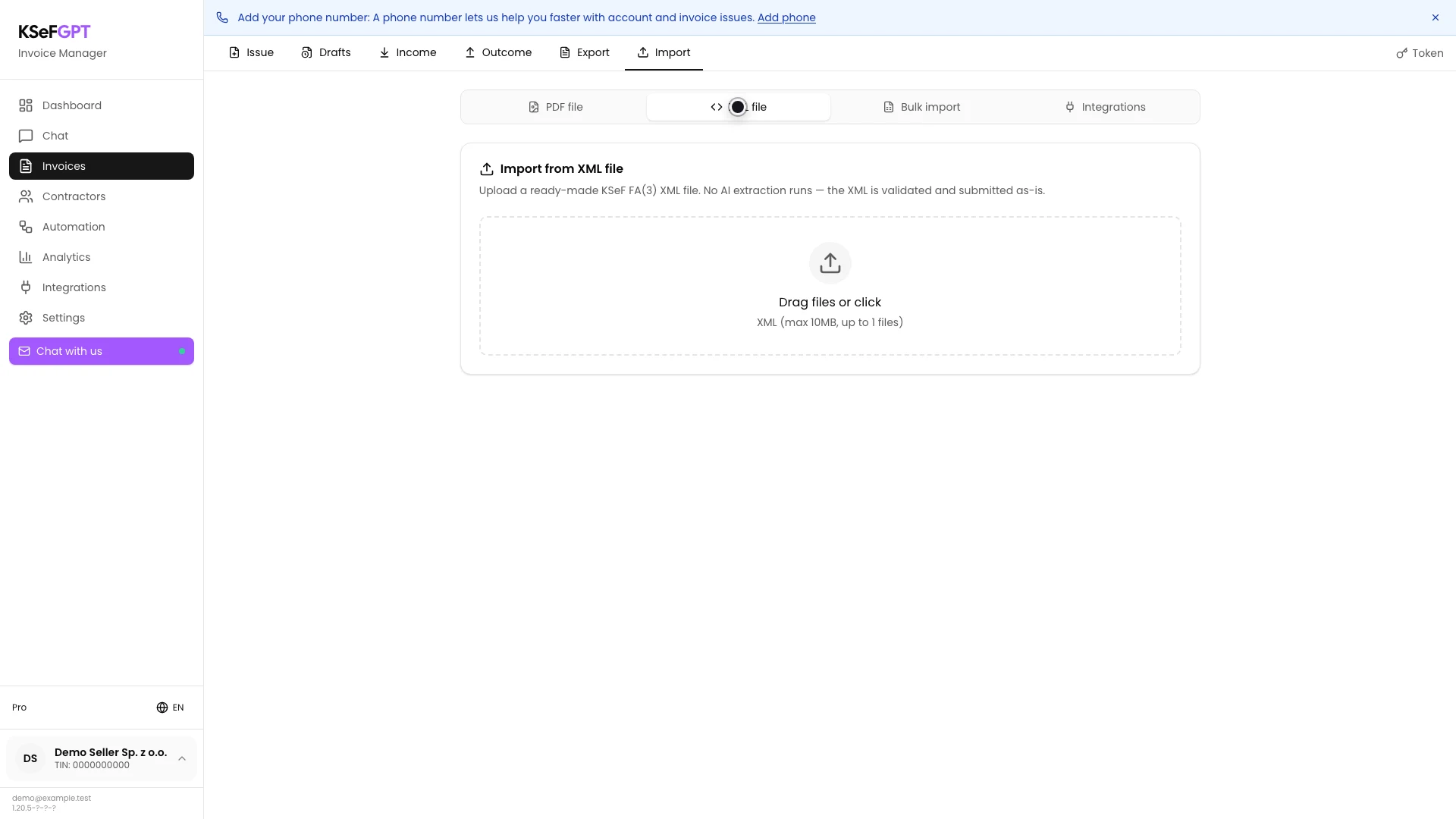
Open the XML file import
In Invoices, open Import and then select XML file.
The Import from XML file card accepts one XML file. If another import screen is visible, make sure XML file is selected.
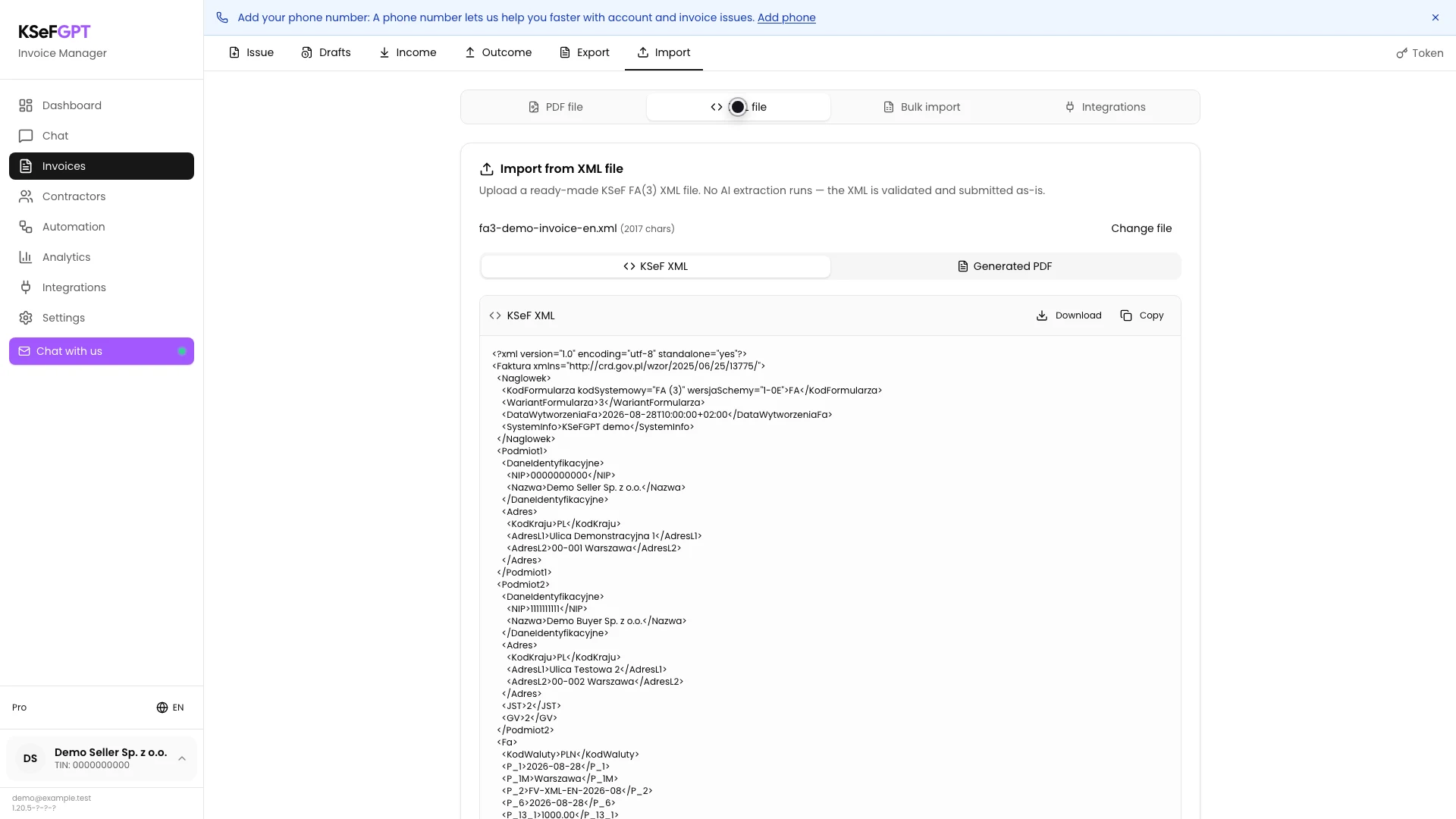
Upload and review the XML contents
Drag the file into the area or select it from your drive. KSeFGPT displays its name, character count and the KSeF XML tab.
Review the FA(3) header, invoice number, seller and buyer NIP values, dates, line items and totals. At this stage the app formats the file for viewing, but it does not show a separate schema validation result.
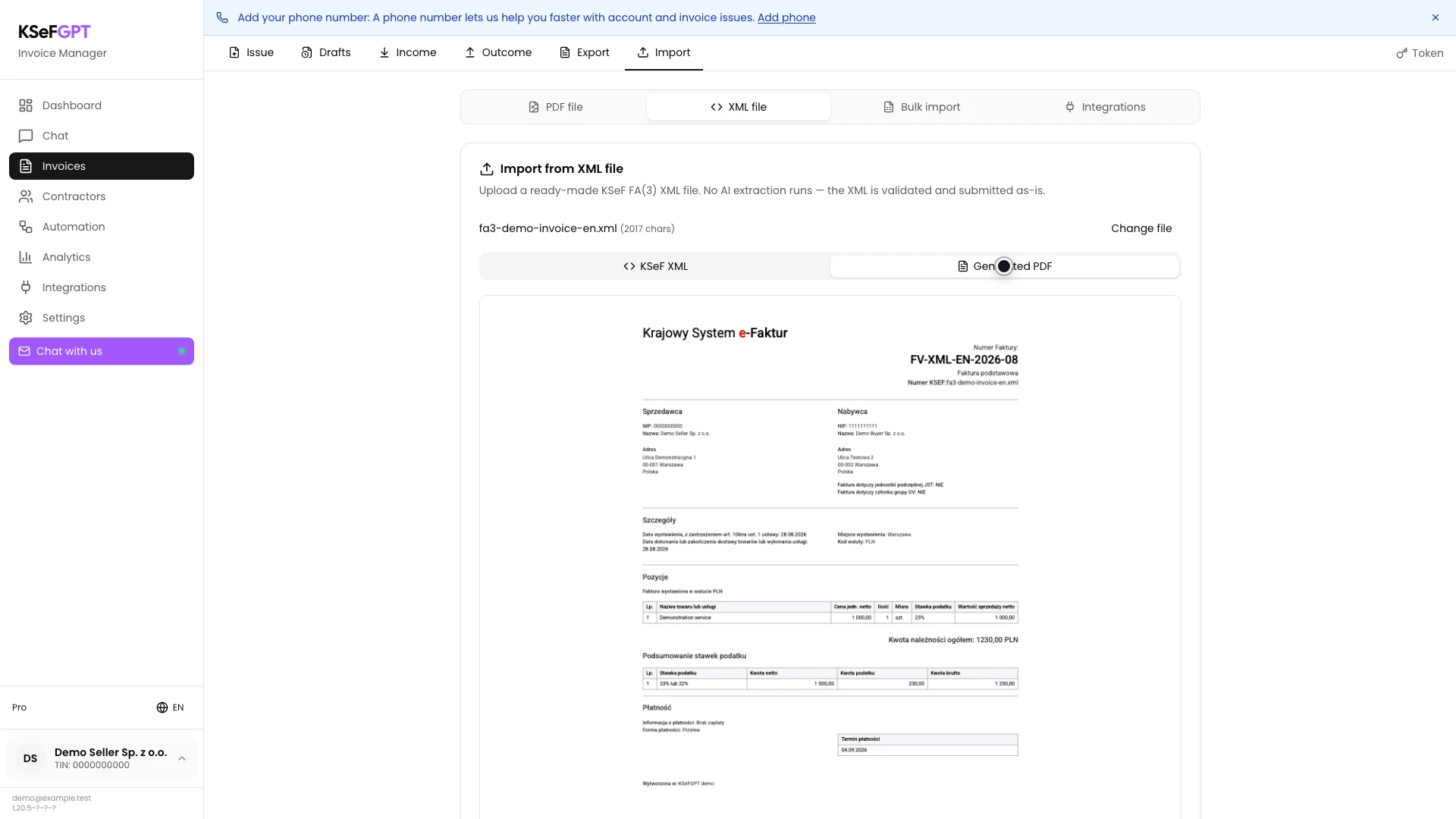
Review the generated PDF preview
Open Generated PDF. Compare the seller, buyer, invoice number and dates, line items and totals with the source data.
If the preview is incomplete or cannot be generated, do not submit the document. Select Change file, correct the XML in the source system and upload the corrected version.
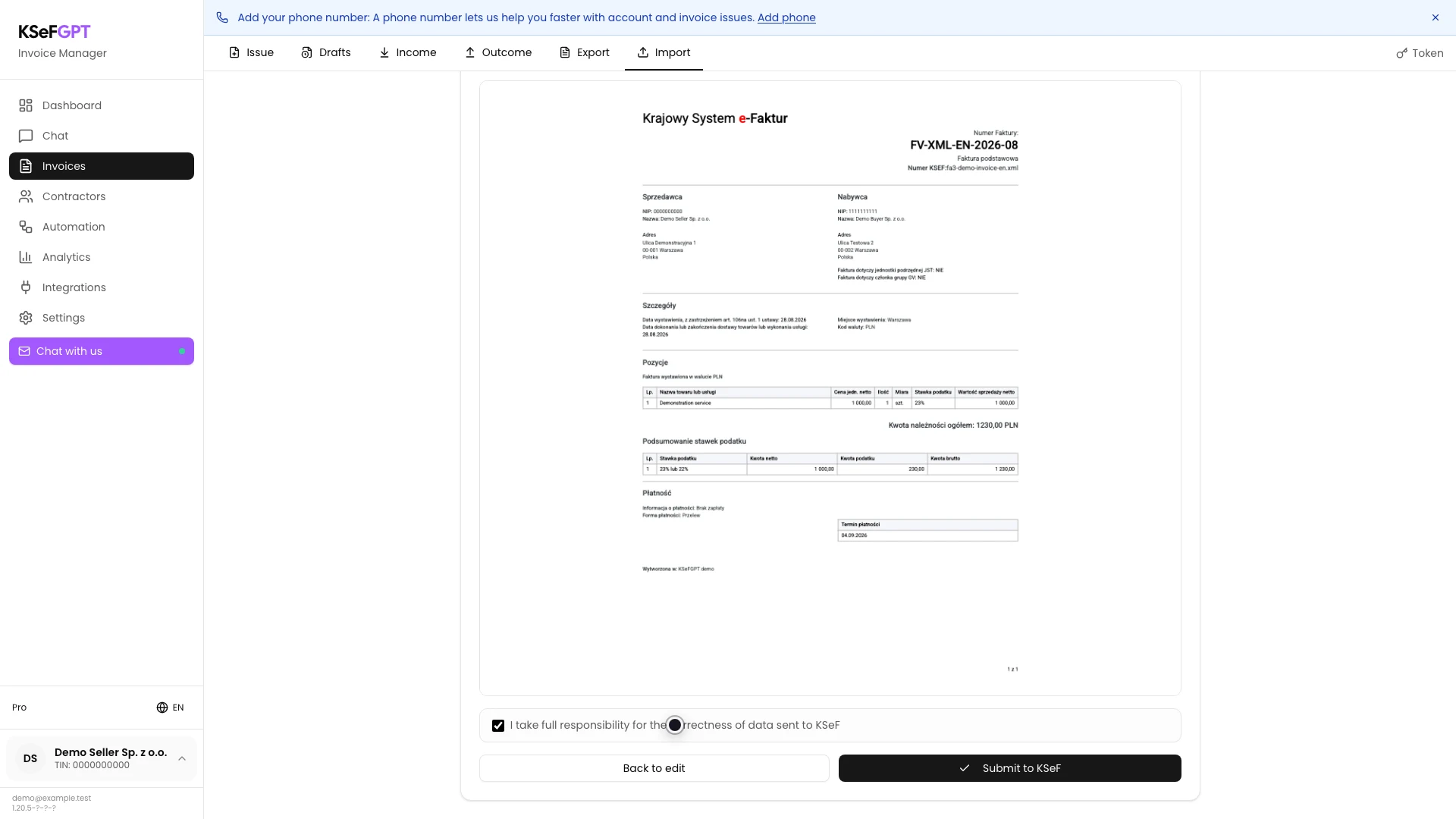
Confirm the data and submit the invoice
Return to the bottom of the preview and select I take full responsibility for the correctness of data sent to KSeF.
Check the selected company and authorization method again. When the button is enabled, select Submit to KSeF. Do not click it again while Submitting is shown.
Wait for the final KSeF status
After submission, KSeFGPT polls the KSeF session. Wait until the screen stops showing the pending state and displays Invoice accepted by KSeF or Invoice rejected by KSeF.
Check the reference number, status description and code in the result panel. Code 200 with the acceptance message completes this procedure. This screen does not have to show the final KSeF number yet.
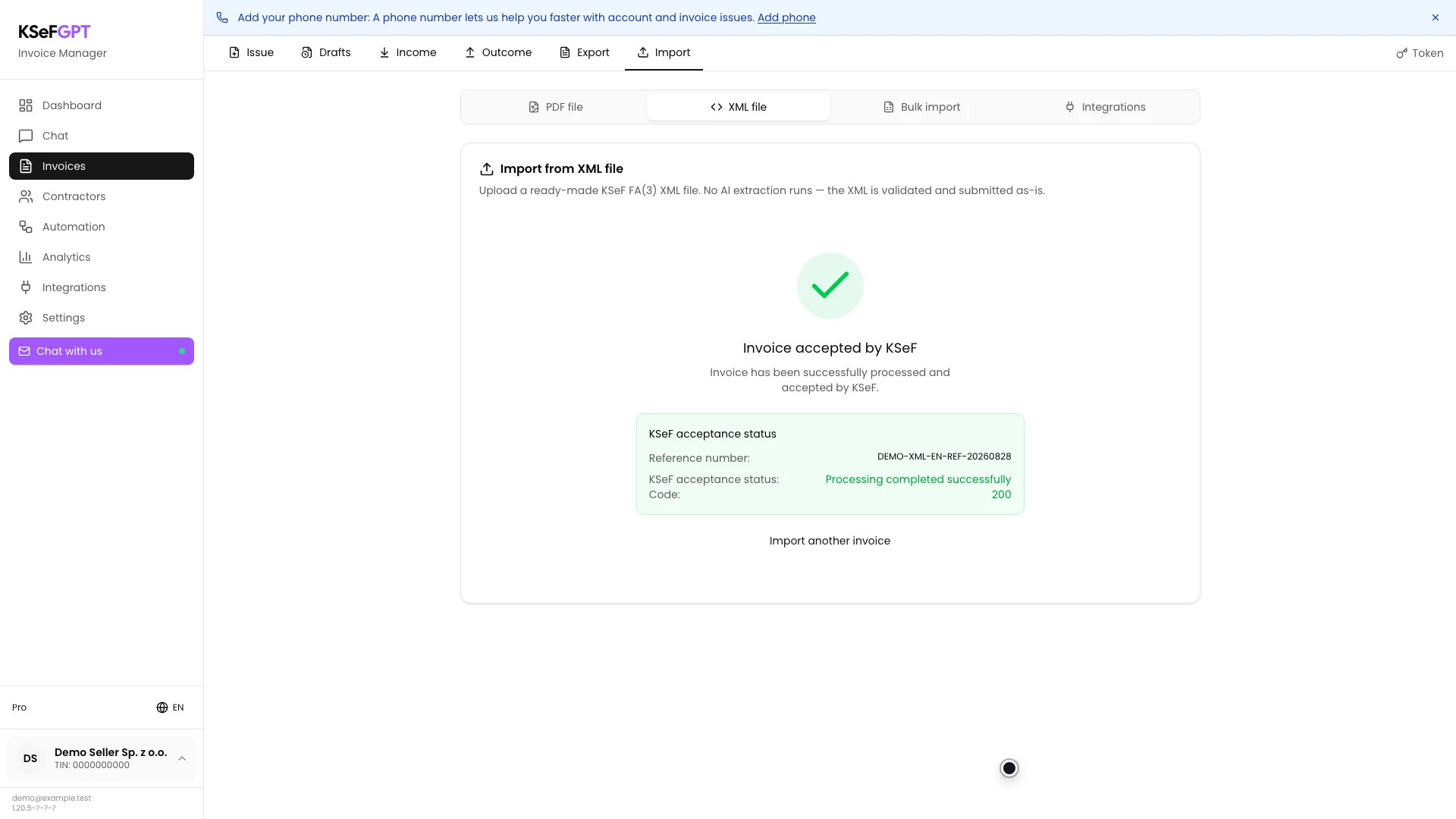
Final state
Check the result
The operation succeeded when the screen shows Invoice accepted by KSeF, a successful processing description and code 200. Keep the visible reference number for session diagnostics.
Refresh Outcome and search for the invoice number. If the document is not visible immediately, allow time for synchronization instead of submitting the same XML again.
Diagnostics
If something does not work
Compare the symptom with the table below.
| Symptom | Likely cause | What to do |
|---|---|---|
| The file cannot be selected | It is not an XML file, has an unsupported type or is larger than 10 MB. | Choose one `.xml` file no larger than 10 MB. |
| Generated PDF does not appear | The XML structure cannot be read by the preview generator. | Do not submit it. Correct the XML in the source system and upload it again. |
| Submit to KSeF is disabled | The responsibility confirmation is missing or the company has no active KSeF method. | Select the confirmation. If an authorization warning is shown, configure a token or certificate. |
| A server error appears after submission | The file, invoices:send permission or KSeF session was rejected before status tracking began. | Check the connection and permissions, then correct the reported issue before retrying. |
| The status remains pending | KSeF is still processing the document or its response is delayed. | Wait and do not submit the same invoice number again. |
| The invoice was rejected | KSeF returned a data, structure or permission error. | Read the code and description, correct the source XML and only then submit a new version. |
What next
Open Invoices → Outcome to find the accepted document and download its XML, PDF or UPO when available.
If you regularly prepare many documents outside KSeFGPT, consider the separate bulk XML import when it is available in your environment.
Import a ready XML invoice
Sign in, select a company connected to KSeF and review the document before submission.
Sign in to KSeFGPT