How to send a PDF invoice to KSeF in KSeFGPT
Upload one PDF, check and correct the extracted data, compare the preview with the source and find the submitted invoice with its KSeF number.
- Module
- Invoices
- Reading time
- 7 min
- Difficulty
- Intermediate
Follow the instructions carefully and you will succeed
- Published
- September 11, 2026
- Author
- Rafał Zeidler
- Format
- Written guide and video
Written procedure
What you will do
Go from a PDF invoice through a draft and data review to submitting a structured invoice and checking its KSeF number. Uploading a PDF to the queue does not issue an invoice.
This example covers your own VAT sales invoice in PLN. Use a document you are authorized to issue and have not already sent to KSeF. Importing a supplier’s PDF does not make it your sales invoice.
Requirements
Before you begin
The recording uses demonstration data and a simulated KSeF result. The source PDF and invoice data remain Polish; changing the interface language does not translate the source document.
| Item | Description |
|---|---|
| Access | Company owner or organization member with access to Invoices (invoices:read), import (invoices:import) and submission (invoices:send). |
| Connection | Select the correct company and a token or certificate authorized to issue invoices in KSeF. Your plan and remaining quota must allow PDF imports. |
| File | One legible PDF up to 10 MB. Keep the original available to check the number, parties, dates, items, amounts and payment. |
| Starting point | After signing in: Invoices → Import → PDF file. |
| Time | About 5-10 minutes plus PDF processing and KSeF response time. |
| Effect | After KSeF accepts the invoice, editing a draft cannot change it. Errors in an issued invoice require the appropriate correction invoice. |
Process recording
1:12Upload one PDF, check and correct the extracted data, compare the preview with the source and find the submitted invoice with its KSeF number.
Open PDF import
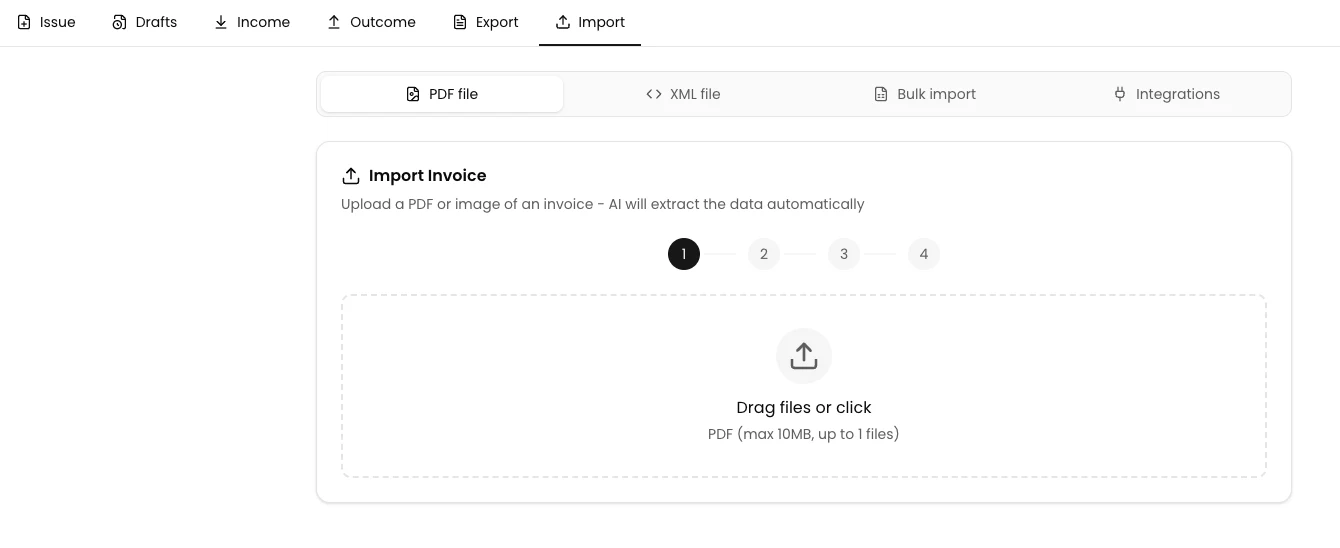
Select the correct company, open Invoices and the Import tab, then click PDF file.
The upload area shows Drag files or click and accepts one PDF up to 10 MB.
Upload the file and open its draft
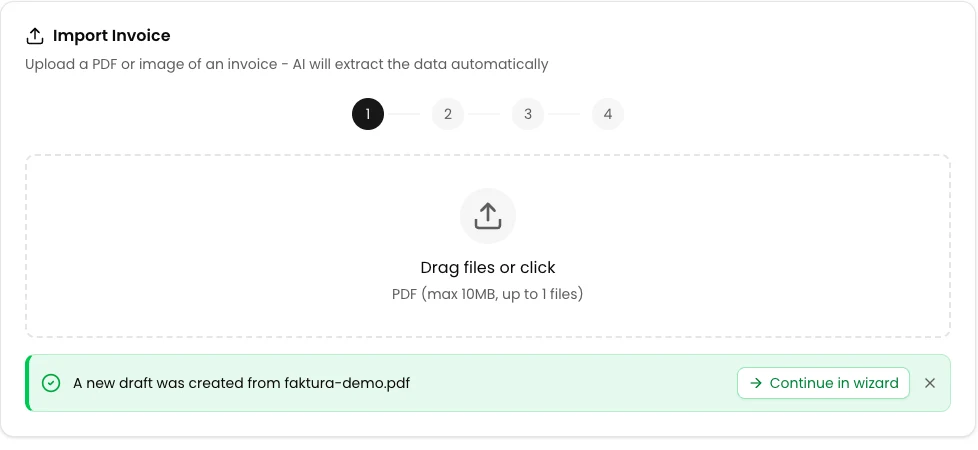
Click the upload area and select the PDF, or drag it into the area. Wait for processing to finish.
Beside the message that a draft was created from the correct file, choose Continue in wizard. The extracted invoice opens for review. Do not upload the same file again while it is still processing.
Check the data and correct the amounts
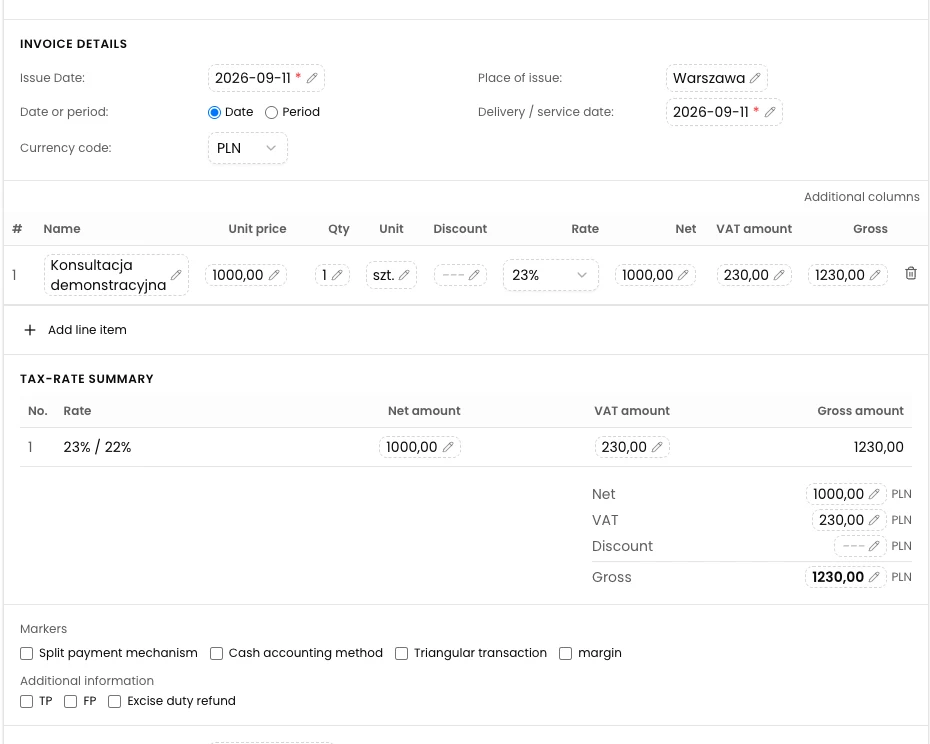
Compare the invoice number, seller and buyer names, tax IDs and addresses, dates, currency, item descriptions, quantity, unit, VAT rate and payment with the source PDF. Click a value, enter the correction and press Enter.
The example PDF has a net unit price of PLN 1000, but extraction returned PLN 900. In the Konsultacja demonstracyjna row, set Unit price (net unit price) to 1000, Net (line net amount) to 1000, VAT amount (VAT amount) to 230 and Gross (gross amount) to 1230. Keep quantity 1, unit szt. and VAT 23%.
These are separate fields. Changing the price alone does not recalculate line amounts or totals. Under Tax-rate summary, set Net amount to 1000 and VAT amount to 230. In the document totals, set Net to 1000 and VAT to 230, and confirm Gross as 1230. Check bank transfer and the due date of 18 September 2026 against the PDF. Use your own amounts in your invoice.
Open the preview and compare the original
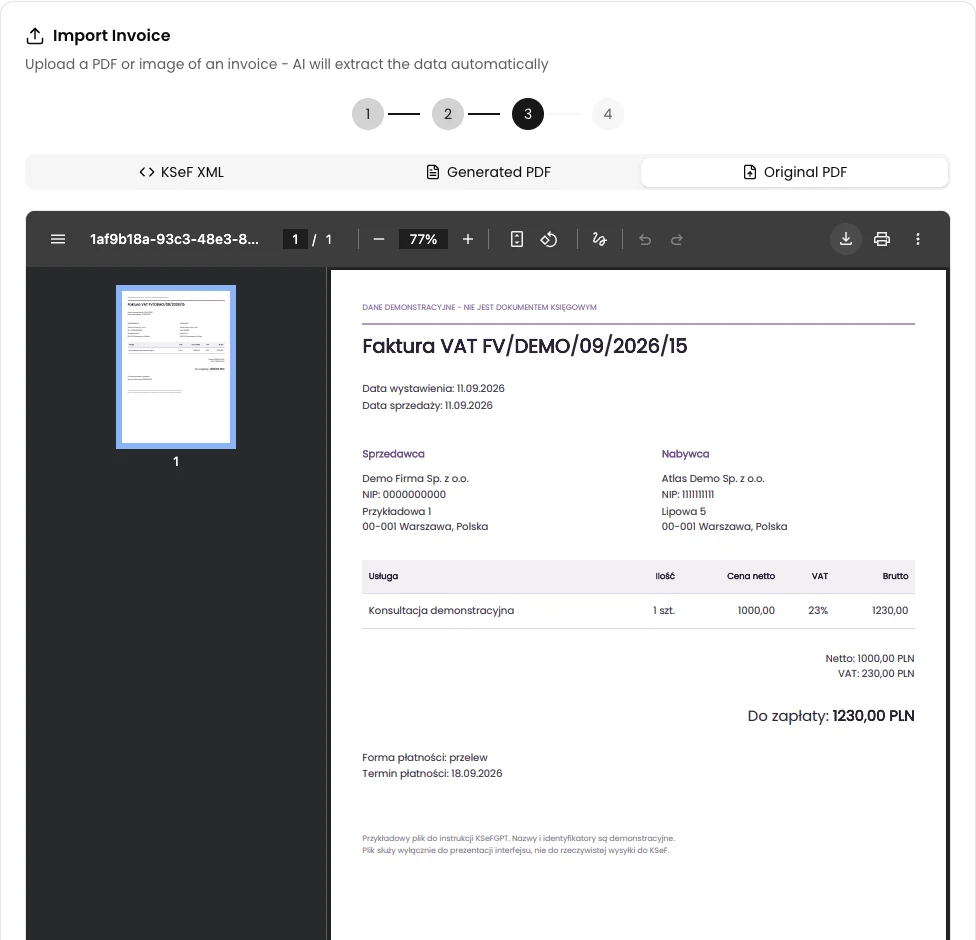
Click Preview XML below the document. Read any validation messages. Errors block submission; go back to editing and correct the indicated data.
Open Original PDF to compare the source again. If the original is unavailable in the application, open the PDF saved on your device.
Check the generated PDF
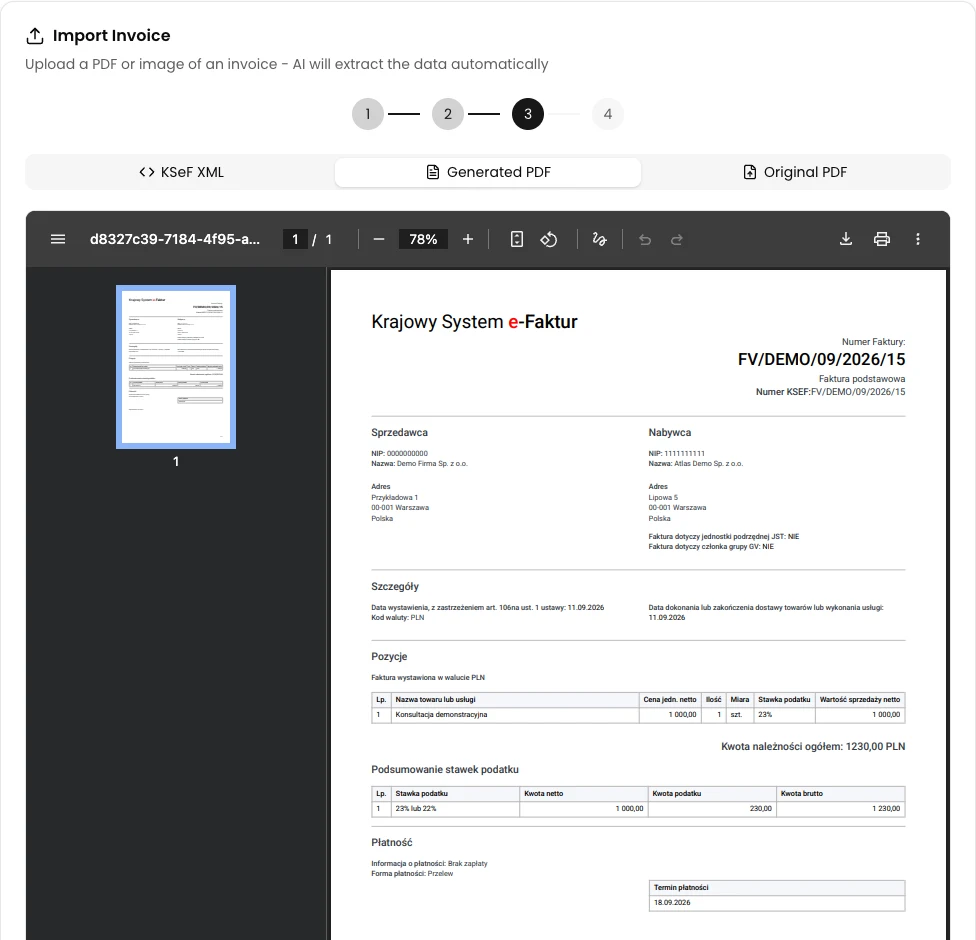
Select Generated PDF and wait for the preview produced from the XML. Compare the parties, invoice number, dates, item and totals with the source. The example should show PLN 1000 net, PLN 230 VAT and PLN 1230 gross.
If anything differs, choose Back to edit, correct the fields and select Preview XML again. A correct PDF preview or successful validation does not yet mean that KSeF has accepted the invoice. In this version, the preview also repeats your invoice number beside the Polish label Numer KSEF before submission. This is not a number assigned by KSeF; check the assigned number in the accepted invoice’s details.
Confirm the data and submit
Below the preview, select the acknowledgement that you take full responsibility for the data sent to KSeF. Check the selected company and connection method.
Click Submit to KSeF once and wait. The button stays disabled when XML errors exist, the acknowledgement is missing or there is no KSeF connection.

Wait for the final status
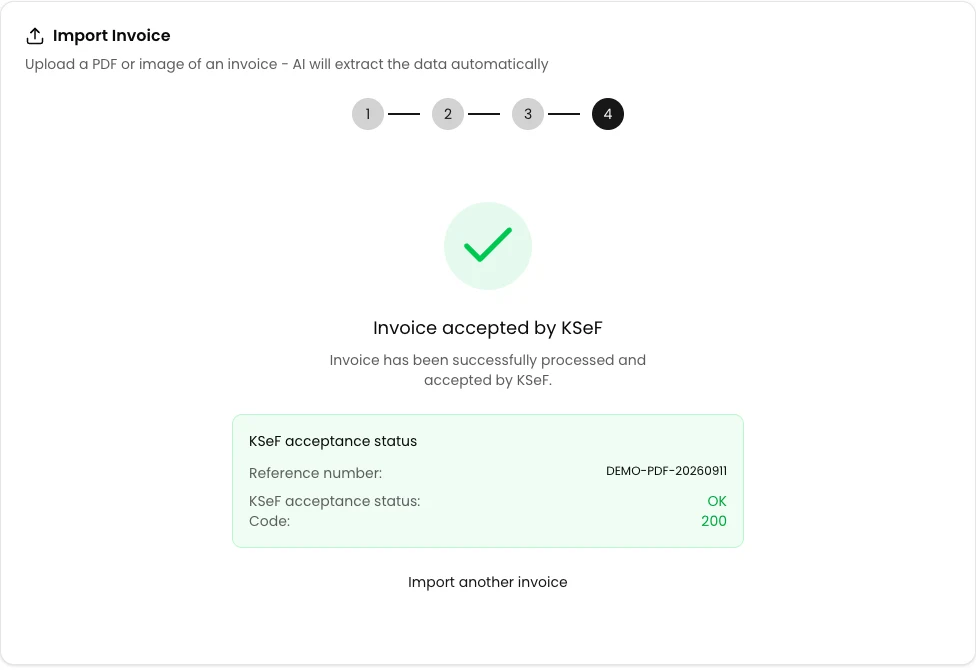
The result may initially indicate that processing is pending. Keep the page open until it shows that KSeF accepted or rejected the invoice.
In the example, code 200 accompanies acceptance. Keep the submission reference for troubleshooting. The submission reference is different from the invoice’s KSeF number.
Open the invoice and check its KSeF number
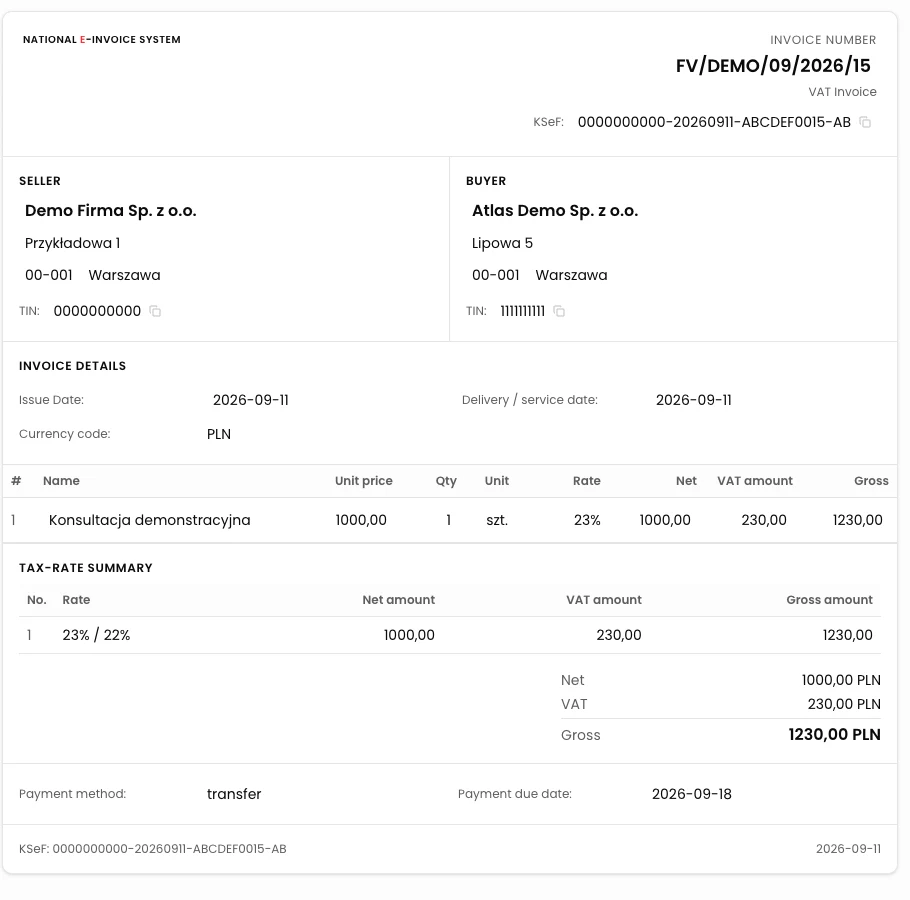
Open Outcome, find the invoice by its invoice number and open its details. Check the KSeF number, buyer and gross amount.
In the example, find FV/DEMO/09/2026/15 and verify PLN 1230. If the invoice is not visible yet, wait and refresh the list. Do not resubmit the PDF just because the list has not updated.
Final state
Check the result
The procedure is complete when you verify acceptance and the KSeF number assigned to the correct outgoing invoice. A draft-created message or submission-started message is not confirmation of issuance.
The wizard starts deleting the source draft once submission has begun, before the final status arrives. Keep the original PDF and submission reference; do not assume that a rejected document will remain in Drafts.
Diagnostics
If something goes wrong
| Symptom | Cause | Action |
|---|---|---|
| PDF is not added | Unsupported file type or a file larger than 10 MB. | Select one PDF within the size limit. |
| Upload area is disabled | Import quota exhausted or a temporary account limit. | Read the limit message and wait until the indicated time or check your plan. |
| Conversion failed | PDF extraction or XML generation failed. | Read the message beside the file. Use Retry if available; for extraction errors, prepare a clearer PDF. |
| The price is correct but totals are wrong | Imported line amounts and totals are separate fields. | Also correct Net, VAT amount and Gross in the item, the VAT-rate summary and document totals. |
| Submit to KSeF is disabled | XML errors, missing acknowledgement or missing connection. | Fix the reported errors, check the token/certificate and acknowledge responsibility after reviewing the data. |
| Status is pending or the invoice was rejected | Processing is ongoing or KSeF returned an error. | While pending, wait without resubmitting. For rejection, read the code and description, keep the reference and fix the cause. If the draft is gone, prepare it again from the saved PDF. |
What next
Send a reviewed PDF invoice
Sign in, select the correct company and check the data before submission.
Sign in to KSeFGPT