How to read XML from KSeF
Learn how to open an FA(3) XML file, find invoice data, the KSeF number, tax IDs, line items and amounts, and when to use a validator or XML-to-PDF converter.
Article Summary
XML from KSeF is a data file, not a document meant to be read like an ordinary PDF. You can open it in a text editor, but without knowing the FA(3) structure it is easy to confuse the invoice number, KSeF number, party data or technical metadata.
The safest order is: confirm where the file came from, check the FA(3) version, read the seller and buyer data, compare line items and amounts, and then run validation. Only after that does a readable PDF visualization help review the invoice with human eyes.
Converting XML to PDF does not replace validation and does not prove that the invoice was accepted by KSeF. The PDF is a preview. The official meaning sits in the FA(3) XML, system status, KSeF number and UPO.
Key Takeaways
The table below shows what is worth establishing before you treat a KSeF XML file as ready for accounting or onward processing.
| Point | Details |
|---|---|
| Opening XML is only the start | A text editor shows tags and values, but it does not confirm FA(3) compliance or the status in KSeF. |
| PDF is only a preview | Converting XML to PDF helps people read the invoice, but it does not create a new document version and does not fix errors. |
| Validation has a separate role | A validator checks technical structure and some inconsistencies, but it does not replace tax or accounting judgement. |
| The KSeF number is not the invoice number | The seller assigns the invoice number; KSeF assigns the KSeF number after the document is accepted. |
| Archive the full context | Keep the XML, metadata, KSeF number and UPO so you can later reconstruct the source and status of the document. |
What XML from KSeF is
A KSeF XML file contains a structured invoice: a document saved according to a defined data schema. In practice, the seller name, tax ID, invoice number, date, line items, VAT rates and amounts are stored in specific elements that accounting software can read.
Such a file does not have to look friendly to a human. You will see tags, angle brackets and technical field names, but for KSeF this structure is the point. The system evaluates data stored in FA(3) XML, not the visual layout of an invoice.
If you want to understand the foundations of the format, start with XML and the FA(3) format in KSeF. This article focuses on practically reading a file you already have on disk or received from accounting software.
How to open the file safely
First establish where the XML came from. A file downloaded directly from KSeF, an export from accounting software and an email attachment should not be treated in the same way. If you do not know the source, do not run macros, scripts or converters installed from random websites.
A normal text editor is enough for the first look. Do not edit the file if it may be evidence, part of an accounting process or material for diagnosing an error. Save the original unchanged and work on a copy.
If the file will be used for accounting or explaining a discrepancy, also save the context: who provided it, when it was downloaded, whether it has a KSeF number, whether you have UPO and which system produced the export.
| How you open it | What it is enough for | Limitation |
|---|---|---|
| Text editor | Quick view of raw tags and searching for a tax ID or invoice number | It does not show whether the XML complies with FA(3). |
| Browser | Checking whether the file is readable as XML | It does not provide full validation and often makes long documents hard to analyze. |
| XML validator | Checking technical structure, version and basic errors | It does not replace tax or business review of the invoice. |
| XML-to-PDF converter | Readable invoice preview for a human | It does not change the meaning of the data and does not confirm KSeF acceptance. |
Four levels of checking XML
Opening the file does not mean the invoice has been checked. In practice, you need to separate four activities: reading the text, visualizing the invoice, validating it and confirming it in KSeF.
This distinction prevents a common mistake: someone sees a readable PDF or a correctly opened `.xml` file and assumes the document is automatically correct. Each level answers a different question.
If the document is going into accounting, do not stop at the first level. Open XML shows data, but only validation combined with the KSeF number, metadata and UPO gives a sensible view of the invoice status.
| Level | Question it answers | What it does not confirm |
|---|---|---|
| Opening | Can the file be read as XML text? | FA(3) compliance, KSeF status or data correctness. |
| Visualization | What does the invoice look like to a human? | That the document has been accepted by KSeF. |
| FA(3) validation | Do the structure and some data pass technical checks? | Full tax and business correctness of the transaction. |
| KSeF verification | Does the document have a KSeF number, metadata, QR code or UPO? | That all substantive data matches the agreement. |
XML map for non-technical users
You do not need to know the whole XSD schema to perform the first check. It is enough to know which areas correspond to the most important parts of the invoice. Node names may look technical, but their meaning is accounting-related.
Naglowek describes the document type, structure version and system data. Podmiot1 is the seller, and Podmiot2 is the buyer. Fa contains invoice header data, including number, dates, currency and document type. FaWiersz describes invoice lines. VAT summaries show values by rate.
Practical example: when looking for the seller tax ID, start in Podmiot1. When looking for the seller's own invoice number, go to Fa. When checking amounts and rates, compare FaWiersz with VAT summaries instead of reading the entire document from the top.
Do not treat this map as a complete list of mandatory fields. Requirements depend on invoice type and detailed FA(3) rules. The map helps orientation; it does not replace validation.
| XML area | What it usually means | What to check manually |
|---|---|---|
| Naglowek | Structure and document-type information | Whether the file looks like FA(3), not an old or random structure. |
| Podmiot1 | Seller or invoice issuer | Seller tax ID, name and address. |
| Podmiot2 | Invoice buyer | Buyer tax ID, name and address. |
| Fa | Invoice header data | Invoice number, issue date, currency and document type. |
| FaWiersz | Goods or service lines | Description, quantity, price, VAT rate and line values. |
| VAT summaries | Net, VAT and gross totals by rate | Whether amounts match the invoice and accounting treatment. |
What to check in the first five minutes
The first check is not about reading the whole file from top to bottom. Start with fields that usually decide document identification and further accounting work.
Compare the invoice number with the source document or accounting system. Then check the seller tax ID, buyer tax ID, issue date, sale date, currency, line items, VAT rates and totals. If the invoice has a KSeF number, save it together with the acceptance date and status.
If you see a difference between the XML and the expected document, do not manually edit the final file without understanding the cause. Most often, the source data should be corrected in the originating system and a new XML generated.
| Check | Why it matters | What to do if it differs |
|---|---|---|
| Invoice number | Links the XML to the document in the accounting system | Check whether you are comparing another version or a correction. |
| Seller and buyer tax IDs | Define the transaction parties | Verify counterparty data in the invoice source. |
| Issue date | Affects the KSeF process and settlements | Check field P_1 and the download or acceptance date. |
| Invoice lines | Show what was sold | Compare description, quantity, price and VAT rate. |
| Net, VAT and gross amounts | Drive accounting treatment | Determine whether the issue comes from rounding, currency or wrong source data. |
| KSeF number | Confirms invoice identification in the system | Compare it with KSeF metadata and UPO. |
KSeF number, invoice number and metadata
One of the most common sources of confusion is mixing up the invoice number with the KSeF number. The invoice number is assigned by the seller in their system. The KSeF number is assigned by the central system after the document is accepted and has its own technical structure.
The KSeF number consists of a part identifying the seller tax ID, the acceptance date and a technical part with a checksum. It is not a replacement for the seller invoice number and should not be invented or corrected manually.
When receiving invoices through KSeF, you may encounter both invoice XML and metadata. Metadata helps search for documents, check identifiers and statuses, but it is not the same as the full invoice content. For audit work, keep the set together: XML, metadata, KSeF number and UPO in KSeF, if available.
| Element | Who assigns it | What it is used for |
|---|---|---|
| Invoice number | Seller or their accounting system | Identifies the document in commercial and accounting circulation. |
| KSeF number | National e-Invoicing System | Identifies an invoice accepted by the system. |
| Metadata | KSeF or the system retrieving invoices | Helps search, filter and connect XML with the download context. |
| UPO | KSeF after document acceptance | Confirms invoice acceptance by the system. |
Validation before visualization
A readable PDF helps you quickly see what is on the invoice, but first it is worth knowing whether the XML is technically sound. A validator detects issues that the human eye will not see in a preview, such as an invalid date format, a missing required element or schema mismatch.
Technical validation does not guarantee tax correctness. It helps detect structural issues and some inconsistencies, but it does not decide whether the transaction is taxed correctly, whether the VAT rate is substantively appropriate or whether the invoice matches the contract.
If you want to check the file before further work, use the KSeF XML validator. It is a public tool with a daily limit, so check the current terms directly on the tool page.
Check the XML structure
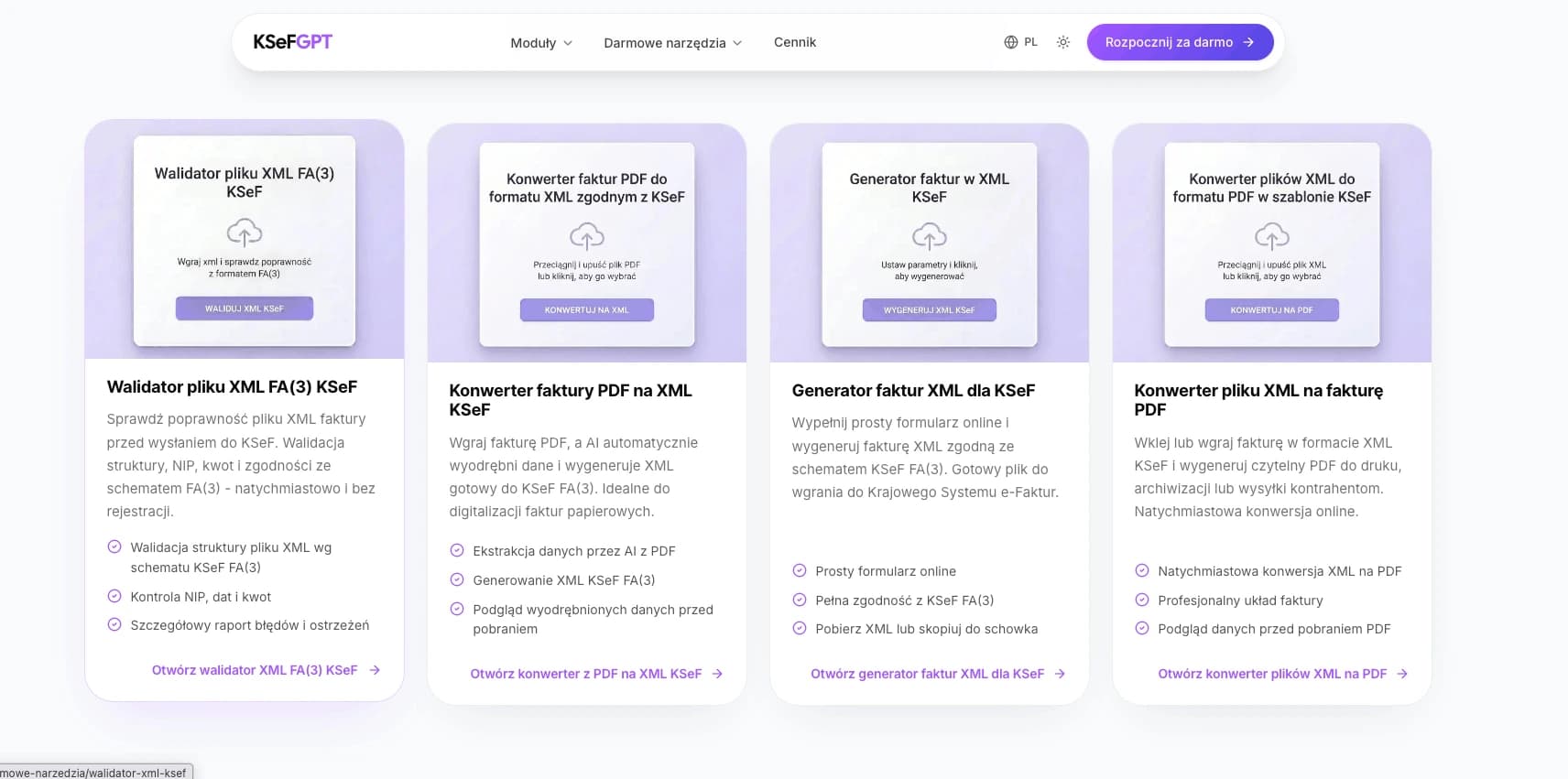
The KSeF XML validator helps detect technical issues in an FA(3) file before you start accounting for it or convert it to PDF. It is a public KSeFGPT tool with a daily usage limit.
Open the XML validatorWhen it is worth converting XML to PDF
XML is a format for systems, while PDF is a convenient view for people. Conversion to PDF makes sense when you want to quickly compare data with an order, show the invoice to a non-technical person, pass the document for approval or check lines without scrolling through raw XML.
Do not treat the PDF as a new version of the invoice. If the PDF was generated from XML, it is only a visualization of the data. If the source data contains an error, the PDF will show the same error in a nicer form.
KSeFGPT provides a KSeF XML-to-PDF converter. It is a public tool with a daily limit, so check current terms directly on the converter page.
Red flags in the XML file
The signals below do not always mean invoice rejection, but they should stop the process and trigger a source-data check. Be especially careful with files that will go into accounting or support a dispute with a counterparty.
If something looks suspicious, do not limit yourself to the PDF visualization. Keep the original XML, run validation, check metadata and compare the document with data in the system that generated it.
Do not upload sensitive XML to random converters found in search results. An invoice may contain counterparty data, addresses, bank account numbers, amounts and commercial information, so use tools whose privacy policy and processing scope you understand.
| What you see in XML | What it may mean | What to do next |
|---|---|---|
| No KSeF number in the document context | The file may be a draft, ERP export or invoice not accepted by the system | Check KSeF status and download metadata. |
| Namespace or description points to a structure other than FA(3) | The file may be outdated or generated by an old module | Verify the schema version and generate current XML. |
| Tax ID contains a prefix, spaces or unexpected format | Data may have been stored in the wrong field | Check counterparty data and validation result. |
| Line amounts do not match the summary | Possible rounding, currency or source-data error | Compare lines with the commercial document and accounting system. |
| The file came from an unknown email | Risk of working on the wrong or manipulated document | Confirm the source with the counterparty and do not overwrite the original. |
| PDF visualization shows unexpected data | The conversion revealed an XML issue or you are comparing another invoice version | Go back to the XML and source system. |
How to combine reading, validation and archiving
A practical process should have three layers. First, keep the original XML and download metadata. Then check the file technically. Finally, create a readable PDF preview or pass data to the accounting system.
This way you do not lose the source evidence. If an error appears along the way, you can return to the original, check KSeF status, compare the invoice number with the KSeF number and reconstruct who worked on the file and when.
With larger document volumes, opening XML manually becomes risky quickly. Then it is worth relying on a tool that combines import, validation, preview, counterparty search and result archiving.
| What you have | First step | Next step |
|---|---|---|
| XML file only | Keep the original and run validation | Create a readable PDF preview and compare data. |
| XML with a KSeF number | Compare the KSeF number with metadata or UPO | Check parties, lines and amounts before accounting. |
| PDF with QR code | Verify whether the QR leads to invoice data | Download or obtain XML if you need structured data. |
| Export package | Open `_metadata.json` and match invoices to files | Archive XML together with export metadata. |
Where to go deeper
If you want to understand the document structure, start with XML and the FA(3) format in KSeF. If you work with an invoice received as PDF and need XML first, read Free PDF to XML KSeF converter.
For technical file checks, see XML validation and processing in KSeF. If the XML was rejected by the system, read Invoice rejected by KSeF.
Frequently Asked Questions
How do I open an XML file from KSeF?
You can open an XML file in a text editor, but for real work it is better to use a validator or an XML-to-PDF converter. A text editor shows raw tags, while a tool presents invoice data in a readable layout and helps catch technical issues.
Is a PDF generated from XML the official KSeF invoice?
No. The PDF is only a human-readable visualization. In KSeF, the meaningful document is the structured FA(3) XML together with system metadata, the KSeF number and the acceptance status.
Where can I find the KSeF number in XML?
The KSeF number is assigned by the system after the invoice is accepted; it is not the ordinary invoice number entered by the seller. It may appear in metadata downloaded from KSeF or in system response data, so always compare it with the document status.
Is reading XML manually enough to check an invoice?
No. Manually you can check the parties, invoice number, dates, line items and amounts, but FA(3) structure, data types and some technical rules should be checked by a validator.
What should I check first after downloading XML from KSeF?
First confirm the file source, FA(3) version, KSeF number or acceptance status, seller and buyer tax IDs, invoice number, issue date, line items, amounts and the technical validation result.
Does an XML-to-PDF converter fix invoice errors?
No. A converter shows the invoice in a readable form, but it does not repair source data and does not confirm tax correctness. Errors must be fixed in the system that generated the XML and then the file should be verified again.
Recommendation
Do not start by copying data from XML into a spreadsheet. First keep the original, confirm the source, check the KSeF number or document status and run validation. Only then create a PDF, pass data to accounting or explain differences with the counterparty.
For single files, a validator and XML-to-PDF converter are enough. For larger volumes, you need a process that tracks the file source, version, validation result and document archive.
Recommended articles: XML and FA(3) in KSeF, XML validation and processing in KSeF, Receiving invoices through KSeF and UPO in KSeF.
Convert KSeF XML into a readable PDF
Use the KSeF XML-to-PDF converter to view the invoice in a readable layout. It is a public KSeFGPT tool with a daily usage limit.
Open the XML-to-PDF converterSources
This article is based on official Ministry of Finance materials and KSeF API 2.0 documentation, checked on June 9, 2026.
- Faktura ustrukturyzowana i struktura logiczna FA
Ministry of Finance · accessed: June 9, 2026
Official information about structured invoices and the FA logical structure.
- Pliki do pobrania KSeF 2.0
Ministry of Finance · accessed: June 9, 2026
Official publication point for logical structures, samples and guides for KSeF 2.0.
- KSeF API 2.0
Ministry of Finance · accessed: June 9, 2026
Official description of KSeF API 2.0 as a system for issuing and receiving structured invoices.
- Pobieranie faktur
Ministry of Finance · accessed: June 9, 2026
Documentation for invoice retrieval, metadata queries, exports and downloading an invoice by KSeF number.
- Numer KSeF - struktura i walidacja
Ministry of Finance · accessed: June 9, 2026
Official explanation of the KSeF number, its length and technical structure.
- Środowiska KSeF API 2.0
Ministry of Finance · accessed: June 9, 2026
Description of TEST, DEMO and PRD environments and supported invoice structures, including FA(3).
- Dokumentacja KSeF API 2.0
Ministry of Finance · accessed: June 9, 2026
Public OpenAPI documentation used as a reference for document retrieval and identification.
Expert reviewed: Bogdan Mazurek
Tax Advisor · June 9, 2026
Reviewed for the distinction between FA(3) XML, PDF visualization, KSeF metadata and the scope of technical validation according to Ministry of Finance sources and KSeF API 2.0.
Related articles
Artificial Intelligence in Accounting: What Can It Realistically Automate in 2026?
A practical guide for accountants, accounting offices and CFOs: where AI shortens document work, where it requires human control and how to assess a tool for KSeF, GDPR and the AI Act.
PDF to XML converters for KSeF 2026 compared - which one should you choose?
Not every PDF to XML converter is suitable for KSeF. Check when to choose KSeFGPT, the Taxpayer Application, an ERP, ksefpdf.pl or another tool, and why regular XML from a PDF is not enough.
Invoice rejected by KSeF? Common errors and how to fix them
Find out why KSeF rejected an invoice, how to read its status, correct P_1, FA(3) XML, permissions or a duplicate, and safely submit it again.
KSeF and JPK: how the invoice system works with the JPK family of structures
KSeF does not replace JPK_VAT. Learn the differences between FA(3), JPK_V7M, JPK_V7K and JPK_FA, and the rules for KSeF numbers, corrections and offline modes.