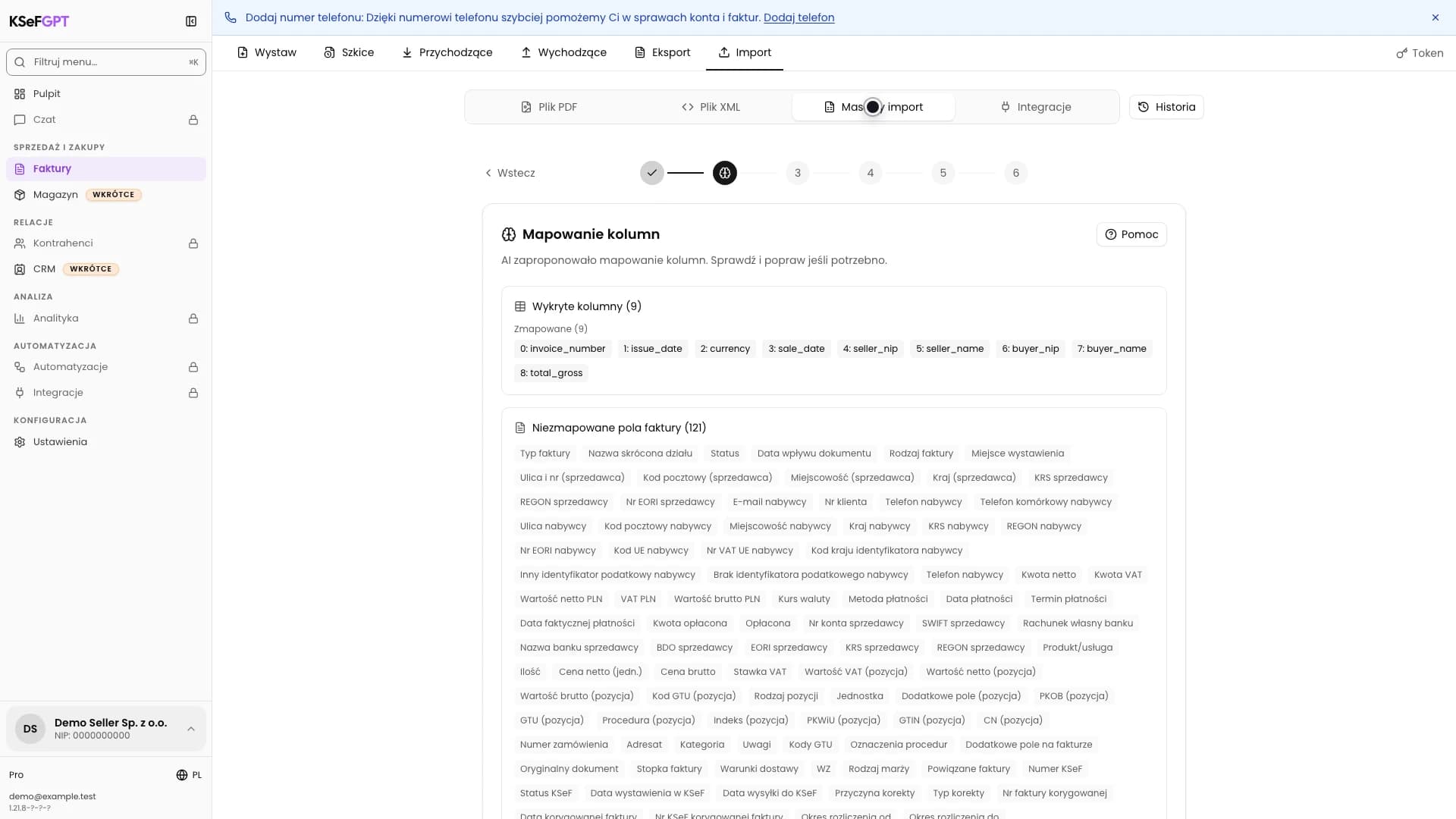
How to bulk import invoices from Excel or CSV into KSeFGPT
Upload a spreadsheet, review column mapping and invoice data, validate XML, then submit valid documents to KSeF.
InstructionsSeptember 3, 2026
Practical knowledge on KSeF - from integration basics to AI-driven invoice automation. Written from real deployments, not theory.
Upload a spreadsheet, review column mapping and invoice data, validate XML, then submit valid documents to KSeF.
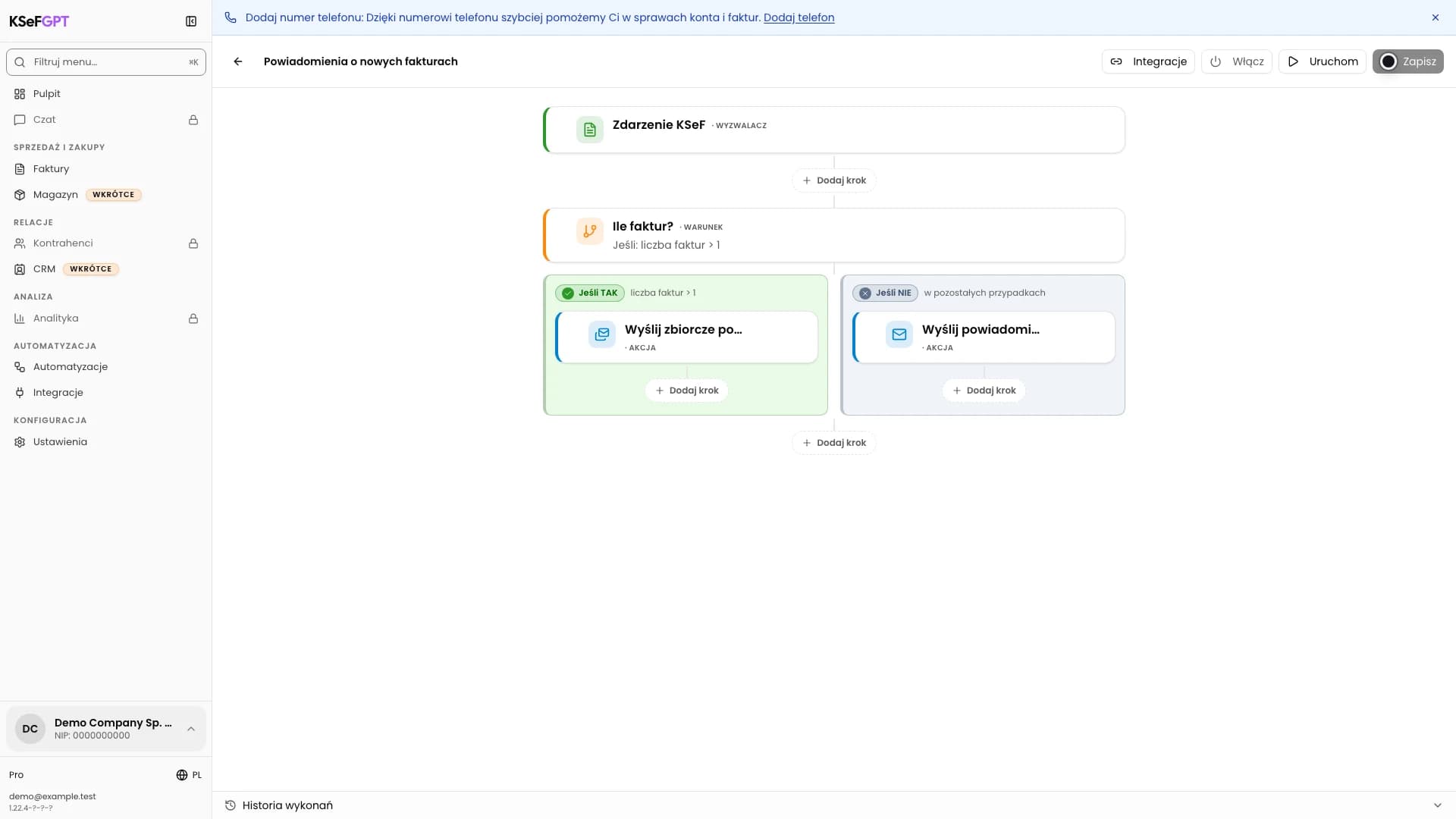
Create a workflow for new incoming invoices, set the recipients of single and batch e-mails, activate it and check the result in history.
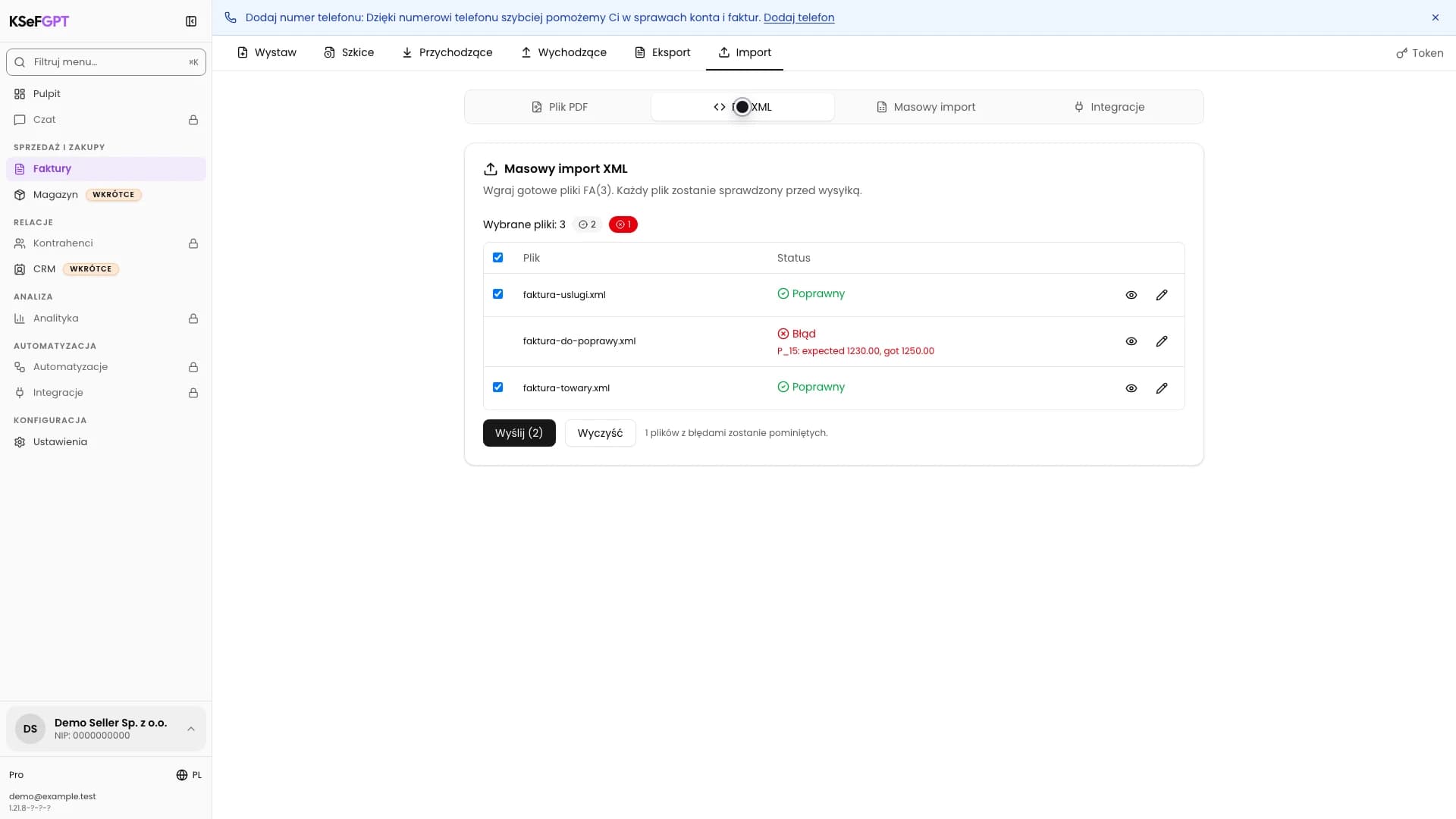
Add several FA(3) files, correct an invalid document, select valid invoices and check each result from one KSeF session.

Add the new PEM key and certificate, verify the subject and expiry date of the new record, and only then remove the old credential.
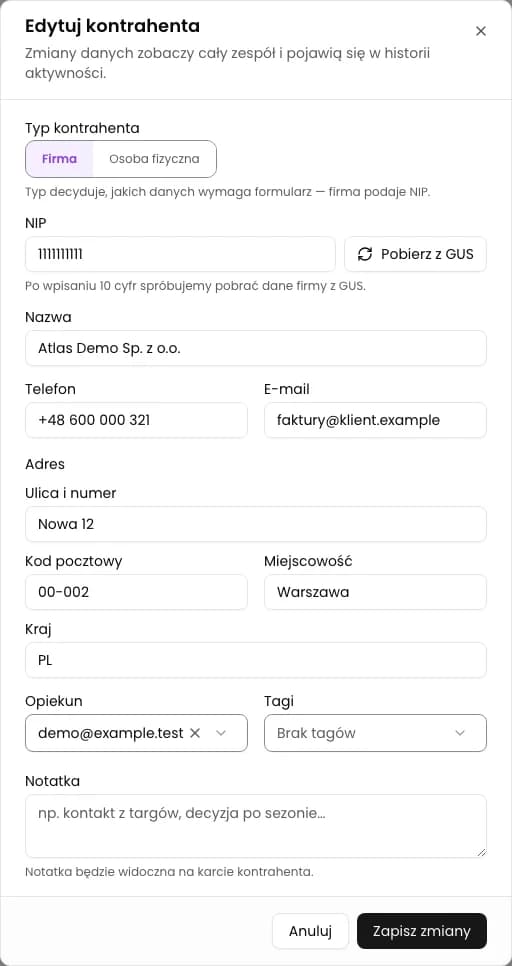
Open the profile through CRM > Counterparties, update the address and contact under Identification details, then verify the save after reloading.

Mark an invoice as new, in payment, paid or past due, then confirm the change and filter the document list.

Select the correct connection, verify its name in the warning and safely remove an unused integration from the company.
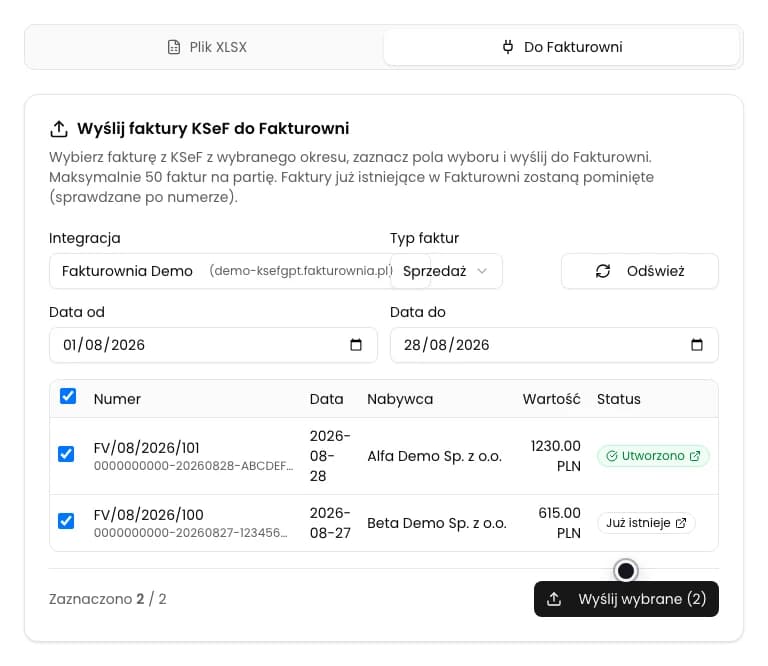
Select sales or purchase invoices from KSeF, send them through a saved integration and check the result for every document.
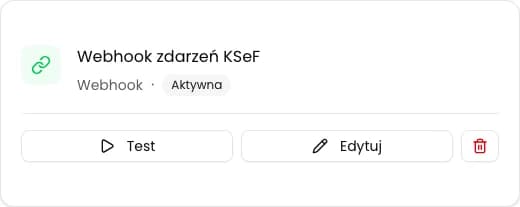
Enter an HTTPS address, configure headers, run a controlled test and save the webhook for the selected company.
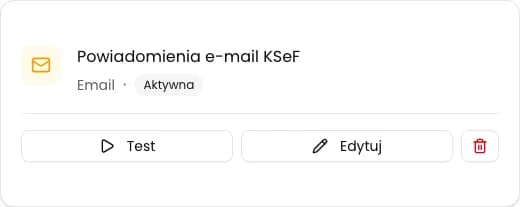
Enter the SMTP server, sign-in details and sender address, then save the email integration for the selected company.

Upload a ready XML file, review its contents and PDF preview, confirm responsibility for the data and wait for the final KSeF status.
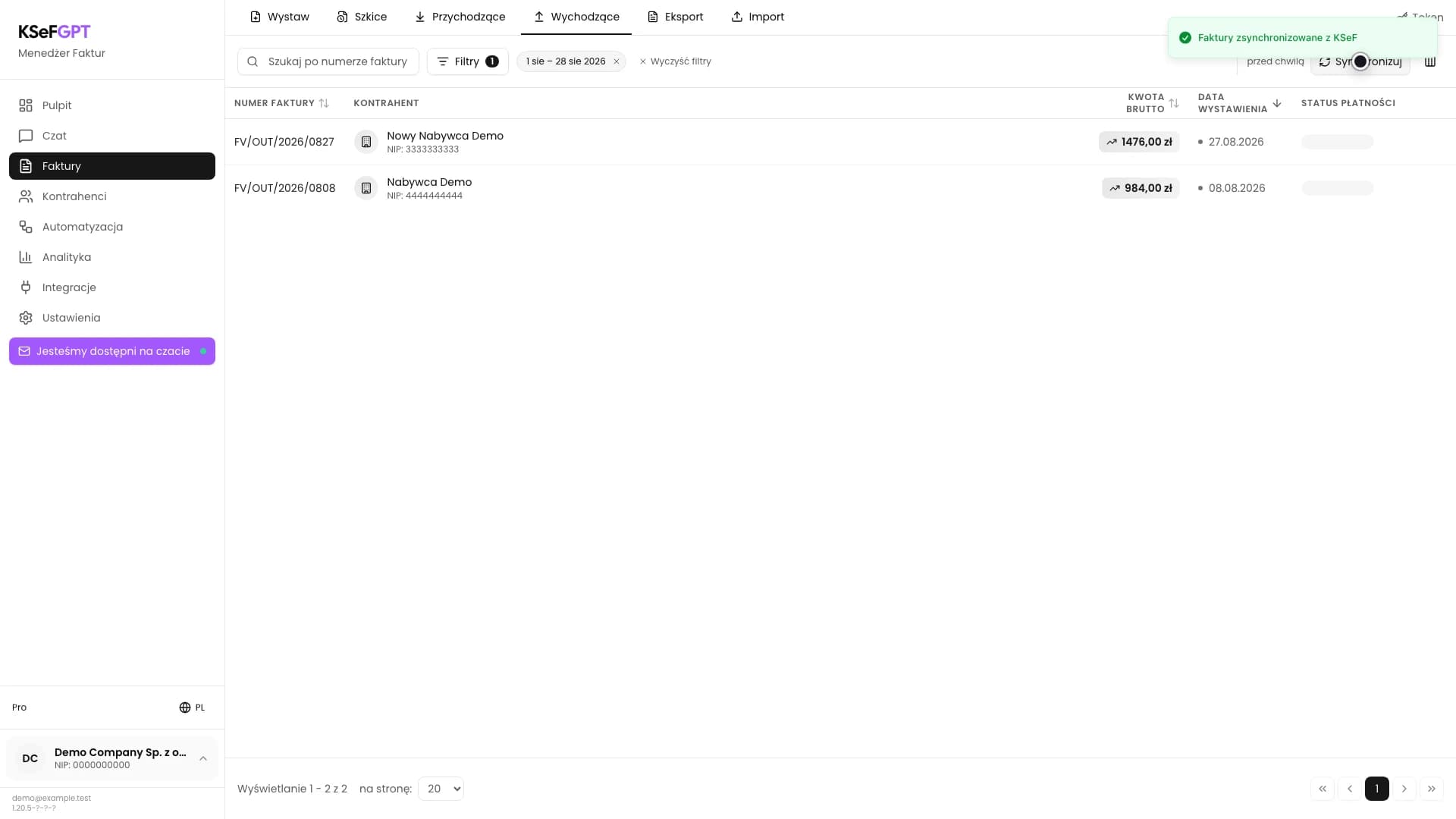
Choose a period, refresh Incoming and Outgoing separately, then check the documents retrieved from KSeF.
Short answers about the KSeFGPT app and about the National e-Invoice System itself, with links to the full articles.
Leave us a message if you'd like to discuss a specific topic or receive a newsletter about KSeF automation.
Ask about a topicWe've prepared texts in languages: English, Polski, Deutsch, Українська. Your chosen language is saved in the blog tab.